 PAFworks
File your documents automatically
An automatic folder files what you drop into it. An AI model reads each new document, gives it a clear name and moves it into the right subfolder, following a rule you write in your own words. Every move is listed in a journal and can be undone.
What you need
- An AI model set up by an administrator of your organisation (see Set up the assistant for your organisation). Without one, the entries described here do not appear.
- To read scans and photos: text recognition (OCR), which an administrator sets up in the same place. Without it, a scan is filed on its file name alone.
- The right to write in the folder.
Step 1 — Create an automatic folder
A new folder
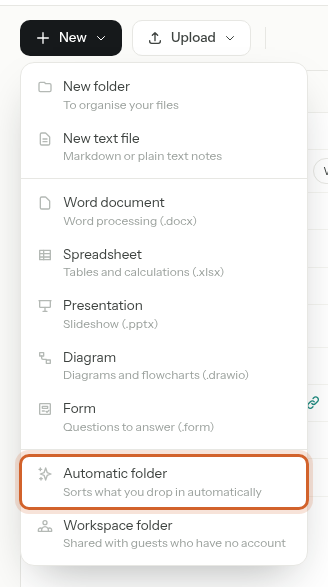
In Files, open the folder where it should go, click New, then Automatic folder. Give it a Name, choose the destination and type the rule as described below, then click Create.
A folder you already have
-
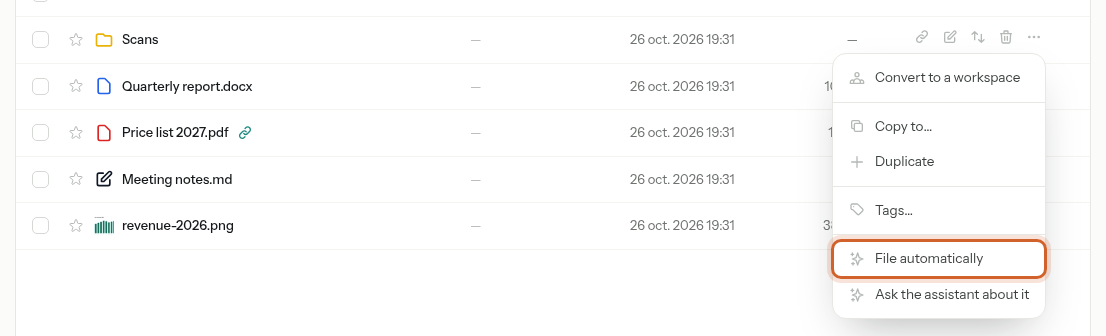
Click the More actions button (…) at the end of the folder's row, then File automatically. You find the same entry in the Actions menu inside the folder, and as a button in its details panel.
-
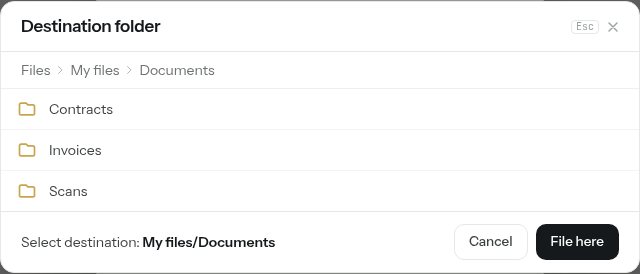
Choose the Destination: the folder the documents are filed into, in subfolders. By default it is the folder itself (File in this folder). To file elsewhere, click Choose…, open the folder and click File here.
-
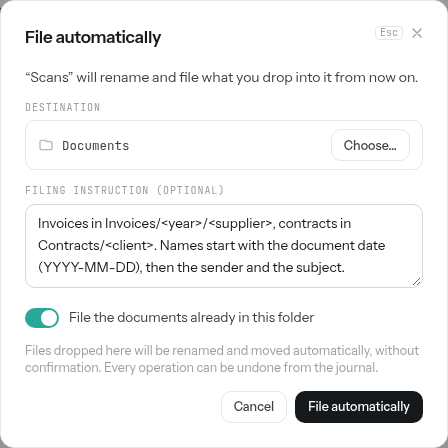
Type your rule in Filing instruction (optional) — see Step 2. Leave File the documents already in this folder on to file what the folder holds right away, then click File automatically.
The folder now carries a sparkles icon and an Auto tag. Select it and click Show the details: its settings are in the Automatic filing section, and what it did in Filing journal.
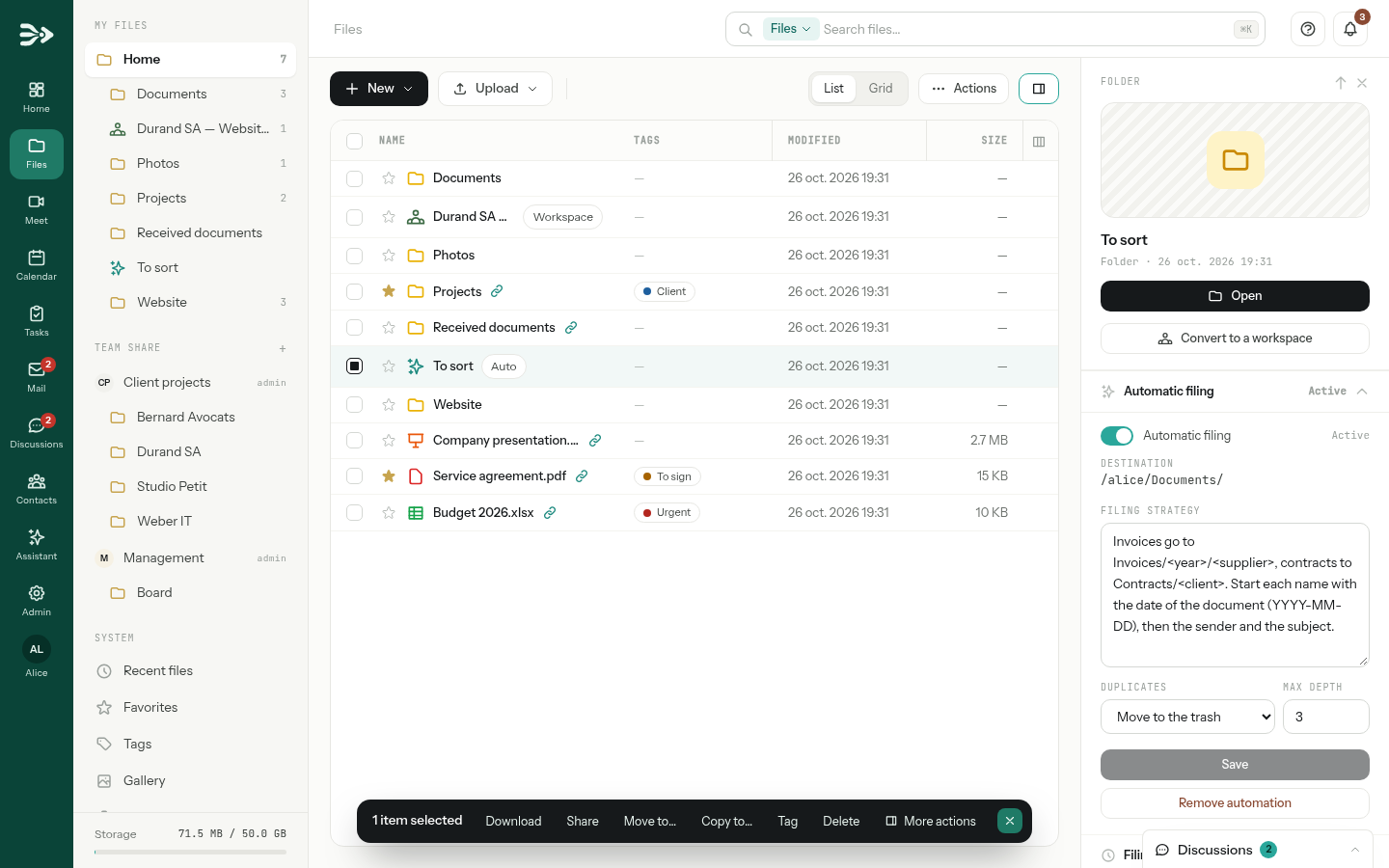
Nothing asks for confirmation. Files dropped in the folder are renamed and moved as soon as the model has read them. Every move can be undone from the journal.
Where it works. Any folder you may write to, but not your home folder nor the top of a team share. The destination must be in the same place as the automatic folder: both in your own files, or both in the same team share.
Step 2 — Write the rule in plain words
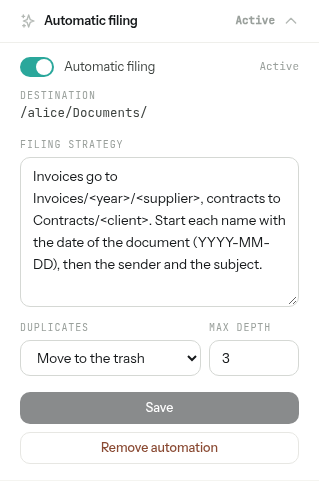
The rule is the Filing strategy of the Automatic filing section: what you typed as the filing instruction. Say where each kind of document goes, relative to the destination, and how to name it. Write as you would to a colleague, in any language, then click Save.
| To file… | Write for example |
|---|---|
| Invoices by year and supplier | Invoices go to Invoices/<year>/<supplier>. Start each name with the invoice date (YYYY-MM-DD), then the supplier and the invoice number. |
| Contracts by client | Contracts go to Contracts/<client>. Name each one <client> - <subject> - <date of signature>. |
| A mixed pile | Payslips in HR/Payslips/<year>, bank statements in Bank/<bank>/<year>, everything else at the root with a clear name. |
- Name folders you already have. The model sees the folders that exist under the destination and reuses them rather than creating near-duplicates.
- Say what to do with the rest. Otherwise a document the rule does not cover is filed at the root of the destination, under a cleaned-up version of its name.
- Duplicates: what to do with a file whose content is already filed — Move to the trash (the default), Keep in place, or Do not check.
- Max depth: how many levels of subfolders filing may create under the destination, from 1 to 5 (3 by default).
- The Automatic filing switch pauses and resumes filing. Remove automation turns the folder back into an ordinary one; the files already filed stay where they are.
Write the rule before dropping files. While the strategy is empty, the section says Filing is paused until a strategy is written. A file dropped meanwhile, or while filing is paused, stays in the folder and is not filed when you save a rule or resume filing later.
The settings can be changed by whoever created the automatic folder, the owner of the folder, an administrator of your organisation, or an Admin of the team share it is in. Other people see them without being able to change them.
Step 3 — Drop your documents
Every new file that arrives in the folder is filed: uploaded in the browser, synced from your computer, copied there with Copy to…, dropped through an upload-only share link or sent to a mail-to-folder address. Moving a file that is already in your files into the folder does not file it.
When you upload files into it from your browser, a bar above the list says Filing in progress while it works. Here is what happens to each document:
- Duplicates first. If a file with exactly the same content is already in the destination or in the folder, the new copy is handled as Duplicates says, before anything else, and the journal records it.
- The document is read. PDFs, Word, Excel and PowerPoint files (
.docx,.xlsx,.pptx), OpenDocument files, text, Markdown and web pages are read directly; scanned PDFs and photos through text recognition, when it is set up. A document with no readable text is filed on its name alone, preferably at the root of the destination rather than in a guessed folder. - The model decides. It picks a subfolder of the destination and a new name, keeping the file's extension, as your rule says. It is told to ignore any instruction written inside a document, and whatever it answers, a file never leaves the destination. An answer that cannot be used files the document at the root of the destination under its own name; a model that cannot be reached is tried again, then the file is marked Failed.
- The file is renamed and moved, into folders created as needed. If the name is already taken, it is made unique.
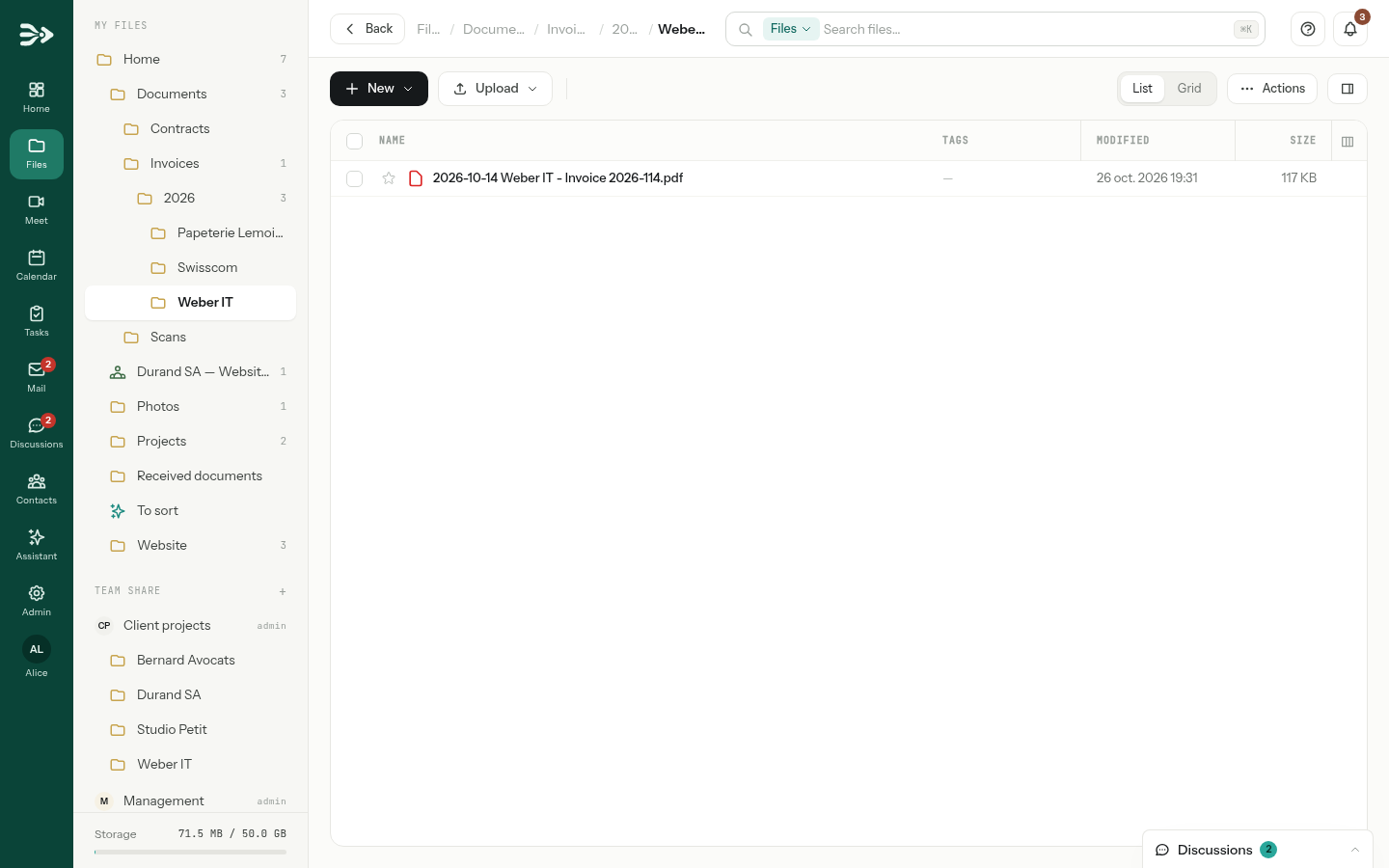
When a drop is filed, whoever created the automatic folder gets a notification saying how many files were filed, for example 4 file(s) filed automatically in To sort, and how many failed if any. If filing takes longer than a minute, the bar says Filing is still running in the background. Refresh the folder in a moment.
Step 4 — Check the journal and undo
Open Filing journal in the details panel of the automatic folder. Files dropped within a minute of each other form one group, with its date and number of files; the newest comes first. Each file shows its original name, where it went with its new name, the reason the model gave, and its status: Pending, Filed, Skipped, Failed or Undone.
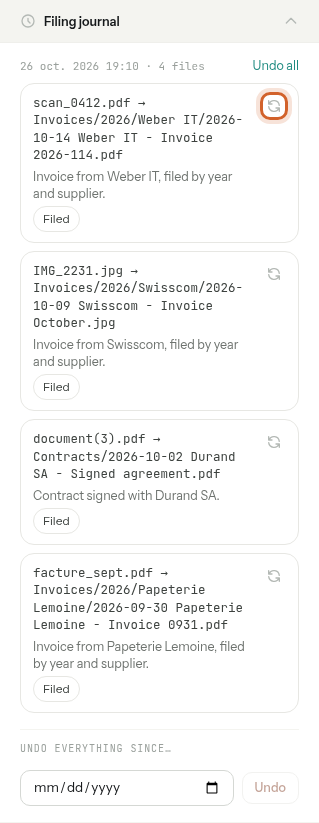
- Undo this filing (the round arrows of an entry) puts that file back in the automatic folder under its original name, and removes the folders the filing created if they are empty.
- Undo all does it for a whole group.
- Undo everything since…: pick a date and click Undo to put back everything filed since the start of that day.
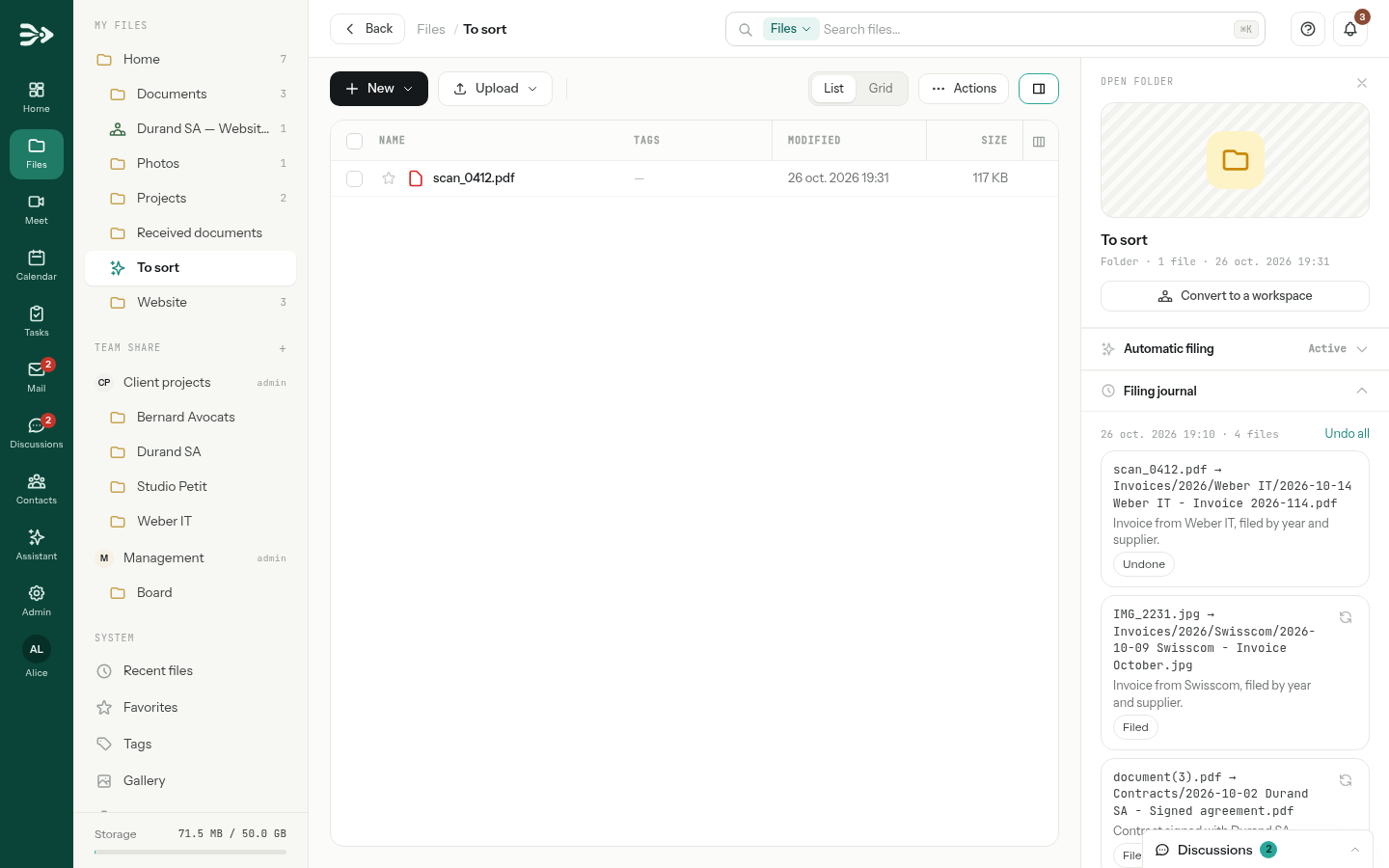
A file that was moved or renamed after being filed is not put back, so that your own changes win; nor is a file that was deleted. The journal says why. Undoing a duplicate brings the copy back from the trash. A file put back is not filed again on its own.
Anyone who may write in the folder can undo.
Scans sent by e-mail
An administrator can give your office copier an address of its own (Mail to folder, in the mailbox settings): every attachment sent to it becomes a file of the folder the administrator picks. When that folder is an automatic folder, every scan is filed like a drop. See Use your own mail domain.
Good to know
- The text of each document goes to the AI model your administrator chose for filing, which may be a hosted service. The model reads the beginning of the text, the first few thousand characters.
- Only files dropped directly in the automatic folder are filed; what sits in its subfolders is left alone. Empty files, names starting with a dot and temporary files (
.tmp,.part) are skipped. - The journal keeps each entry for a year: past that, a filing can no longer be undone from it.
- A duplicate sent to the trash can be restored from the trash, for 30 days by default, or with Undo this filing.
- If the automatic folder and its destination stop being in the same place — one of them moved to another team share, say — filing turns itself off.
- Each finished drop also appears in the folder's Activity, as one line for the whole drop.