 PAFworks
Sort your mail automatically
Rules file, mark and clean up your messages the moment they arrive, before you open PAFworks, Thunderbird or your phone. This guide also covers what keeps a mailbox tidy day to day: signatures, the automatic reply when you are away, shared mailboxes, junk mail, remote images and attachments.
Before you start
- A PAFworks account with a mail address: Mail is in the left bar. For reading, writing and setting up Thunderbird, see Mail, calendar and contacts in PAFworks and Thunderbird.
- Your settings are in Mail, at the bottom of the left column: Signatures, Rules and Out of office.
- Shared mailboxes and the spam filter are set up by an administrator: see Use your own mail domain.
Create a rule
A rule says which messages it is about (its conditions) and what happens to them (its actions): “invoices from our IT supplier go to the Invoices folder, marked as read”.
-
Open the rules
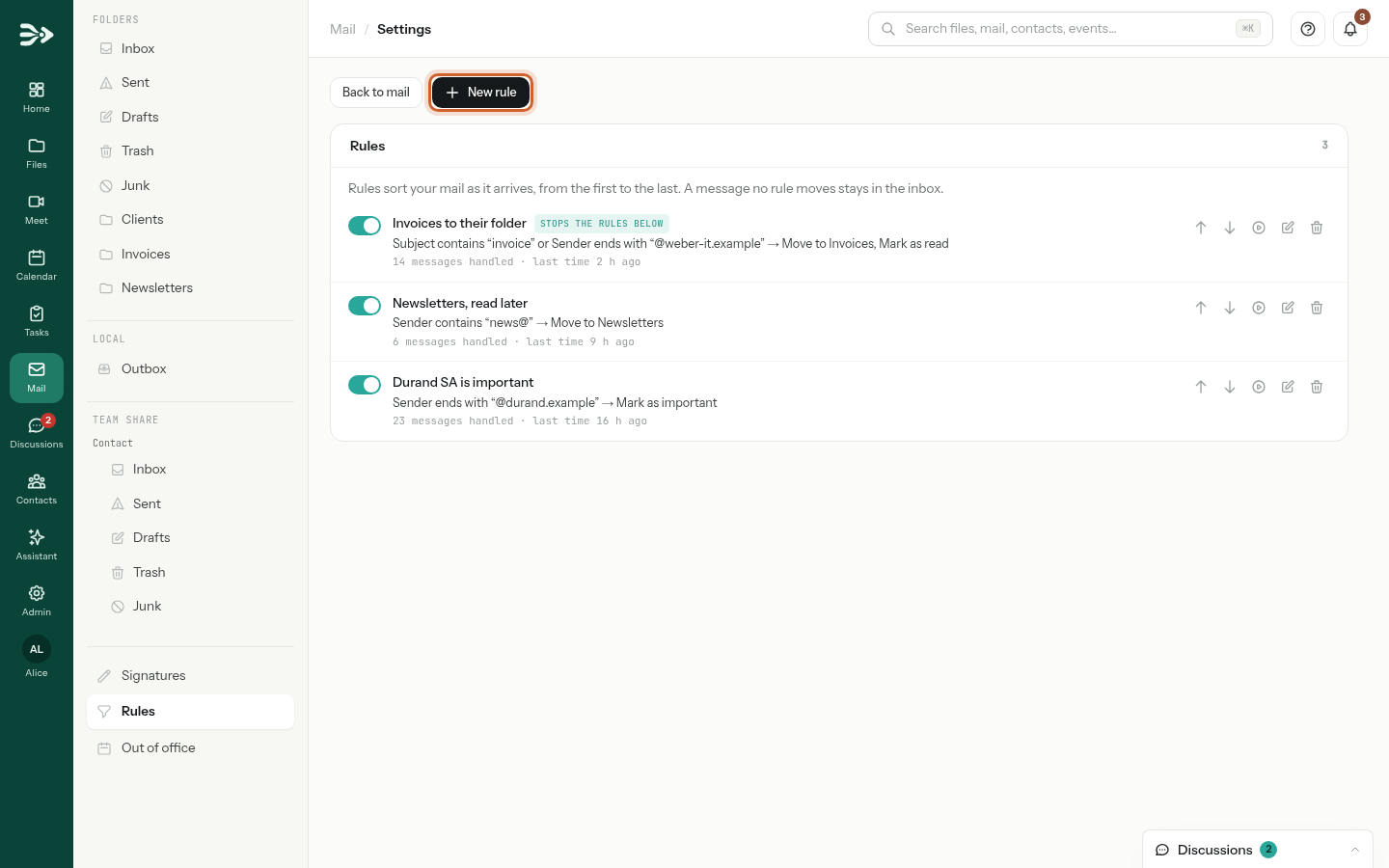
In Mail, click Rules at the bottom of the left column. Your rules are listed in the order they run, each with a summary of what it does and how many messages it has handled. Click New rule.
-
Describe the messages
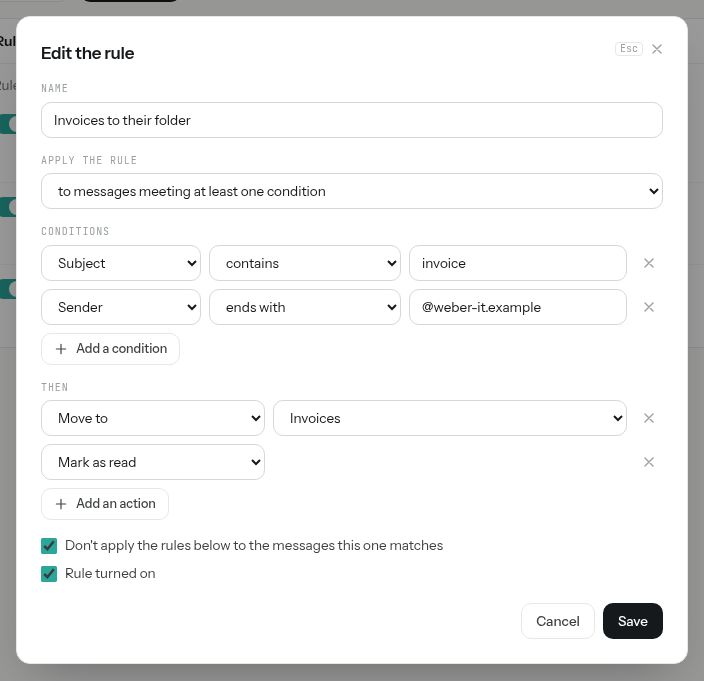
Give the rule a Name. In Apply the rule, choose to messages meeting every condition, to messages meeting at least one condition, or to every message.
Under Conditions, each line reads like a sentence: the part of the message, a comparison, and the text to look for — for example Subject contains invoice. Add a condition adds a line; the × at its end removes it.
-
Say what happens
Under Then, pick an action and, for Move to or Copy to, the folder. Add an action adds another one, such as Mark as read after a move.
-
Save
Leave Rule turned on ticked and click Save. The rule applies to every message that arrives from now on; to sort what your inbox already holds, see Sort what you already have.
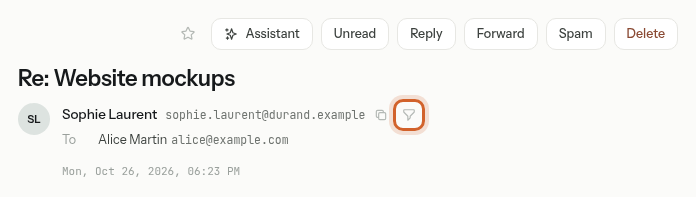
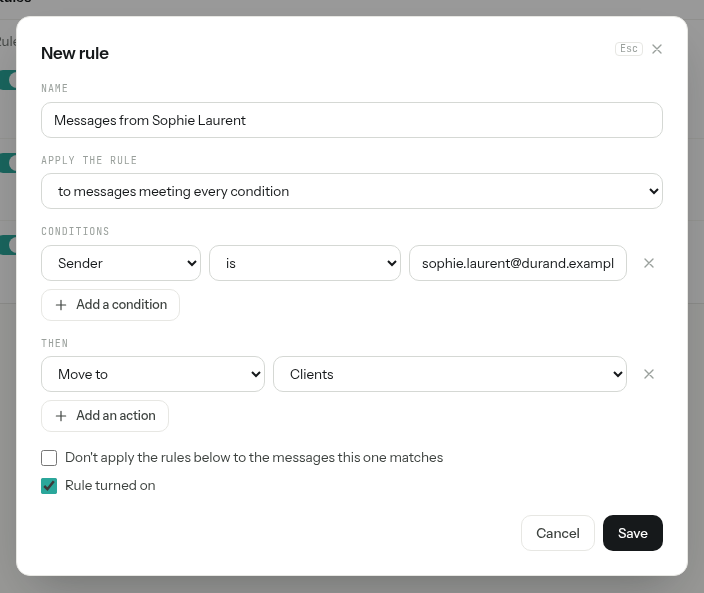
Start from a message. Open a message and click the funnel icon next to the sender’s address, Create a rule for this sender (on a narrow screen, it is in the … menu). The rules open on a new rule already named “Messages from …”, with the condition Sender is their address: choose what to do with their messages, and Save.
Conditions and actions
Every part of the message offers the comparisons that make sense for it. Comparisons ignore upper and lower case, and a sender is found by their name as well as by their address.
| Part of the message | Comparisons | For example |
|---|---|---|
| Sender | contains, does not contain, is, is not, starts with, ends with, matches the pattern, does not match the pattern | Everything from a company: Sender ends with @weber-it.example. |
| Recipient (To), Copy (Cc), To or Cc | The same as Sender | Messages where a colleague is in copy. |
| Subject | The same as Sender | Subject contains invoice. |
| Message body | contains, does not contain | A word or a phrase in the text of the message. |
| Mailing list | The same as Sender, plus exists and does not exist | Every newsletter and mailing list: Mailing list exists. |
| Received at address | The same as Sender | Mail sent to one of your other addresses, or to a distribution list you belong to. |
| Size | more than, less than, in KB or MB | Heavy messages. |
| Attachments | at least one, none | Messages carrying files. |
| Other header | The same as Sender, plus exists and does not exist | Any other header, whose name you type in Header name. |
In matches the pattern, * stands for any text and ? for one character: Subject matches the pattern Order ??-*.
| Action | What happens to the message |
|---|---|
| Move to | It goes into the folder you pick instead of the inbox. |
| Copy to | A copy goes into the folder; the message still arrives where it would have. |
| Move to the trash | It goes straight to Trash. |
| Delete for good | It is not kept at all. This action cannot be combined with any other. |
| Mark as read | It arrives already read. |
| Mark as important | It arrives with a star. |
| Add the tag | It arrives with the tag you pick, and still goes where it would have. New tag… in the list creates one. A rule can add several tags, one action each. |
A rule takes one of Move to, Move to the trash and Delete for good at most: one place for the message.
The order of the rules
The rules run from the top of the list to the bottom, and every rule that matches a message adds its actions: if two rules move the same message to two folders, it is filed in both. To stop there, tick Don't apply the rules below to the messages this one matches in the rule; it then shows Stops the rules below.
- Change the order with the Move up and Move down arrows of a rule.
- Pause a rule with the switch on its left, and turn it back on later; nothing is lost.
- Check that it works: under each rule, a line counts the messages it has handled and says when it last did, or Not used yet.
- A folder deleted since shows Folder deleted on the rule: the messages it would file there arrive in the inbox until you Edit it.
- Delete a rule with the bin icon; PAFworks asks for confirmation.
Sort what you already have
A new rule only sees the messages that arrive after it. To run it over your inbox as it is now:
-
On the rule’s line, click Apply to the inbox (the round play icon).

-
Confirm with Apply.
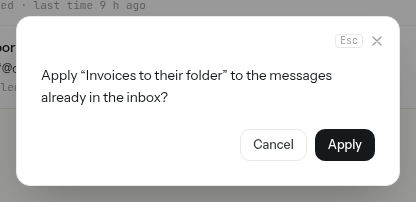
-
The rule reads the inbox from the newest message to the oldest, and its line counts the messages read so far. At the end, a message says how many it handled — for example “Invoices to their folder” handled 1 message. — or that it matched none, and the counter of the rule goes up.
- Only the Inbox is read, not your other folders.
- The rule runs alone: its switch and Stops the rules below do not matter here.
- A rule that deletes for good puts the messages already received in Trash instead, so that you can still get them back.
Why rules work in every app
PAFworks applies your rules on its server, at the moment a message is delivered to you — not in your browser. By the time you look at your mail, in PAFworks, in Thunderbird or on your phone, the messages are already filed, marked or deleted. Nothing has to stay open, and there is nothing to set up again on each device: a message marked as read or important by a rule is read or important everywhere.
What rules do not sort. Rules sort the mail of your own mailbox, including your copy of the messages sent to a distribution list you belong to. They do not apply to shared mailboxes, and a message the spam filter puts in Junk goes there whatever your rules say.
Signatures
You can keep several signatures — a full one for clients, a short one for colleagues — and choose one for each message.
-
In Mail, click Signatures at the bottom of the left column, then New signature. Give it a name, tick Set as default if it should go under every new message, and click Create.
-
Write the signature. The toolbar sets Bold, Italic, Underline and Insert a link. Click Save. Your signatures are listed on the left; the default one carries a Default badge, and only one can.
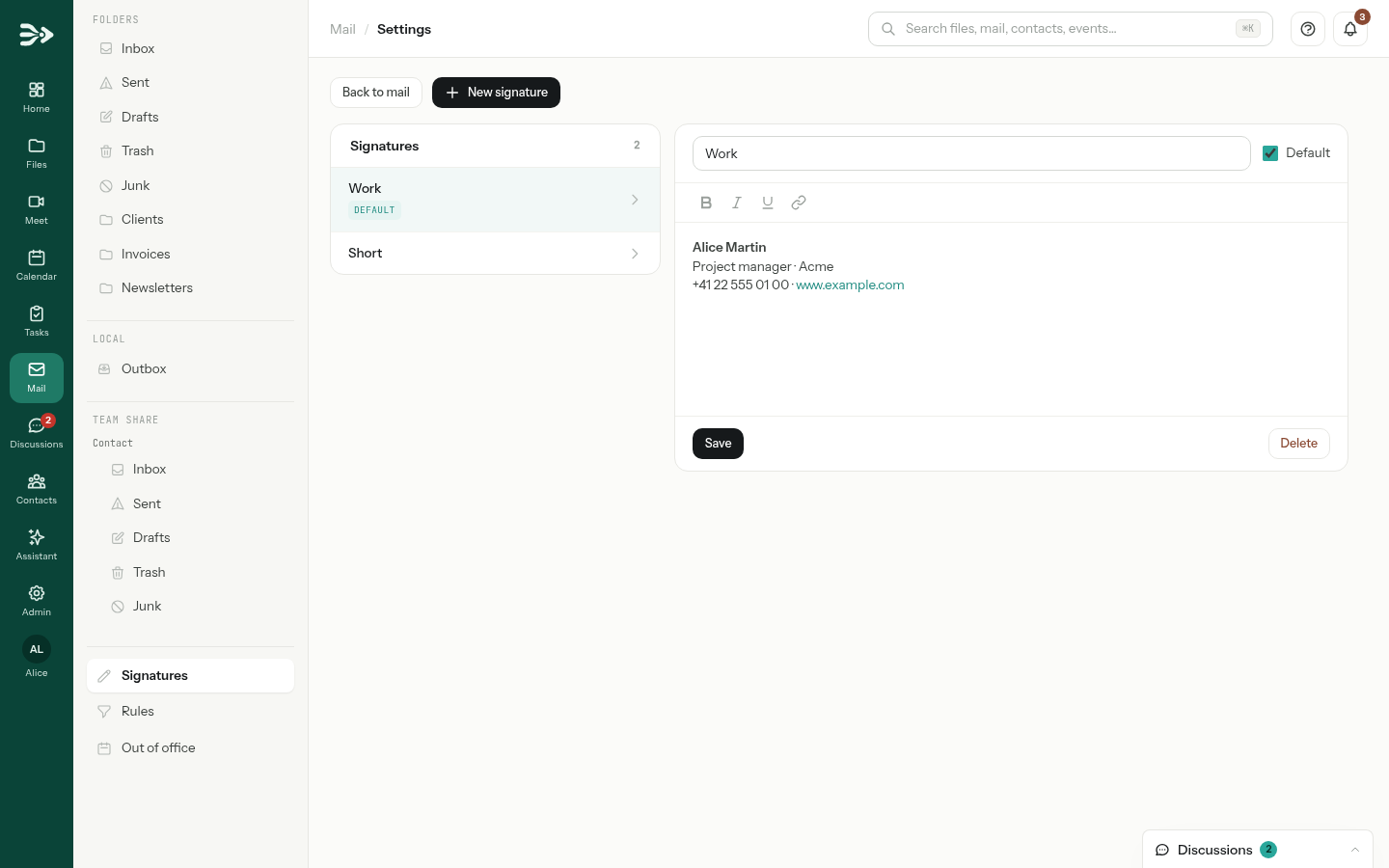
-
In a new message or a reply, the default signature shows under your text. Choose another one in Signature, or None, for this message only.
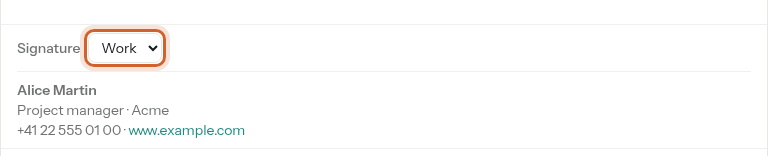
The default signature is the same whichever address you write from. Signatures are added by the PAFworks web mail only: in Thunderbird or on your phone, set up the app’s own signature.
Automatic reply when you are away
-
In Mail, click Out of office at the bottom of the left column and tick Enable automatic replies.
-
Write the Subject and the Message of the reply. Add a Start date (optional) and an End date (optional) to prepare it before you leave: replies go out only between the two dates, both days included. Without dates, they go out from now until you untick the box. Click Save.
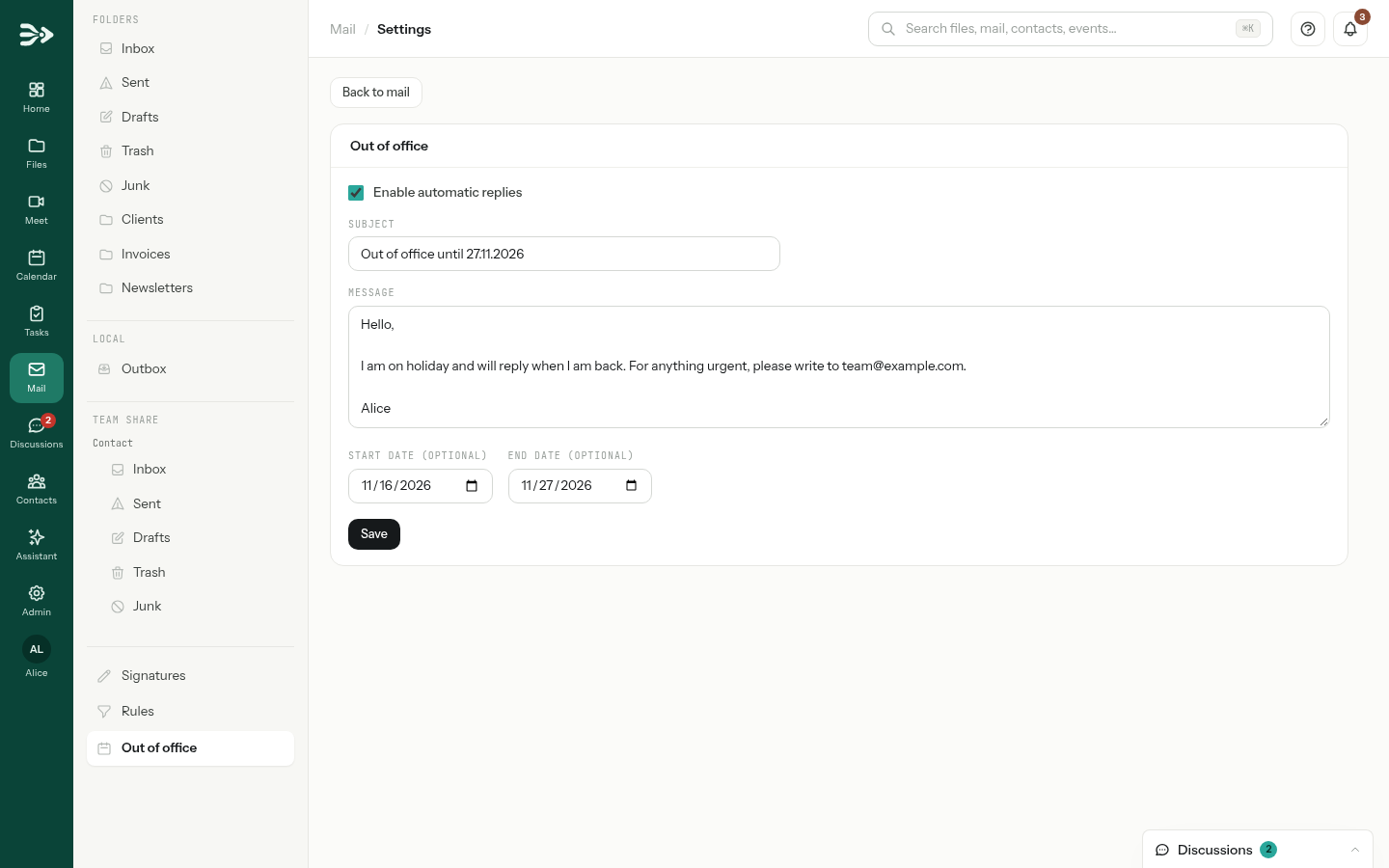
What your correspondents get:
- One reply per sender: someone who writes to you three times hears from your automatic reply once. Turning the automatic replies off starts the count again.
- The reply comes from the address they wrote to, as plain text.
- No reply goes to automatic addresses (
noreply@,no-reply@,mailer-daemon@,postmaster@), nor to messages your rules deleted or put in Trash or Junk, nor to messages put in Junk as spam. - Mail sent to a shared mailbox or to a distribution list gets no automatic reply from you.
Shared mailboxes
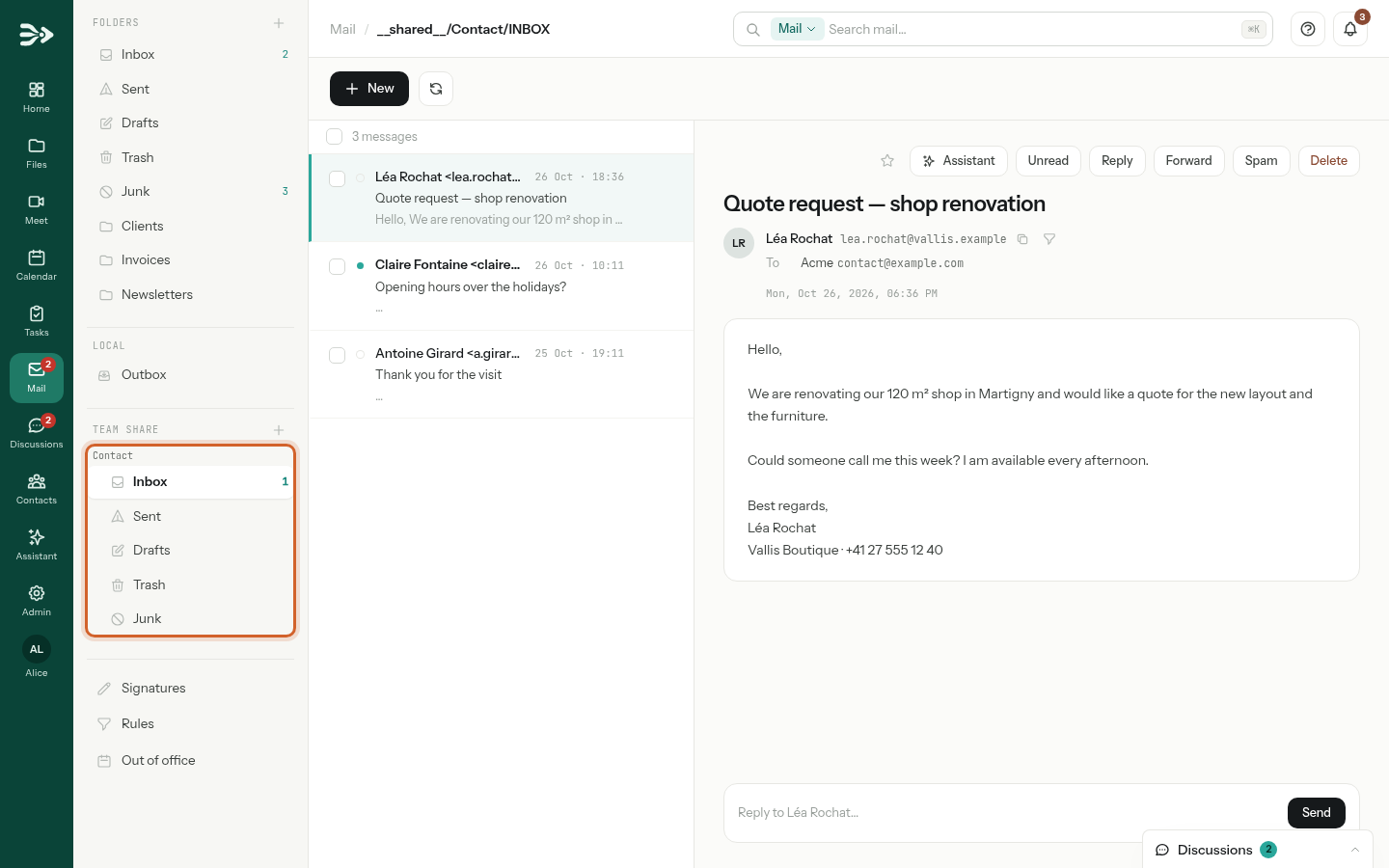
A shared mailbox, such as contact@ or support@, is read by several colleagues at once. The ones you are a member of appear in the left column under Team share, each with its own Inbox, Sent, Drafts, Trash and Junk, and the number of unread messages beside them.
-
Open a message of the shared mailbox and click Reply.
-
The reply starts from your own address: in From, choose the address of the mailbox, so that the answer comes from — and comes back to — the whole team. Write your answer and send it.
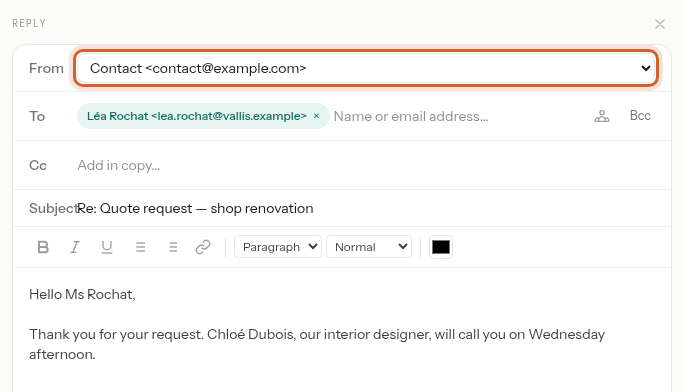
- What you send from the mailbox’s address is filed in the mailbox’s own Sent folder, where your colleagues see it.
- Read and unread are shared: a message a colleague has opened shows as read for you too.
- With the Read only right, you can read the messages but not move or delete them, and the mailbox’s address is not offered in From. Your administrator gives the rights.
Tags
A tag is a coloured label you put on a message without moving it: the message stays in its folder, and can carry several tags at once — Invoice and To do, say. Your tags are the same ones as on your files, and nobody else sees them, not even the people you write to.
-
Tick one or more messages in the list and click the Tag icon above it. Click a tag to put it on the messages, or to take it off when they all have it; New tag… creates one, with its colour, and puts it on straight away. The + beside Folders also creates a tag, or a folder.
-
On an open message, its tags show under the sender. The cross of a tag takes it off; the tag button beside them adds another.
-
You can also drag messages from the list onto a tag of the left column.
- Your tags are listed in the left column under your folders, with the number of unread messages that carry each one. A click shows every message with that tag, whatever its folder; the search bar does the same with
étiquette:Invoice(ortag:). - The ⋯ of a tag renames it, changes its colour, marks all its messages as read, or deletes it. Deleting a tag deletes no message: it only comes off them. Your rules stop adding it, and a rule that did nothing else is turned off; the confirmation names it.
- A shared mailbox has tags of its own, listed under it and common to all its members: the team can see at a glance what has been dealt with. Its administrators create and change them; members with the Read and write right put them on and take them off; members with Read only see them.
- A message moved between your mailbox and a shared one keeps the tags that exist on the other side under the same name.
- Your tags travel to mail programs as IMAP keywords: one that reads keywords, such as Thunderbird, receives them and can put them on or take them off. Their colour stays in PAFworks, since IMAP does not carry it. A keyword such a program sets on its own is kept on the message but not shown here. Outlook and the mail apps of phones ignore keywords, so they do not show tags.
Junk mail
When your organisation uses the spam filter, it refuses obvious spam before it reaches you and puts the messages it doubts in Junk. When it gets one wrong, tell it:
-
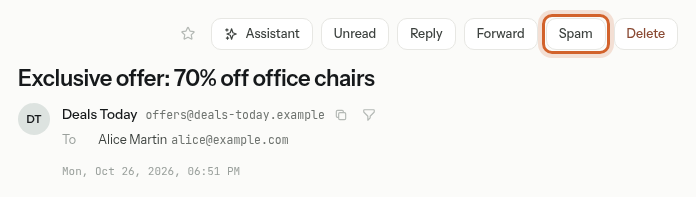
A spam in your inbox: open it and click Spam. It moves to Junk. To report several at once, tick them in the list and click the Report as spam icon above it.
-
A real message in Junk: open it and click Not spam. It goes back to your Inbox.
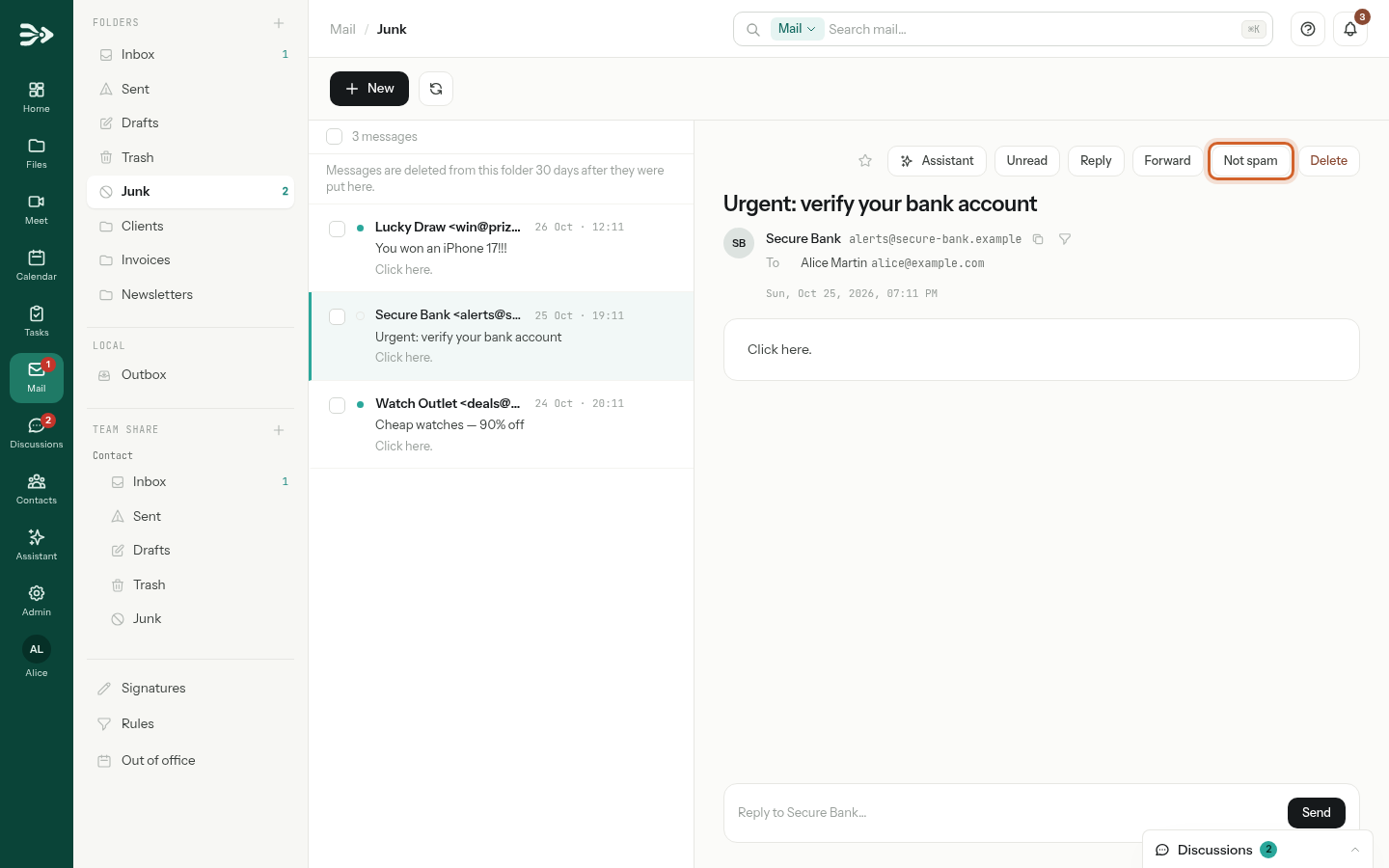
When the filter is set up to learn, it learns from each of these choices, for your whole organisation: colleagues who receive the same campaign benefit from it. Moving a message into or out of Junk from Thunderbird or your phone teaches it the same way. Your rules, on the other hand, never teach it anything.
The line at the top of Junk says after how many days its messages are deleted.
Remote images and trusted senders
A picture that a message loads from another server tells its sender when, and from where, you read it. PAFworks blocks them until you allow them, and says so above the message: Remote images are blocked to protect your privacy.
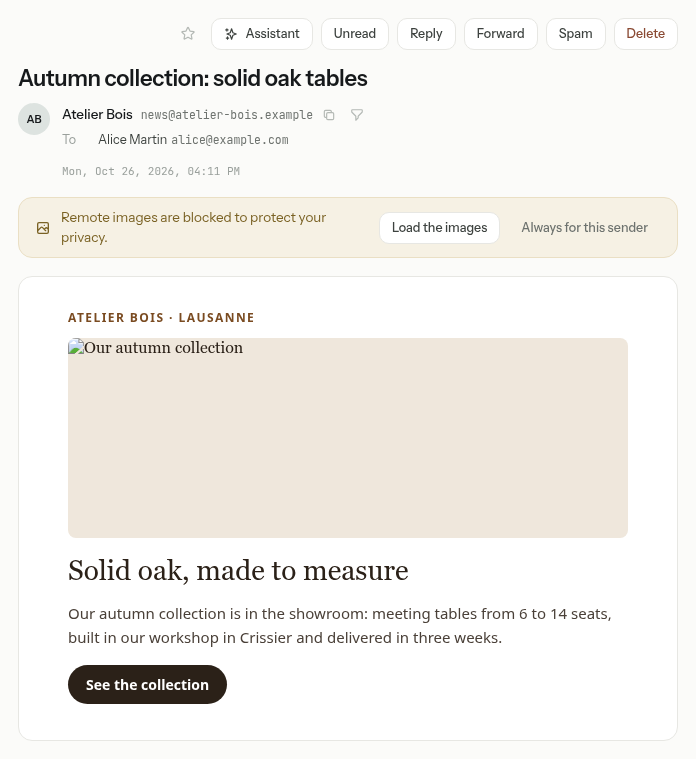
- Load the images shows them for this message, this once.
- Always for this sender adds the sender to your trusted senders: their messages show their images from now on, with a line saying so and a Stop trusting button.
To change the rule for every message, click your avatar at the bottom of the left bar: the Preferences open, and the Mail panel holds Remote images (Ask before loading them or Always load them) — click Save after changing it — and your Trusted senders, each with Remove.
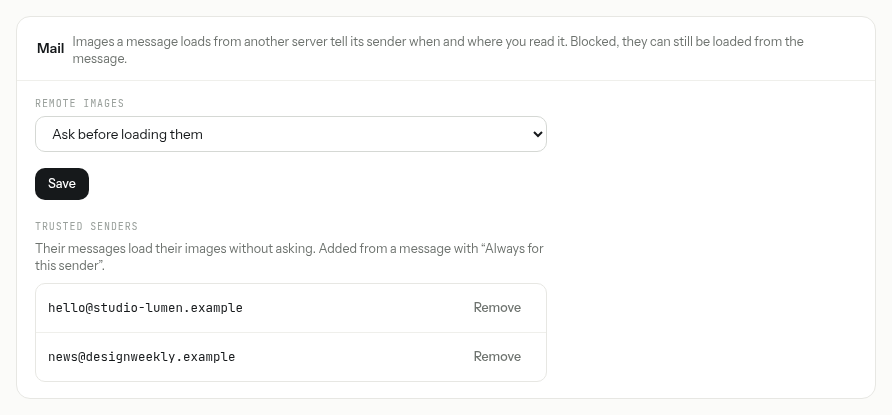
Whatever you choose, the messages in Junk never load their images by themselves.
Attachments
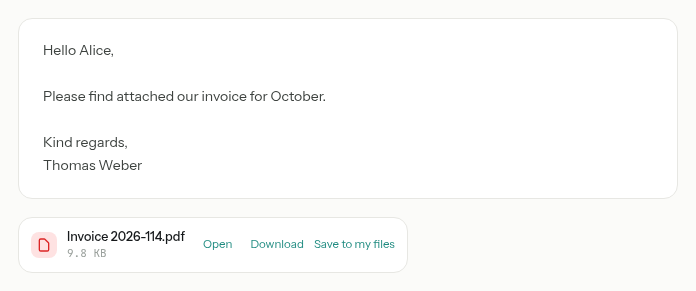
Under the message, each attachment offers Download and Save to my files, and Open when PAFworks can show it.
-
Open it without downloading
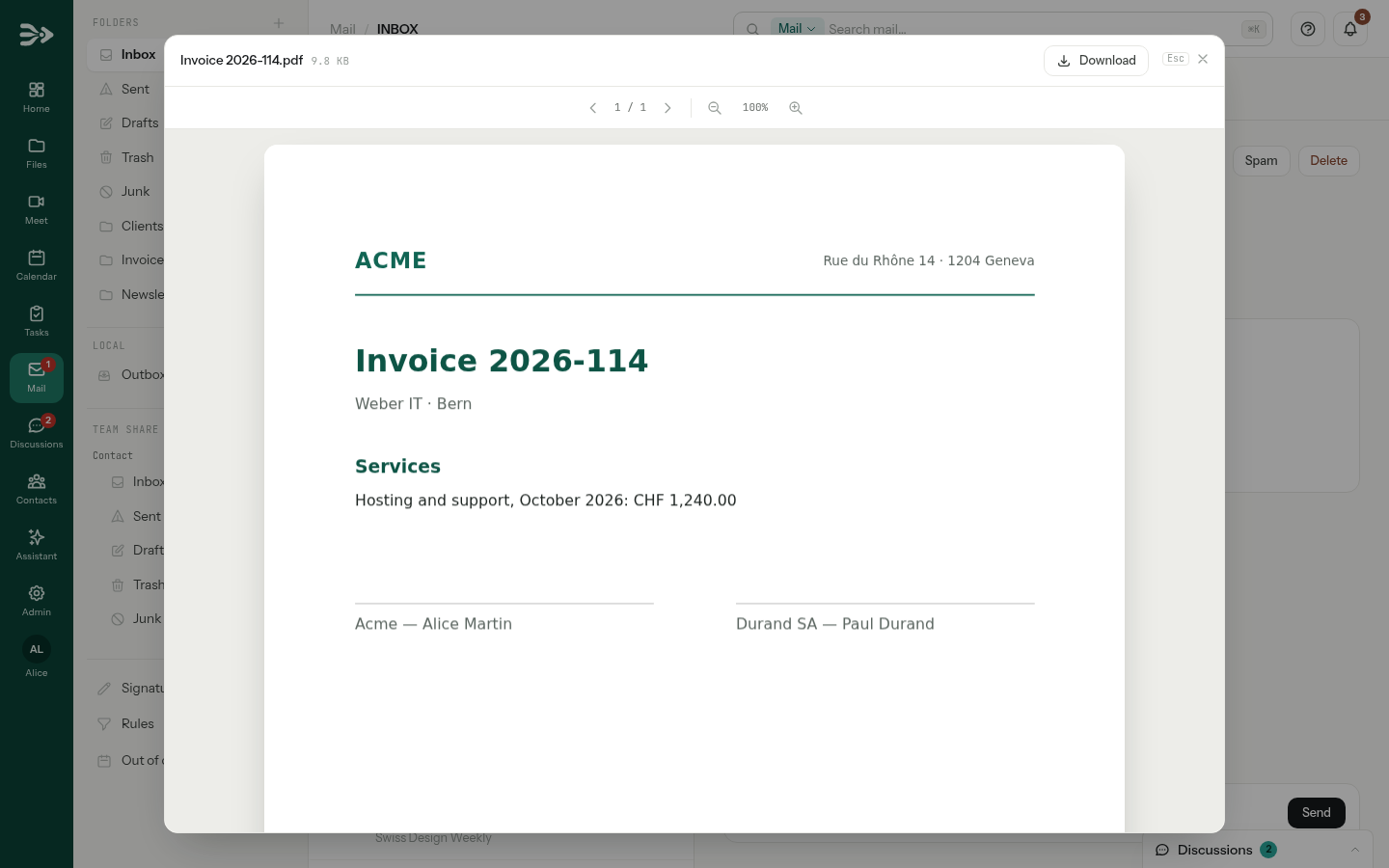
Open shows pictures and text files in place, and PDF files in the PDF viewer; when your organisation has the office editor, office documents open in it, read-only. When a message has several attachments, the arrows go from one to the next; Esc closes the viewer.
-
Keep it in your files
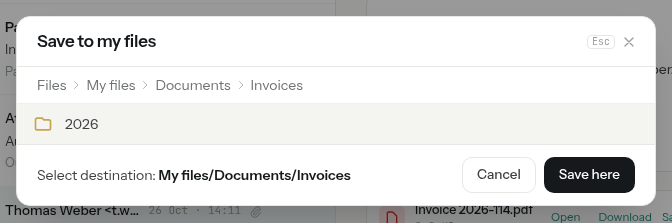
Save to my files asks where: open the folder, then click Save here.
-
Find it again
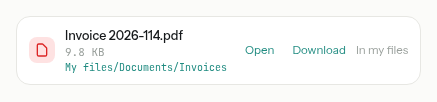
The attachment now shows In my files and the folder it is in: click that path to find the file in Files.
Sending a large file yourself? Share it as a link rather than as an attachment: see Share a file or a folder with a link.
Good to know
- An account holds up to 200 rules; a rule tests up to 20 conditions and takes up to 10 actions.
- A rule never loses a message: if it cannot be applied — its folder was deleted, for example — the message simply arrives in the inbox.
- Received at address tells your addresses apart. For the messages already in your inbox, Apply to the inbox reads it from their To and Cc.
- There is no rule action to forward or refuse mail.
- Rules, automatic replies and the spam filter work on the server: they apply whichever app you read your mail with. Signatures belong to the PAFworks web mail only.
- If your account may not download files, attachments are listed without their buttons.