 PAFworks
Share a file or a folder with a link
A share link gives anyone who has it access to one file or one folder, with no account and no sign-in. You decide what it allows, and you can add a password and an expiry date.
Link, workspace or team share?
| To share with… | Use | How people get in |
|---|---|---|
| Anyone holding the address | A share link (this guide) | The link, with an optional password and expiry date. Nothing checks who opens it. |
| People outside your organisation, by name | A workspace | A one-time code sent to their e-mail address, each with their own rights. See Create a workspace to collaborate on your files. |
| Your colleagues | A team share | Their PAFworks account. Team shares are created by an administrator (see the workspaces guide). |
| Someone who must send you files and see nothing else | A workspace guest with only the Upload right | A one-time code, then a page to send files from. Unlike an upload-only link, it lists none of the files (see Collect documents). |
Step 1 — Create a link
-
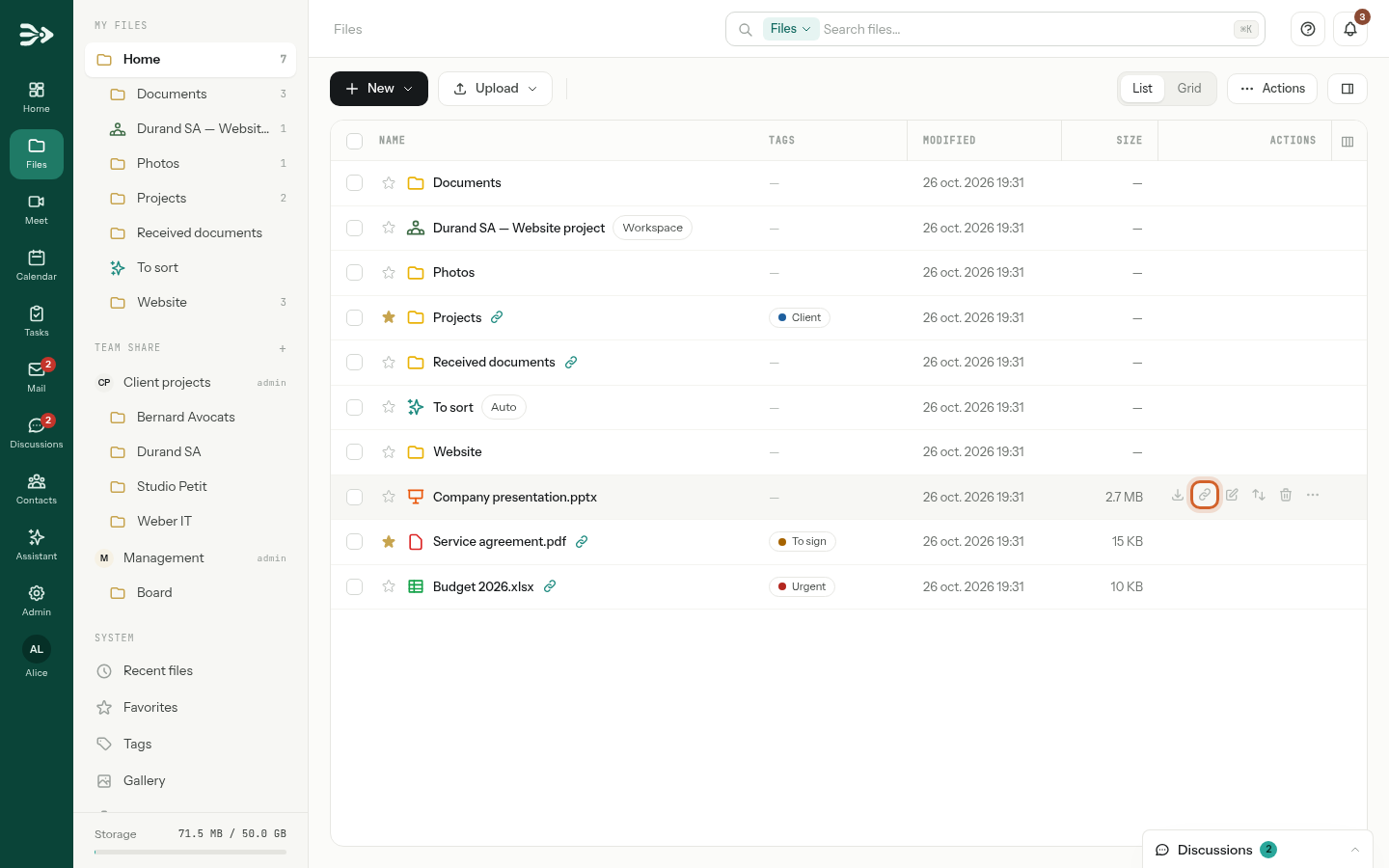
In Files, point at the row of the file or folder and click the link icon, Share link. The details panel opens on its Sharing section.
-
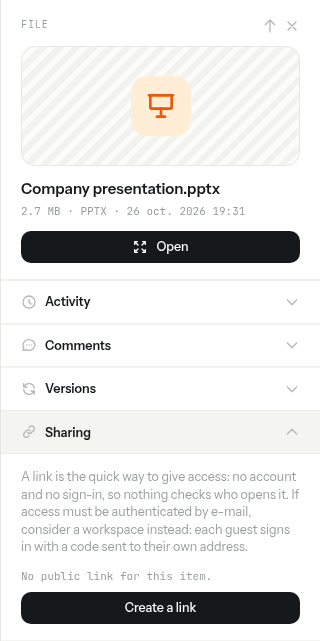
Click Create a link. The link is created as read only, with download allowed, no password and no expiry date, and it is copied to your clipboard.
-
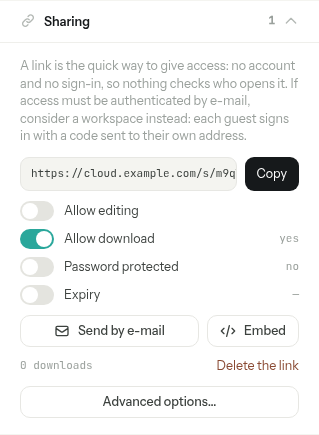
The link appears in the section, with its everyday settings and what you can do with it.
You reach the same section in other ways:
- Select the item, click Show the details at the top right of the list, and open Sharing.
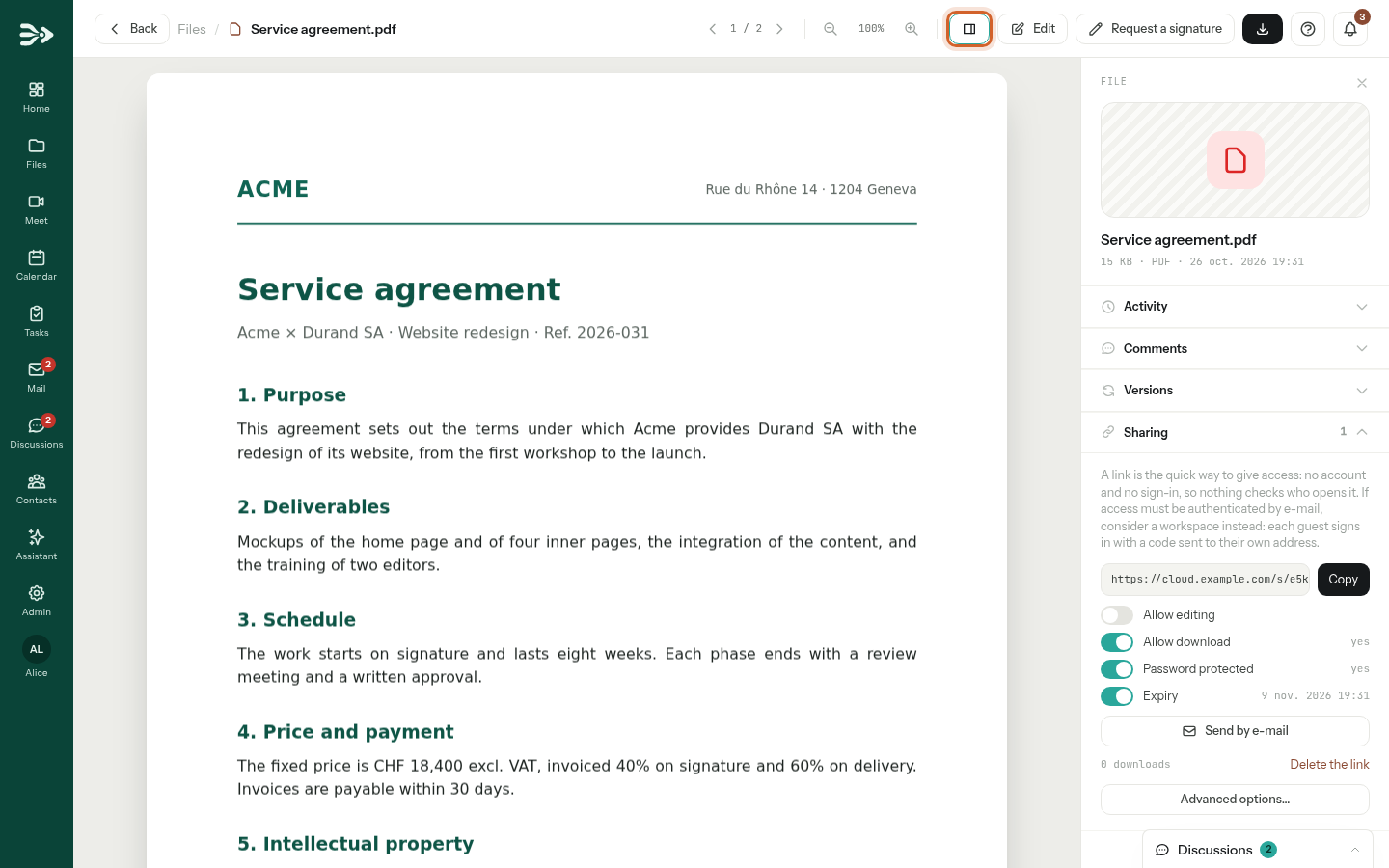
- In a document you have open — the PDF viewer, an image, the text and Markdown editor, an office document, a diagram — click Show the details in the top bar: the same panel opens on that file.
- Inside a folder, Actions › Share link opens the Share via link window described below for the folder you are in. With one row ticked, Share in the bar under the list opens it for that row; with several, it creates a read-only link for each of them.
Which items you can share. Your own files and folders, and those of a team share where you have the Write or Admin right. A link to a form opens the form to answer it, never the form file: see Create a form and collect answers.
Step 2 — Choose what the link allows
The switches of the Sharing section change a link at once:
- Allow editing lets visitors add files to the folder, and edit its office documents and diagrams online where your organisation has those editors. It is for folders only: a file link stays read only.
- Allow download off leaves visitors able to see the content but not to download it.
- Password protected and Expiry only show the current state. Set them when you create the link, or later with Edit on the Share links page.
To create a link with all its settings, click Advanced options… under your links. The Share via link window lists the item's links, each with a copy and a delete button, and creates a new one: choose the Permission, type a Label (optional), a Password (optional) and an Expires on (optional) date, then click Create link. The new link is copied to your clipboard.
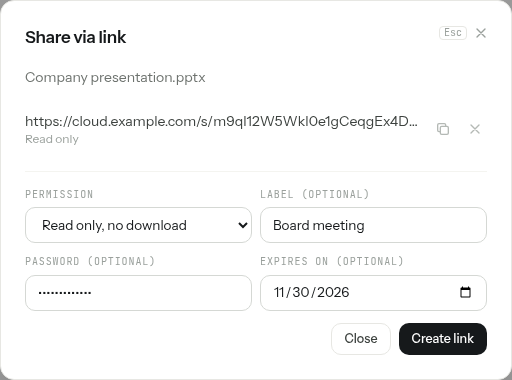
| Permission | What the visitor can do |
|---|---|
| Read only | Open and download the file, or browse the folder and download its files. |
| Read only, no download | See the content without downloading it: PDFs and pictures open in a viewer, text and Markdown files show on the page. Other files show their name and size only, except office documents, which open in the online viewer when your organisation's office server allows it. |
| Read and write (folders) | Everything Read only allows, plus adding files to the folder and editing its office documents and diagrams online, when your organisation has those editors. Visitors cannot delete or rename anything. |
| Read and write, no download (folders) | Adding files and the no-download viewing above. |
| Upload only (folders) | Dropping files into the folder, without opening or downloading anything. Read Collect documents before you use it. |
The label is for you: it names the link on the Share links page, and a visitor of a folder link sees it as the title of the page. The expiry date is the last day the link works.
Step 3 — Copy, send or embed the link
Copy it
Copy puts the address on your clipboard, to paste into a message or a document. A link looks like https://cloud.example.com/s/….
Send it by e-mail
-
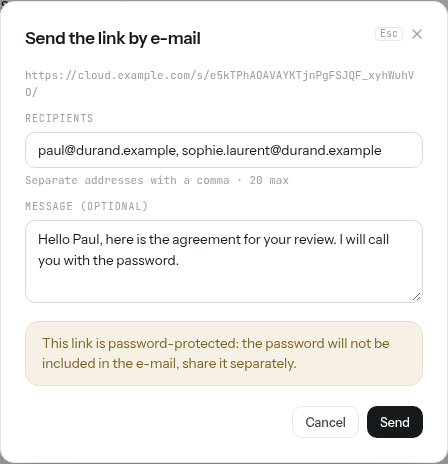
Click Send by e-mail under the link. Type the Recipients, separated by commas (20 at most), and an optional Message.
-
Click Send. Each recipient gets an e-mail entitled Alice Martin shared "…" with you, with the link, your message, and the expiry date if there is one. Replies come to you.
The password is never in the e-mail. The message only says that the link is protected: give the password another way, by phone or text message.
Embed it in a website
Embed opens Embed in a site, with the code to paste into a page of your website: what the link shares shows up in it, without the header and the footer of the link's page. The frame is 600 pixels high; change the height in the code to suit your page. Copy copies the code.
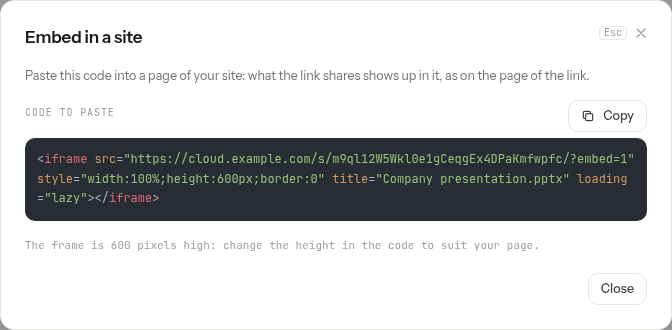
The code points at the link's address with ?embed=1 at the end. A link with a password cannot be embedded: its Embed button is not offered, and a framed page only says the link is protected.
What the recipient sees
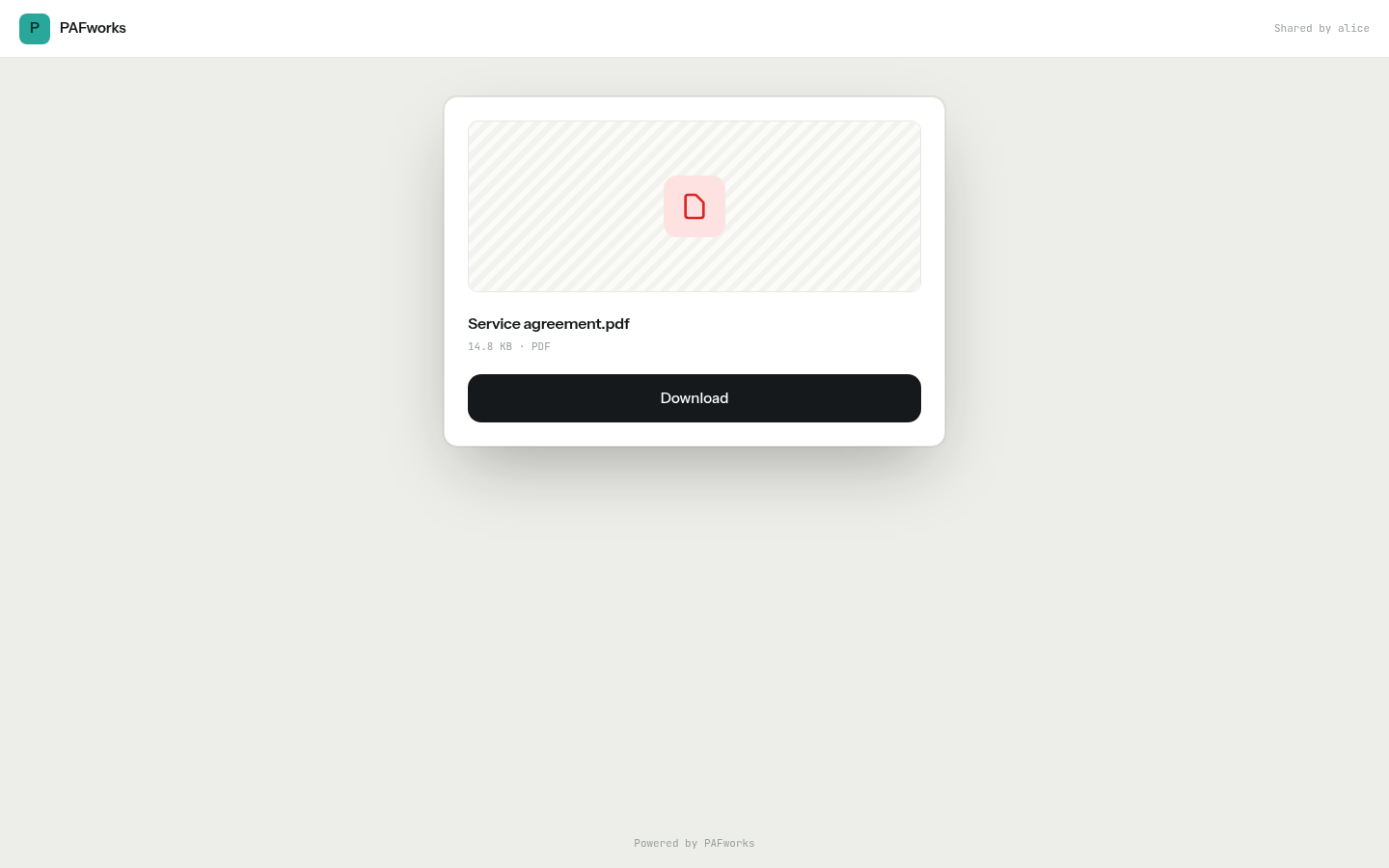
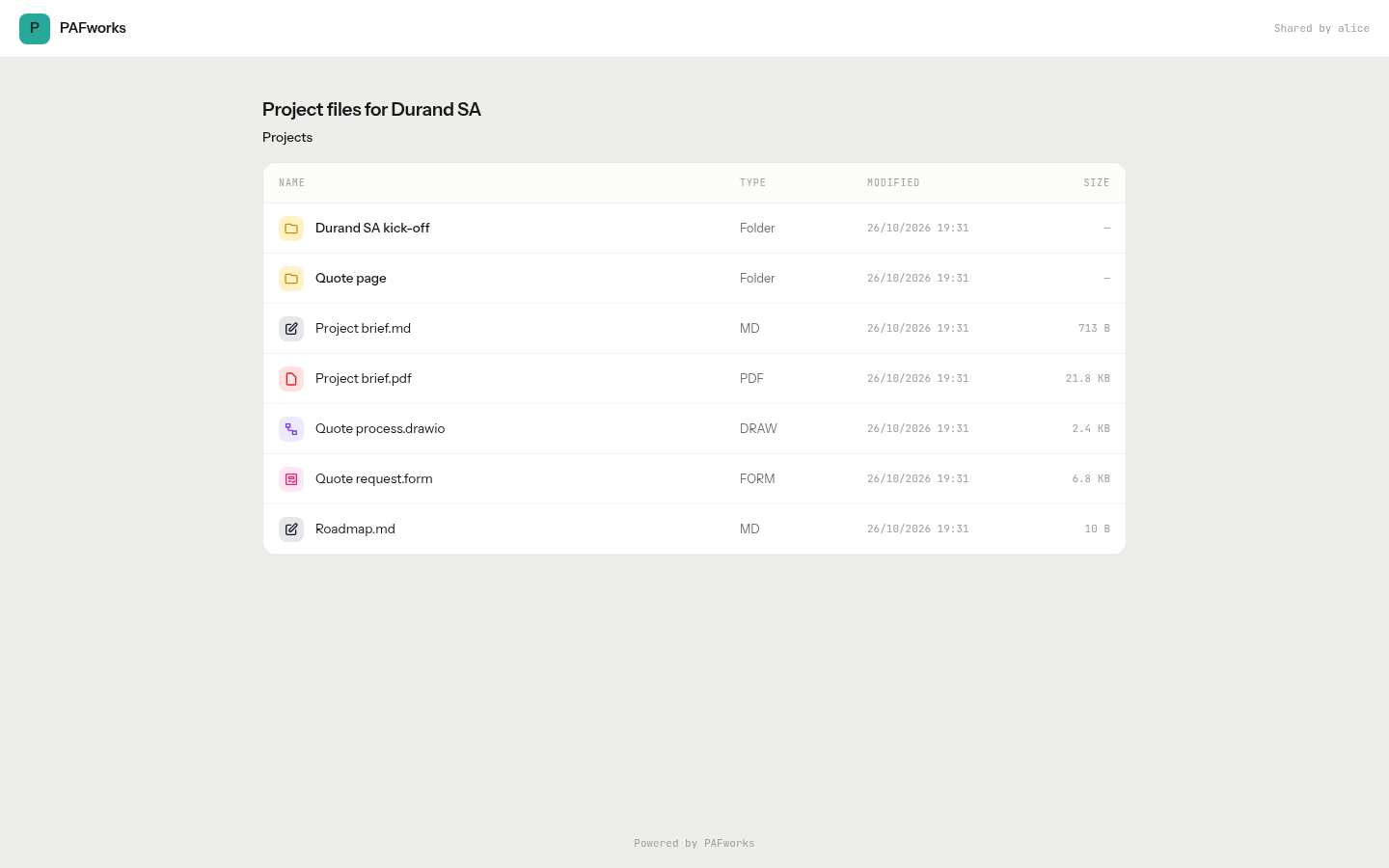
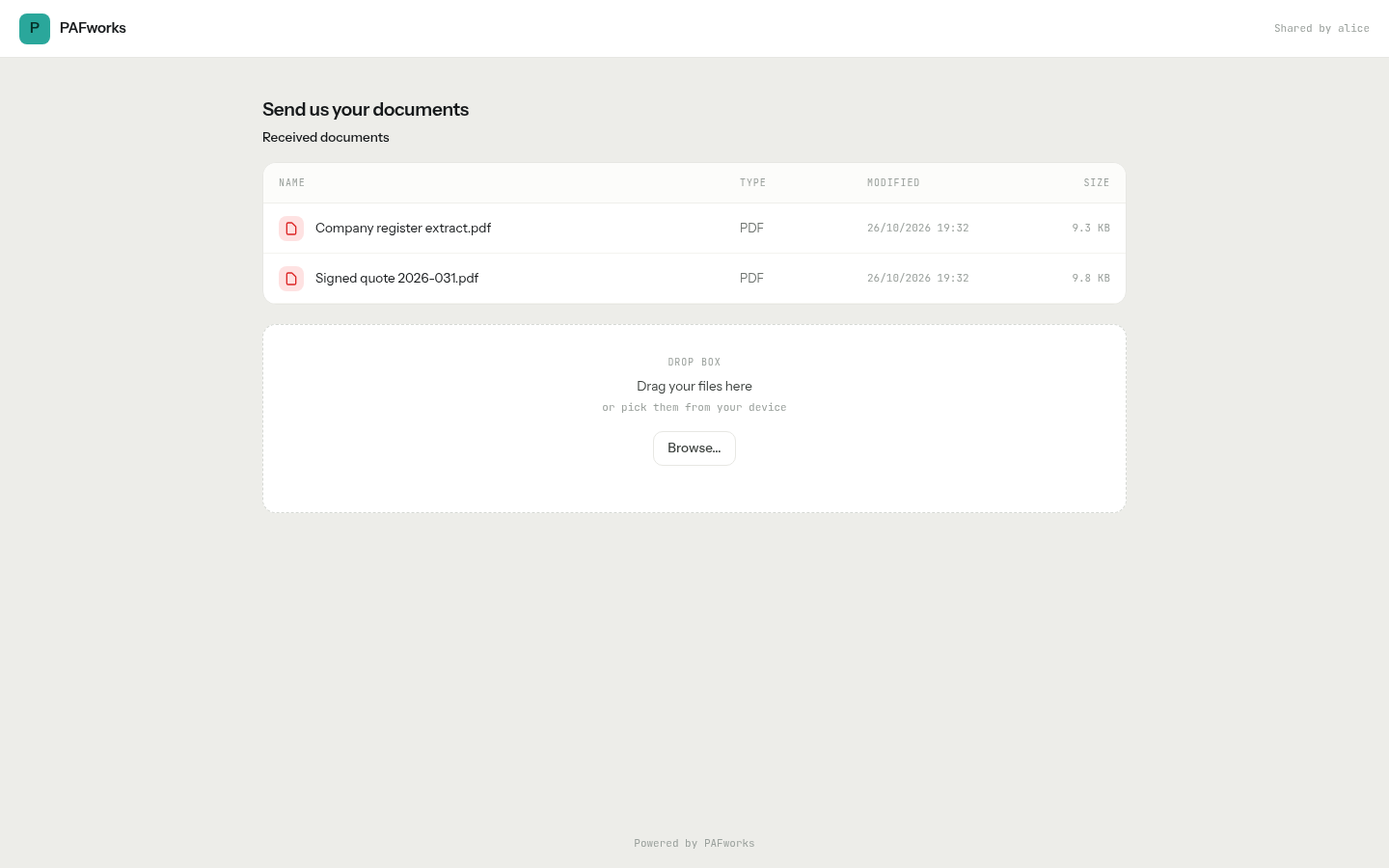
The visitor needs no account. The page says who shared it: Shared by and your user name.
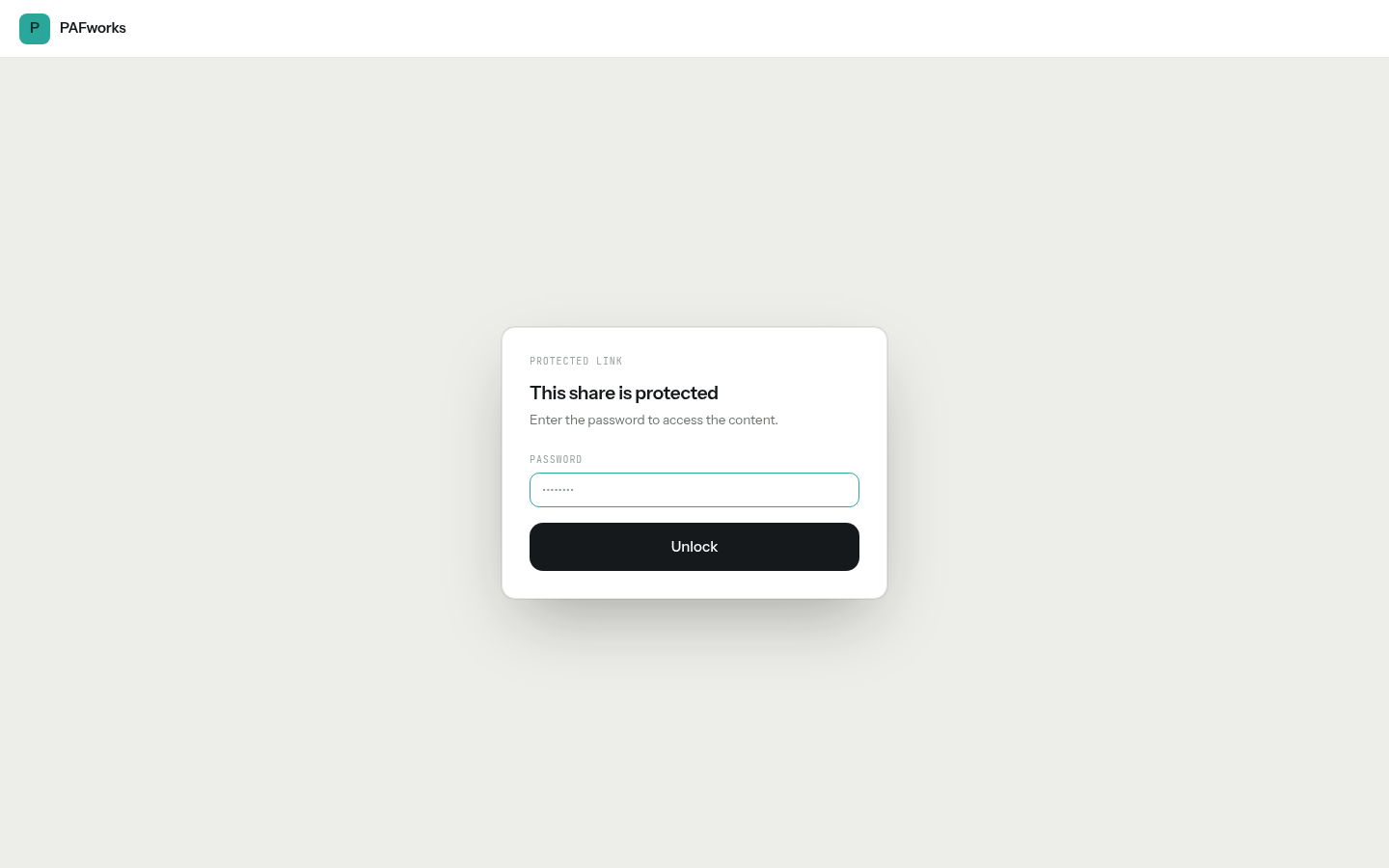
- A password: the page This share is protected asks for it first. The visitor types it once and clicks Unlock.
- A file: its name, its size and a Download button. A picture or a text file shows on the page, and a Markdown document is displayed as a formatted page.
- A folder: the label of the link as a title, then the folder's contents. The visitor opens subfolders and clicks a file name to download it, or to open an office document online when your organisation has an office server. Download all takes the open folder, subfolders included, as a single ZIP file.
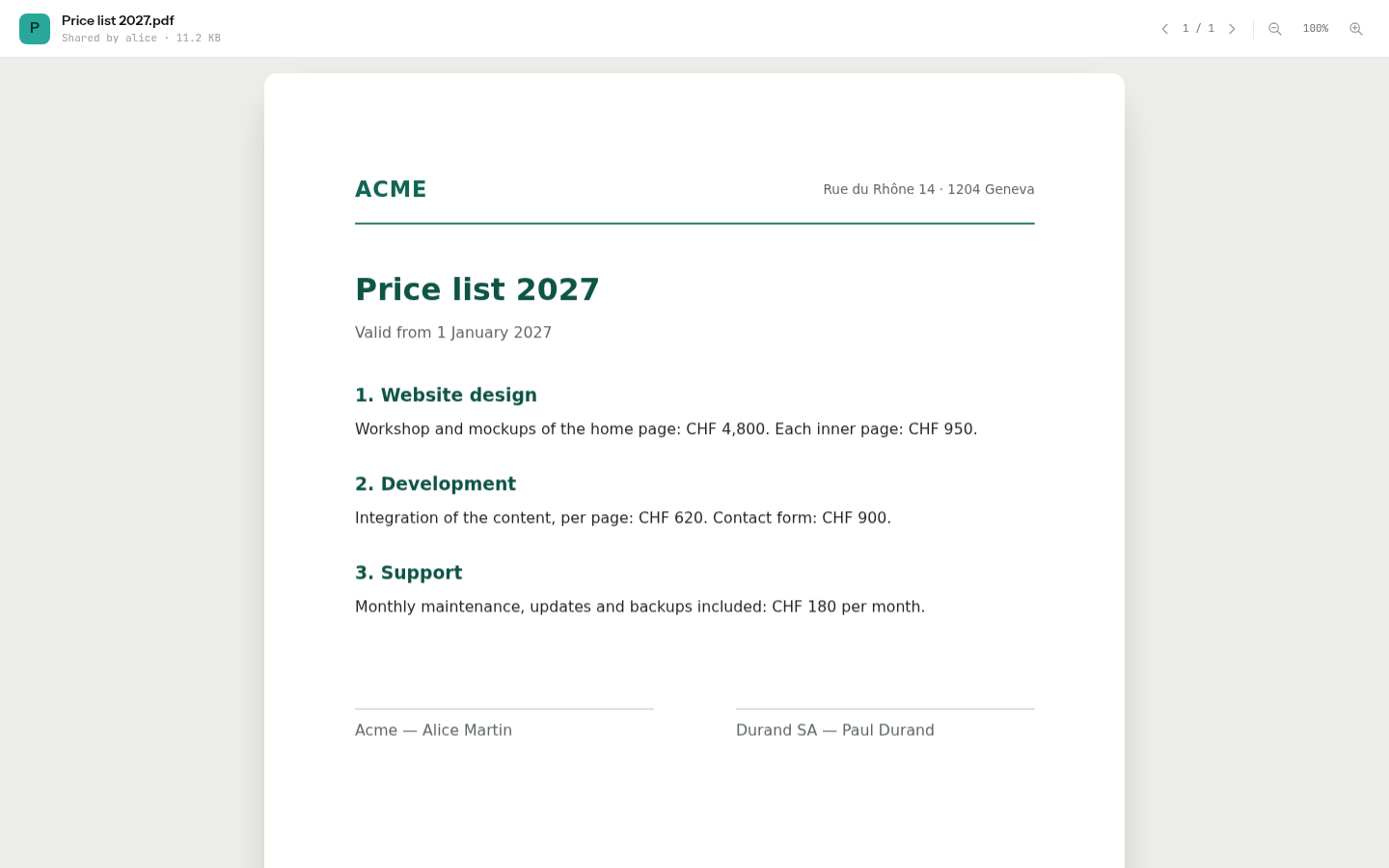
- No download: a PDF or a picture opens straight in a viewer with no download button; right-click, dragging and saving the page are blocked, and printing it prints a notice instead. Other files show This link does not allow downloading.
Once a link has expired or has been deleted, its address shows Page not found.
Collect documents with an upload-only link
An Upload only link turns a folder into a drop box: send it to the people who must send you documents, and their files land in the folder.
-
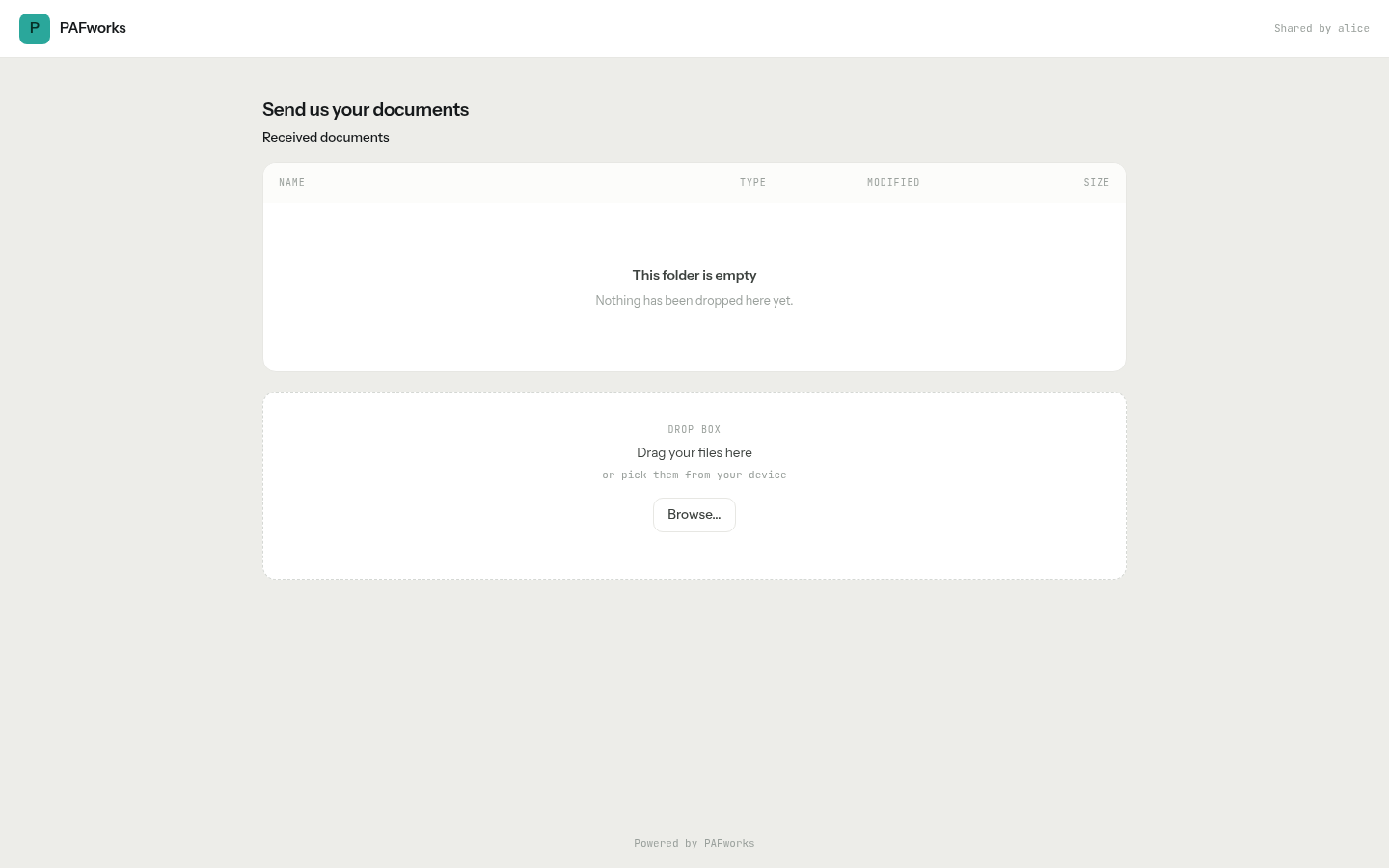
Create a folder for it, for example Received documents. Open it, choose Actions › Share link, pick the Upload only permission and click Create link. A label such as Send us your documents becomes the title of the page.
-
The visitor drags files onto the Drop box area or clicks Browse…. Several files can go at once; a folder cannot be dropped, only the files it contains.
-
The files appear in your folder. A file with the same name as one already there is renamed, never replaced. You are not notified: the files simply appear.
An upload-only link is not a sealed box. Its page lists the name, type, date and size of every file in the folder, including those other visitors dropped, and lets the visitor open its subfolders. So give such a link a folder of its own, empty at the start, and use one folder and one link per sender if what each one sends must stay private. For a drop box that lists none of the files, invite the person to a workspace with only the Upload right.
Manage all your links
Share links, in the sidebar of Files, lists every link you have made: how many are active and expired, and the downloads they counted. Filter them with All, Active, Expired and Password-protected.
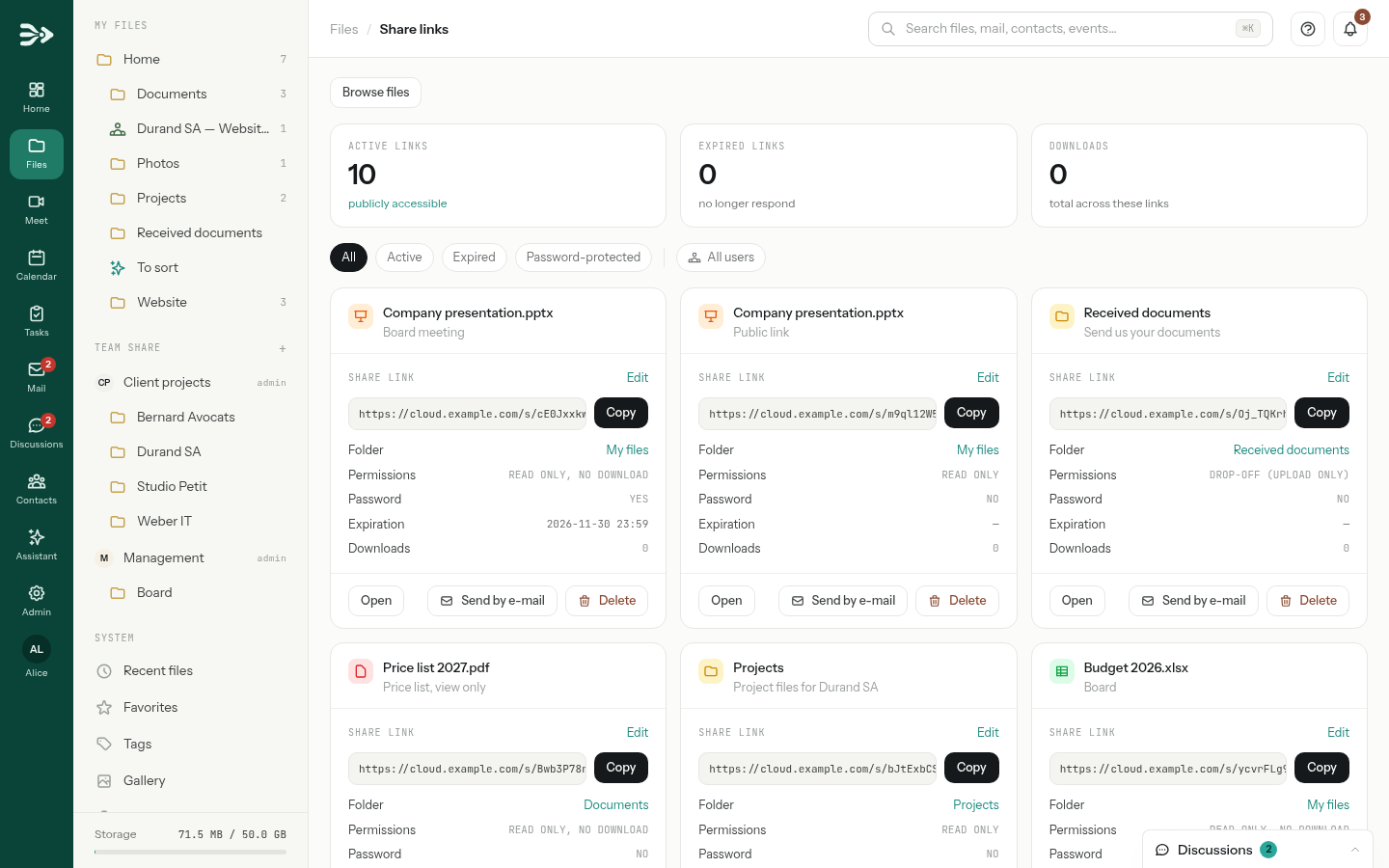
Each card shows the item and its label, the address with Copy, the Folder it is in (click it to go there), its Permissions, Password, Expiration and Downloads, and three buttons: Open shows the link as visitors see it, Send by e-mail and Delete.
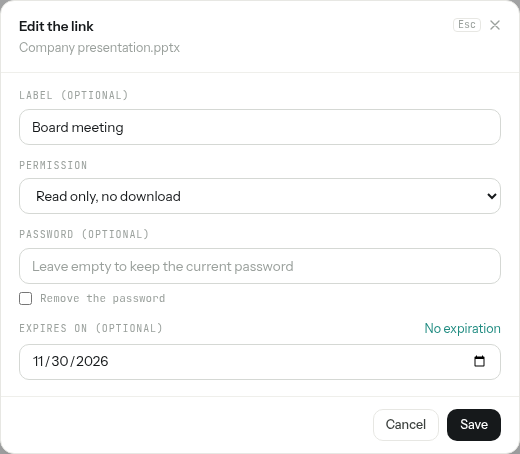
- Change a link: click Edit. In Edit the link, change the label, the permission, the password (Remove the password takes it off; an empty field keeps it) or the date (No expiration clears it), then Save. The address stays the same.
- Revoke a link: Delete. It stops working immediately. You can also delete it with Delete the link in the Sharing section.
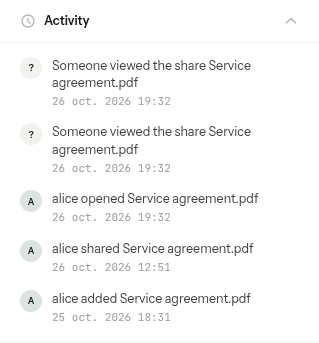
Who opened it. Each visit of the link's page and each download is recorded in the Activity section of the item opened, as Someone viewed the share …, with the date. The Sharing section and the Share links page count the downloads.
Administrators also have All users on this page, which shows everyone's links with their owner. They can open them; only their owner can edit or delete them there.
Large mail attachments sent as links
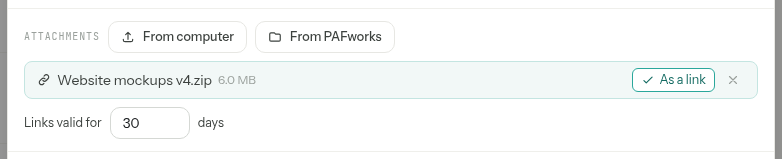
When you write an e-mail, each attachment can go as a link rather than inside the message: click Send as a link next to it (it becomes As a link) and set Links valid for a number of days, 30 by default, 365 at most. Files over 4 MB get a hint suggesting it, as they weigh down the recipient's mailbox.
The recipient gets a box Files shared by link with a download link per file and the date until which they are available. PAFworks keeps a copy of each file, as sent, in Shared by email in the sidebar of Files: it shows the time left for each one, with buttons to copy the link, download the file, and Delete it, which ends the recipients' access at once.
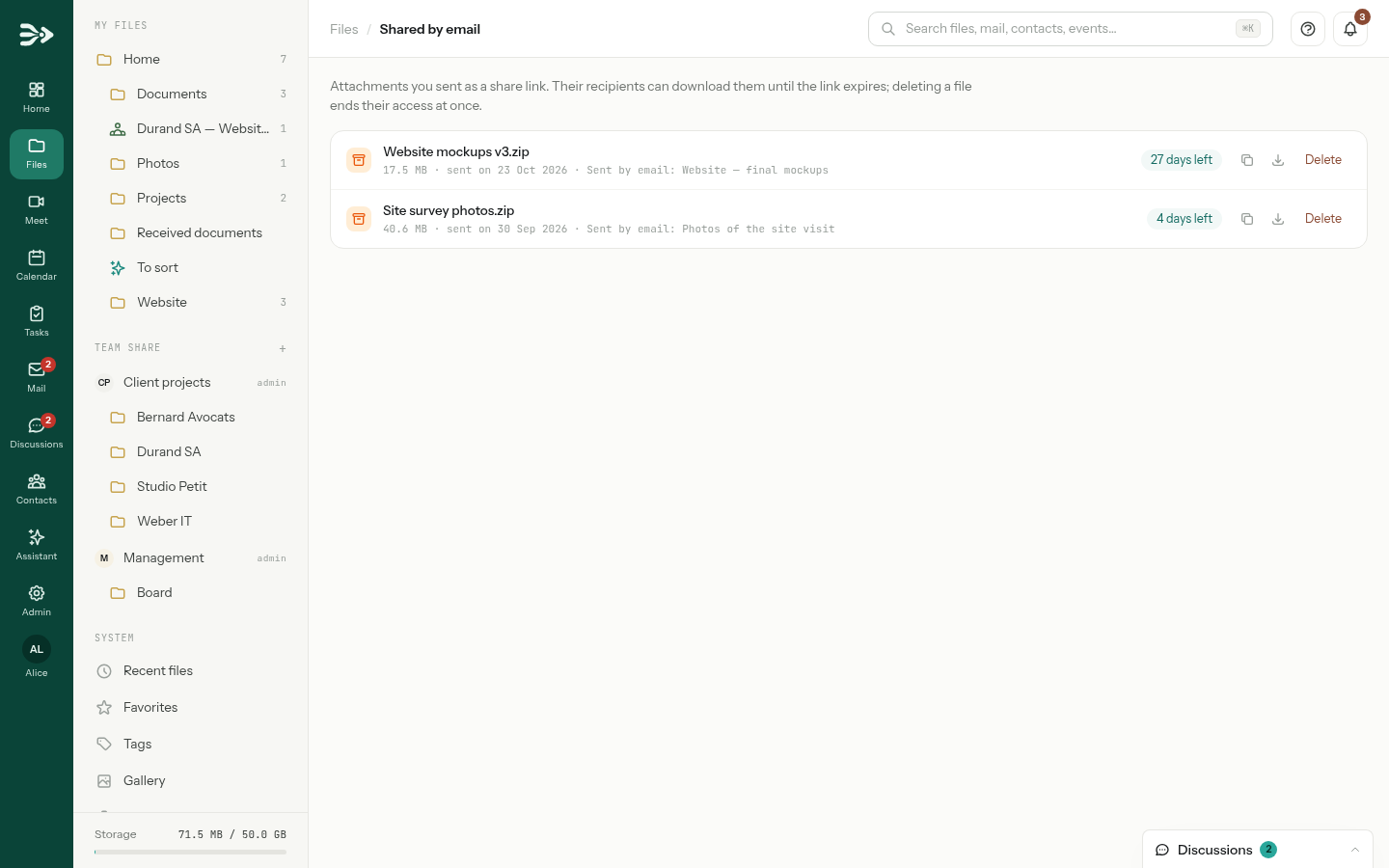
These copies count in your storage and are deleted for good a day after their link expires. For the rest of the mail, see Mail, calendar and contacts in PAFworks and Thunderbird.
Good to know
- Expiry date: a link set to expire on a day works until 23:59 that day, in your own time zone, then shows Page not found. Expired links stay on the Share links page; give one a new date with Edit to bring it back.
- When one of your links has three days or less left, you get a notification, in the bell and by e-mail unless you turned notification e-mails off. Attachments sent as links are not announced.
- Renaming or moving the item keeps its link working. Moving it to the trash suspends the link; restoring the item brings it back. When the trash is emptied, the link goes with the item.
- A folder link shows the folder as it is now: files you add later are visible too.
- After five wrong passwords on a link, further attempts are refused for a while (15 minutes by default).
- Visitors never delete or rename anything through a link. Their uploads are refused once the storage is full.
- No download is a deterrent: someone who can see a document can still photograph or copy it. For confidential documents, use a password and a short expiry, or a workspace.
- Links stop answering while their owner's account is paused, or if an administrator takes away its right to download files; they work again once the account or the right is restored.
- The activity of a file or a folder is kept for a year.