 PAFworks
Work with the AI assistant
The assistant is a conversation that looks things up and does the work in your account: your files, your mail, your calendars, contacts and tasks. Every change it makes is listed under its answer and can be undone, and what reaches other people or cannot be undone waits for your approval.
What you need
- A PAFworks account. The assistant only appears once an administrator has switched it on and declared a language model: see Set up the assistant for your organisation.
- Some features depend on what the administrator turned on: web search, programs, search by meaning and the applications of your organisation. Without them, the assistant simply does not offer them.
Where to find it
- The left bar: Assistant opens the assistant, with your conversations down the left.
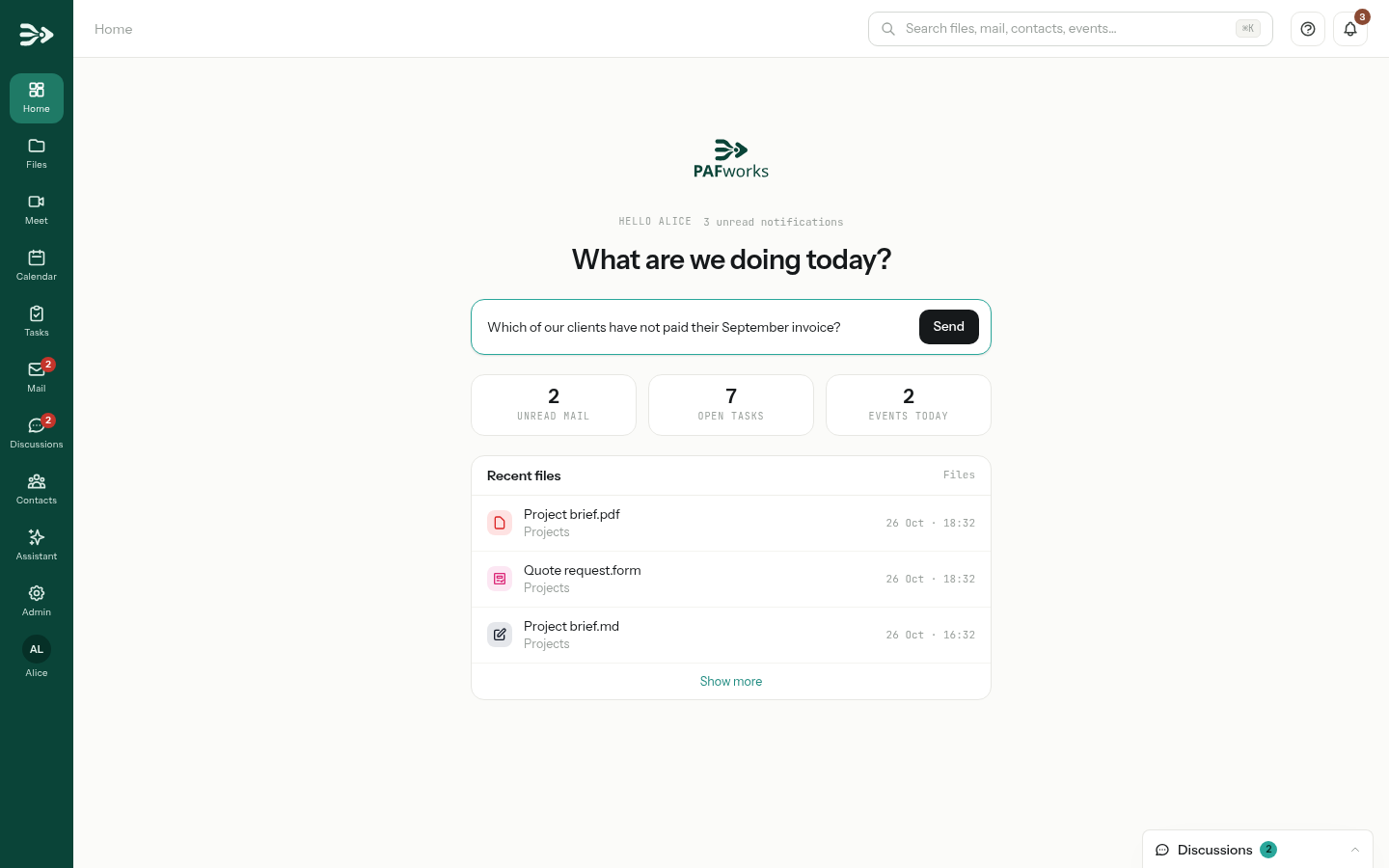
- The Home page: type your request in the box under What are we doing today? and click Send. A new conversation opens and the assistant starts working straight away.
- Files and Mail: Ask the assistant about it opens a conversation about a file, a folder or a message. See Give it files, a folder or a message.
Start a conversation
-
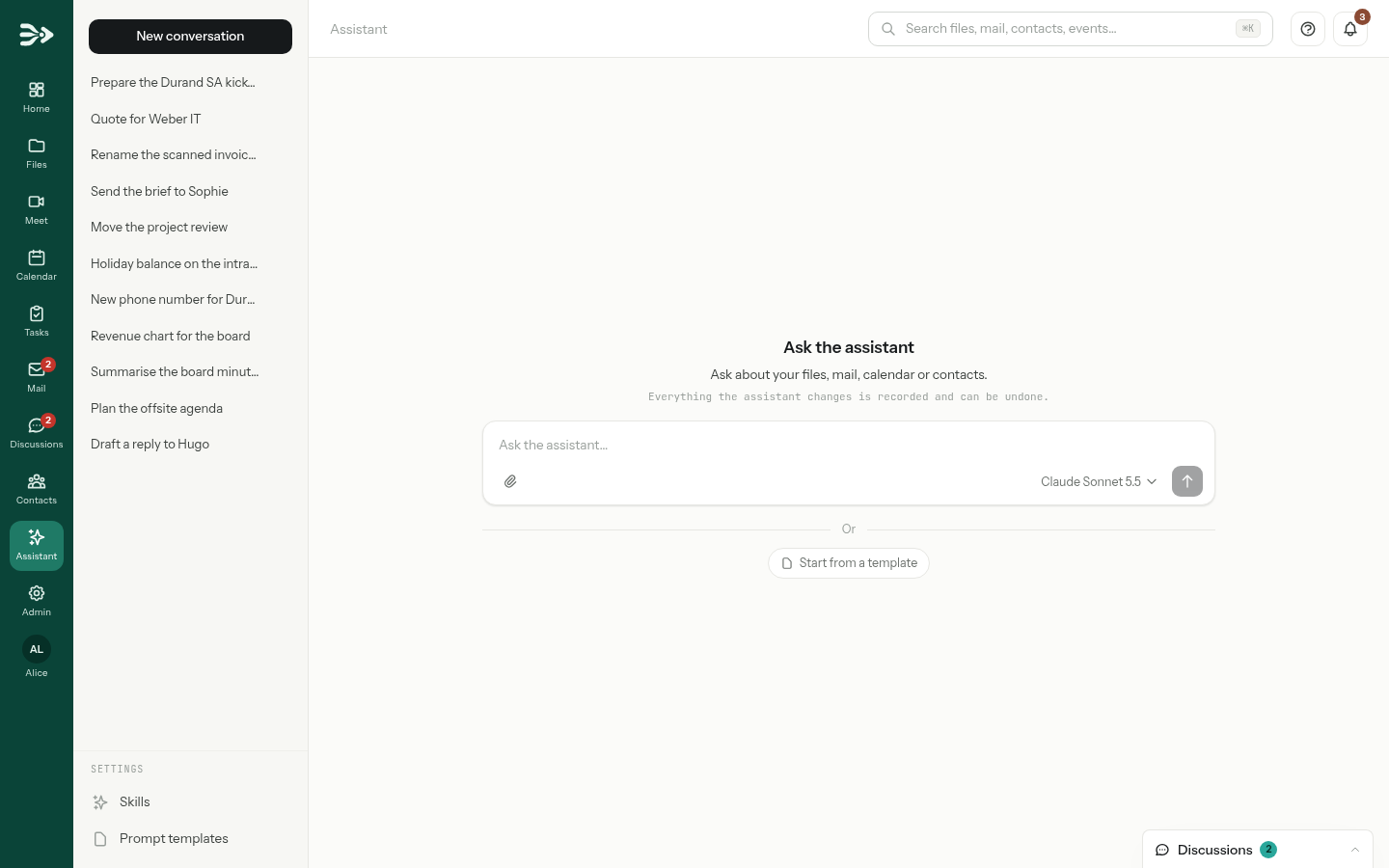
Click Assistant in the left bar: the page opens on a new conversation, with an empty box, Ask the assistant… From another conversation, click New conversation.
-
Write what you want, in your own words and in your own language, then press Enter or click the arrow. Shift+Enter starts a new line.
-
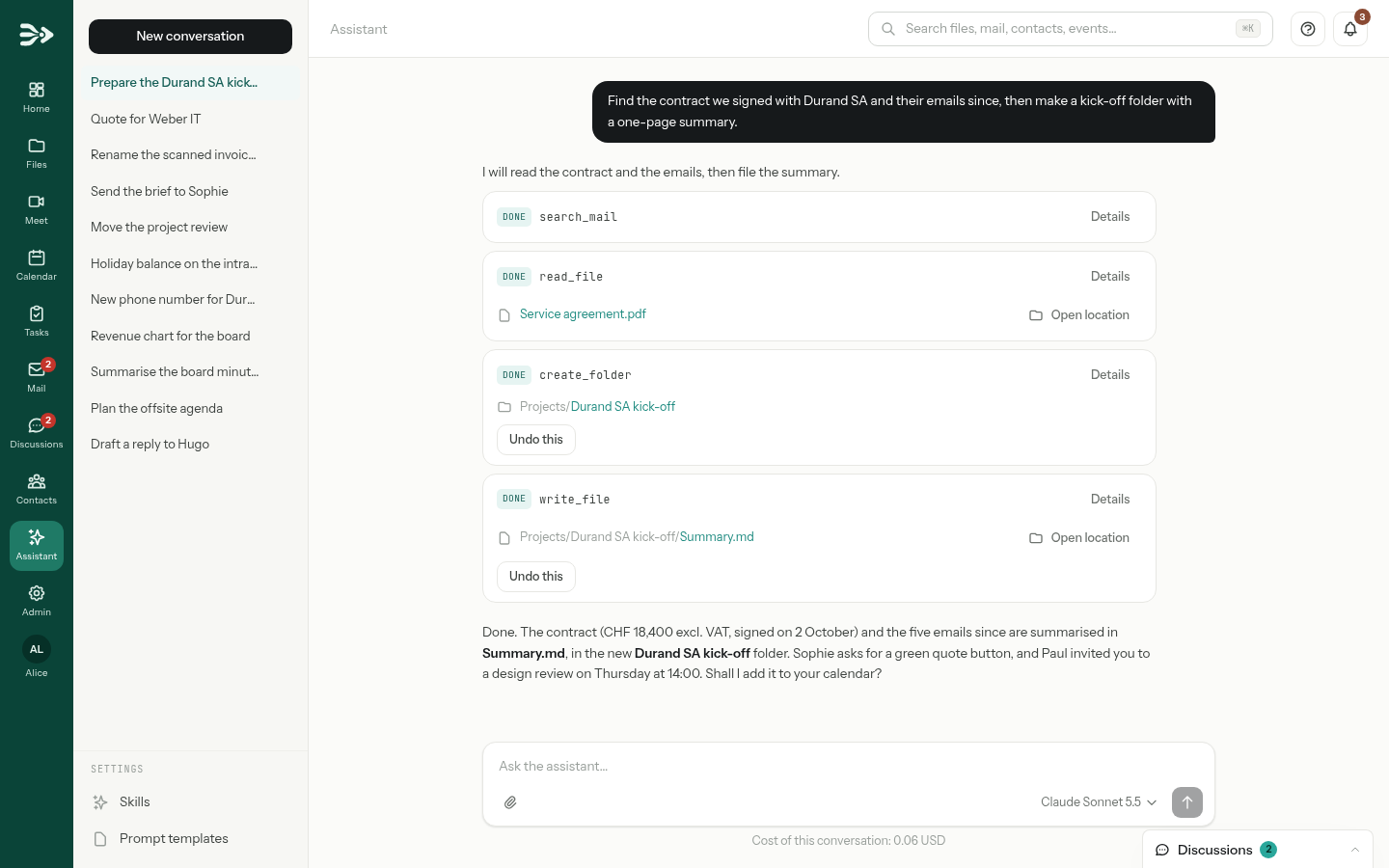
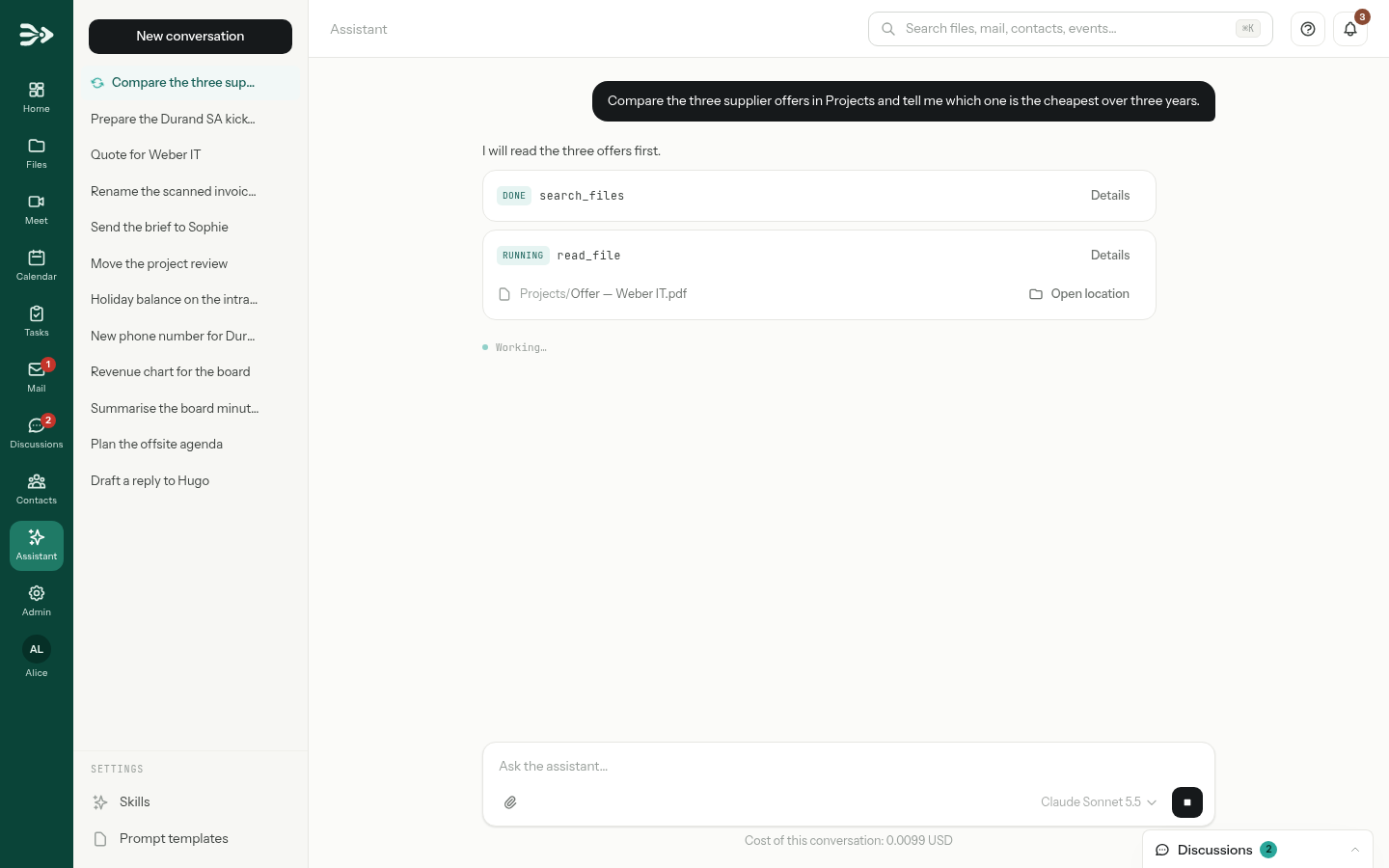
The assistant answers in the conversation. Each thing it did is a card under its text: the action, its status, and the files or folders it touched. Click a file to open it beside the conversation, or Open location to see its folder.
-
To go on, write your next message in the same conversation. The assistant still has everything said so far, the files you gave it and the results of its actions: “Now add the meeting to my calendar” is enough.
The work goes on while you are elsewhere: you can leave the page, and come back to the conversation from the list.
Give it files, a folder or a message
The assistant can find things by itself, but handing it the right document is faster and leaves no doubt.
-
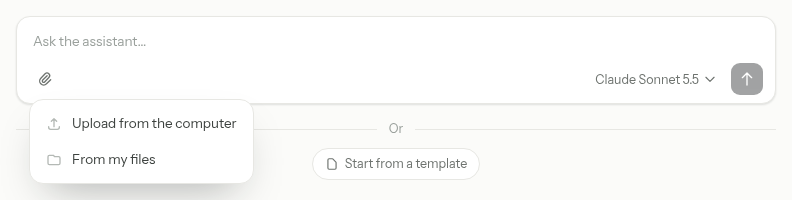
Click the paper clip under the box: Upload from the computer, or From my files for files already in PAFworks. You can also drag files from your computer onto the box.
-
From my files opens your files and team shares. Tick one file or several, then click Attach selected.
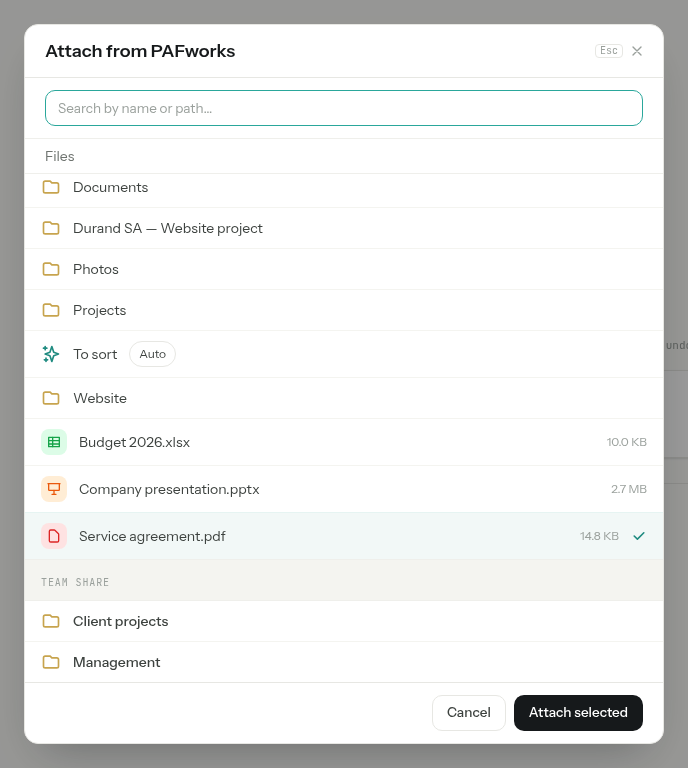
-
The files appear above your text. Click a name to open the file beside the conversation, or the cross to remove it. Write your question and send.

From Files: Ask the assistant about it
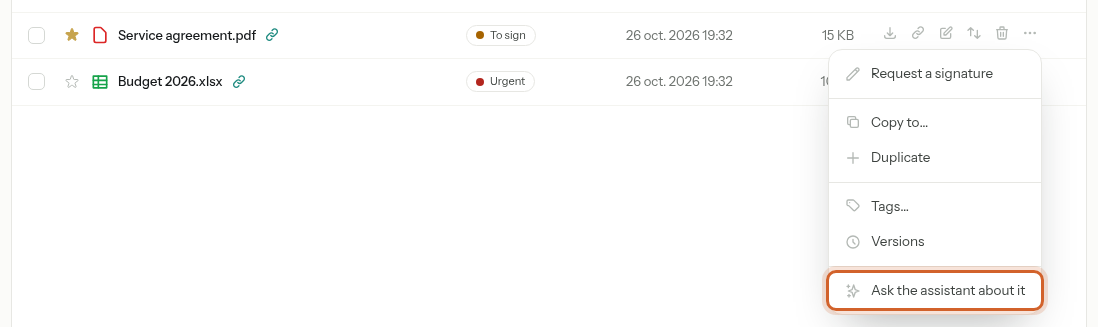
In Files, open the More actions menu of a file or a folder (the three dots at the end of its row) and choose Ask the assistant about it. The same entry is in the menu of the folder you are in. A new conversation opens with the item already attached: you only type the question.
From Mail: the Assistant button
-
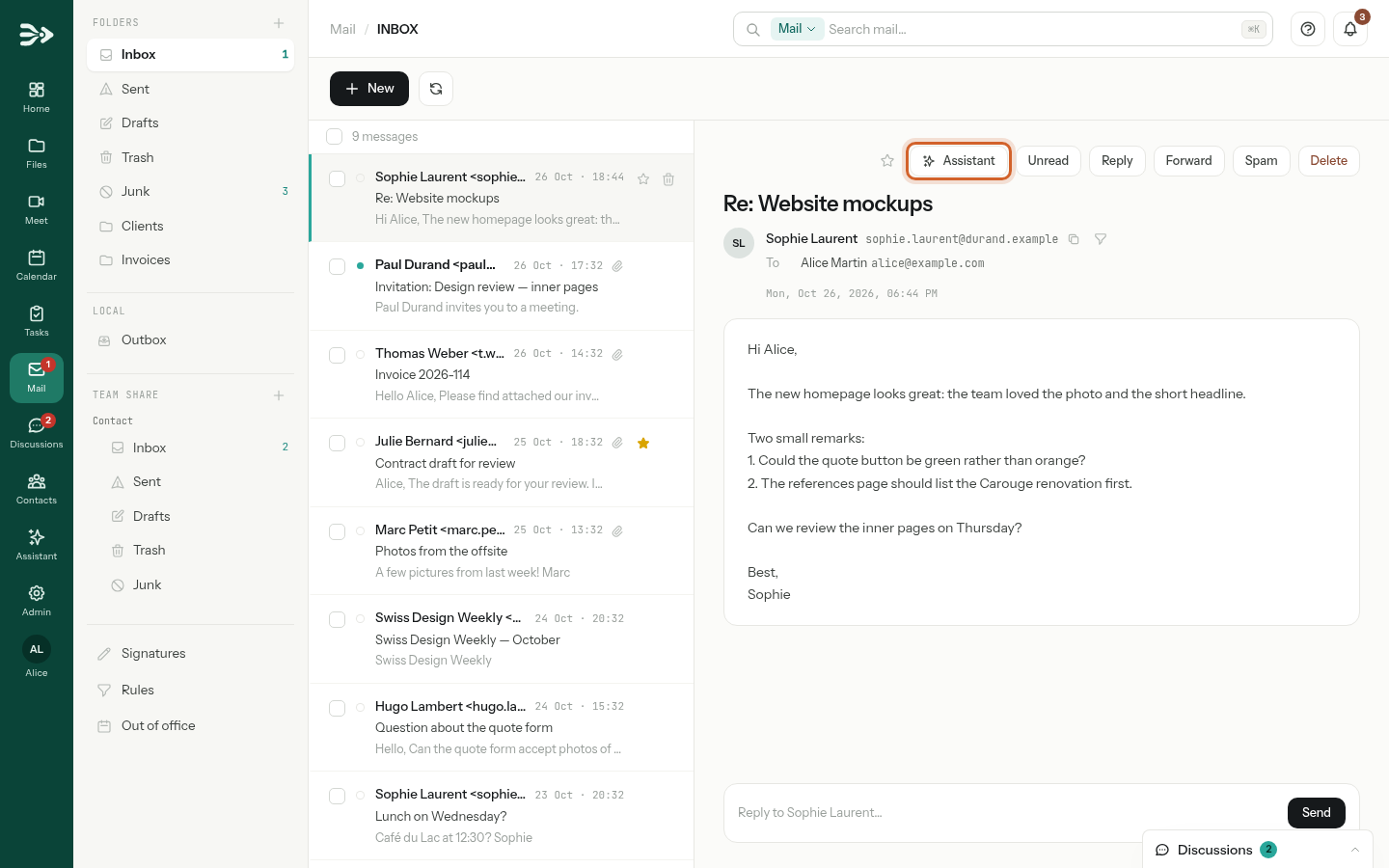
Open a message and click Assistant above it. On a narrow screen, the entry is Ask the assistant about it in the … menu.
-
The message is attached to a new conversation. Ask for a summary, a list of what is asked of you, or an answer: the assistant writes it into your Drafts, threaded on the message, for you to read and send.

What the assistant reads. The text of a document — PDF, Word, spreadsheet, text — rather than the file itself; for a folder, the list of what it holds, from which it opens the files it needs; for a message, its sender, recipients, subject, text and the text of its attachments. A picture is shown to the model as a picture only when that model reads images; otherwise the image is refused when you attach it.
What it can do
The assistant acts with your rights and nothing more: it reaches your own files, the team shares and mailboxes you can open, and your calendars and address books, including those shared with you.
| Area | What it can do |
|---|---|
| Files | List folders, search by name and by content (PDF, office documents, text), read, write and edit text files, create folders, move, rename, copy and delete (to the trash), check sizes and your storage. |
| Search and read the messages of every mailbox you can read, yours and shared ones, and write drafts into Drafts. It cannot send mail: you send the draft yourself. | |
| Calendar and tasks | List calendars, find and read events, create and change events and tasks, tick tasks off and assign them to a member of a shared calendar. An event it creates has no attendees, so nobody is emailed. It does not change repeating events. |
| Contacts | Find, read, create and change contacts in the address books you can write to. |
| Forms | Create and change forms and read their answers. See Create a form and collect answers. |
| Search | Search files, mail, contacts and calendars at once; where your administrator set it up, also find documents by what they are about rather than by their words. |
| The web | Where your administrator turned it on, search the web and read public pages. With your approval, open a page beside the conversation (see Web pages). |
| Programs | Where your administrator allows it, run a short program to count, convert or draw a chart (see Programs and charts). |
| Your organisation’s applications | Query an application your administrator connected and gave you access to, such as Odoo. Changes there are usually asked to you first. |
Follow and undo its actions
Each card shows the action, as the assistant names it, and its status: running, done, failed, needs your approval, declined or undone. Click Details to see what it asked for and what came back; Hide folds it again.
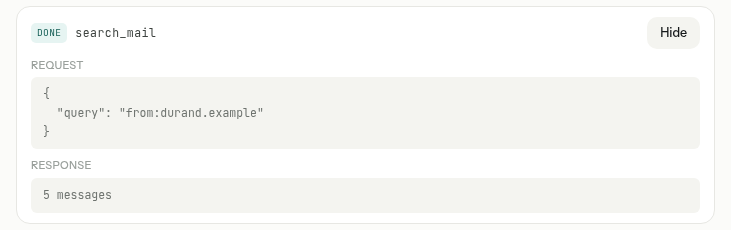
A card that changed something carries Undo this. Undoing puts things back the way they were:
| The assistant… | Undo this… |
|---|---|
| wrote a file, copied a file, created a form | moves that file to the trash. |
| edited part of a file | restores the version before the edit; the content it replaces is kept as a version too. |
| changed a form | puts its questions and settings back. |
| moved or renamed something | moves it back. |
| deleted a file or a folder | restores it from the trash. |
| created a folder | removes it, if it is still empty. |
| wrote a draft | deletes the draft. |
| created or changed a contact, an event or a task | deletes what it created, or puts back what it changed. |
| created or changed a public link | deletes the link, or puts its name, expiry and password back. |
An undo can be refused, for instance when someone changed the item since — you, a colleague, a phone: It has been changed since, so it was left alone. or What it changed is no longer there. Reading, searching and programs have nothing to undo.
A file it wrote over. Undo this moves the whole file to the trash, new content and all. To go back to what the file said before, rather open its More actions menu in Files, choose Versions and click Restore this version beside the earlier one.
What waits for your approval
Most actions apply at once, because they can be undone. A few can’t be taken back, or reach people outside your account: the assistant stops and shows a card marked needs your approval, with what would happen in one sentence. Click the button to let it go ahead, or No, thanks: the assistant is told you declined and carries on without it.
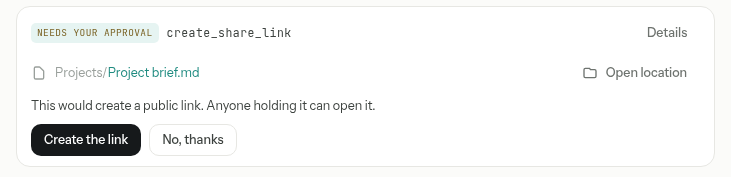

| When the assistant wants to… | The button |
|---|---|
| create a public link to a file, a folder or a form — anyone holding it can open it | Create the link |
| change a form’s public link (name, expiry, password removed) | Change the link |
| delete a form’s public link — this cannot be undone | Delete the link |
| change an event that has attendees — they are emailed the change | Change the event |
| delete an event — attendees are emailed a cancellation; this cannot be undone | Delete the event |
| delete a contact or a task — there is no trash for them | Delete the contact, Delete the task |
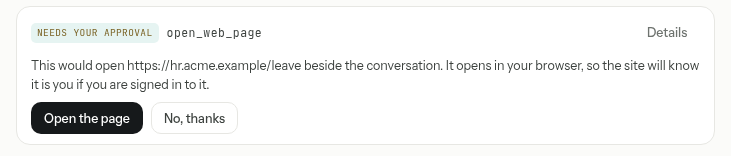
| open a web page beside the conversation, as you | Open the page |
| send a request to one of your organisation’s applications that its rules mark for approval | Send the request |
| run a program allowed to send such requests — read its code first | Run the program |
While a card waits, the box under the conversation says Answer the question above to carry on. and nothing else happens.
When it asks you a question
When a choice changes the result and the assistant cannot settle it from your account — which file, which format, who it is for — it asks rather than guesses. Its questions take the place of the box under the conversation.
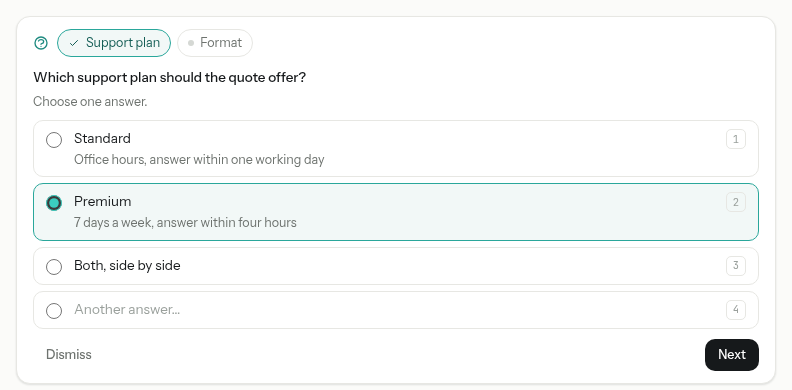
- Pick an answer, or several when it says Choose one answer or more. You can always write your own instead, in Another answer…; a question with no choices has a box for your answer.
- With several questions, their names are steps at the top: Next goes on, Previous goes back, and Send on the last one sends all your answers. The assistant then carries on.
- From the keyboard: a digit picks the option it numbers, Enter goes to the next question and sends from the last one.
- Dismiss closes the questions so you can write a message instead.
Once answered, the conversation keeps each question and your answer.
Web pages and the browser extension
If your administrator turned web search on, the assistant searches the web and reads public pages by itself. For a page only you can reach — an intranet, an application behind a login — it opens the page beside the conversation, in your own browser, so the two of you look at the same screen.
-
The assistant asks first, and shows the address. Check it, then click Open the page: the site will see you as you are signed in to it.
-
The page opens in a panel on the right. Without the extension, it shows the site as a signed-out visitor sees it — when the site lets itself be shown there at all — and the assistant cannot read it. The panel says how to install the extension.
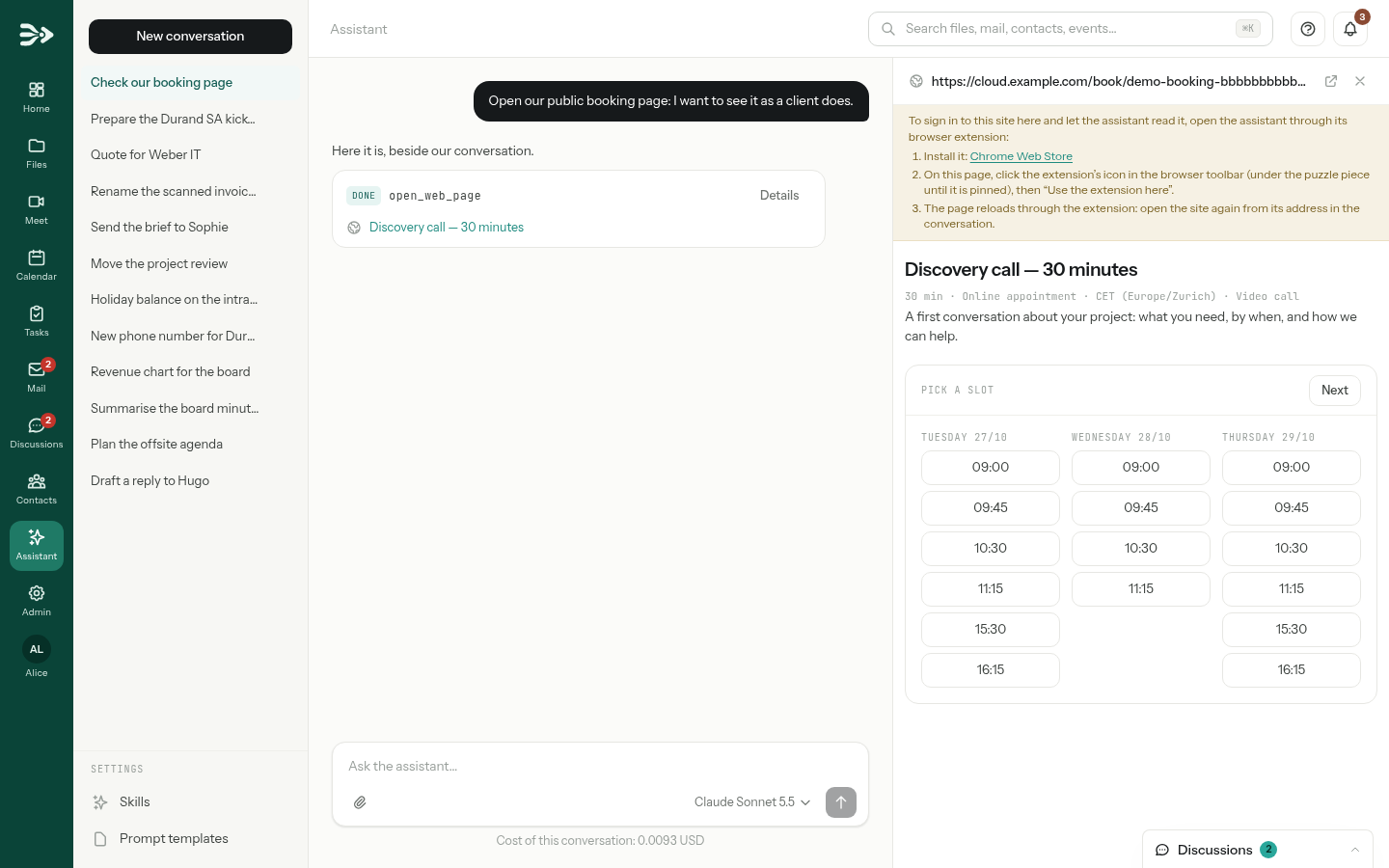
Install the PAFworks Assistant extension
The extension works in Chrome and the browsers built on Chromium (Edge, Brave…), on a computer.
Install PAFworks Assistant from the link Chrome Web Store in the panel.
On the assistant page, click the extension’s icon in the browser toolbar — under the puzzle piece until you pin it — then Use the extension here.
The page reloads through the extension. Open the site again by clicking its address in the conversation.
From then on you can sign in to the site inside the panel, and the assistant reads the page as you see it: its text, its tables and links, and the passage you selected, which is often what you are asking about. It never reads the content of a password field. Back and Reload appear in the panel’s head, beside Open in a new tab and Close. Read the privacy notice of the extension.
Programs and charts
Where your administrator allows it, the assistant writes and runs short programs to count, convert, compare or draw. A program runs apart, in a sandbox: it gets only the files the assistant hands it, cannot reach your account, and saves its results as files in your account — the card lists them as Written. Click one to open it beside the conversation.
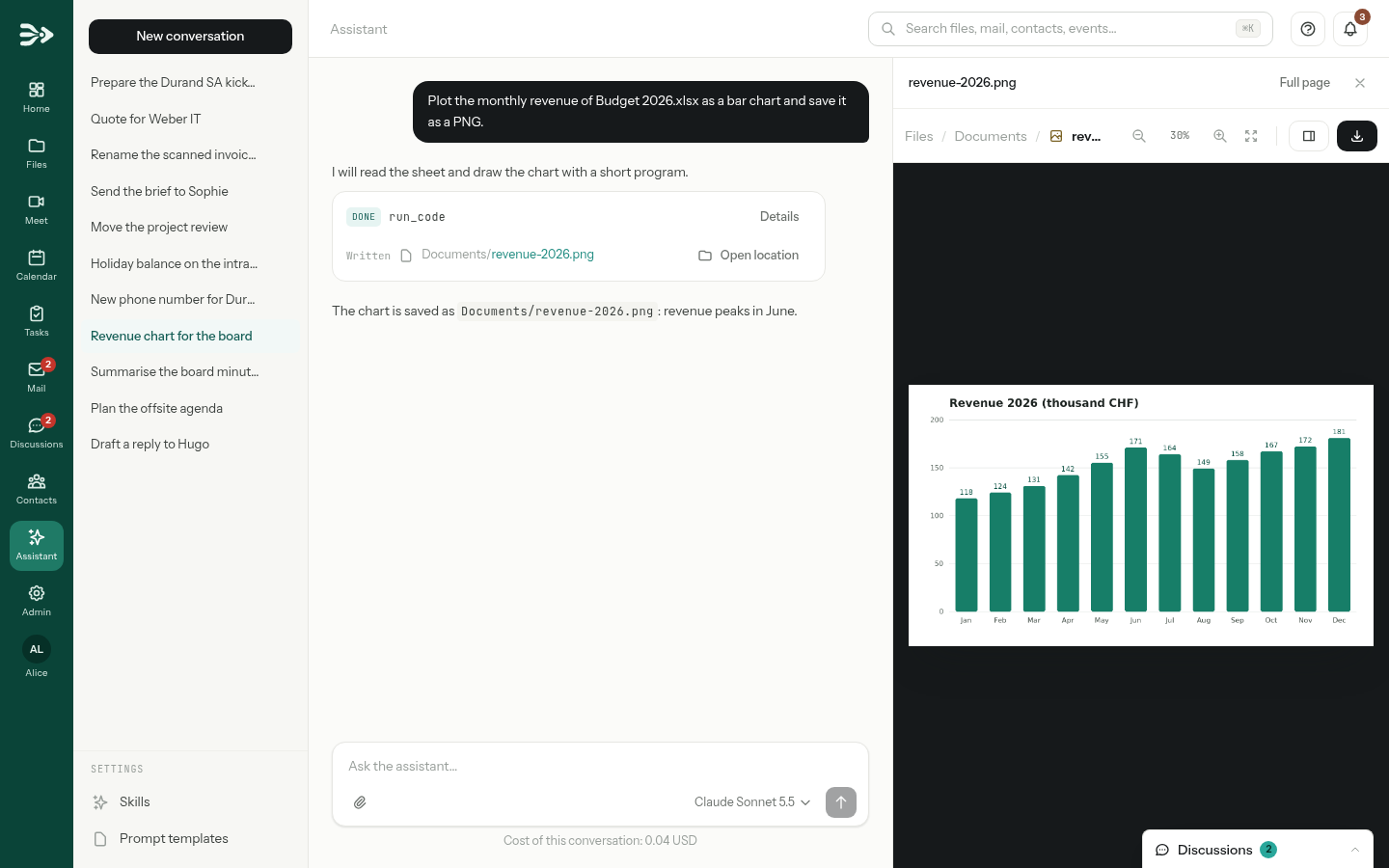
Details shows the program itself, what it printed, its errors and how it ended. A program has no Undo this: delete the files it wrote if you don’t want them; a file it replaced keeps its previous content in its versions.
Choose the model, see the cost
When your organisation offers several models, the one answering is named on the right of the box. Click it to pick another for this conversation; each model is listed with its identifier. A new conversation starts on the default model chosen by your administrator. You can switch in the middle of a conversation — the next answer comes from the new model, which gets the whole conversation — but not while the assistant is working.
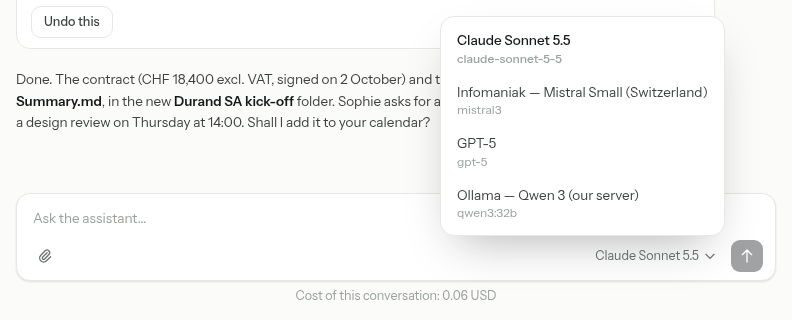
Under the box, Cost of this conversation adds up what its answers cost, once a model with a price has answered. Each answer counts at the price it had when it was written, and each currency is shown on its own. (incomplete) means some answers came from a model without a price. Point at the line to see the number of tokens.
Models that don’t read images refuse a picture you attach: choose a model that reads images first. PDFs, documents and text files are accepted by every model.
Prompt templates
A template keeps a request you make often, with blanks to fill in each time: “Summarise the emails of {{client}} since {{date}} and list the open points.”
Write a template
-
In the column of conversations, under Settings, click Prompt templates, then New template.
-
Give it a Title and write the Prompt. A name between double braces, such as
{{client}}, is a blank to fill in; it is coloured as you type.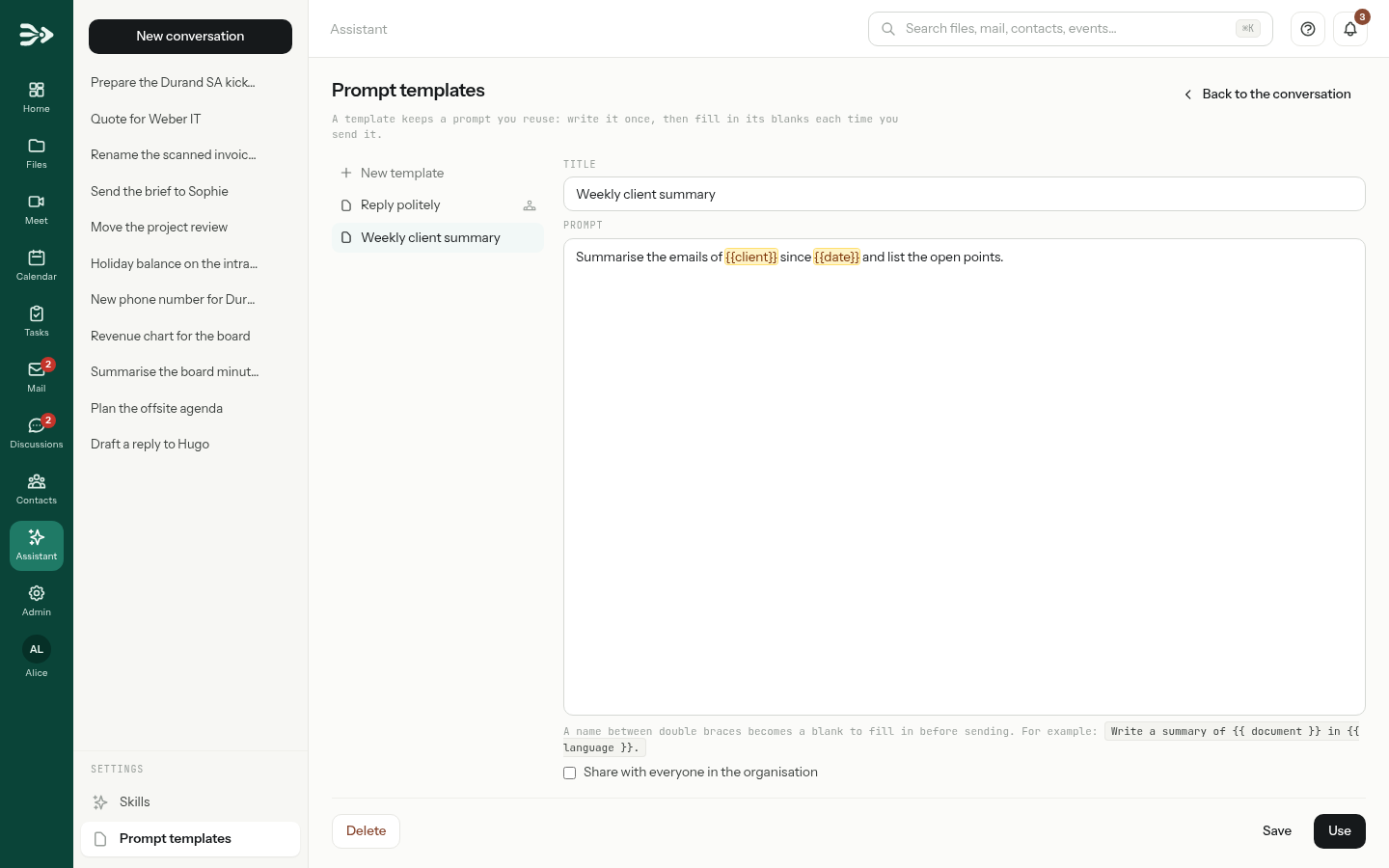
Click Save, or Use to save it and start a conversation with it. Back to the conversation leaves the page.
Use a template
-
Click New conversation, then Start from a template under the empty box. Type a few letters to filter the list and click a template. Manage templates leads to the page above.
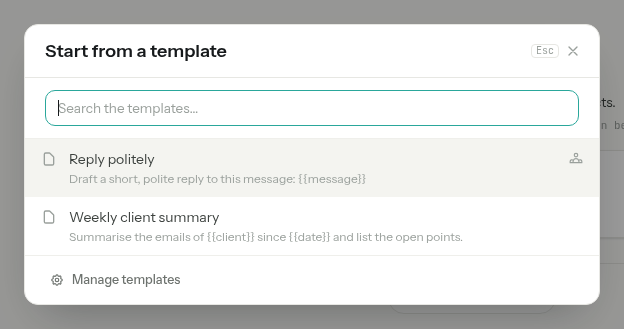
-
The text lands in the box with the first blank selected: type to replace it. The Variables row shows each blank, amber while it is still there; click one to go to it.

Send. If a blank is still there, Variables not replaced asks first: Back to the text, or Send anyway.
A template always starts a new conversation. Templates with a people icon are shared with the whole organisation by an administrator.
Skills
A skill is a way of working you want the assistant to follow — how your quotes are laid out, where invoices go, how a reply to a client should read. You pick a template; the assistant picks a skill by itself, when the task matches.
Under Settings, click Skills, then New skill.
-
Fill in Name, When to use it and Instructions, then Save. Write the instructions as you would explain the job to a new colleague.
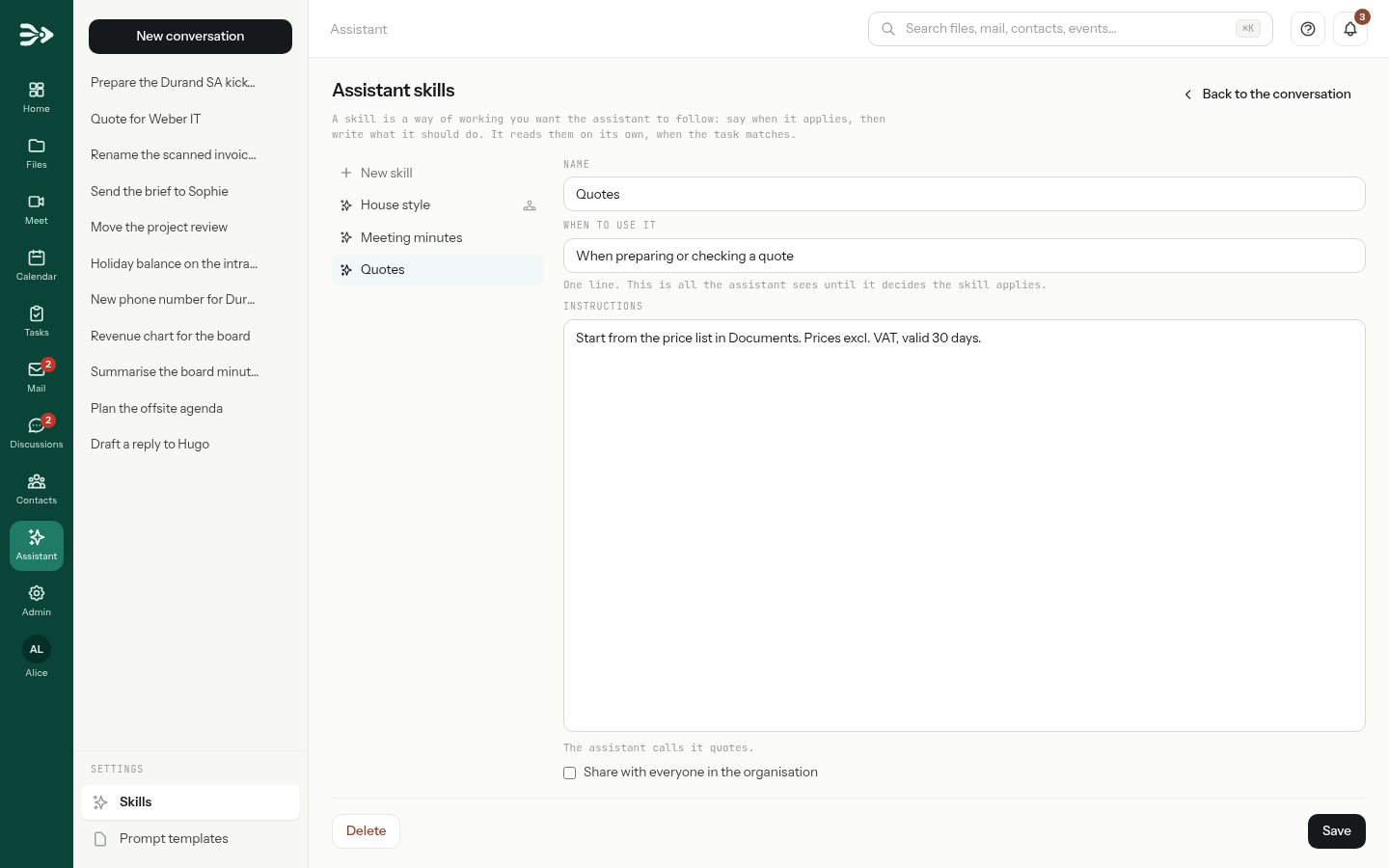
When to use it is one line, and it is all the assistant sees until it decides the skill applies: make it say when, not how. Once the assistant opens a skill, its instructions count as yours for that task. Skills with a people icon are shared with everyone by an administrator.
Your conversations
- The column on the left lists your conversations, the latest first. Each one is named after the beginning of its first message.
- A request written but not sent is kept as you type and listed as Draft: you find it again, files included, when you come back.
- To delete a conversation, point at it and click the bin. The conversation and the record of what the assistant did in it are removed; what it changed in your files stays as it is — so undo first what you want undone.
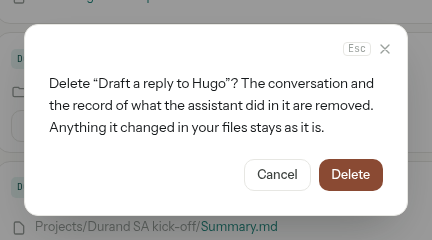
The list shows your 50 most recent conversations. It has no search, and a conversation cannot be renamed.
While it works or waits for you
- At work: in the list, a turning arrow stands before each conversation the assistant is working on. On every other page, a red turning arrow on Assistant in the left bar says it is still at work.
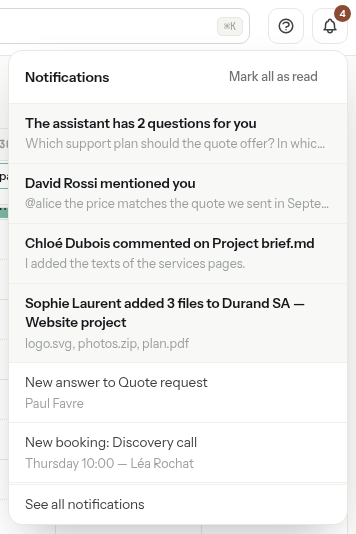
- Waiting for you: when it asks a question or waits for your approval and the conversation is not on your screen, the bell rings — The assistant has a question for you or The assistant is waiting for your approval. Click the notification to go to the conversation. If you turned on Desktop notifications in your preferences, your devices show it too, unless your status is Do not disturb.

Stop, and Continue
While the assistant works, Working… shows under the conversation and the send arrow becomes a square: click it to stop. What it has written so far stays, and the actions it had not started are not run; what it already did stays done, with its Undo this.
Each message also has a budget set by your administrator: a number of steps, of actions and of minutes. When one runs out, the assistant stops and says so; click Continue and it picks up where it stopped, with a fresh budget.

Tips for good requests
- Say where to look. “In Projects/Durand SA”, “the mail from Sophie since 1 October”. The assistant searches anyway, but a place saves it steps — and your budget.
- Say what you want back, and where. “A one-page summary saved as Summary.md in the kick-off folder” rather than “look at this”.
- Attach the document rather than describe it, when you have it at hand.
- For a big change, ask for the plan first. “List the invoices you would rename, and wait for my go” — then “Go ahead”.
- Ask for a draft. The assistant writes mail into your Drafts; you read it and send it.
- Ask for a program for anything with numbers — totals, comparisons, charts from a spreadsheet — where programs are allowed.
- Keep one subject per conversation, and start a new one for something else: answers stay faster, and cheaper.
| Instead of… | Try… |
|---|---|
| “The Durand contract?” | “Find the contract we signed with Durand SA and summarise its termination clauses in five bullet points.” |
| “Compare the offers.” | “Read the three offers in Projects/Supplier offers and make a table of price, duration and support. Save it as Comparison.md in the same folder.” |
| “Answer Sophie.” | “Prepare a reply to Sophie’s last email: we accept Thursday at 14:00. Leave it in my drafts.” |
| “My week?” | “List my meetings next week with people outside Acme, with their time and place. Change nothing.” |
| “Remind Chloé.” | “Create a task ‘Send the signed contract’ due Friday in the Team calendar, assigned to Chloé.” |
| “Chart of the budget.” | “Plot the monthly revenue from Budget 2026.xlsx as a bar chart and save it as a PNG next to the file.” |
Documents are not orders. The assistant is told to treat what it reads — a file, a mail, a web page — as information, never as instructions, and to tell you when a document asks for something. What really protects you is that the risky actions wait for your yes: read each approval card before you click.
Good to know
- Your administrator sets the budgets. By default: 8 steps, 24 actions and 5 minutes per message, 30 messages per hour per person, 10 files per conversation of up to 25 MB each. A form drafted with the assistant in the form editor counts as a message too.
- Past the hourly budget, sending a message shows You have reached the hourly limit for the assistant. Try again later.
- Files you upload from your computer are stored in your account, under Unfiled files in Files, and count towards your quota. A file uploaded for a message you never sent is removed after a day.
- A conversation nobody touched for 90 days is deleted automatically (your host can change this period).
- What the assistant reads is sent to the provider of the model answering the conversation; a model run on your organisation’s own server keeps it there. Ask your administrator which models are hosted where.
- Deleting a conversation never undoes what the assistant did; and undoing an action never deletes the conversation.
- You can also reach your PAFworks files from Claude and other AI apps: see Use PAFworks from Claude and other AI apps.