 PAFworks
Use PAFworks from Claude and other AI apps
Connect Claude, or any other AI app that speaks MCP, to your PAFworks account. It can then find and read your files and mail, write documents and mail drafts, fill in your calendar, tasks and contacts, and prepare forms and signature requests. Sending, sharing and signing stay with you.
How it works. Your AI app reaches your account through the PAFworks connector, an MCP server at https://cloud.example.com/mcp. It signs in with an app password of its own and acts with your rights: it sees what you see — your files, and the team shares, mailboxes, calendars and address books shared with you — and nothing more. Prefer the assistant built into PAFworks? See Work with the AI assistant.
Before you start
- A PAFworks account allowed to download files: an account with the User (no download) role cannot create app passwords, so it cannot connect an AI app.
- A Claude account that can add custom connectors on claude.ai, or Claude Code, or another app that connects to MCP servers over HTTP.
- The connector switched on: if Devices and sync shows no AI assistant (MCP) panel, ask whoever runs your PAFworks.
Step 1 — Create an app password for Claude
Claude signs in to PAFworks with an app password of its own, which you can revoke at any time without touching your account.
Click your avatar at the bottom of the left bar, then Devices and sync.
-
In App passwords, type a name such as
Claudeand click Create. The password is shown only once.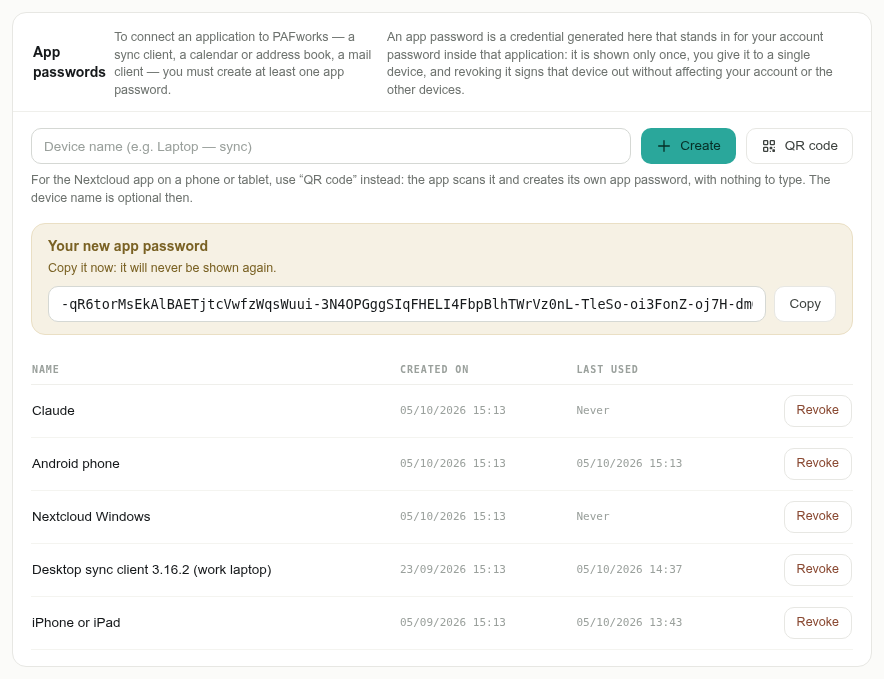
This password carries all your rights. Claude can read and change everything your account can reach. Give it to Claude only, and revoke it from the same list when you no longer need it.
Step 2 — Connect your AI app
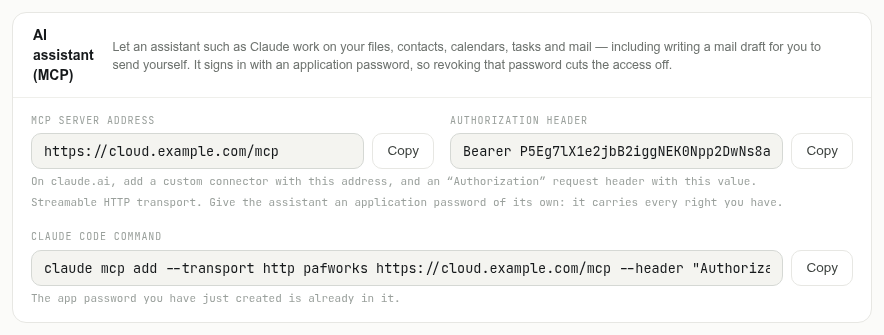
Lower on the same page, the AI assistant (MCP) panel gives everything Claude needs. The app password you have just created is already filled in.
On claude.ai
In Claude, open Settings › Connectors and choose to add a custom connector.
Name it
PAFworksand paste the MCP server address of the panel — for examplehttps://cloud.example.com/mcp— as the server URL.Add a request header named
Authorization, with the value of the Authorization header field, next to the address:Bearerfollowed by your app password. Save the connector.In a new conversation, make sure the PAFworks connector is enabled in the tools menu.
No request headers on your claude.ai account? This option is recent and not available on every account yet. Use Claude Code instead, below.
With Claude Code
Copy the Claude Code command of the panel and run it in a terminal. It looks like this:
claude mcp add --transport http pafworks https://cloud.example.com/mcp --header "Authorization: Bearer YOUR_APP_PASSWORD"
Claude Code can also send pictures and other binary files from your computer to PAFworks by itself.
With another AI app
Any app that connects to MCP servers over HTTP (the Streamable HTTP transport) takes the same two values: the MCP server address, and an Authorization header with the value of the Authorization header field. An app that only asks for a user name and a password can use your PAFworks user name — or the e-mail address of your account — and the app password.
App passwords only. The connector accepts nothing else: neither your account password nor a sign-in through OAuth will work.
What an AI app can do with your account
| Area | What it can do |
|---|---|
| Files | List your folders and team shares; search files by name and by content (text, Markdown, PDF and office documents); read and download files; create and edit text files; create folders; move, rename and copy files; move files to the trash. |
| Bringing files in | Store a file found at a web address — PAFworks downloads it itself, even a large one — or, with Claude Code, a file from your computer. |
| Web sites | Read how a folder published as a website is built, and the report of its last build: see Create your website with PAFworks and Claude. |
| Search your mail — subject, sender, text and attachments, in your mailboxes and the shared ones you can read; read a message; write a draft, as a reply if you like, with attachments taken from your files. | |
| Calendars and tasks | List your calendars and your events (the next 30 days unless you say otherwise); search events and tasks; create, change and delete events; create tasks, assign them to a member of a shared calendar, and tick them off. |
| Contacts | List and search your address books; read, create, change and delete contacts. |
| Forms | Create a form in a folder, change its questions and settings, read its answers, list and delete the public links you made: see Create a form and collect answers. |
| Signatures | Prepare a request to sign a PDF — signers, order, fields — and follow where your requests stand: see Get a PDF signed. |
| Storage | Tell how much space you use and have left. |
If your organisation has set up web search for its assistant, the connector can also search the web and read web pages; some installations also let it run short programs in a sandbox. It tells your AI app which of its tools only read and which change something, so that the app can ask you before a change.
What it never does
- Send a message. A mail it writes is a draft: it waits in Drafts until you read it, change it if needed and send it yourself.
- Send a signature request. It prepares the request; you check the fields and send it from the editor it gives you the link to.
- Make or change a public link to a file, a folder or a form. Whoever holds a link gets in without signing in, so you create links yourself in PAFworks, and decide their expiry and password.
- Invite people. The events it creates have no attendees, so nobody is e-mailed; invitations are sent from PAFworks. It does not change repeating events either.
Some changes reach other people or cannot be undone. Changing or deleting an event that already has attendees e-mails them an update or a cancellation, as any calendar app would. Deleting a contact, an event or a task is final: they have no trash. A file, on the other hand, goes to the trash, and an overwritten file keeps its previous version.
Example requests
- “List my PAFworks folders and summarise
Projects/Project brief.md.” - “Find the quote we sent to Durand SA and tell me its total.”
- “Find Sophie Laurent's last e-mail and draft a reply confirming Thursday at 10:00.”
- “What do I have on Tuesday? Block 30 minutes before the Durand call to prepare it.”
- “Add a task ‘Send the signed contract to Durand SA’ due Friday in the Team calendar, assigned to Chloé.”
- “Add Marc Petit, designer at Studio Petit, marc.petit@studio.example, to my contacts.”
- “Create a satisfaction form in
Projectswith a rating from 1 to 5 and a comment box.” - “Prepare a signature request for
Service agreement.pdf, to be signed by Paul Durand, paul@durand.example.” - “Save this summary as
Documents/Meeting notes.md.”
Claude can also write a whole website into a folder, which PAFworks then publishes on your own domain: the full walk-through is in Create your website with PAFworks and Claude.
See what it did
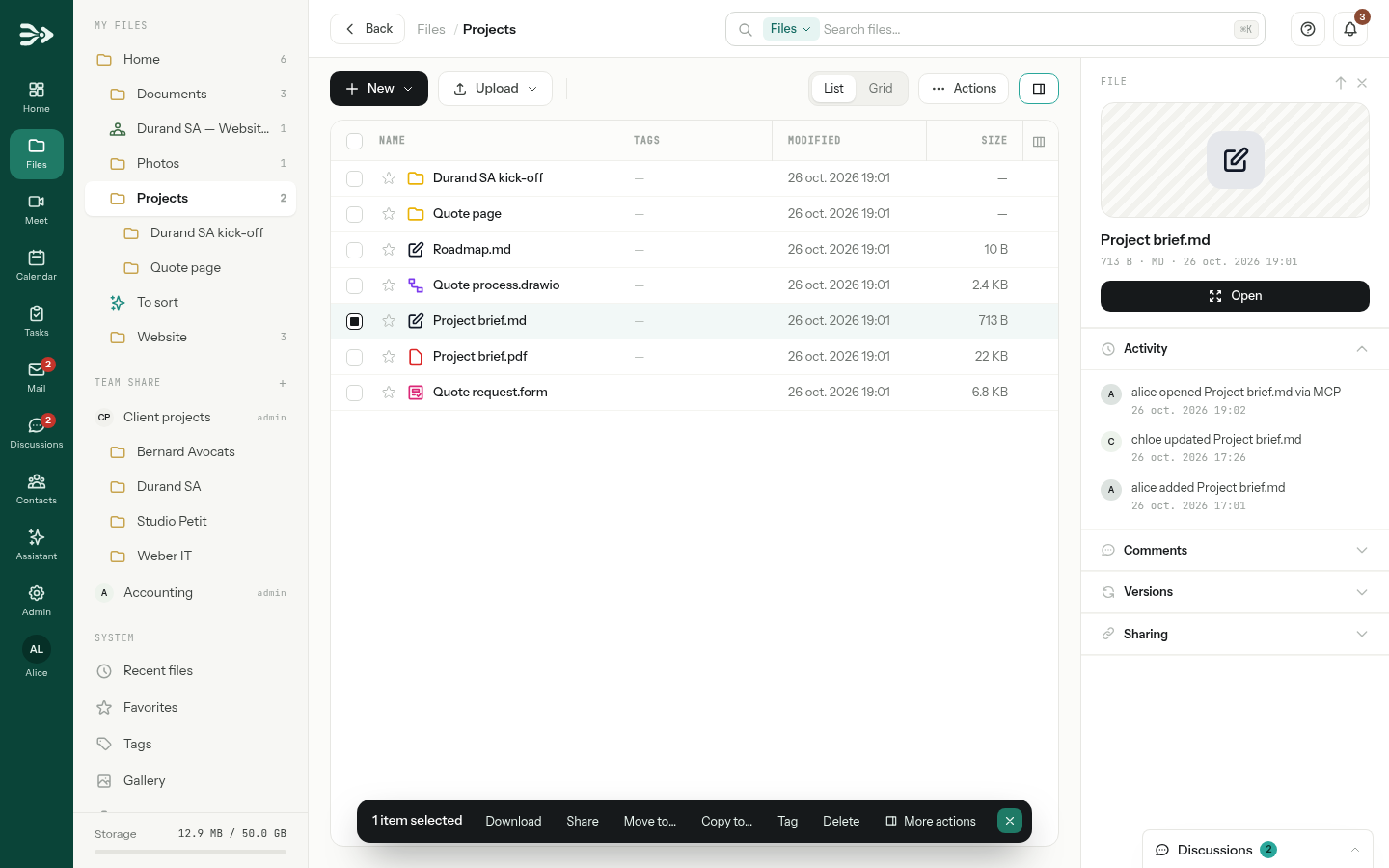
Everything the connector does is done in your name, in your account. In Files, the Activity section of a file's details panel shows the files it opened as “opened … via MCP”. Each change it makes to a file keeps the previous version, which you can restore from the same panel.
Revoke the access
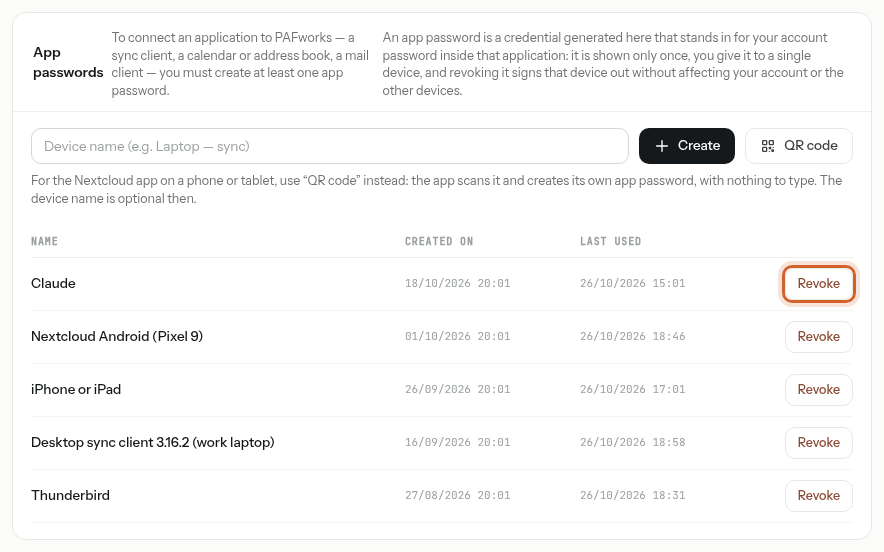
In Devices and sync, the App passwords list shows when each password was Last used. Click Revoke next to the one you gave your AI app and confirm: the connector stops working at once, and your account and your other devices are not affected.
The connector also stops if an administrator pauses or deletes your account.
Good to know
- Give each AI app an app password of its own: revoking one never disturbs the others.
- Two-factor authentication is not asked of app passwords: the connector keeps working when your organisation requires it.
- Wrong app passwords count like wrong passwords: after too many, the connector answers “Too many failed attempts. Try again later.” for a while (15 minutes by default).
- “Unauthorized” means the app password is wrong or revoked; “Unknown host” means the address is not the one of your PAFworks.
- A file brought in from a web address must be reachable without signing in, and has to fit in your remaining storage.
- Files the connector writes in your own folders count against your storage like any other; in a team share, they count against nobody's.