 PAFworks
Set up the assistant for your organisation
You decide which language models the assistant may use, what they cost, how far one conversation may go, and what the assistant may reach besides your files and mail: the web, programs, search by meaning and the applications your organisation runs.
What you need
- An administrator account in PAFworks: the settings below are in Admin, which other accounts don’t see.
- An account with at least one model provider — an Infomaniak AI Tools subscription, an Anthropic or OpenAI API key — or an Ollama server of your own.
- For the API connectors: the address of your application and a key or an account it can sign in with.
Where the settings are
Click Admin at the bottom of the left bar. The AI group of the administration holds three pages:
| Page | What it holds |
|---|---|
| Language models | The switches, the models and their prices, the model used for automatic filing, the shared key, search by meaning and text recognition. |
| Assistant | The switches of the assistant, its limits per account, the sandbox for programs and web search. |
| API connectors | The outside applications the assistant may call, and who may use them. |
Step 1 — Switch the assistant on
At the top of Language models, tick Enable the language models — the one switch above every model, for automatic filing and the assistant alike — and Enable the assistant, then click Save. While either is off, the assistant is absent for everybody: no page, no entry in the left bar.
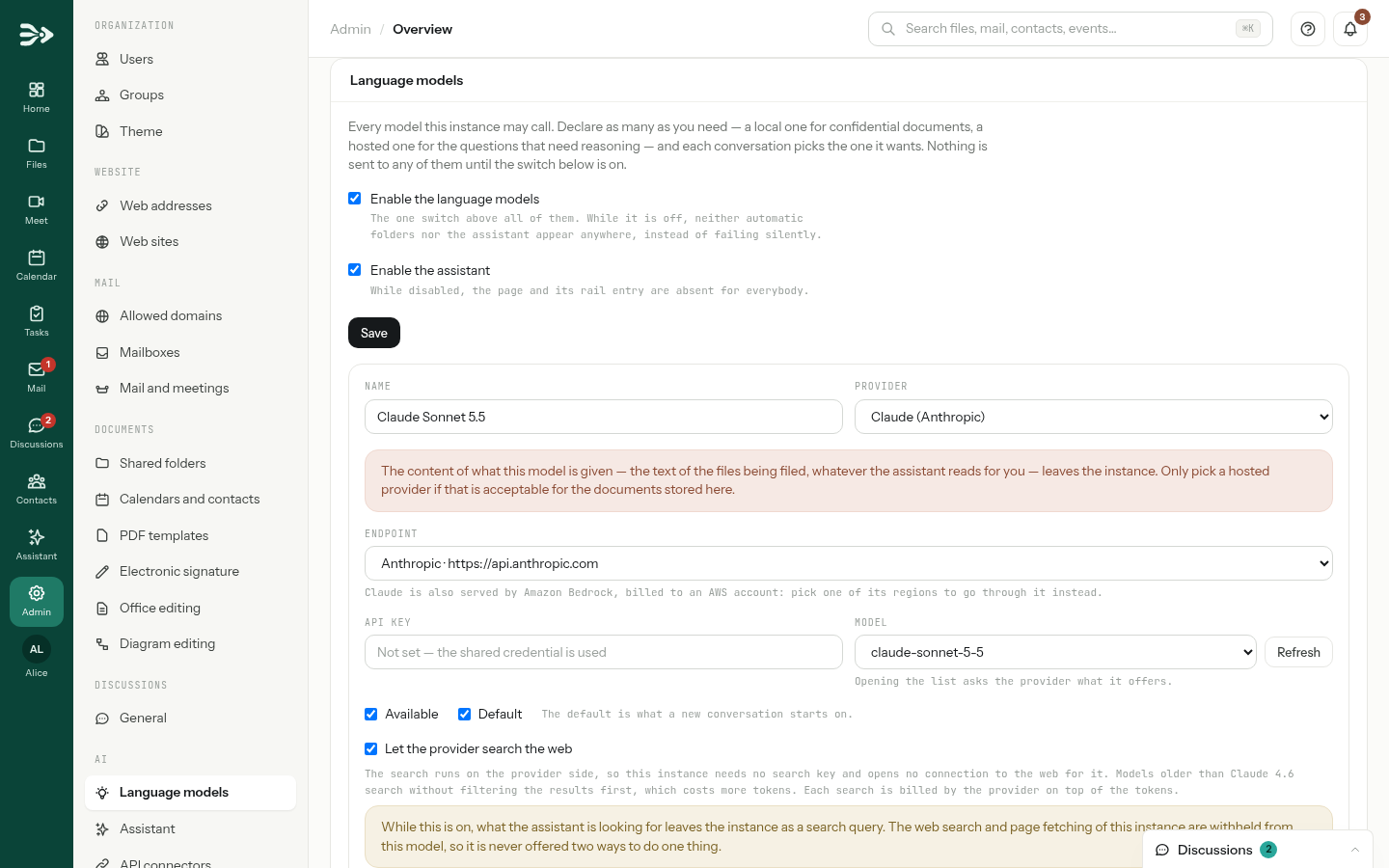
The assistant appears only once a model able to use its tools is declared, too: the Assistant page says so when one is missing. If PAFworks provides a model for your space, the page says which one; a model you add takes over from it.
Step 2 — Declare the language models
-
Under the switches, click Add a model. A blank card appears.
-
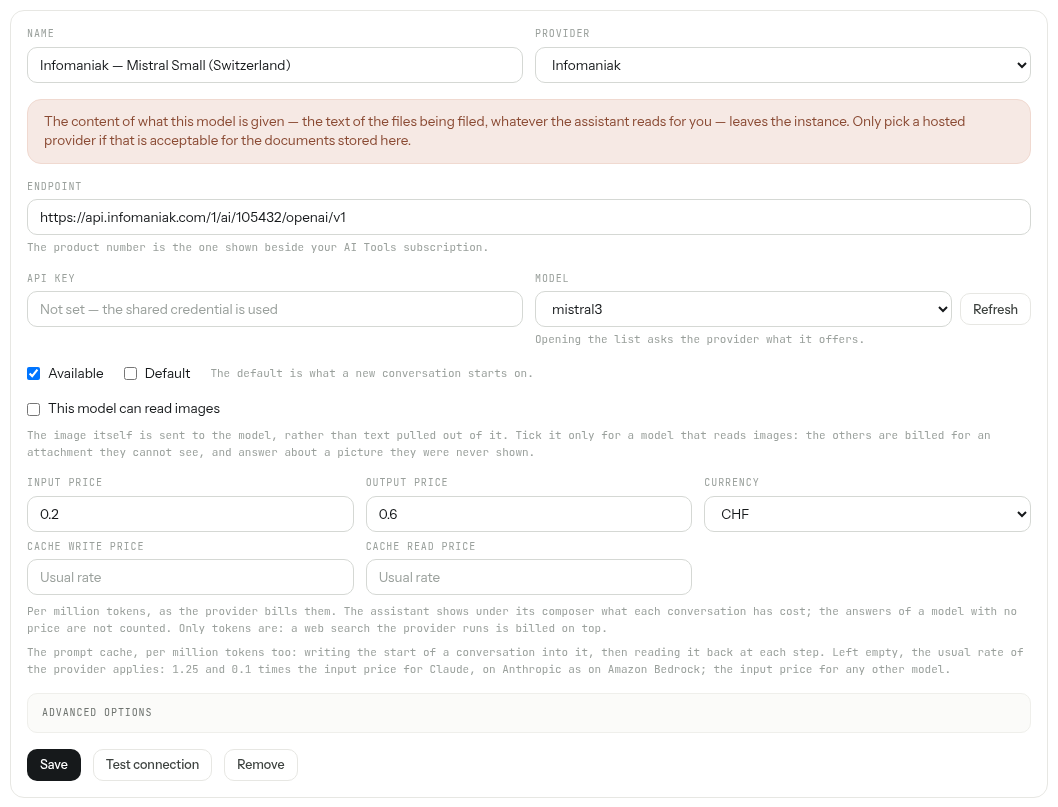
Give it a Name people will recognise in the model menu — say where it runs, for instance “Infomaniak — Mistral Small (Switzerland)” — and pick its Provider.
Provider What the card asks Infomaniak The Endpoint of your AI Tools product, with the product number shown beside your subscription, and a key. Claude (Anthropic) An Anthropic API key. The Endpoint is Anthropic’s own by default. OpenAI An OpenAI API key. Ollama (local) The Server address of your Ollama server. A key only if your server asks for one. Custom (OpenAI-compatible) The Endpoint of a server that speaks the OpenAI API, the model identifier typed by hand, and a key if the server asks for one. -
Paste the API key, or leave it empty to use the shared key (see below). Then open Model: the list is asked of the provider once there is a key; Refresh asks again.
-
Leave Available ticked to offer the model; tick Default for the model new conversations start on. Tick This model can read images only for a model that does: pictures are then sent to it as pictures.
-
Type the prices, if you want the cost of conversations shown (see Prices and cost), then click Save.
A red box on the card reminds you that the content given to a hosted model — the text of the files being filed, whatever the assistant reads for someone — leaves your PAFworks. A model run on your own Ollama server keeps it at home. Declare as many models as you need: for instance a local one for confidential documents and a hosted one for the questions that need reasoning.
One key for several models
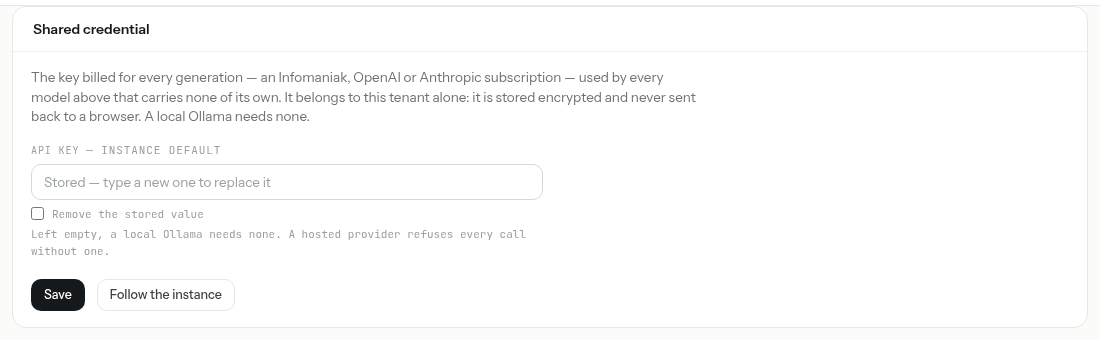
Several models of the same provider can share one key: type it once in Shared credential, lower on the page. A model with a key of its own uses its own. The key is stored encrypted and never shown again; Remove the stored value clears it.
Advanced options on each card hold tuning values with working defaults: the context size of an Ollama model, the answer budgets, the timeout, the retries and the order of the models in the menu. The Automatic folders panel chooses the model used to file documents: see File your documents automatically.
Step 3 — Test it
- Test connection on a model card checks that the provider answers, with the values typed on the card, saved or not, and shows the result beside the buttons.
- Test on the Assistant page checks that the default model really uses the assistant’s tools — an endpoint can answer in words and ignore them — and whether programs can run: The endpoint uses the tools: the assistant can act on your account.
A slow model can fail the test and still work. Test connection gives up after 15 seconds by default. A model that takes longer to start answering shows as unreachable here, while conversations, which wait up to two minutes by default (the card’s Timeout (seconds)), work. A model that thinks before it answers passes even if it wrote nothing in the few words the test allows.
Who uses which model
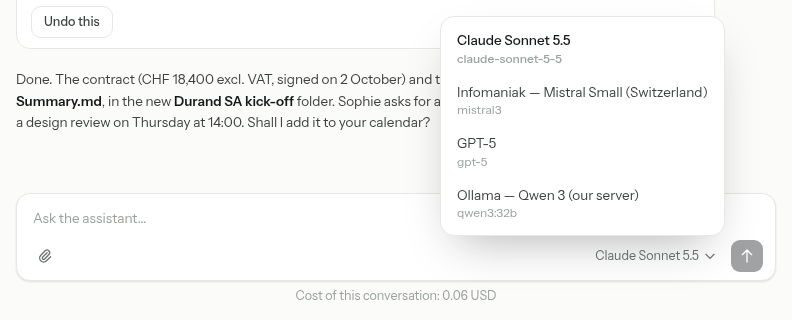
Every model marked Available that can use the assistant’s tools is offered to every account: there is no choice per person or per group. With two models or more, each person picks one per conversation in the menu beside the box they type in; with one, there is no menu. A new conversation starts on the Default model.
Removing a model asks first: conversations that were using it fall back to the default one.
Prices and the cost of a conversation
On each card, Input price and Output price are per million tokens, as the provider bills them, in the Currency you pick (CHF, EUR, USD or GBP). Cache write price and Cache read price can stay empty: the provider’s usual rate then applies.
- Under the box of each conversation, people see Cost of this conversation, one amount per currency. Each answer counts at the price the model had when it was written: changing a price later does not change past costs.
- Answers of a model with no price are not counted, and the line says (incomplete). A web search the provider runs is billed by the provider on top of the tokens, and is not in the figure.
- There is no spending cap: the limits below are what bound a conversation.
Limits of the assistant
On the Assistant page, the numbers bound what one runaway conversation can cost in time and tokens. They apply to each account; click Save after a change.
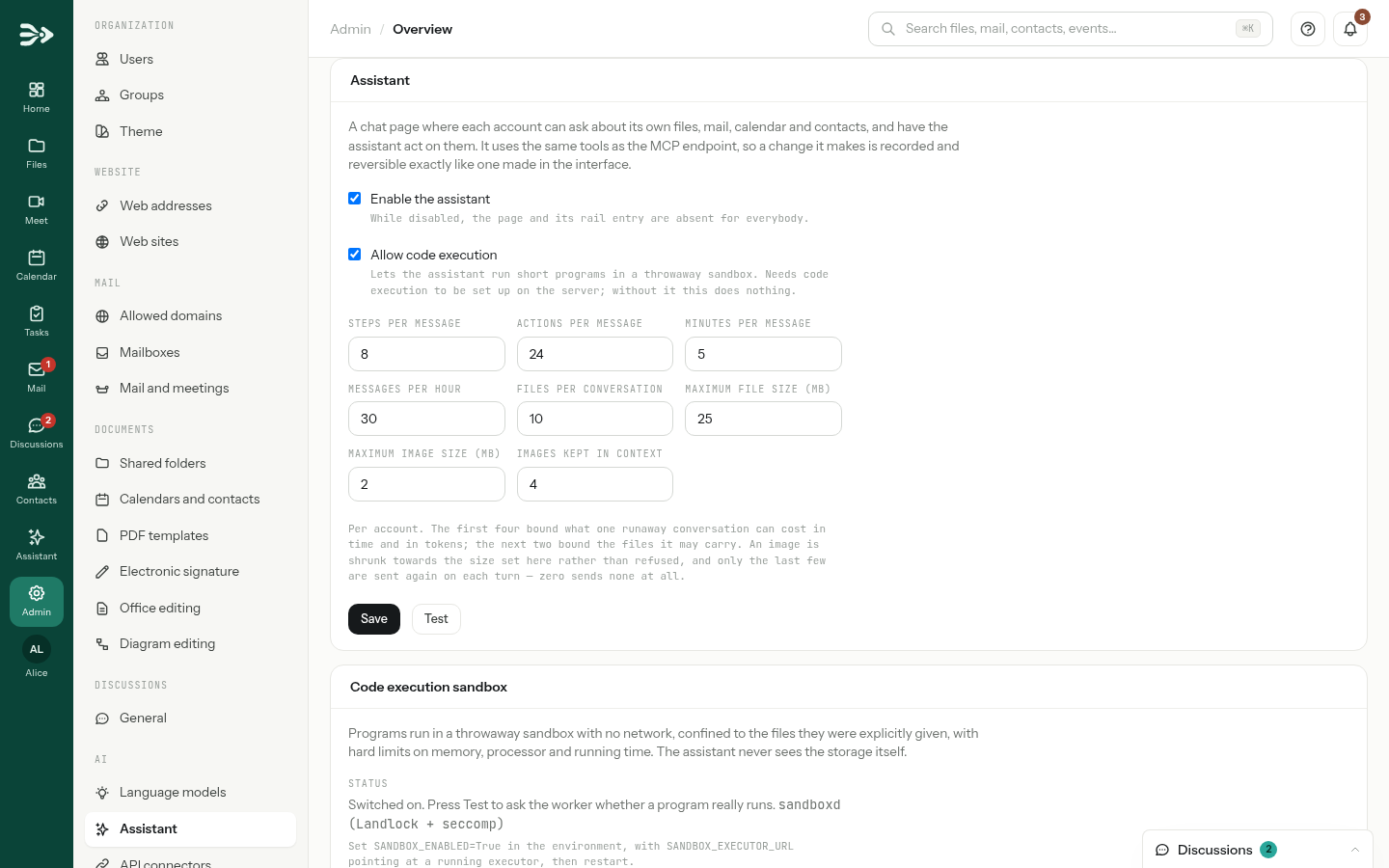
| Setting | Default | What it bounds |
|---|---|---|
| Steps per message | 8 | How many times the model is asked in a row for one message (1 to 250). |
| Actions per message | 24 | How many actions it may take for one message (1 to 200). |
| Minutes per message | 5 | How long one message may keep it working (1 to 120). |
| Messages per hour | 30 | Messages per person per hour, forms drafted with the assistant included (1 to 1000). |
| Files per conversation | 10 | Files attached to one conversation (1 to 100). |
| Maximum file size (MB) | 25 | The largest file uploaded from a computer (1 to 500). |
| Maximum image size (MB) | 2 | The size an image is shrunk towards rather than refused (1 to 20). |
| Images kept in context | 4 | How many of the latest images are sent again with each step; 0 sends none at all (0 to 20). |
When a budget runs out, people read Autonomous mode limit reached: 8 steps per message. An administrator can change it under Administration › Assistant. and can click Continue, which starts a fresh budget. Past the hourly number, the person’s new messages are refused for a while: the count runs over the last hour.
Web search
The assistant can search the web in two ways.
- Through Google, for every model: in the Web search panel of the Assistant page, tick Enabled, paste a Google API key and the Search engine id (the
cxof a Programmable Search Engine), and click Save. The assistant then searches and reads public pages; private and local network addresses stay blocked. - At the provider, for Claude models: tick Let the provider search the web on the model’s card. No Google key is needed; each search is billed by Anthropic on top of the tokens, and that model is no longer offered the Google search, so it never has two ways to do one thing.
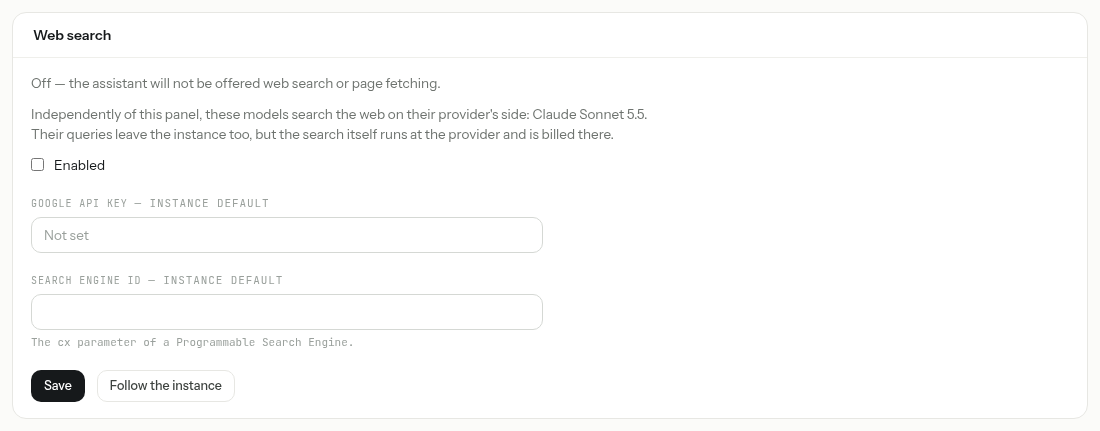
Search terms leave PAFworks. With either kind of search, what the assistant looks for is sent as a query to Google or to the model’s provider. The assistant is told never to put the content of files, mail or contacts in a query.
Opening a web page beside a conversation, with the person’s approval, needs none of this: it happens in their own browser. See Web pages and the extension.
Programs in a sandbox
Tick Allow code execution on the Assistant page to let the assistant run short programs — counting, converting, charts. Programs run in a throwaway sandbox with hard limits on memory, processor and time, and get only the files they were given: the assistant never sees your storage itself.
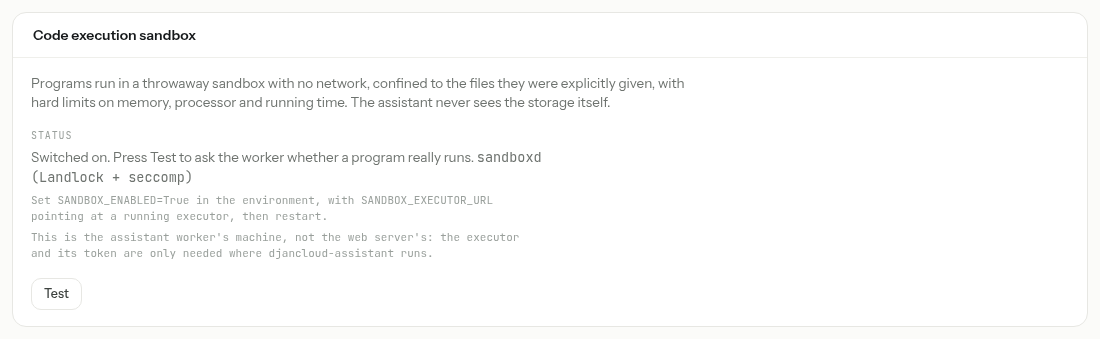
The sandbox itself is installed by your host: the Code execution sandbox panel shows its status, and Test runs a real program and says A program ran. or No program could run. When the host gave programs network access, the panel warns that a program can then send what it was given elsewhere.
Search by meaning
Search by meaning finds the passage that answers a question even when it shares no word with it — “the contract with the two-year notice period”. It needs a model that turns text into vectors (an embedding model), which Anthropic does not offer.
-
On the Language models page, in Semantic search, tick Enabled and choose the Provider: Same as the language model, Infomaniak, OpenAI, Ollama or a custom one.
-
Fill in the Endpoint and the API key if they differ from the language model, and the Model: there is no default. Click Save.
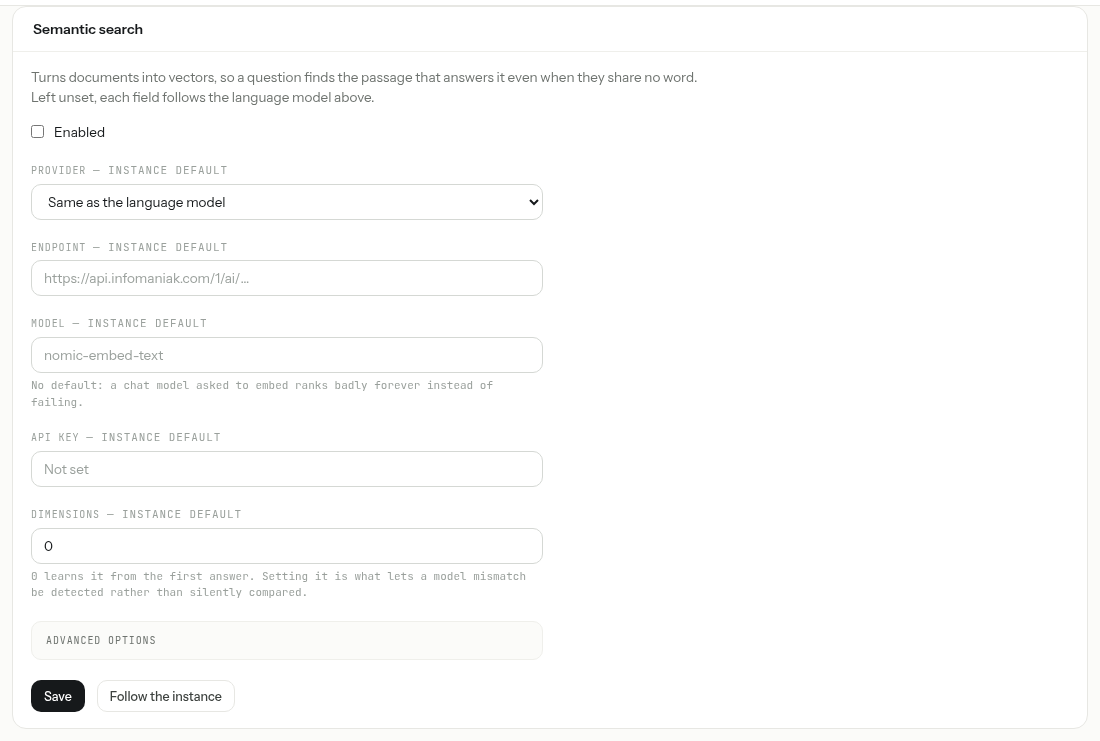
Documents are then indexed in the background, and the assistant gets a search that works by meaning, beside the one by words. Follow the instance drops your values and returns to the settings of your host.
API connectors: your own applications
A connector lets the assistant call an outside application — your ERP, your CRM, an internal tool — for the people you choose. The credentials stay on the server: the assistant names the connector and a path, the server adds the key, the password or the session on the way out and removes them from the answer. The assistant never sees them, and never asks anyone for them.
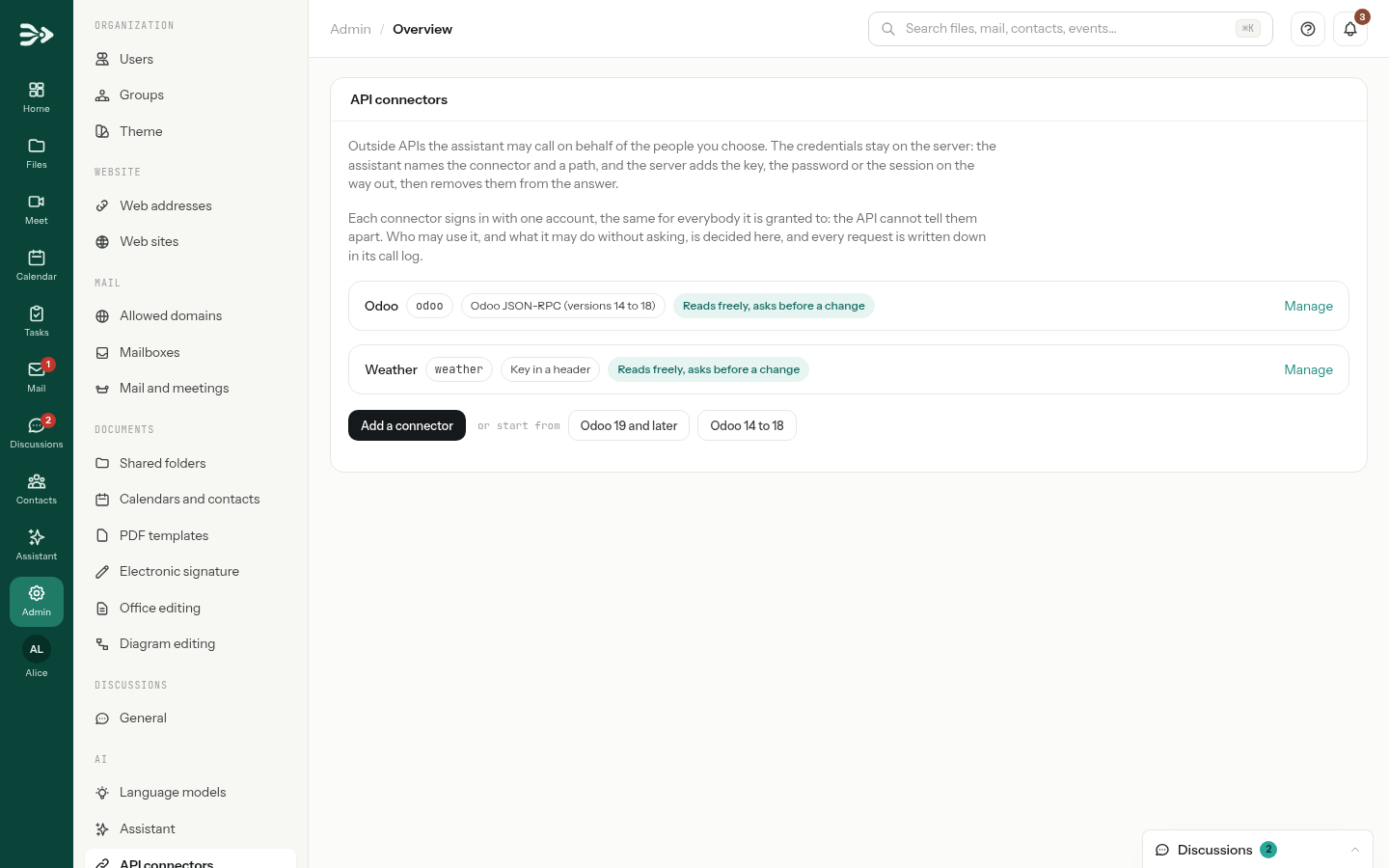
Connect Odoo
-
Next to Add a connector, click Odoo 19 and later or Odoo 14 to 18, depending on your Odoo.
-
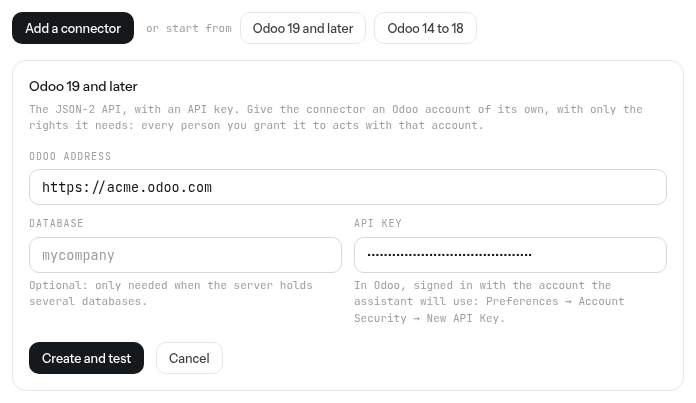
Type the Odoo address and paste the API key — in Odoo, signed in with the account the assistant will use: Preferences → Account Security → New API Key. Odoo 14 to 18 also asks for the Database and the Login of the Odoo account; Odoo 19 needs the database only when the server holds several. Click Create and test.
-
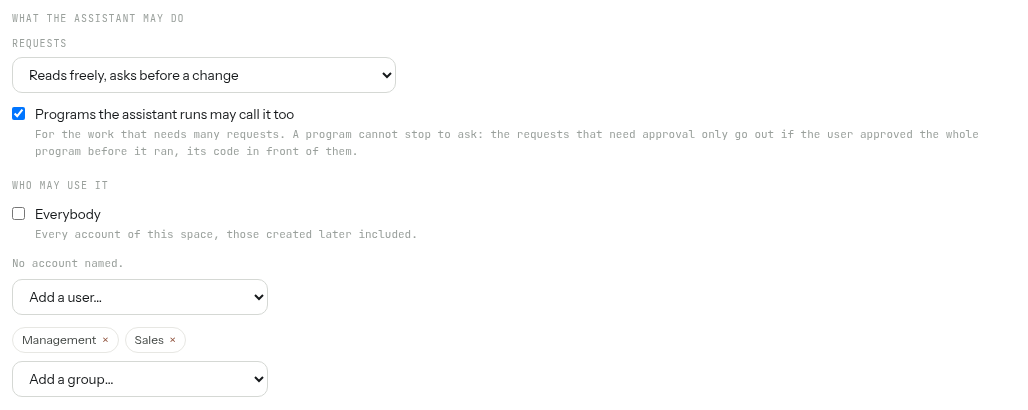
The connector opens, already tested. Under Who may use it, tick Everybody or add people and groups, then click Save. Until you name someone, nobody can use it.
Give the connector an Odoo account of its own, with only the rights it needs: every person you grant it to acts with that account, and Odoo cannot tell them apart. A connector made with the Odoo buttons lists the addresses it may use: reading records goes out at once, creating or changing a record waits for the person’s approval, and deleting records or confirming documents is refused.
What the assistant may do
| Requests | What happens |
|---|---|
| Reads freely, asks before a change | Reading requests go out; anything that changes something waits for the person’s approval. |
| Only the addresses listed | Each line of Allowed addresses says which methods and paths are allowed (Allow) or need approval (Ask first). What no line covers is refused. |
| Ask every time | Every request waits for the person’s approval. |
| Everything, without asking | Every request goes out. Keep it for an application that only reads, or whose changes are easy to undo: a document written to mislead the assistant could make it write there. |
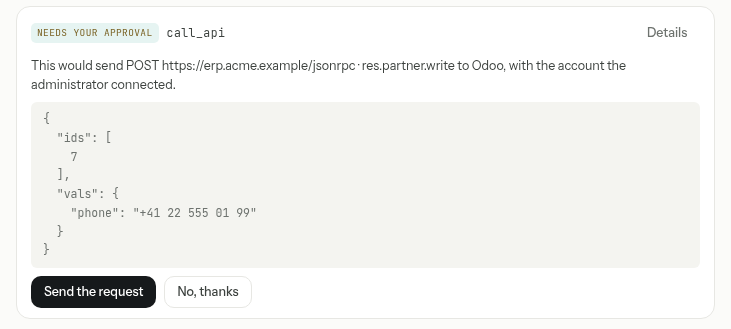
A request that waits shows the person what will be sent — the method, the address and the data — with Send the request and No, thanks:
- Programs the assistant runs may call it too lets a program make many requests in one go. A program cannot stop to ask: requests that need approval only go out if the person approved the whole program, its code in front of them.
- Add a connector builds any other connector by hand: its address (public HTTPS only), the authentication — a key in a header or in the address, a user name and password, a login request, OAuth2 client credentials —, a test request, and What it is for, the one line the assistant reads in every conversation to know when this application is the answer.
- Recent calls, at the bottom of a connector, lists each request: when, who, whether it came from the Assistant, a Program run by the assistant or a Connection test, the request, the result and its duration.
- Untick Active to offer a connector to nobody without losing its settings. Remove deletes it with its call log.
Templates and skills for everyone
Prompt templates and skills are private to the person who writes them. As an administrator, you can share yours with the whole organisation: in the assistant, under Settings, open Skills or Prompt templates, choose the entry, tick Share with everyone in the organisation and click Save.
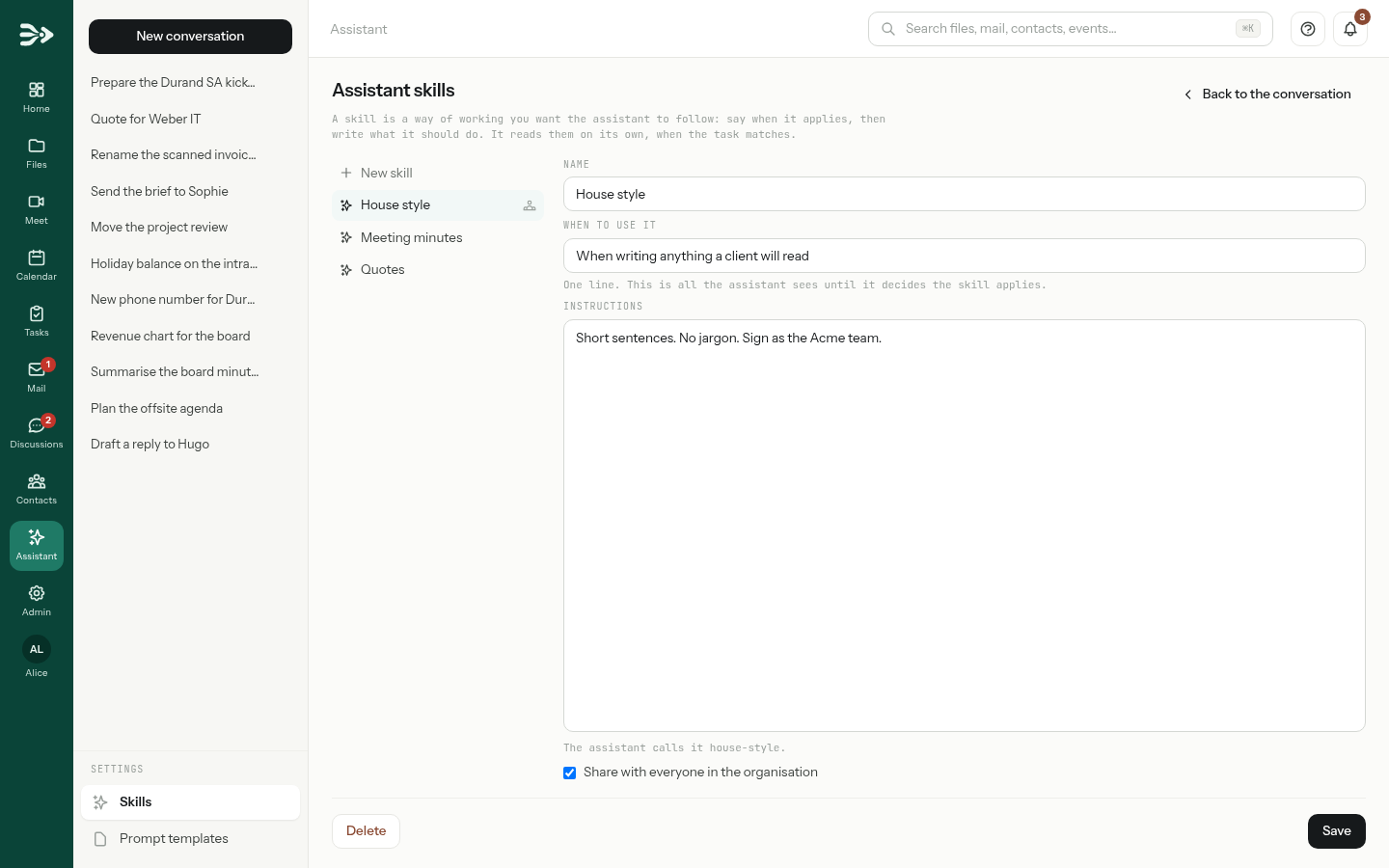
- A shared entry shows a people icon in everybody’s list. People use it but cannot change it.
- Administrators can correct or delete any shared entry, including one whose author has left. They don’t see anybody’s private entries.
- A shared skill is offered to the assistant in everybody’s conversations. A house style whose When to use it says “When writing anything a client will read” is followed in every such text, whoever asks.
How people use them: see Prompt templates and Skills.
What data goes where
| What | Goes to | When |
|---|---|---|
| The messages, the text of attached files, whatever the assistant reads with its tools (files, mail, events, contacts) and the answers of connected applications | The provider of the model answering the conversation | Always. A model on your own Ollama server keeps it there. |
| Attached images, as pictures | The provider of the model | Only for a model marked This model can read images. |
| Search queries | Google, or the model’s provider | When web search is on, or Let the provider search the web is ticked. |
| Passages of files, mail and attachments | The embedding provider | When Semantic search is enabled. |
| Requests and the data they carry | The application of the connector | When someone uses a connector. |
| Files handed to a program | The sandbox of your host | When code execution is allowed. They leave it only if programs have network access. |
| The text of a web page open beside a conversation | PAFworks, then the model’s provider | When the person reads it through the browser extension. |
Good to know
- The assistant acts with the rights of the person using it: it reaches what their account reaches, and nothing else.
- It cannot send mail. Public links, deletions of contacts, events and tasks, event changes that email attendees and requests marked for approval wait for the person’s yes.
- Every change it makes is recorded with the conversation and can be undone by the person. The activity journal also notes Assistant made changes for each answer that changed something, and Assistant change undone for each undo.
- The call log of a connector keeps 90 days of requests by default.
- An Ollama model is never sent images, even with This model can read images ticked.
- Conversations untouched for 90 days are deleted automatically; the period is set by your host.
- Files people upload into a conversation count towards their own quota.
- Switching Enable the language models off also stops automatic filing.