 PAFworks
Let people book a meeting or pick a date
Two tools of the calendar spare you the back-and-forth of e-mails. A booking page publishes your free slots: people pick one, and the appointment lands in your calendar. A date poll proposes a few dates: people answer yes, maybe or no, and you keep the best one. The people who book or answer need no account.
Before you start
- Every PAFworks user can create booking pages and date polls, from Calendar. The appointments and events land in one of your calendars, or in a shared calendar you are allowed to write to.
- The video options (Online appointment, Online meeting) only appear once an administrator has set up online meetings. People without an account can join these meetings only if the administrator allows guests.
- Invitations and the other e-mails of this guide leave through the outgoing mail server set up by your administrator.
Booking page or date poll?
| Booking page | Date poll | |
|---|---|---|
| Who chooses the time | Each visitor, among your free slots | You, once people have answered |
| For | Appointments with one person at a time: calls, consultations, demos | One meeting with a group: a kick-off, a dinner, a workshop |
| What you set up | Your hours, the length of an appointment, a break | A few dates you propose |
| What lands in your calendar | Each appointment, as soon as it is booked | One event, when you choose the date |
Booking page, step 1 — Create the page
-
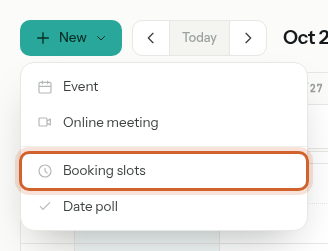
In Calendar, click New, then Booking slots. The + next to Booking pages, in the left column, does the same.
-
Describe when people may book you. Slots start at the beginning of each time window and follow one another every duration plus break, as long as the appointment ends inside the window. In the example below, appointments of 30 minutes with a 15-minute break start at 09:00, 09:45, 10:30 and 11:15 every weekday, and also at 14:00, 14:45, 15:30, 16:15 and 17:00 on Tuesdays and Thursdays.
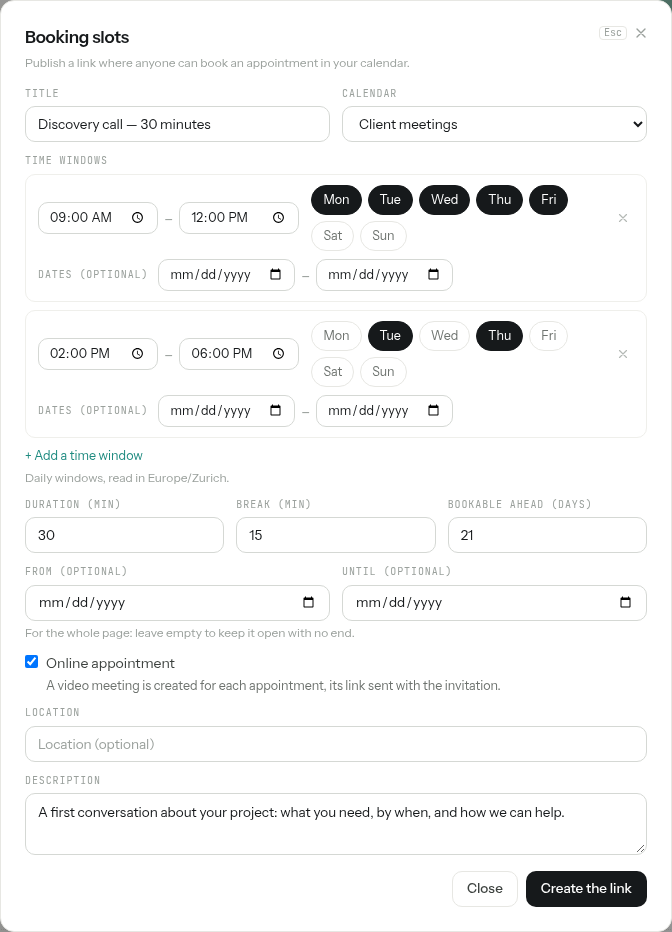
Setting What it does Title The heading of the public page, and the start of the title of every appointment. Calendar Where the appointments land. Its events are what make you busy: a slot is offered only while this calendar is free. Time windows The hours you take appointments, each with the days of the week it opens on (click a day to turn it on or off). Add a time window adds another one, for an afternoon or other hours on other days. Dates (optional) limits a window to a period. The hours are read in your time zone, named under the windows. Duration (min) The length of one appointment, from 5 to 480 minutes. Break (min) The time left free after each appointment, from 0 (back to back) to 480 minutes. Bookable ahead (days) How far ahead people can book, from 1 to 365 days. From (optional), Until (optional) A period for the whole page: no slot before the first day nor after the last one. Leave them empty to keep the page open with no end. Online appointment Each appointment gets a video meeting of its own; its link is sent with the invitation. Location Where the appointment takes place, shown on the public page and in the invitation. Leave it empty for an online appointment: the invitation then gives the meeting link as the place. Description A few words shown under the title of the public page. -
If the calendar is shared with colleagues, a column Members' availability appears. It decides whose agendas must also be free for a slot to be offered: each member's own personal calendar is checked, besides the shared calendar. The members are the owner of the calendar and the people it is shared with.
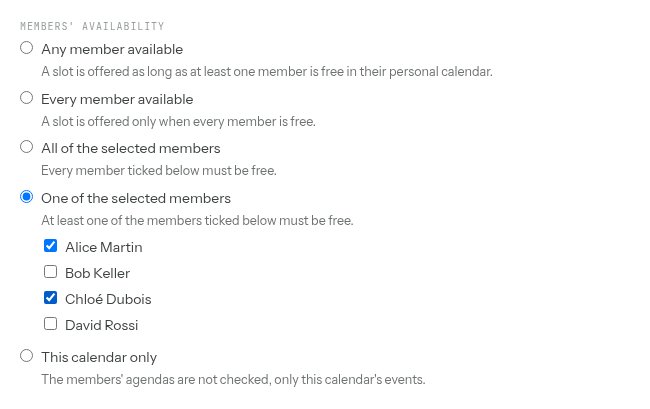
Option A slot is offered when… Any member available At least one member is free. This is the choice of a new page on a shared calendar. Every member available Every member is free. All of the selected members Every member you tick is free. One of the selected members At least one of the members you tick is free. This calendar only The shared calendar is free; the members' agendas are not read. -
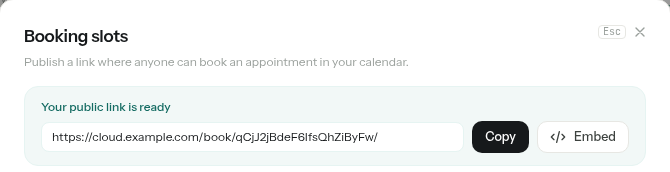
Click Create the link. Your public link is ready shows the address of your booking page: click Copy.
No video option? Online appointment only shows once an administrator has set up online meetings, in Admin › Mail and meetings › Online meetings. Your visitors have no account: the administrator must also tick Allow guests there, or they cannot join. The form tells you when guests are kept out.
Booking page, step 2 — Share the link or embed it
Send the link by e-mail, add it to your signature or to your website: whoever holds it can book. You find it again at any time in the form of the page.
To show the booking page inside a page of your website, click Embed next to Copy. Under Code to paste, click Copy and paste the code into your site: your visitors pick a slot and book without leaving it. The embedded page has no header nor footer of its own.
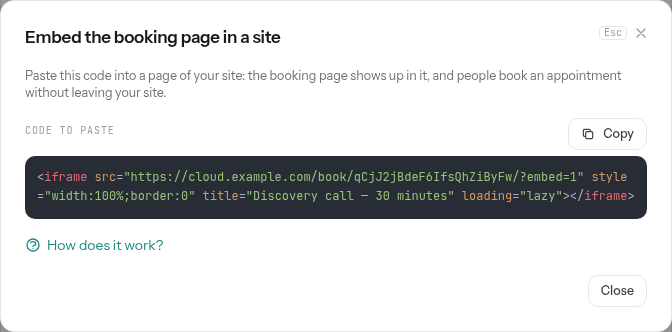
How does it work? is for whoever builds your site. It gives a script that sets the height of the frame by itself, the messages the booking page sends to your page (a step shown, an appointment booked, a booking refused, a new height), and ready-made recipes to open a thank-you page or count a booking in your statistics. The address, the name and the message of whoever books are never sent to your page.
Booking page, step 3 — What your visitor sees
-
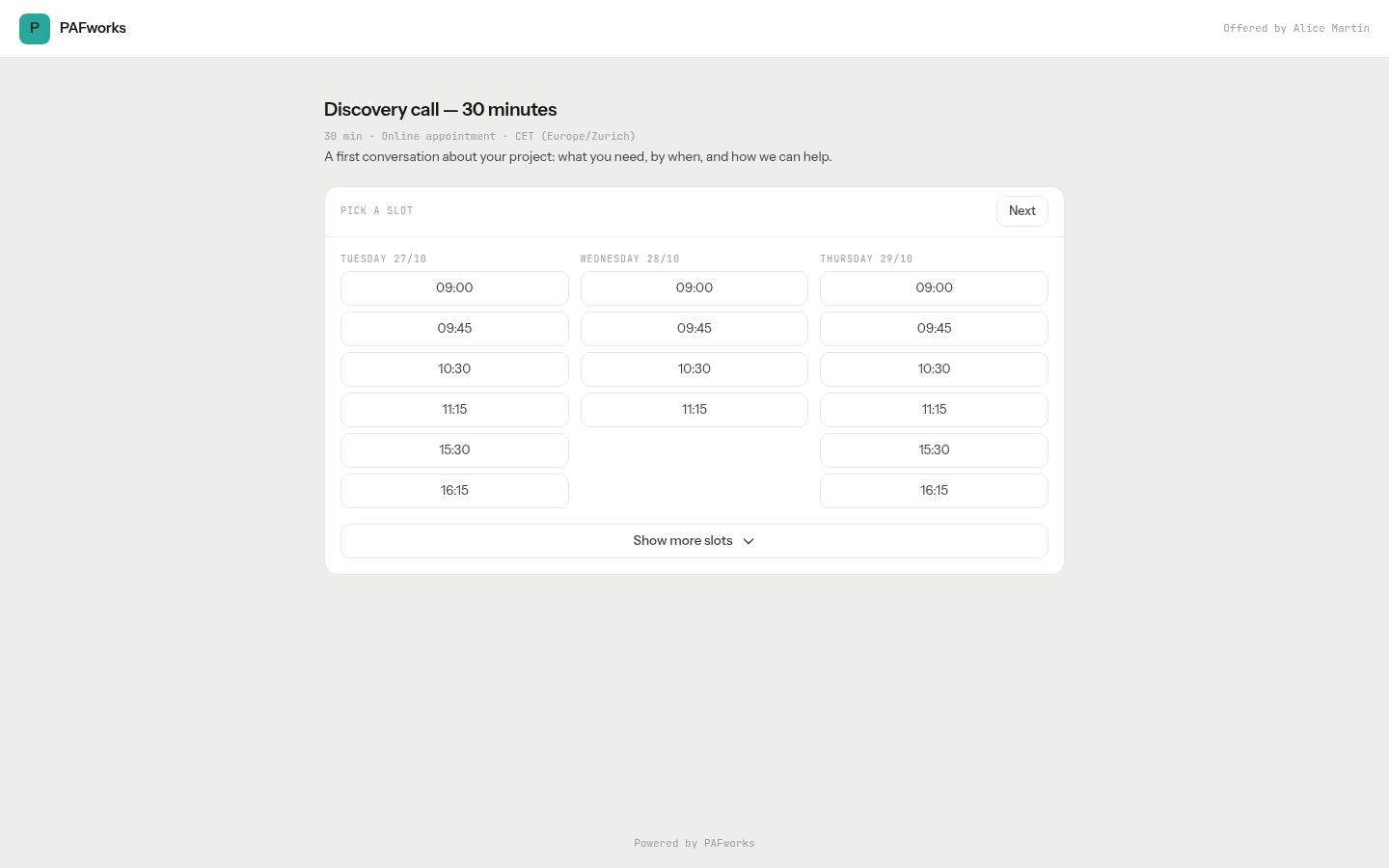
Your visitor opens the link. The page shows your name, the title, the length of an appointment, whether it is online, the time zone of the hours, the place and your description. Under Pick a slot are the next three days with a free slot, six slots per day. Show more slots uncovers six more slots of each day; Next and Previous move to the next or previous days with a free slot.
-
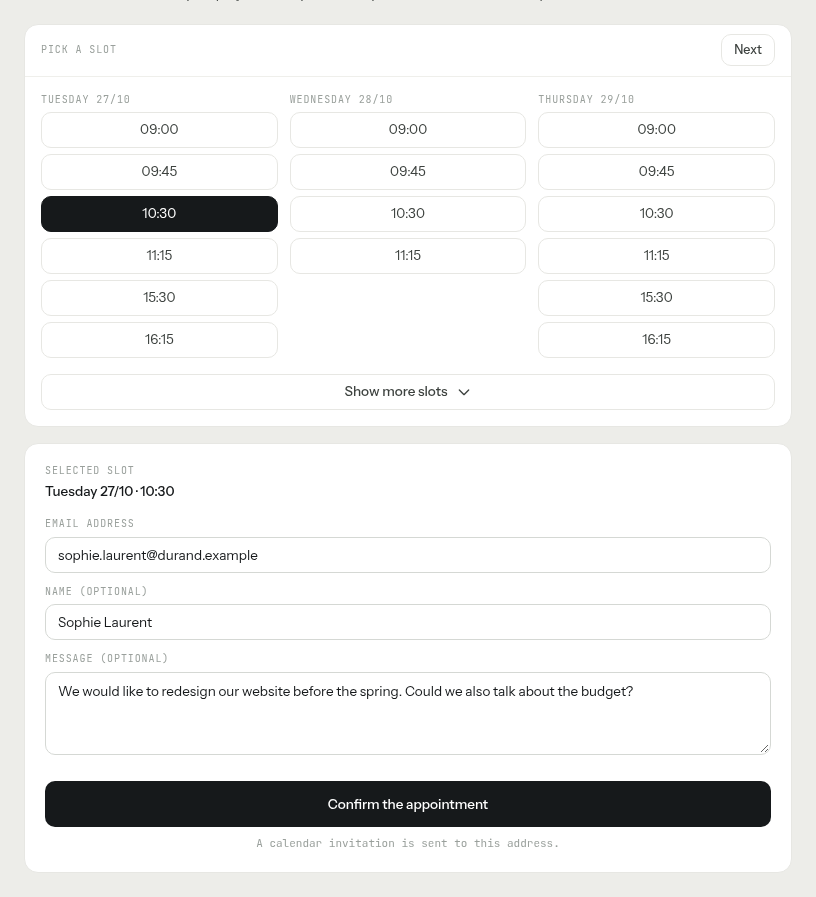
They click a slot. Below, they type their Email address, and if they wish their Name (optional) and a Message (optional), then click Confirm the appointment.
-
Appointment confirmed recalls the date and the hours, the place, the Join the meeting button of an online appointment, and the person it is booked for. The visitor can bookmark this page and come back to it.
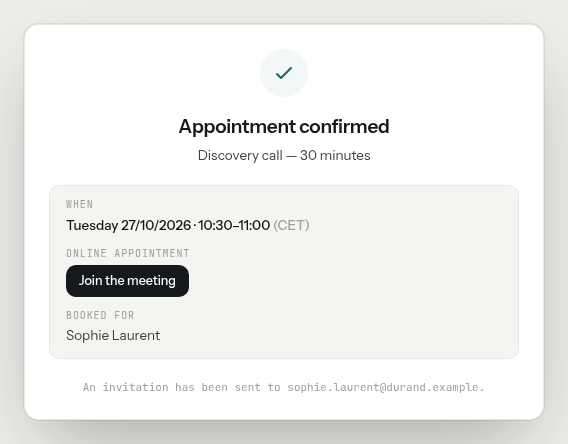
At the same time, your visitor receives a calendar invitation by e-mail. Their mail or calendar app can add it to their calendar, at the right time in their own time zone. The invitation of an online appointment carries the link to join the meeting.
If someone else took the slot in the meantime, the page says This slot is no longer available, please pick another one. and shows the slots again.
Booking page, step 4 — The appointment in your calendar
The appointment is an event of the page's calendar, titled with the page and the visitor's name (or address). In Week and Day, your free slots are drawn as dashed outlines next to your events, so you see at a glance what people can still book; a click on one opens the settings of its page. The Booking pages list, in the left column, shows the days and hours of each page and how many bookings it took.
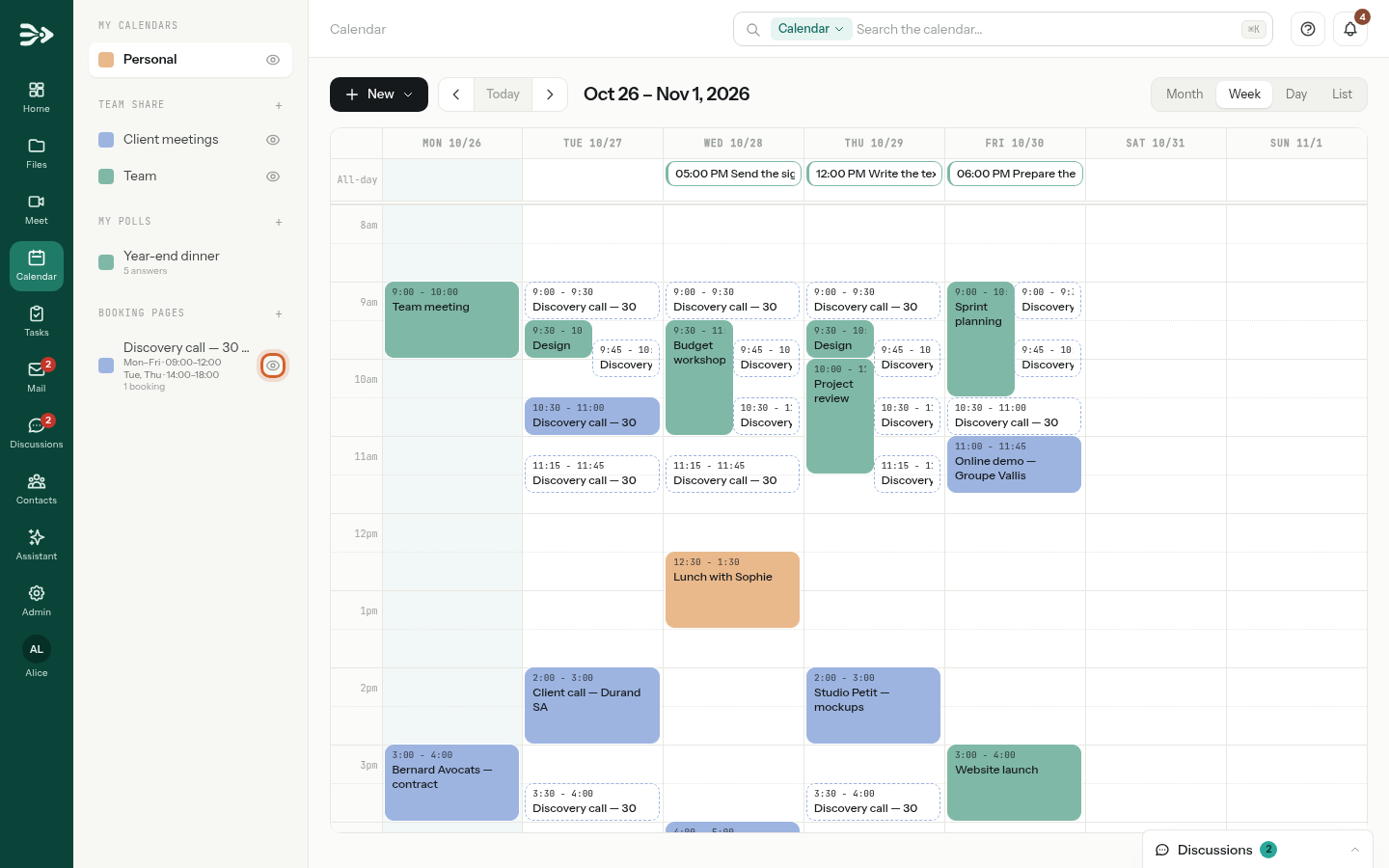
Slots next to your other meetings? A booking page only reads its own calendar, here Client meetings: the meetings of the Team calendar do not block its slots. Put the page on the calendar where you keep your appointments.
The eye next to a booking page hides its slots from your calendar, or shows them again. The choice follows you on every device. It only changes your view: the public page keeps offering the slots.
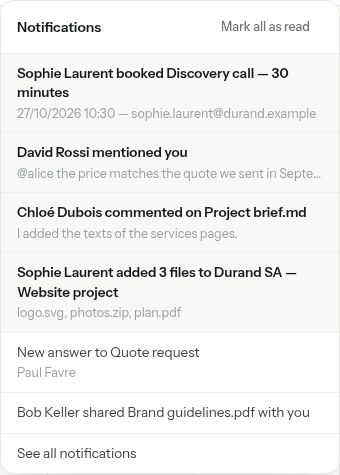
You are told in the bell at the top right, with the date and time and the visitor's address, and by e-mail too unless you turned off Send my notifications by e-mail too in your preferences.
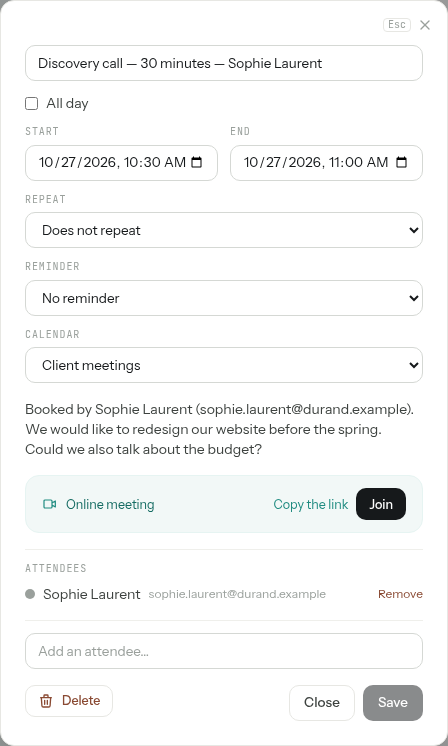
Click the appointment to open it: the visitor is its attendee, their message is in the description, and an online appointment has its Join button and Copy the link.
Change, move or cancel
- Change the page: click it in the Booking pages list, or click one of its slots in the calendar. Edit the booking slots opens with its Public link, Copy, Embed and Open. Click Save: the link stays the same, only the slots it offers change.
- Move an appointment: drag it in the calendar, or change its Start and End and click Save. The visitor receives the updated invitation.
- Cancel an appointment: open it and click Delete. The visitor receives a cancellation by e-mail, and the slot is offered again.
- Your visitor has no button to cancel or move: they answer the invitation e-mail, which reaches you, and you move or cancel the appointment.
- Delete the page: Delete at the bottom of its form. The link stops working; the appointments already booked stay in your calendar.
Date poll, step 1 — Propose the dates
-
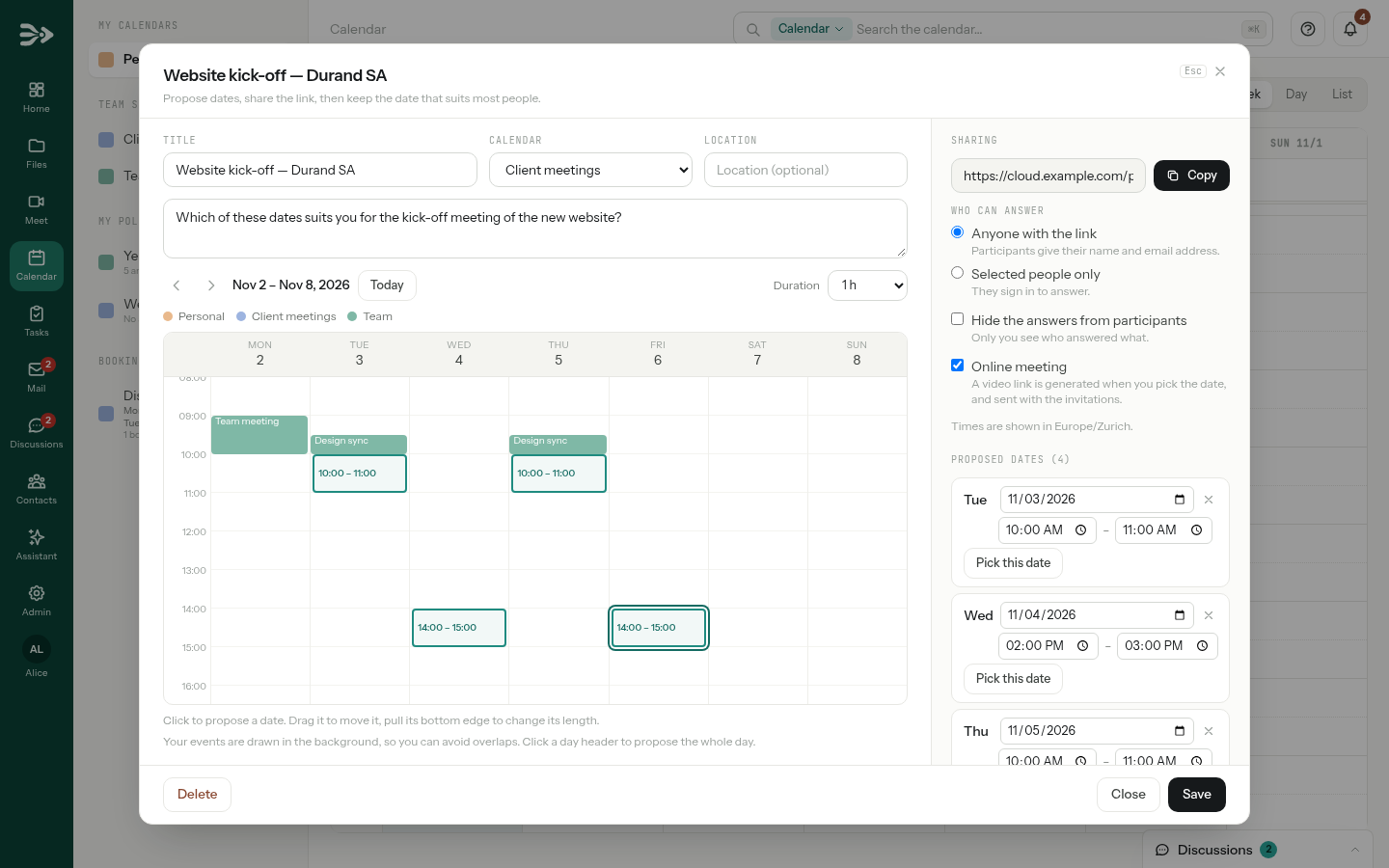
In Calendar, click New, then Date poll, or the + next to My polls. Give the poll a Title, pick the Calendar the event will land in, and add a Location and a description if you wish.
-
Click in the week grid to propose a date: each click adds one, starting at the half hour you clicked and lasting the Duration chosen above the grid (30 minutes to 2 hours). Drag a date to move it, pull its bottom edge to change its length, click its × to remove it, or click a day header to propose the whole day. The arrows show other weeks. Your own events are drawn in the background; a date that overlaps one of them says so under Proposed dates, where you can also type the day and the hours.
-
Choose Who can answer:
- Anyone with the link: participants give their name and e-mail address, no account needed.
- Selected people only: pick colleagues or groups of your organisation under People and groups. They sign in to answer. PAFworks does not tell them: send them the link.
Tick Hide the answers from participants if only you should see who answered what, and Online meeting for a video link created when you pick the date.
-
Click Create the poll. The link appears under Sharing: click Copy and send it to the participants.
Date poll, step 2 — How participants answer
-
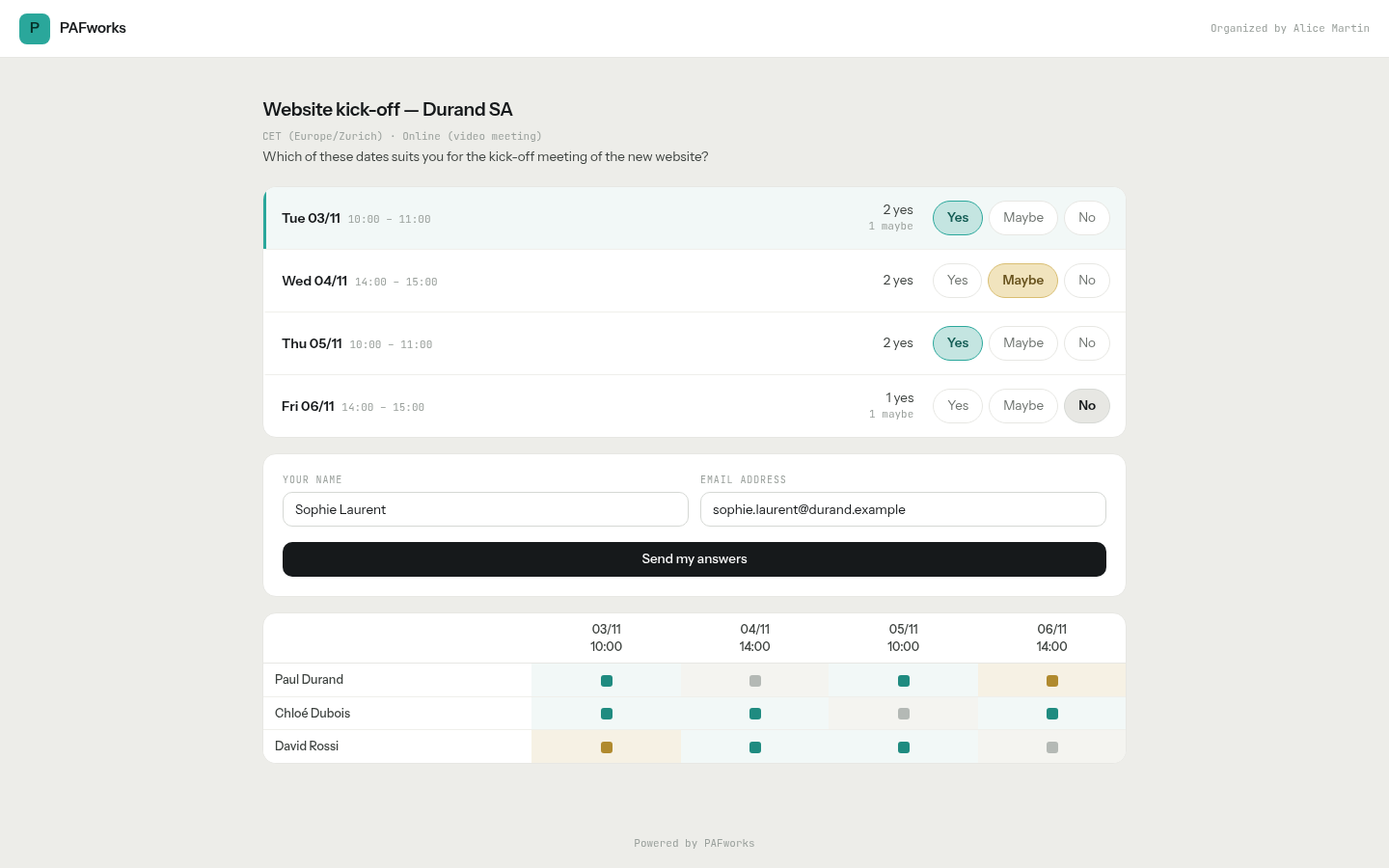
The participant opens the link. Each proposed date has Yes, Maybe and No, with how many people already said yes or maybe; the most popular date is highlighted. They answer each date, type Your name and their Email address, and click Send my answers. Unless you hid them, everyone's answers are in the table below.
-
Their answers are saved, and a private link to change them later is sent to their address. Through it, they change their answers and click Update my answers.

A colleague signed in to PAFworks answers under their own name, and sees under each date the events of their calendars it overlaps. A poll for Selected people only asks to sign in first; anyone else is told This poll is not open to you.
Date poll, step 3 — Follow the answers
Each answer rings the bell (and sends you an e-mail, depending on your preferences). For a poll for Selected people only, you are also told when everyone invited has answered, with the best date, and by e-mail with the count for each date.
Open the poll from My polls in the left column, from the notification, or by clicking one of its dates in the calendar: open polls draw their dates in Week and Day, with how many said yes. Each date shows its yes and maybe; a star marks the most popular one, the date with the most yes, then the most maybe. Who answered lists the names.
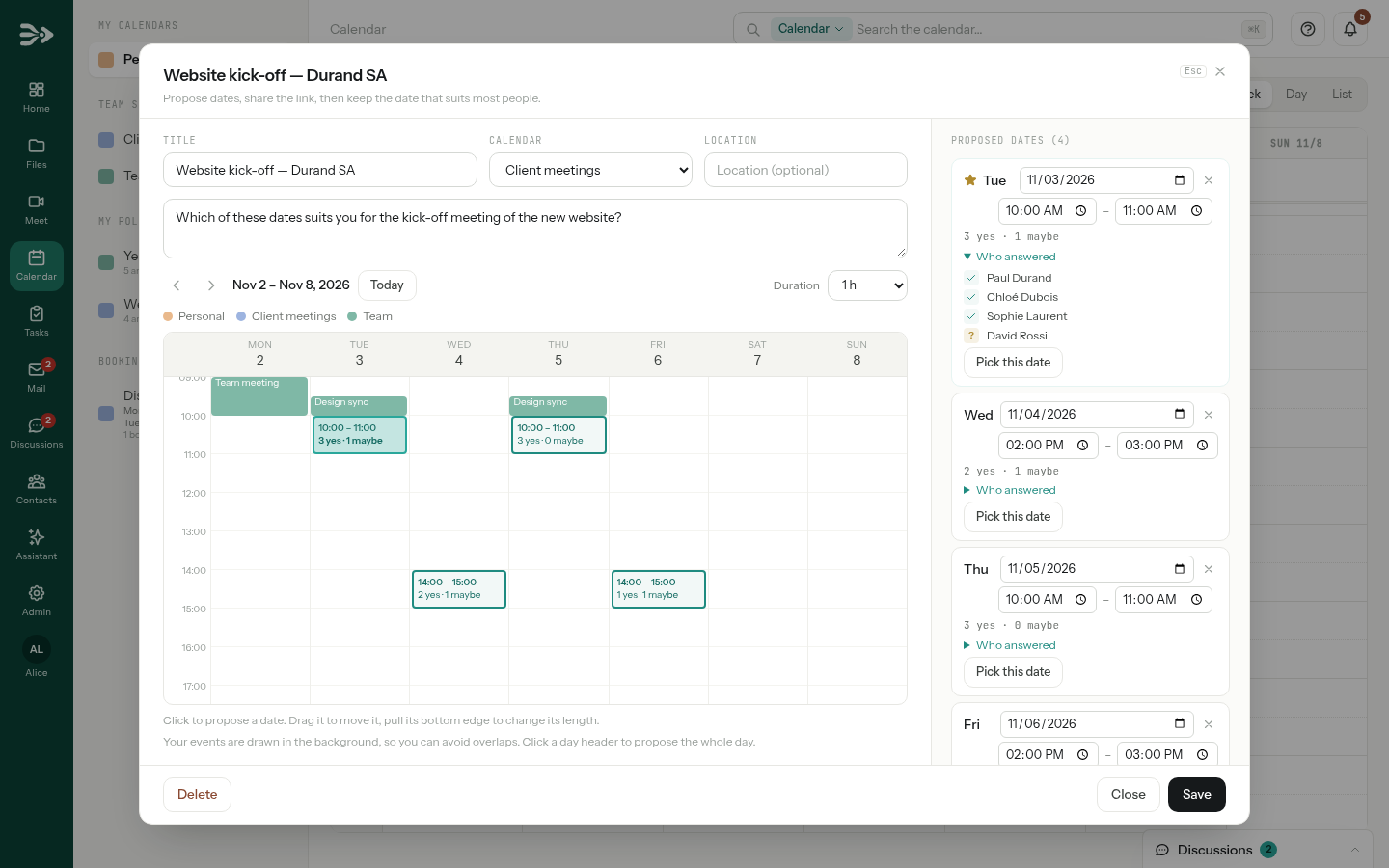
While the poll is open, you can still add, move or remove dates and click Save. A date you move or remove loses its answers: PAFworks asks before saving.
Date poll, step 4 — Choose the date
-
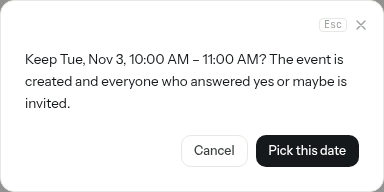
Click Pick this date under the date you keep, and confirm with Pick this date.
-
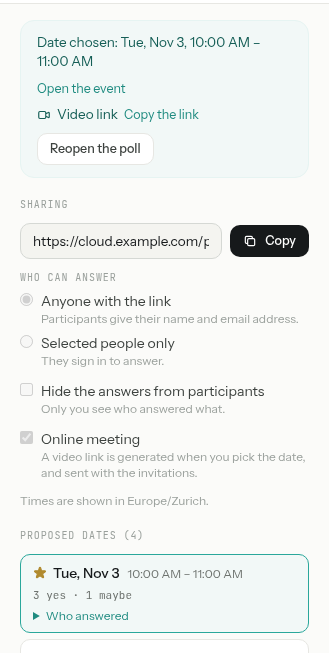
The event is created in the poll's calendar, and everyone who answered yes or maybe receives an invitation by e-mail, with the video link if you ticked Online meeting. You are not invited to your own event. The poll shows the chosen date, Open the event, and the Video link with Copy the link.
-
On the page of the poll, participants now see the Chosen date; they can no longer answer.
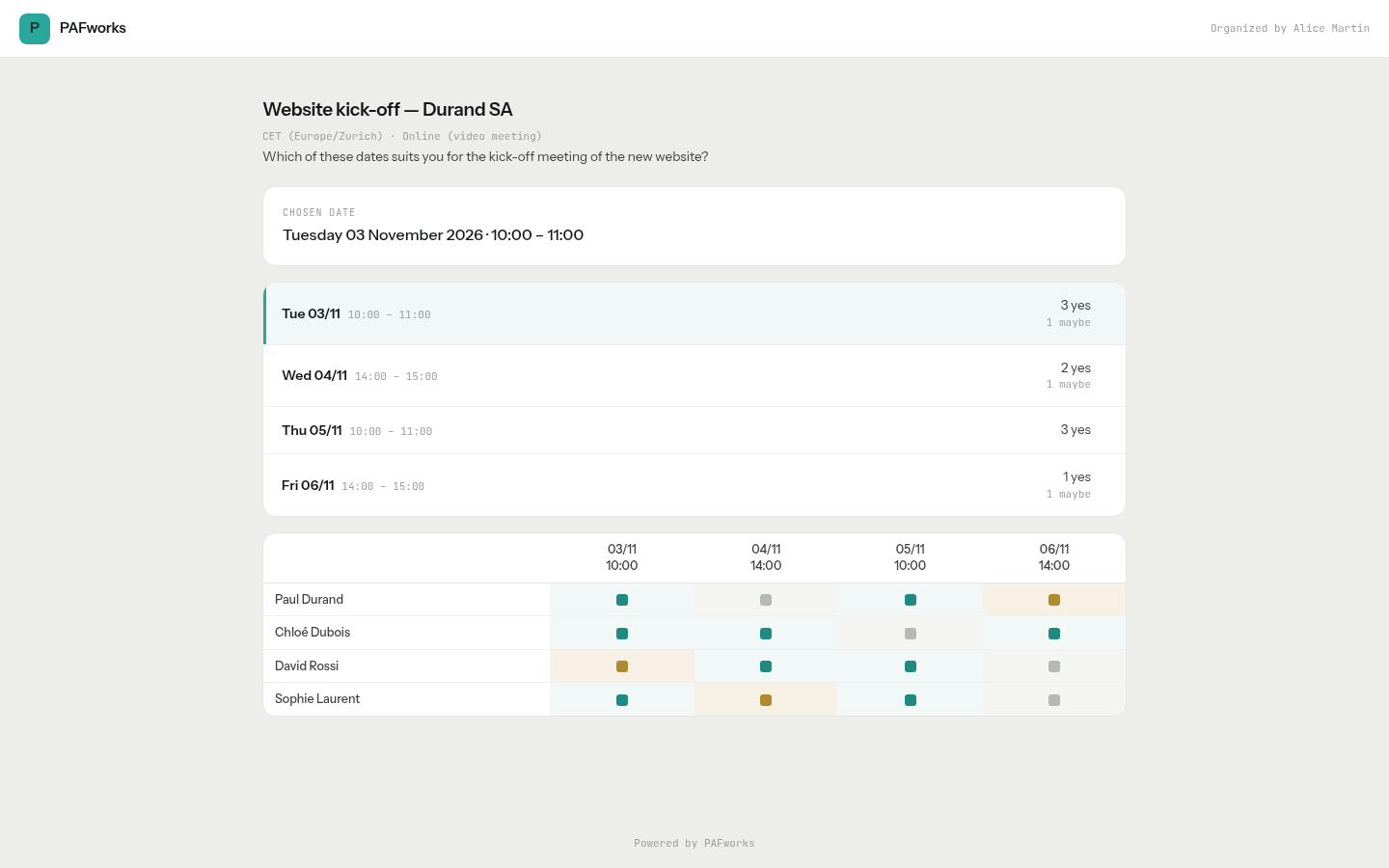
Changed your mind? Reopen the poll removes the event from your calendar and sends the attendees a cancellation; the answers are kept, so you can pick another date.
Good to know
| When | Who gets an e-mail | What |
|---|---|---|
| A visitor books | The visitor | A calendar invitation, with the meeting link of an online appointment |
| A visitor books, or someone answers your poll | You | The notification of the bell, unless you turned notification e-mails off |
| You move or delete a booked appointment | The visitor | The updated invitation, or a cancellation |
| Someone answers a poll without an account | That participant | The private link to change their answers |
| Everyone invited has answered a poll for Selected people only | You | The count of answers for each date, with a link to pick one |
| You pick the date of a poll | Everyone who answered yes or maybe | A calendar invitation, with the video link if you asked for one |
| You reopen a poll | Everyone invited to its event | A cancellation |
- A booking page only avoids the events of its own calendar (and, with Members' availability, the personal calendars of the members). The events of your other calendars do not block a slot: put the page on the calendar where you keep your appointments.
- An event that repeats blocks each of its occurrences; an all-day event blocks the whole day.
- There is no minimum notice: any slot that has not started yet can be booked, up to Bookable ahead (days).
- The slot is checked again when the visitor confirms: two people never get the same slot.
- The booking page asks only for an e-mail address, a name and a message. To ask more questions, use a form with a Time slot question linked to your booking page: see Create a form and collect answers.
- The hours of a booking page and of a poll are shown in the time zone they were created in, named on the page.
- A booking page holds up to 14 time windows; a poll, up to 60 dates.
- One Internet address can book up to 10 appointments per hour. People without an account can send up to 30 answers per hour to the same poll from one address.
- A poll takes one answer per e-mail address. Answering again with the same address sends the private link to that address instead.
- A booking page past its Until (optional) date shows Ended in your list and tells visitors This booking page is closed. It moves under Show inactive booking pages. Likewise, polls move under Show past polls once their dates are over.
- Deleting a poll stops its link and loses its answers; an event already created from it stays in your calendar.
- To use your calendar in other apps, see Mail, calendar and contacts in PAFworks and Thunderbird; for the video meetings themselves, see Chat, call and meet.