 PAFworks
Chat, call and meet
Discussions is the instant messaging of PAFworks: direct messages and groups with your colleagues, files shared in a click, and calls started from a conversation. Meet holds video meetings in the browser, with people who have no account.
Before you start
- A PAFworks account. Discussions and Meet are in the left bar.
- Both depend on your administrator: Meet, and the calls of Discussions, need a meeting server set up in the administration. Without one, Meet is not in the left bar and conversations have no call buttons.
- For calls and meetings, a recent browser, a microphone or a headset, and a camera if you want to be seen.
The Discussions page
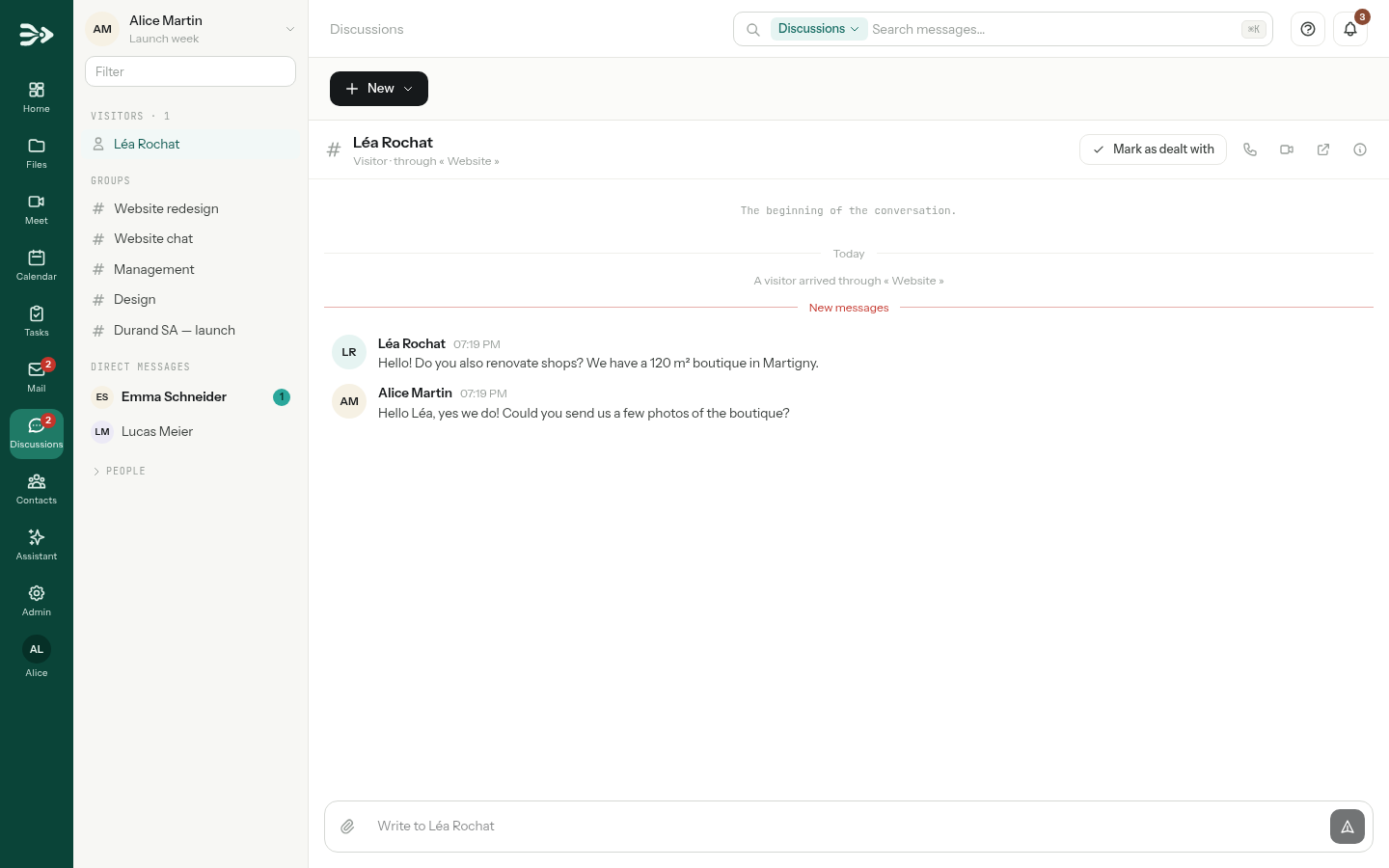
Click Discussions in the left bar. Your conversations are listed on the left: the Groups, then the Direct messages, each with the number of messages you have not read. In a group, @ instead of a number means someone mentioned you. People, at the bottom of the list, opens the directory of your colleagues: click a name to write to them. The Filter field narrows the list.
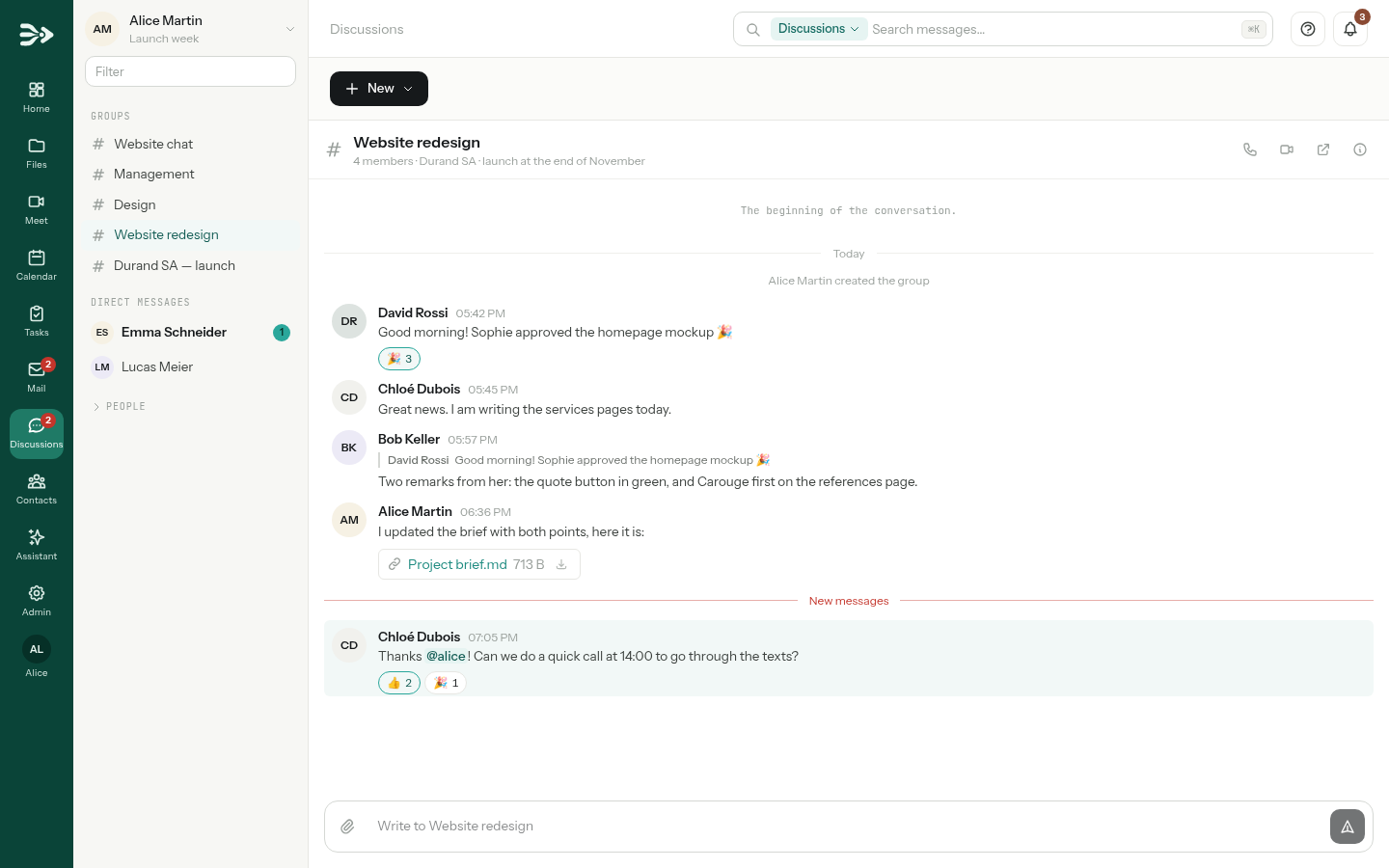
The open conversation fills the rest of the page; a red New messages line marks where you stopped reading. Its header holds the Call and Video call buttons, Open in a window, which opens the conversation in a small browser window of its own, and Details.
Start a conversation
-
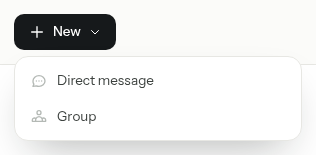
Click New, then Direct message to write to one person, or Group for several.
-
For a direct message, pick the person in the list, or type the start of their name. The conversation opens at once.
-
For a group, type its Name, then pick its Members one by one. To bring in a whole team, tick it under Add the members of a user group. Click Create.
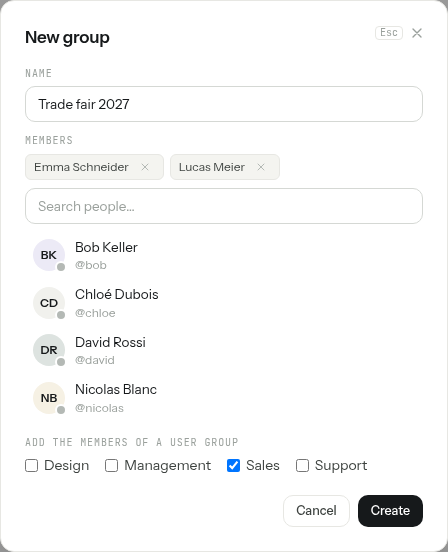
The people you add find the group in their list right away, and their bell tells them who added them. The lists of these windows hold the people of your organisation; to bring in someone from outside, see Invite people from outside.
Manage a group
Click Details (the i at the top right of the conversation). Whoever created the group is its Owner. The owner and the Admins can:
- change its Name and its Topic, shown under the name, and click Save;
- let every member add people, with Every member may invite;
- decide whether people added later read the earlier messages, with Newcomers read the history;
- add colleagues with Invite, make a member Admin, or take someone out with the cross beside their name;
- delete the group, with Delete the group at the bottom of the panel.
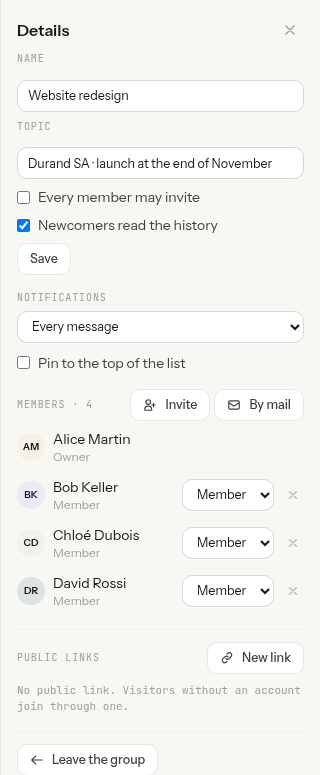
Every member finds in the same panel the Notifications of the conversation (see Stay informed) and Leave the group. In a direct message, Close this conversation hides it from your list until the next message.
Write, reply, react
Type in the field at the bottom and press Enter to send; Shift+Enter starts a new line. Simple Markdown formatting works: **bold**, *italics*, lists, quotes, code and links. What you start typing is kept as a draft until you send it.
Point at a message to show its actions: a quick reaction (👍 ❤️ 😂 🎉 👀), Reply (the arrow), and for your own messages Edit and Delete.
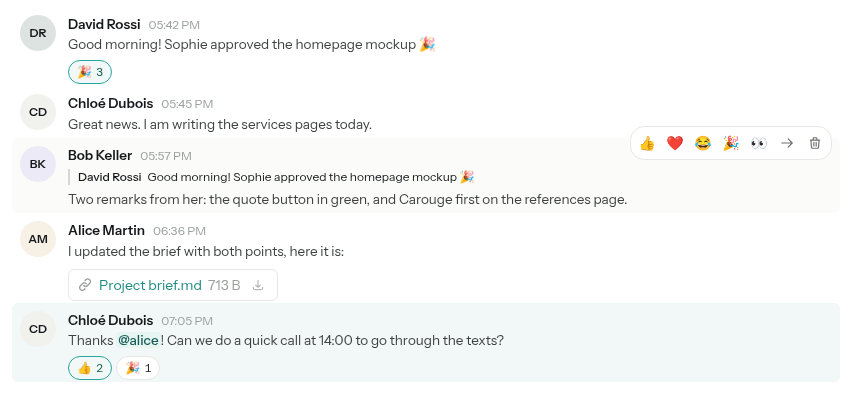
- Reply: the message you answer is quoted above yours. A click on the quote jumps to it.
- React: click a reaction under a message to add yours, click it again to take it back. Point at a reaction to see who reacted.
- Mention: type @ and the start of a name, then pick the person in the list. They are notified even if they follow the conversation for mentions only. The owner and the admins of a group can write
@allto reach everyone. - Edit or delete your own messages: an edited message reads (edited), a deleted one Message deleted. The owner and the admins of a group can delete any message.

Share files
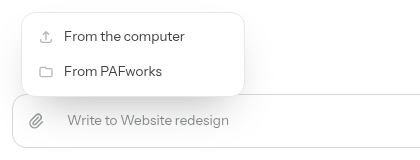
Click the paper clip left of the field:
- From the computer sends a copy of a file. You can also drop files onto the field, or paste an image.
- From PAFworks picks files in your own files or your team shares and sends a link to each, not a copy: the members open the file as it is now, even after it has changed. If the file is deleted, or you lose your access to it, they can no longer open it.
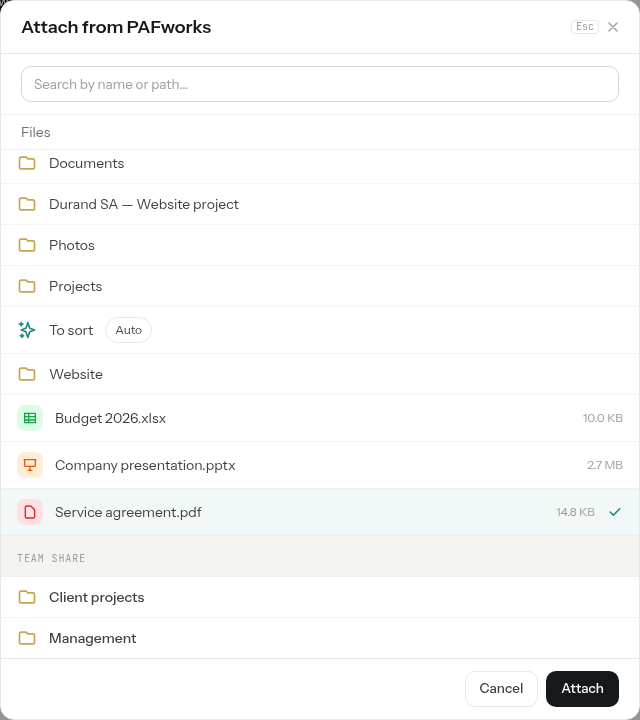
A file in a message opens beside the conversation, in the viewer PAFworks has for it; Full page opens it in a tab of its own. A member who has access to the file in their own right opens it with their own rights, for instance to edit it; the others read it through the message.
Find a message
On the Discussions page, the search field at the top searches your messages. Type a few words: the messages found take the place of the list of conversations, with the words highlighted. Click one to open its conversation at that message, and empty the field to get your conversations back.
Click in the empty field to add a filter: From (a person), In (a conversation), Period or Attachment.
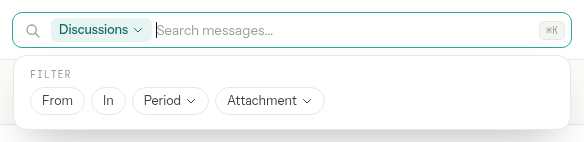
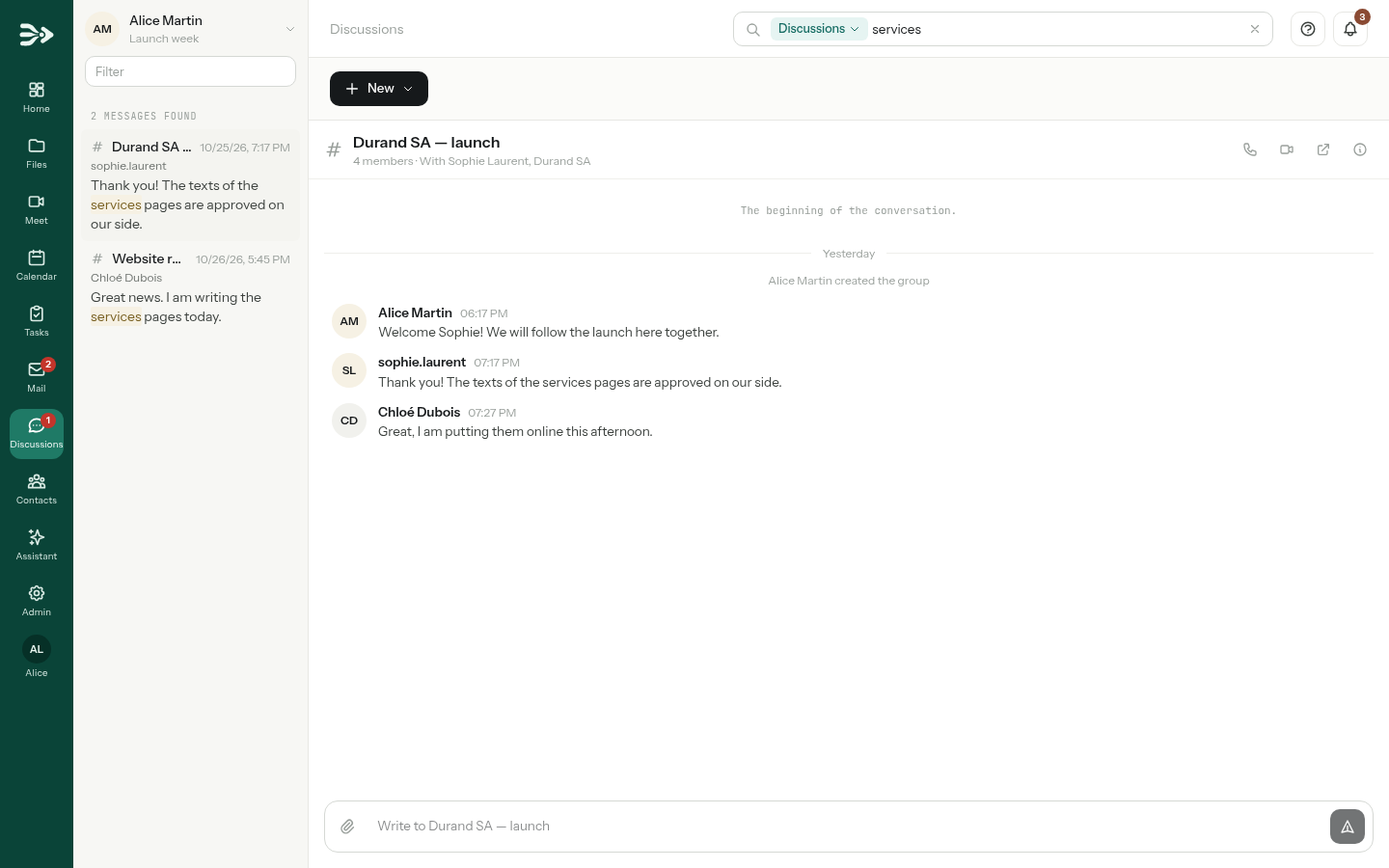
Your messages also come up in the search of the other pages, beside your files, mail and events.
Stay informed
Notifications on your devices
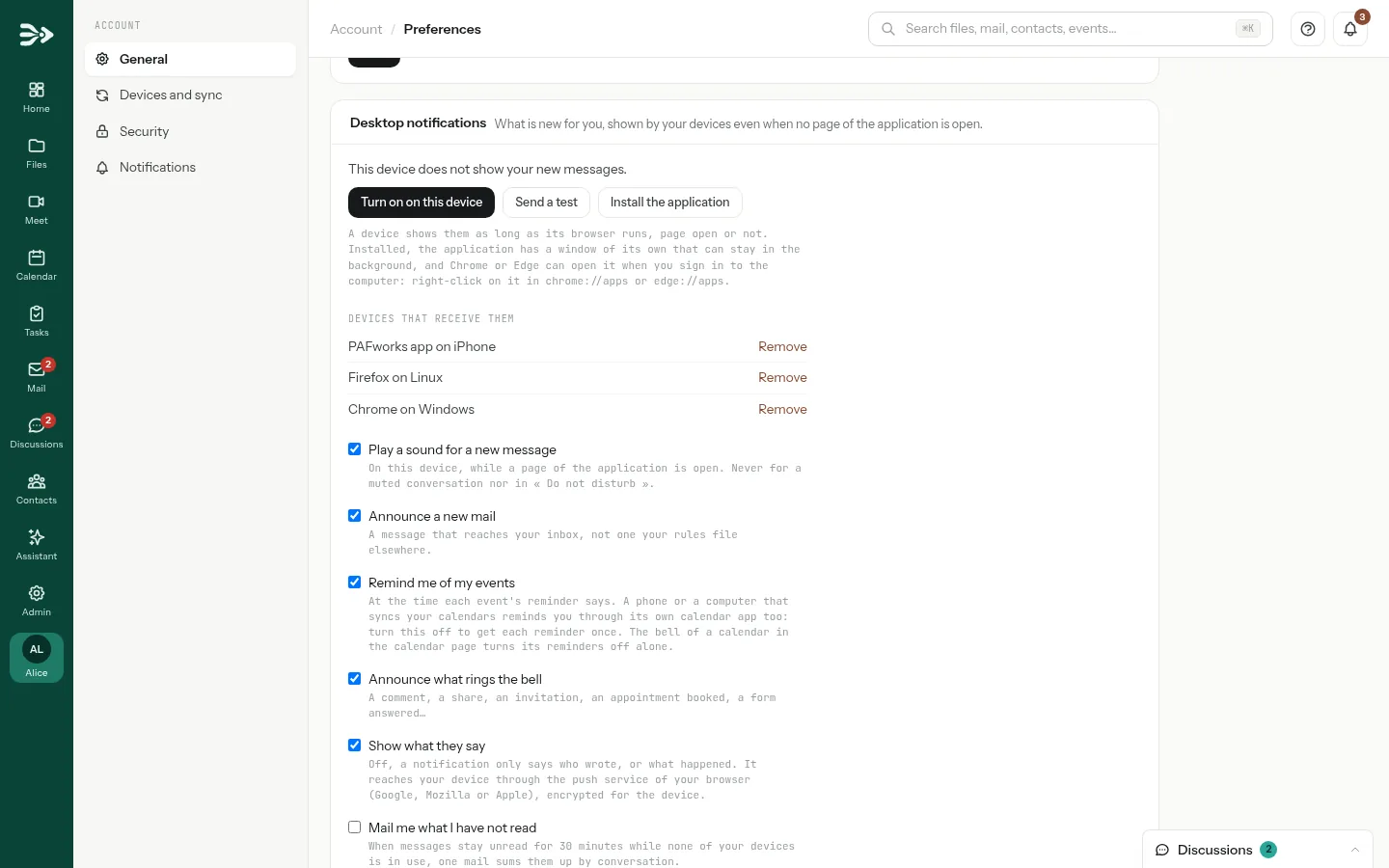
The Discussions page offers to show your new messages on the device you are using, even when the page is closed. Click Turn on, then accept in the browser. On an iPhone or an iPad, add PAFworks to the home screen first: Share, then Add to Home Screen.

Each conversation has its own Notifications, in its Details: Every message, Mentions only or Nothing. Pin to the top of the list keeps it first. You are never notified of the conversation you are reading.
The rest is in your preferences: click your avatar at the bottom of the left bar. In Desktop notifications, choose to Play a sound for a new message, whether a notification may Show what they say, and Mail me what I have not read: one e-mail sums up the messages that stayed unread for 30 minutes while none of your devices was in use.
Your status
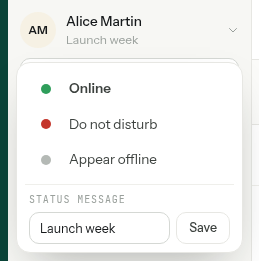
Click your name at the top of the list. Choose Online, Do not disturb (no notification, no sound and no ringing call) or Appear offline, and type a Status message if you like: your colleagues read it at the top of their direct conversation with you.
Your conversations on every page
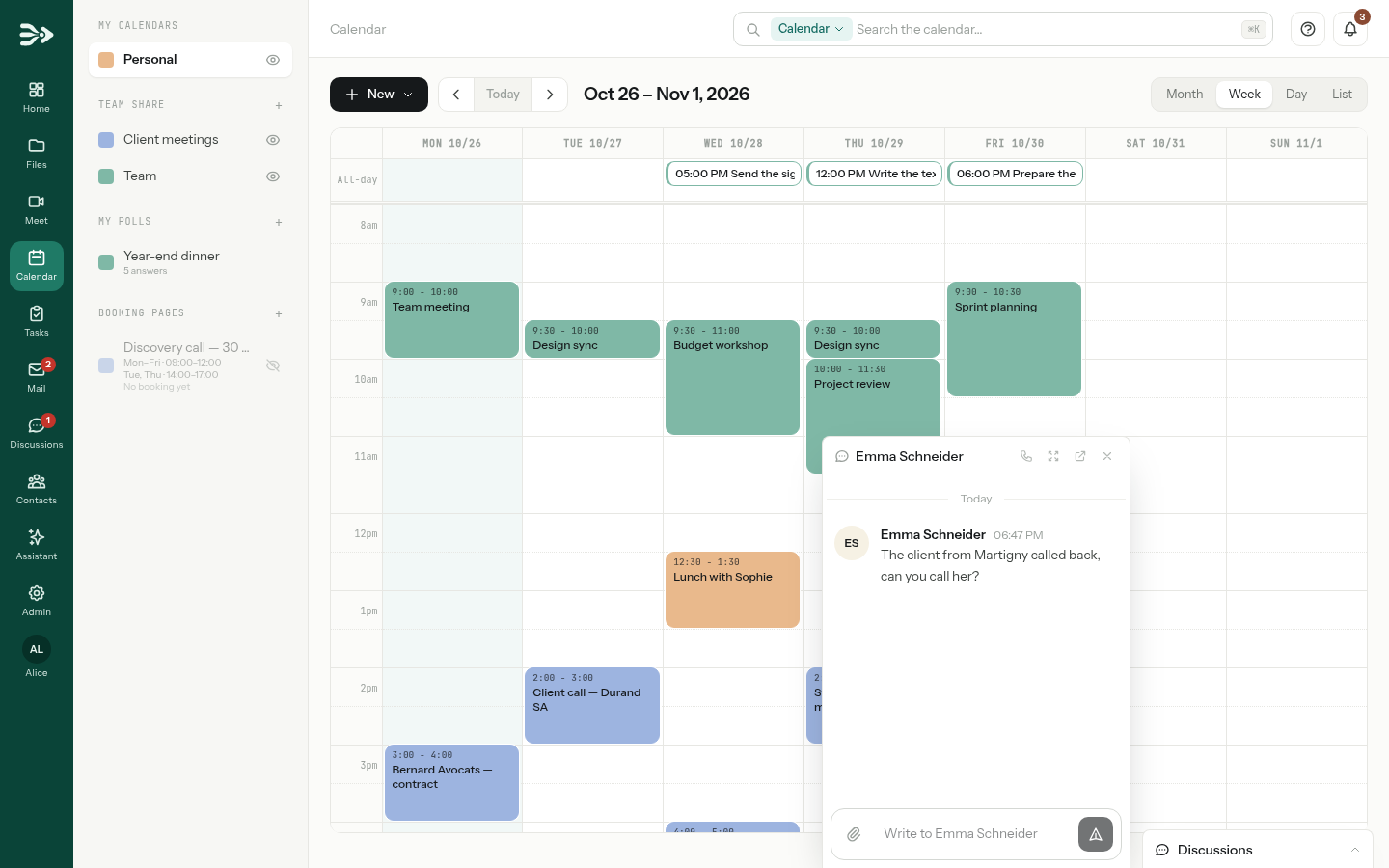
On a large screen, a Discussions bar sits at the bottom right of the other pages, with the number of conversations you have not read. Click it to list your conversations, then click one: it opens in a small window that stays open while you move from page to page. Two windows fit side by side, and a click on a window's title folds it down.
Call from a conversation
-
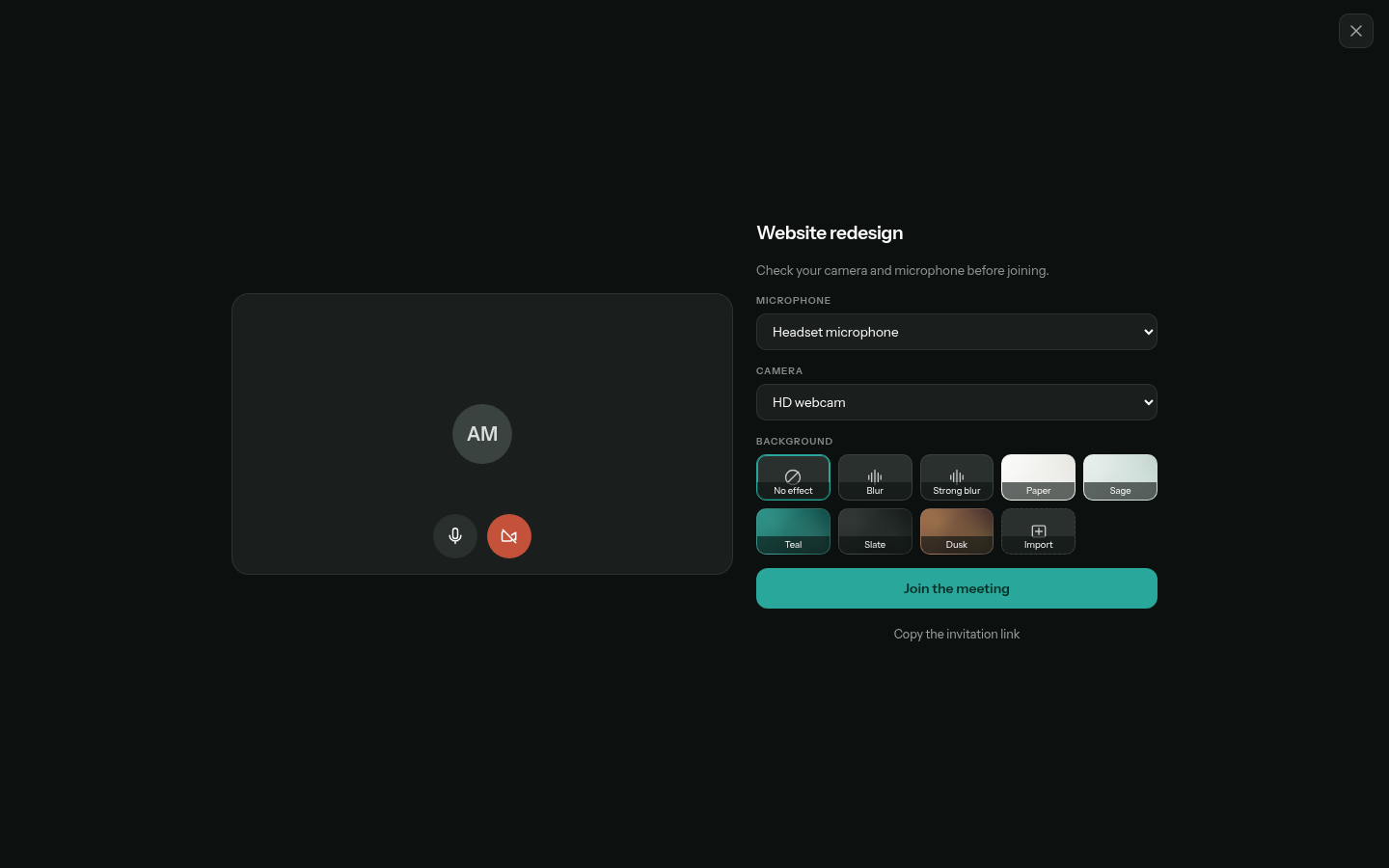
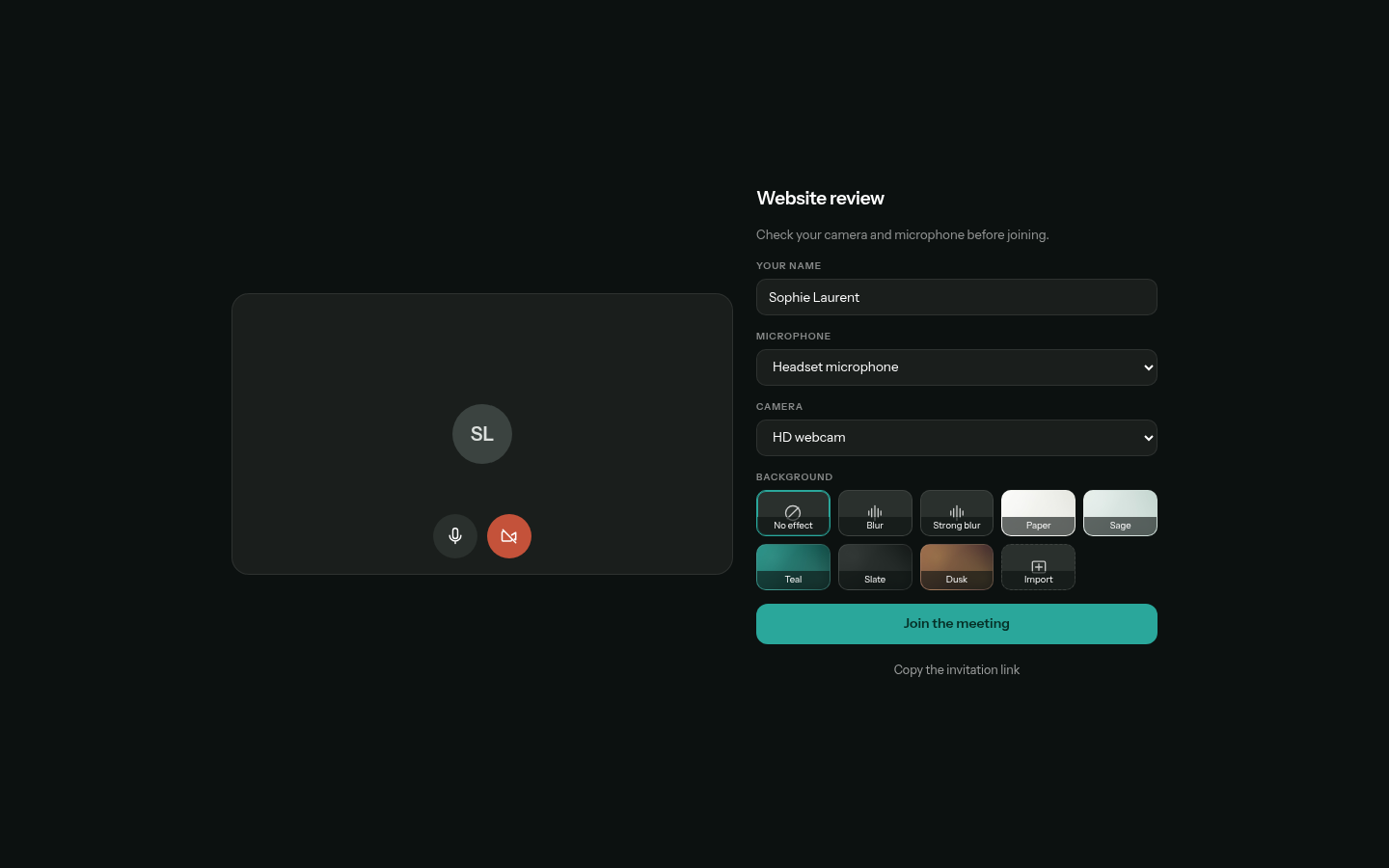
In the header of a group or of a direct message, click Call (the phone) or Video call (the camera). The call opens in a new tab, on the screen where you check your microphone and camera; after Call, the camera starts off. Click Join the meeting.
-
Meanwhile, the pages of the other members ring for 45 seconds, whatever page of PAFworks they are on: a card offers Join and Ignore — in a direct message, Decline, which ends the call. Members with no page open get a notification on their devices, if they turned notifications on.
-
The conversation follows the call: who is in it, and a Join button for anyone who comes later. The header reads Join the call as long as it lasts: a conversation has one call at a time.
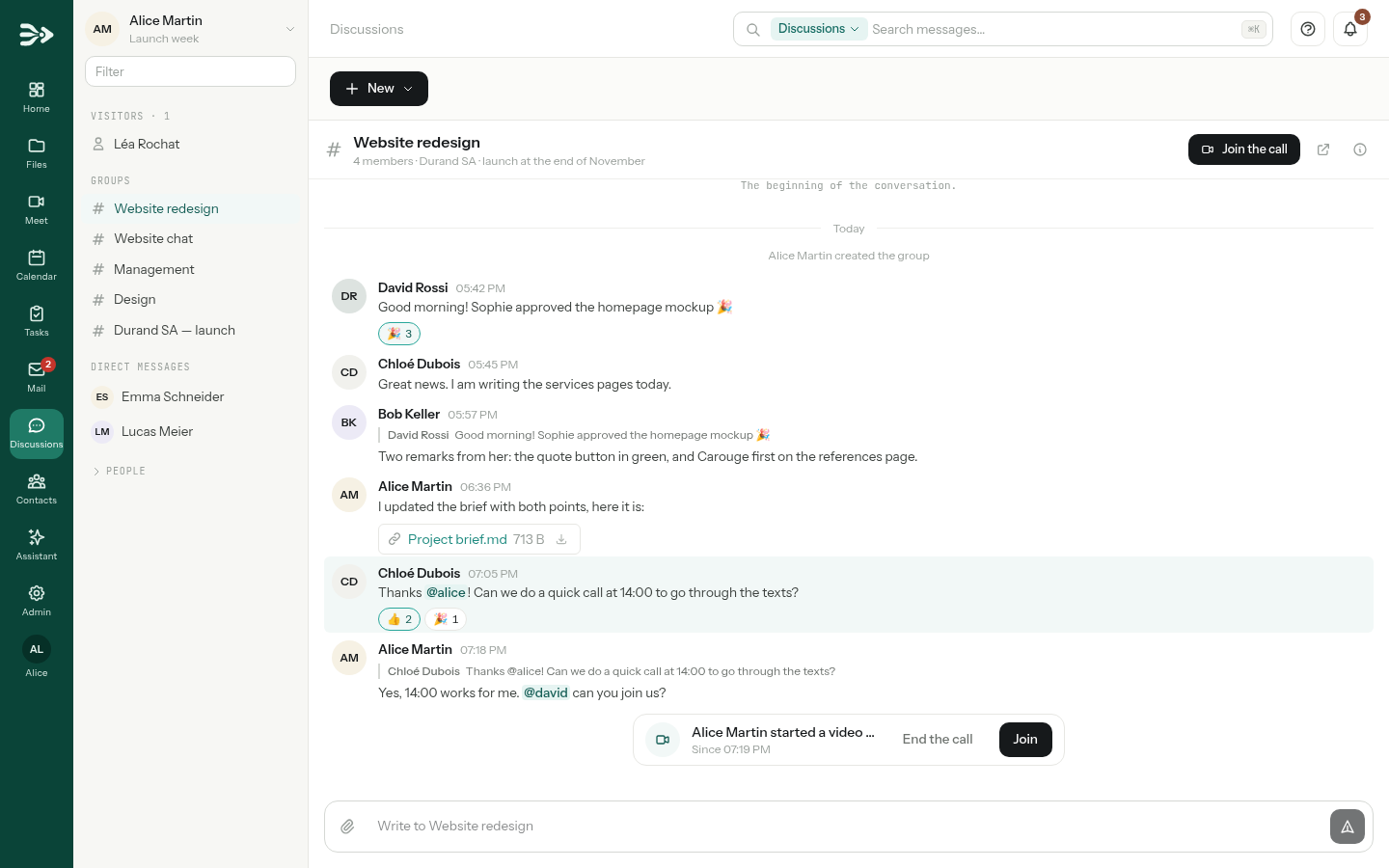
The call ends when everyone has left it, or with End the call, which disconnects everyone: the caller, an admin of the group, or either person of a direct message can use it. The conversation then shows how long it lasted, or that nobody answered. In the call itself, you have every control of a meeting: see In the meeting.
Invite people from outside
A client or a partner can take part in a group without an account. You need to be allowed to add people to the group: the owner, an admin, or anyone when Every member may invite is on.
-
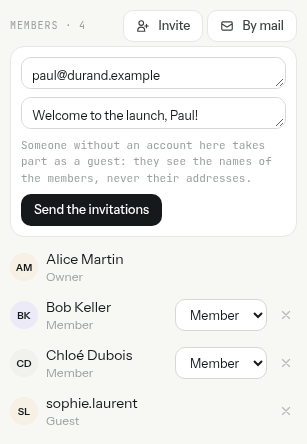
Open the group's Details and click By mail.
-
Type their addresses, separated by commas, and a word for them if you like. Click Send the invitations. The address of one of your colleagues simply adds them to the group.
-
Each guest receives an e-mail with a link to the discussion. On the page it opens, they click Send me a code, type the 6-digit code they receive by e-mail, and the discussion opens. No password, no account.
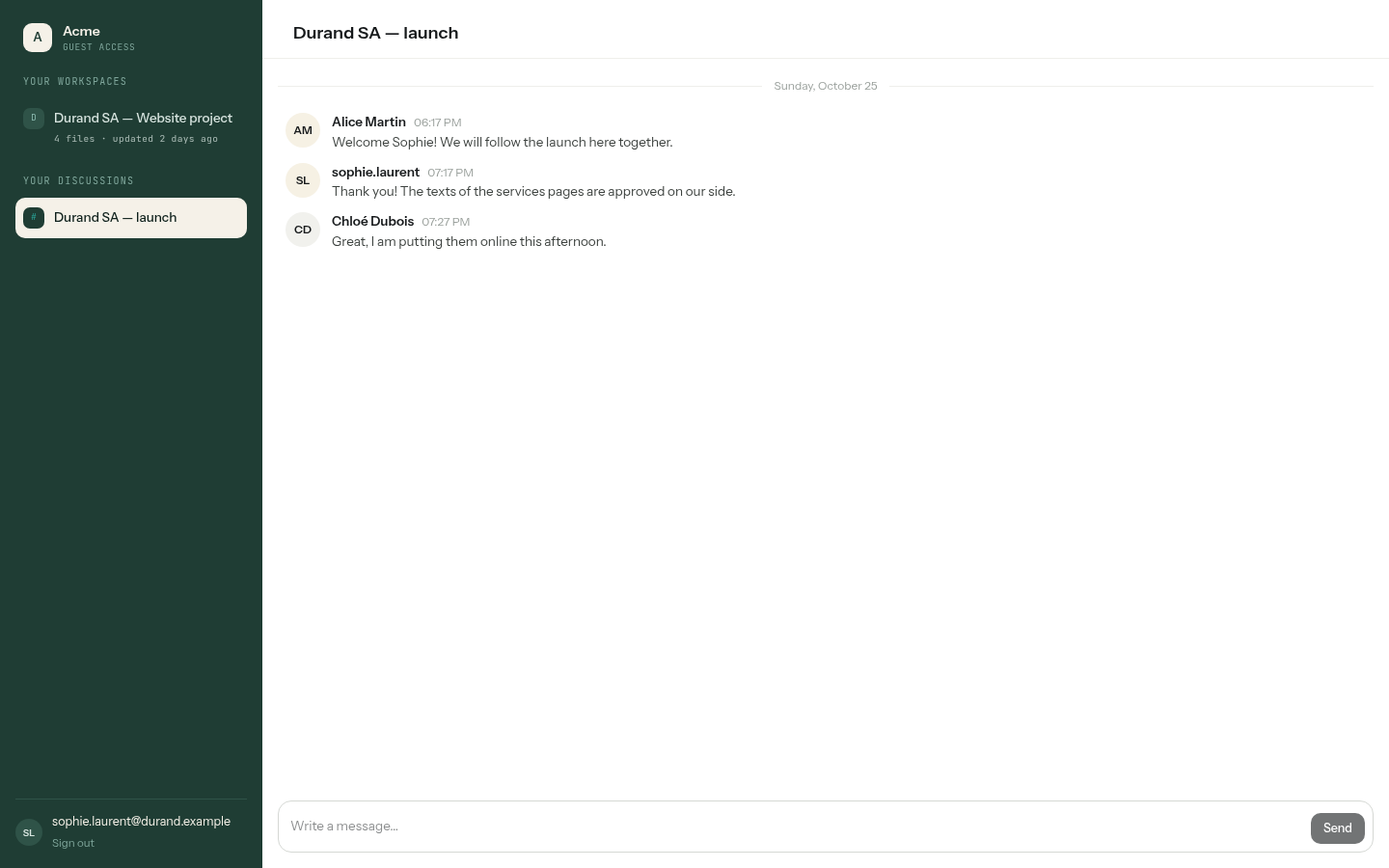
The guest appears among the members as Guest, named after the first part of their e-mail address. They read and write messages but cannot send files, and they see the names of the members, never their addresses. They find the discussion again in their client space, under Your discussions, beside the workspaces shared with them. The owner or an admin removes a guest with the cross beside their name: the discussion closes for them at once.
Other organisations and Matrix. When your administrator has connected PAFworks to other instances, the Direct message window also accepts the address of someone of another organisation: your first message reaches them as a contact request, which they accept, ignore or block. An administrator can also connect Discussions to Matrix: the owner or an admin of a group then links the group to a public Matrix room in its Details, under Matrix room, and what the group writes becomes public there. Calls do not reach the people of other instances nor of Matrix.
Open a group to visitors
A public link lets anyone take part in a group without an account: they give a name, and write. In support mode, each visitor gets a private conversation with the members of the group instead, which makes a chat for your website. The owner and the admins of a group create its links.
-
Open the group's Details. Under Public links, click New link.
-
Name the link for yourself, then choose what it allows:
Option What it does Visitors may write Off, the visitors only read. Visitors see the files The visitors can open the files of the messages. Can be embedded in a web site The discussion can be shown inside a page of your website. List the sites allowed, one per line, or leave the field empty for any site. Support: a private conversation per visitor The visitors do not read each other: each one talks with the members of the group. History Without support mode: Visitors read the whole history, or Visitors read from their arrival. Expires on The link stops at the end of that day. Password (optional) Asked before the discussion opens. An embeddable link has none. 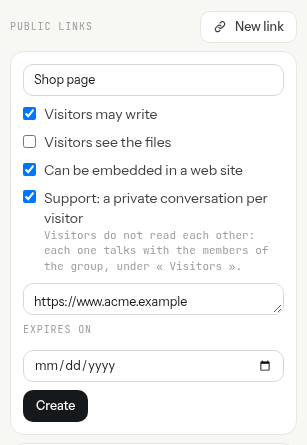
-
Click Create: the link is copied, ready to be pasted. Its card keeps Copy the link, Copy the embed code for an embeddable link, and Revoke, which takes its visitors out of the discussion at once.
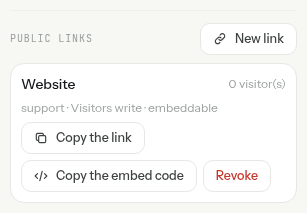
The embed code is a frame to paste in a page of your website, such as <iframe src="https://cloud.example.com/c/…/?embed=1" style="width:100%;height:600px;border:0" …></iframe>.
What your visitors see
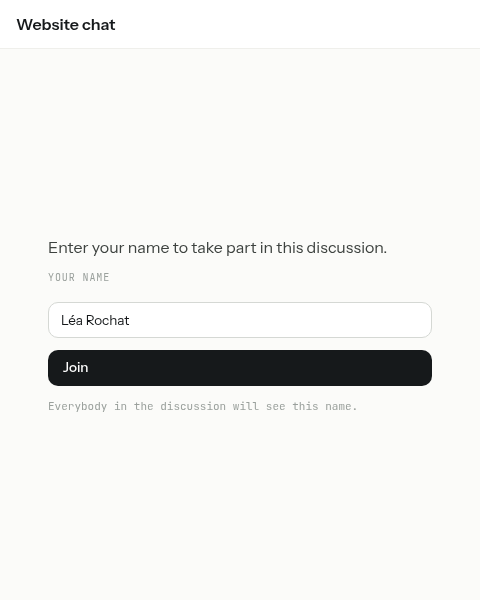
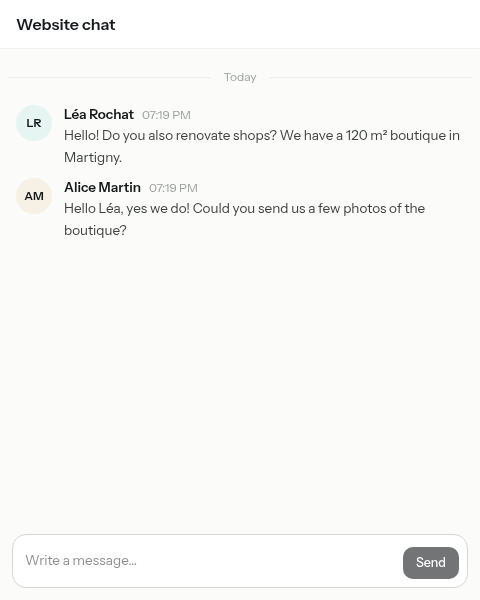
The visitor opens the link, or the page of your website that holds the frame, and types the password if the link has one. They type their name, which everybody in the discussion will see, and click Join. Then they write in Write a message… and read the answers as they come. Their browser remembers them: when they come back, the conversation is still there.
Answer your visitors
In support mode, each visitor's conversation appears under Visitors at the top of your list, under the name they gave, for every member of the group. Answer as in any conversation; a call started there shows on the visitor's page, where they can join it. When the request is settled, click Mark as dealt with: the conversation is greyed out until the visitor writes again, and Reopen brings it back.
Meet: your meeting room
Click Meet in the left bar. Under Instant meeting, a room is ready for you, with its Meeting link:
- Join opens the room;
- Copy copies its link, to paste in a message or a discussion;
- Invite sends the link by e-mail: pick contacts or type addresses, press Enter after each, then click Send the invitations;
- the round arrows (New link) give you another room. The link you had still works.
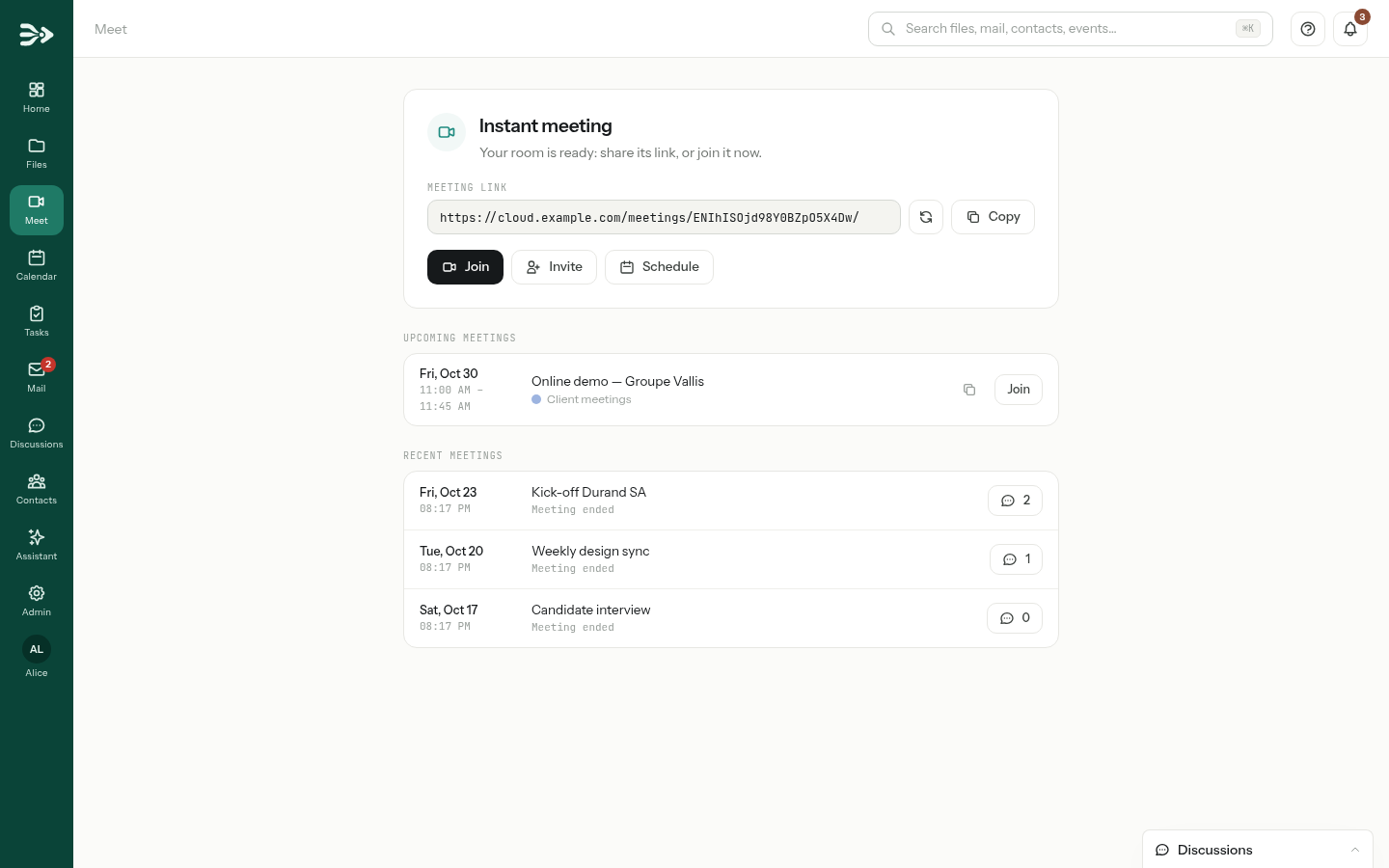
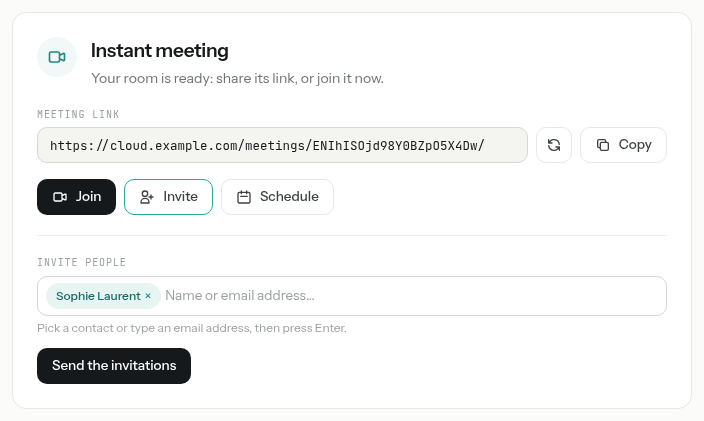
The page offers the same room until someone joins it; the next time, a fresh room waits, and the one you used moves to Recent meetings. Upcoming meetings lists the meetings of your calendars that have a room, with a Join button.
Schedule a meeting
-
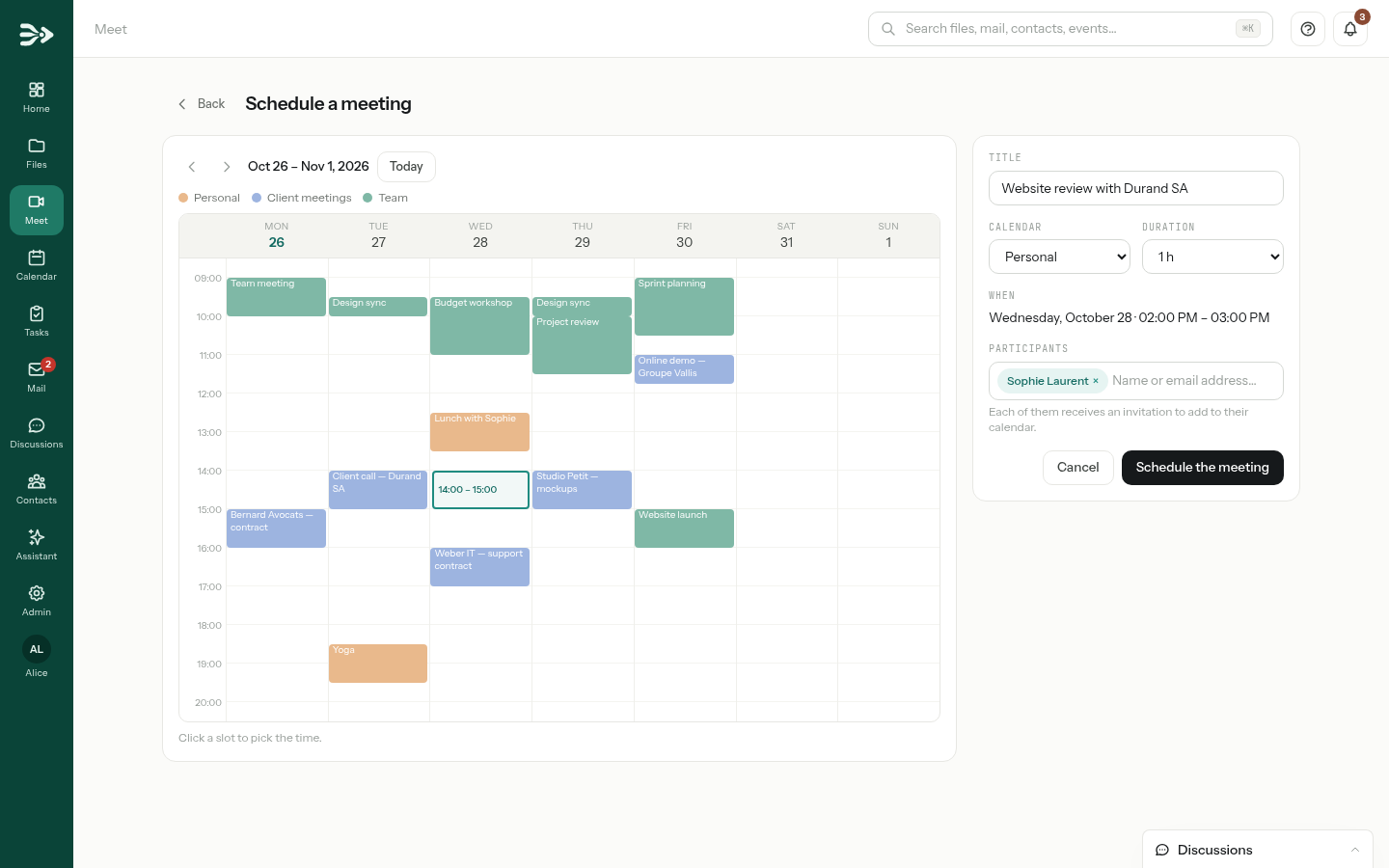
On the Meet page, click Schedule. The week of your calendars appears, your events drawn as blocks.
-
Click a free slot: the grid says so if it overlaps an event. Give the meeting a Title, choose its Duration and, if you have several calendars, the Calendar it goes in. Add the Participants: contacts, colleagues or any address. Each of them receives an invitation to add to their calendar.
-
Click Schedule the meeting. The meeting goes into your calendar with its link, and appears under Upcoming meetings.

You can also add a meeting to an e-mail you write, or create one from the calendar: see Mail, calendar and contacts. Booking pages can give each appointment its own meeting: see Let people book a meeting or pick a date.
Join a meeting
Whoever opens the link of a meeting arrives on the same screen: a preview of their camera, the Microphone and the Camera to use, and a Background: Blur, Strong blur, a backdrop such as Paper or Teal, or a picture of your own with Import. The round buttons under the preview turn the microphone and the camera off. Then click Join the meeting.
People without an account type Your name, the name the others will see. They need nothing else: no account and no installation, just the link and their browser.
Guests depend on your administrator. When guests are not allowed, the link asks people without an account to sign in, and only the people of your organisation can join.
In the meeting
The bar at the bottom of the room holds the controls; point at a button to read its name.
| Button | What it does |
|---|---|
| Microphone and camera | Turn them off and on. Ctrl+D and Ctrl+E do the same (⌘ on a Mac). |
| Share my screen | Shows a window, a tab or your whole screen, as your browser offers. It takes the middle of the room. |
| Open a file | The organiser's: puts a document on the stage (see below). |
| Raise my hand | A ✋ appears beside your name in the participants. |
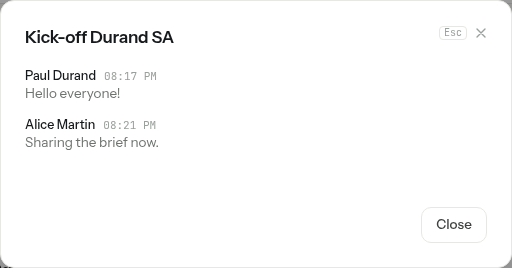
| Chat | Messages to everyone in the room. They are kept after the meeting. |
| Participants | Who is there, who is muted, whose hand is raised. |
| Transcription | What is being said, written down under the name of whoever says it, while the organiser has the transcription on (see below). |
| Speaker view / Grid view | The person speaking in large, or everyone the same size. |
| Background, Devices, Fullscreen | Change the background of your camera, or the microphone, camera and speaker in use; fill the screen. |
| Leave | Leave the room. You can come back as long as the meeting is open. |
For the organiser
The organiser — who created the room, or who started the call — has more controls:
- in Participants, Mute someone's microphone or Remove someone from the meeting, and Invite by email more people;
- End for everyone closes the room: everyone is disconnected, and the link no longer opens it.
A document on the stage
The organiser clicks Open a file and chooses:
- Present a file: everyone reads it, and follows you through it. With a PDF, a picture, a Markdown or a text file, everyone's view follows yours; a participant can click Stop to read on their own, and Follow to come back.
- Edit a file together: everyone in the room can change it at the same time, in the editor PAFworks has for it. Office documents, diagrams, Markdown and text files can be edited together; a PDF or a picture is only presented.
Pick the file in your files and click Present or Open for editing. The document takes the stage, and the participants move to a strip below it. Stop presenting takes it off.
Everyone in the room reads it, guests included. While a document is on the stage, whoever joined with the link can read it, and change it in Edit mode. Nothing else of your files is opened to them, and the access ends when the document leaves the stage.
Transcription
When your administrator has turned on Meeting transcription in the settings, the organiser finds a Transcription button in the bar of the room. Its panel has Start transcribing: from then on, what each person says appears in the panel a second or two later, under their name, like messages in the chat. Three dots show who is speaking while their words are on their way.
- Everyone in the room sees that the meeting is being transcribed: a red Transcribing tag stays at the top of the room, and someone about to join is told before they come in.
- A muted microphone is not transcribed.
- The organiser can Pause and Resume at any time, and Stop. Closing the room stops it too.
- Everyone in the room can read the panel and Copy it; someone joining late sees what was said before them.
When the transcription stops, a meeting note is written in the organiser's files, in the folder Comptes rendus (your administrator can choose another): a Markdown file named after the date and the title of the meeting, with the participants, everything that was said, and the messages of the chat as an annex. The organiser's bell says when it is ready. The note is the organiser's file like any other, private until they share it; what was transcribed is not kept anywhere else.
Transcription is automatic and can be wrong. Names and terms of your organisation come out better when your administrator lists them in the Vocabulary of the transcription settings.
After the meeting
Under Recent meetings, the Meet page keeps your last rooms. The button with a speech bubble shows how many messages were written in the chat: click it to read them. While a room is still open, its Join button takes you back in.
A meeting that was transcribed shows its Meeting note, with three shortcuts to the assistant: Summarise, Extract the tasks and Prepare a mail to the participants. Each opens a conversation with the note attached and the request already written; the mail is left in your drafts, never sent. The note is also linked from the event in your calendar.
Good to know
- A message holds up to 16,000 characters and 10 files. A file sent from your computer may weigh up to 100 MB, unless your administrator chose another limit, and it counts in your storage.
- Messages are encrypted in the database with a key of the server: a stolen backup cannot be read, but the server itself can read them.
- You can edit or delete your messages at any time, unless your administrator set a time limit. Deleting a message removes the files sent with it from a computer; a file linked from PAFworks stays where it is.
- A group holds up to 500 members. A deleted group disappears for all its members; an administrator can restore it for 30 days.
- The search looks back 12 months, unless you set a period, and lists up to 50 messages at a time.
- A call does not ring the members who chose Nothing for the conversation, nor those in Do not disturb. The room of a call admits people signed in to PAFworks only, and, in a support conversation, its visitor.
- Guests invited by mail: up to 20 addresses at a time. Their code is valid for 15 minutes, once, and only in the browser that asked for it; they stay signed in for 12 hours. When messages wait for them, they get an e-mail, at most one every six hours per discussion.
- Public links: up to 20 per group. A visitor's name (40 characters at most) cannot be changed once given, and a visitor's message holds up to 2,000 characters. Visitors never see the addresses, photos or presence of the members. In support mode, a link has at most 500 open conversations; beyond that, new visitors are asked to try again later.
- Meet offers the same room for 12 hours at most if nobody joins it. Recent meetings keeps your last 10 rooms, Upcoming meetings shows the next 10.
- A participant who joins late sees the last 200 messages of the chat; a chat message holds up to 2,000 characters. A text or Markdown file over 512 KB cannot be shown on the stage.
- Your background, your devices, and whether your microphone and camera were on, are remembered on each computer for the next meeting, not on your account.