 PAFworks
Write and edit documents together
Create notes, office documents, diagrams and web pages right in Files, and work on them in the browser: there is nothing to install. Several people can write in the same note at once, and earlier versions are kept.
Create a document
-
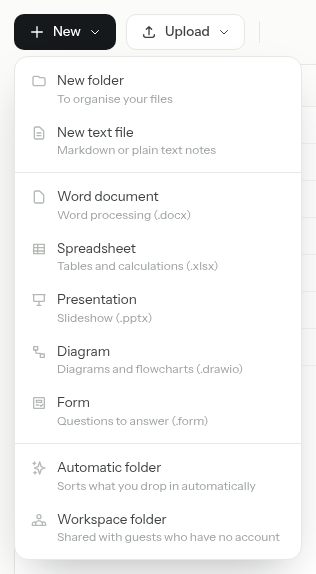
In Files, open the folder where the document goes and click New. The button is there in every folder you can write to.
-
Choose what to create:
Menu item What you get New text file An empty text file. The extension you type decides how it opens: .mdfor a Markdown note,.htmlfor a web page,.txtfor plain text.Word document A .docxfile, opened in the office editor.Spreadsheet An .xlsxfile, opened in the office editor.Presentation A .pptxfile, opened in the office editor.Diagram A .drawiofile, opened in the diagram editor.Form A form to fill in online: see Create a form and collect answers. -
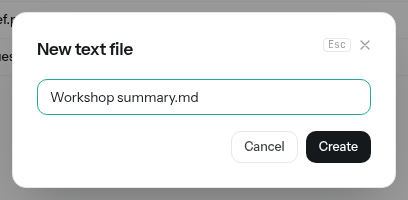
Type a name and click Create. Office documents, diagrams and forms open in their editor straight away. A text file is added to the folder: click it to open it.
Not in your menu? Word document, Spreadsheet and Presentation appear only when your installation has an office server, and Diagram only when the diagram editor is set up. An administrator configures them in Admin, under Office editing and Diagram editing.
Files you upload open the same way: click a .docx, a .md or a .drawio file in Files to edit it.
Write a Markdown note
A .md file opens in the Markdown editor: you write in the formatted text, and PAFworks stores it as plain Markdown that any other application can read.
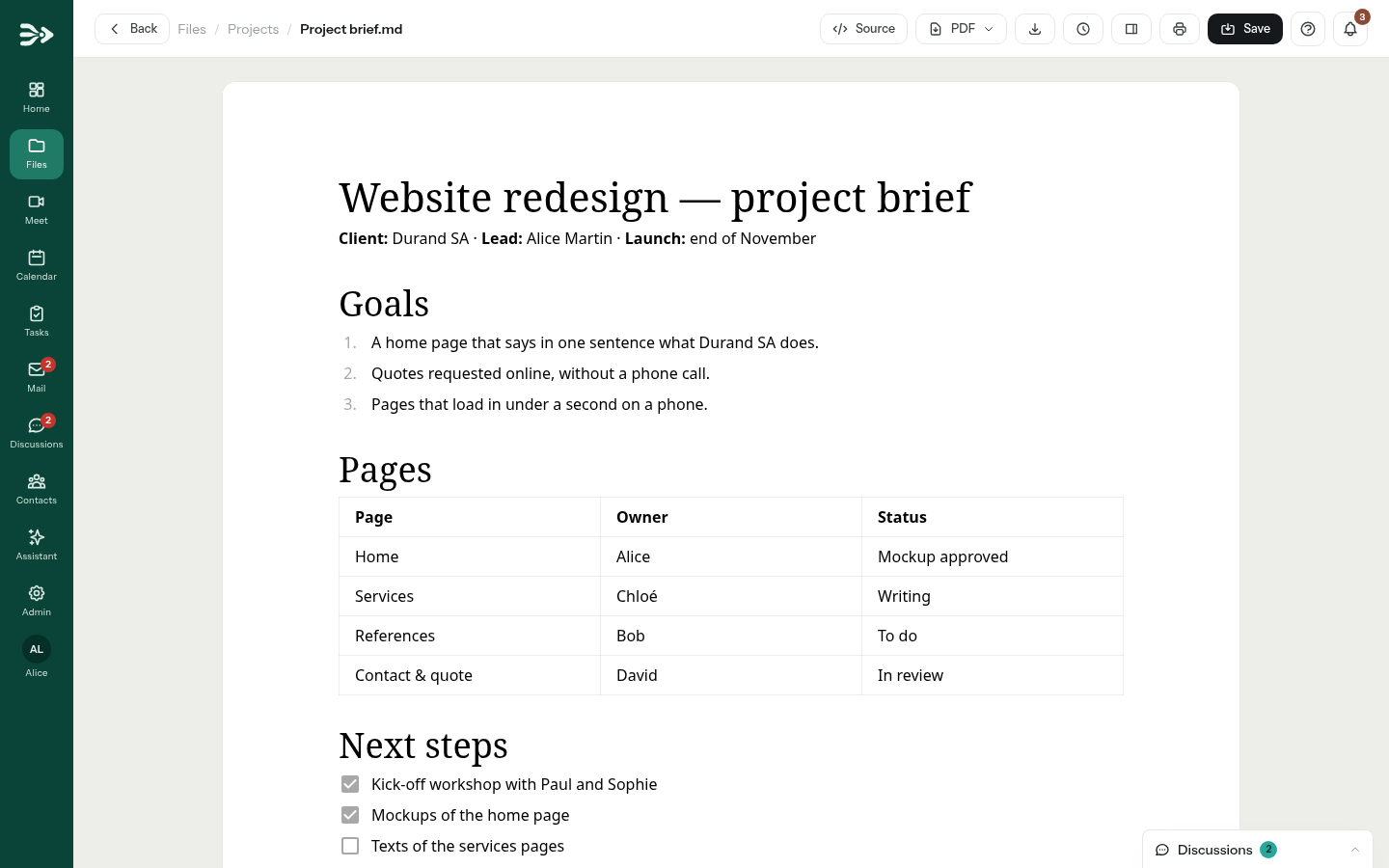
Most buttons of the top bar are icons: hover one to read its name.
| In the top bar | What it does |
|---|---|
| Source | Shows the Markdown text itself. Preview brings the formatted view back. |
| Exports the note to PDF (see below). | |
| Download | Downloads the .md file. |
| Document versions | Lists the earlier versions (see versions). |
| Show the details | Opens the panel with activity, comments, versions and sharing. |
| Prints the formatted note. | |
| Save | Saves at once. Changes are also saved on their own two seconds after you stop typing: the button shows Saving…, then Saved. |
- Format text: select words and a bar appears above them with bold, italic, strikethrough, inline code, inline math and a link. Ctrl+B and Ctrl+I work too.
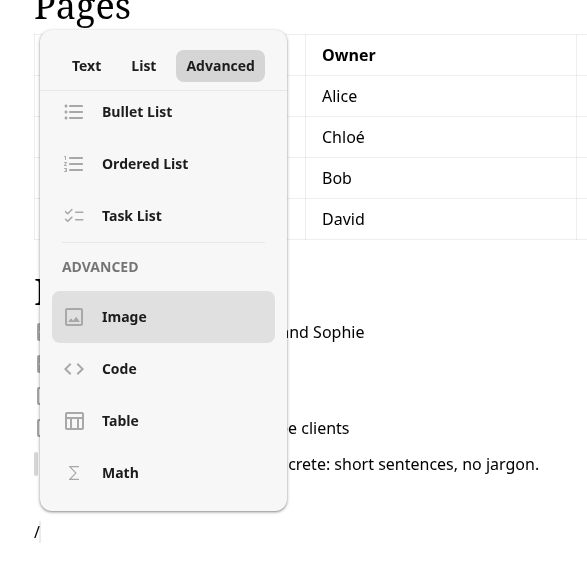
- Insert a block: type / at the start of an empty line. The menu offers headings, Quote, Divider, Bullet List, Ordered List, Task List for a checklist, Image, Code, Table and Math.
- Add a picture: paste it or drop it into the note. It is saved as a file in a
.attachmentsfolder next to the note, and it follows the note when you move or copy it.

Write together
Several people can write in the same Markdown note at the same time. Each sees the others' changes as they are typed, with a coloured cursor labelled with the person's user name. When you are not alone, a counter next to the file name shows how many people have the note open.
- Connected, next to the file name, means your changes reach the others live. Disconnected means the connection dropped: the editor reconnects on its own, and you can keep typing.
- When the assistant, a synced computer or a restored version changes the note while it is open, the change is merged into what you see, and a message tells you so.
- Office documents are edited together in the office editor (see below). Diagrams, HTML pages and plain text files are not edited live by several people: work on them one at a time.
Export a note to PDF or print it
-
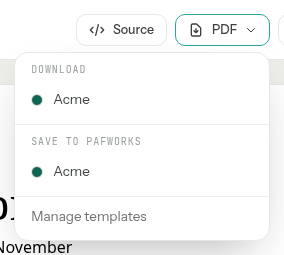
Click PDF in the top bar and choose a template: under Download to get the PDF on your computer, or under Save to PAFworks to keep it in your files. Changes not saved yet are included.
-
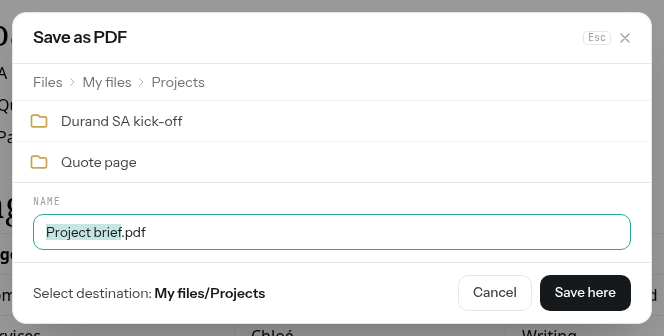
To save it in PAFworks, pick the folder, check the Name and click Save here.
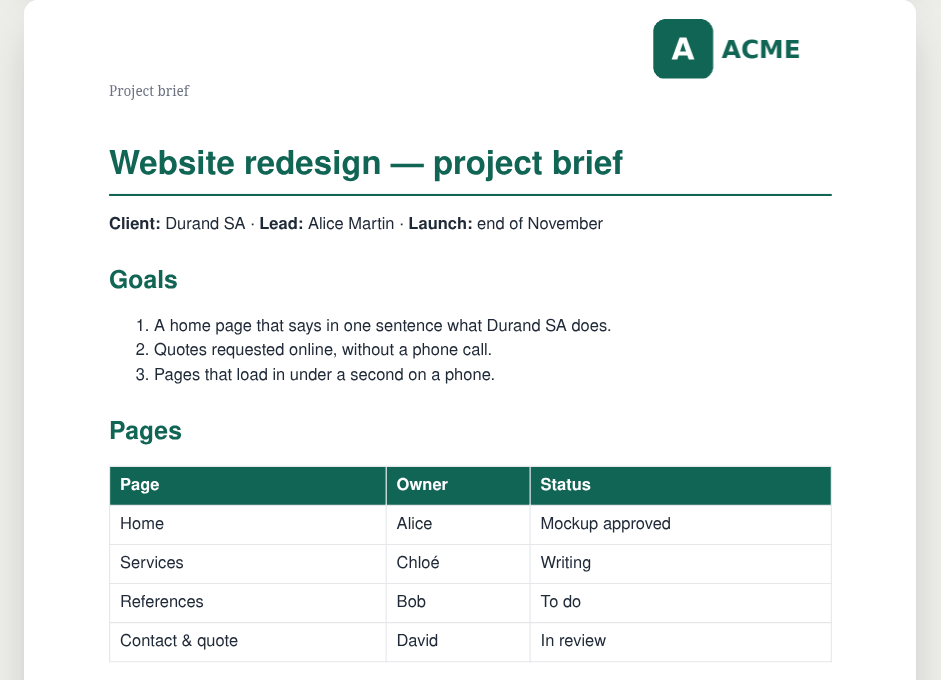
The PDF starts with a cover page that shows the file name, your name and the day of the export, then a Contents page when the note has headings. After the cover, each page shows the template's logo, the title of the document and the page number, and the headings and tables take the template's colour.
To print the note, click the printer button (Print) or press Ctrl+P: the formatted note is printed, without the rest of the page.
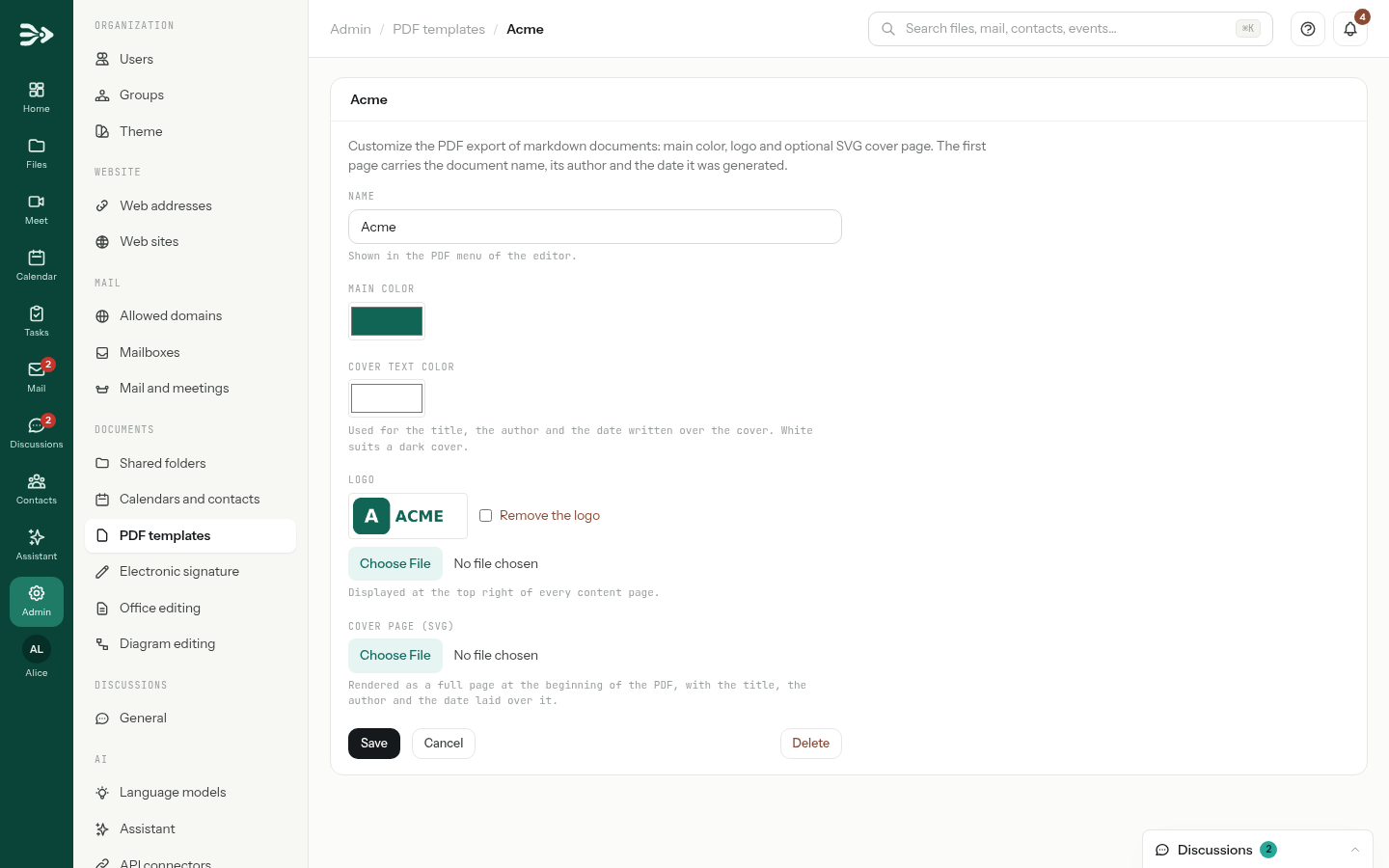
PDF templates are managed by an administrator. In Admin, under Documents, PDF templates lists them; New template asks for a Name (shown in the PDF menu), a Main color, a Cover text color, a Logo and an optional Cover page (SVG). Administrators also find Manage templates at the bottom of the PDF menu. Without any template, the menu offers Default layout.
Word, Excel and PowerPoint files
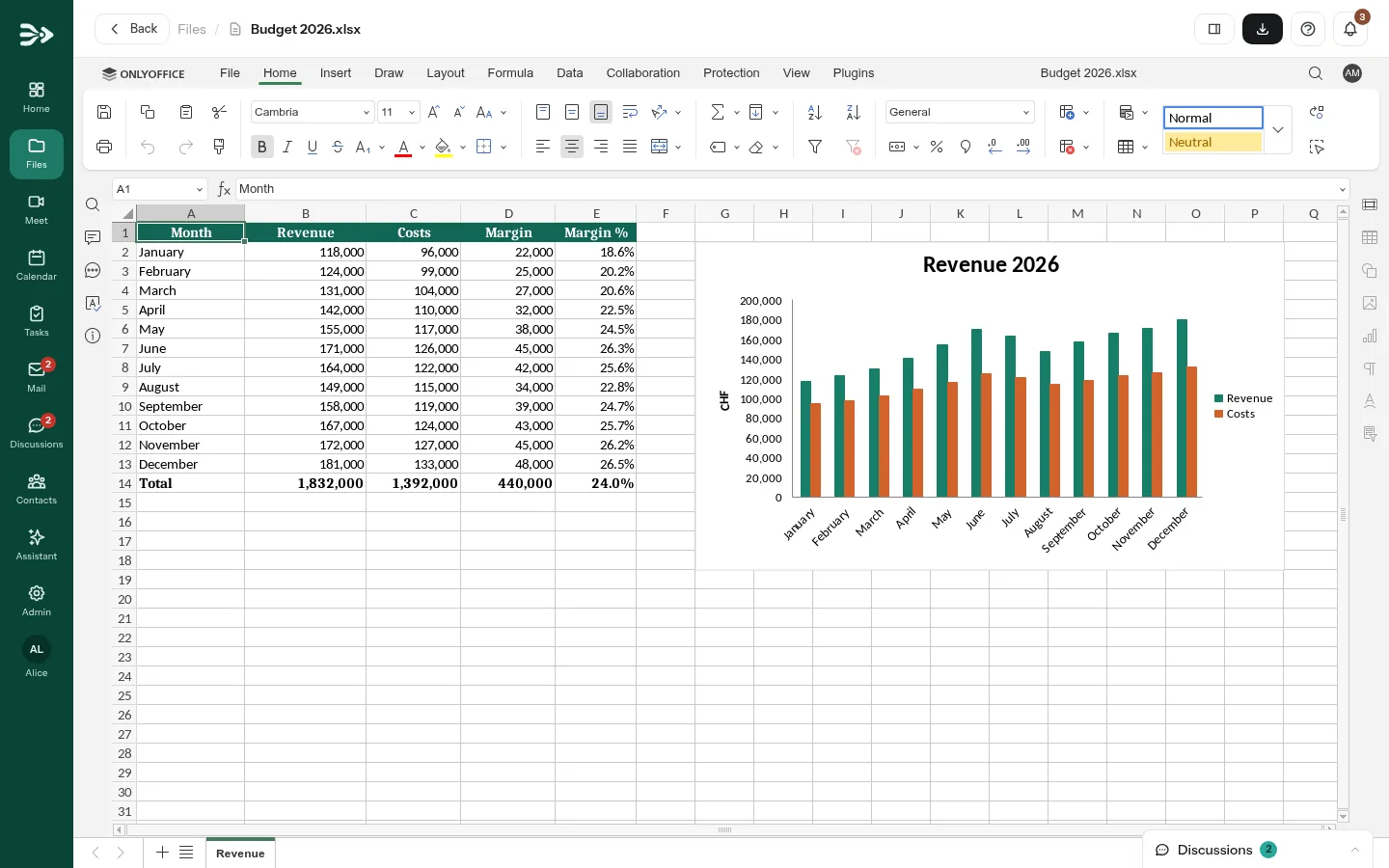
When your installation has an office server, Word, Excel and PowerPoint files open in an office editor in the browser. It works like a desktop office suite, and several people can edit the same document at once, each seeing the others' changes.
- Formats:
.docx,.xlsx,.pptx, the OpenDocument formats.odt,.ods,.odp, and.rtfand.csvcan be edited. Older formats such as.doc,.xlsand.pptopen read-only. - Save a copy under another name or format: in the editor's File menu, choose Save copy as and a format. PAFworks then opens Save a copy as: pick the folder, check the Name and click Save here.
- Versions: each time the office server saves the document, the previous content is kept as a version. Find them in the Versions section of the details panel (Show the details).
No office server? The three office items are missing from the New menu, and office files can only be downloaded. An administrator connects one in Admin → Office editing.
View and edit a PDF
A PDF opens in the viewer: change page and zoom at the top, Show the details, Edit, Request a signature (see Get a PDF signed) and download.
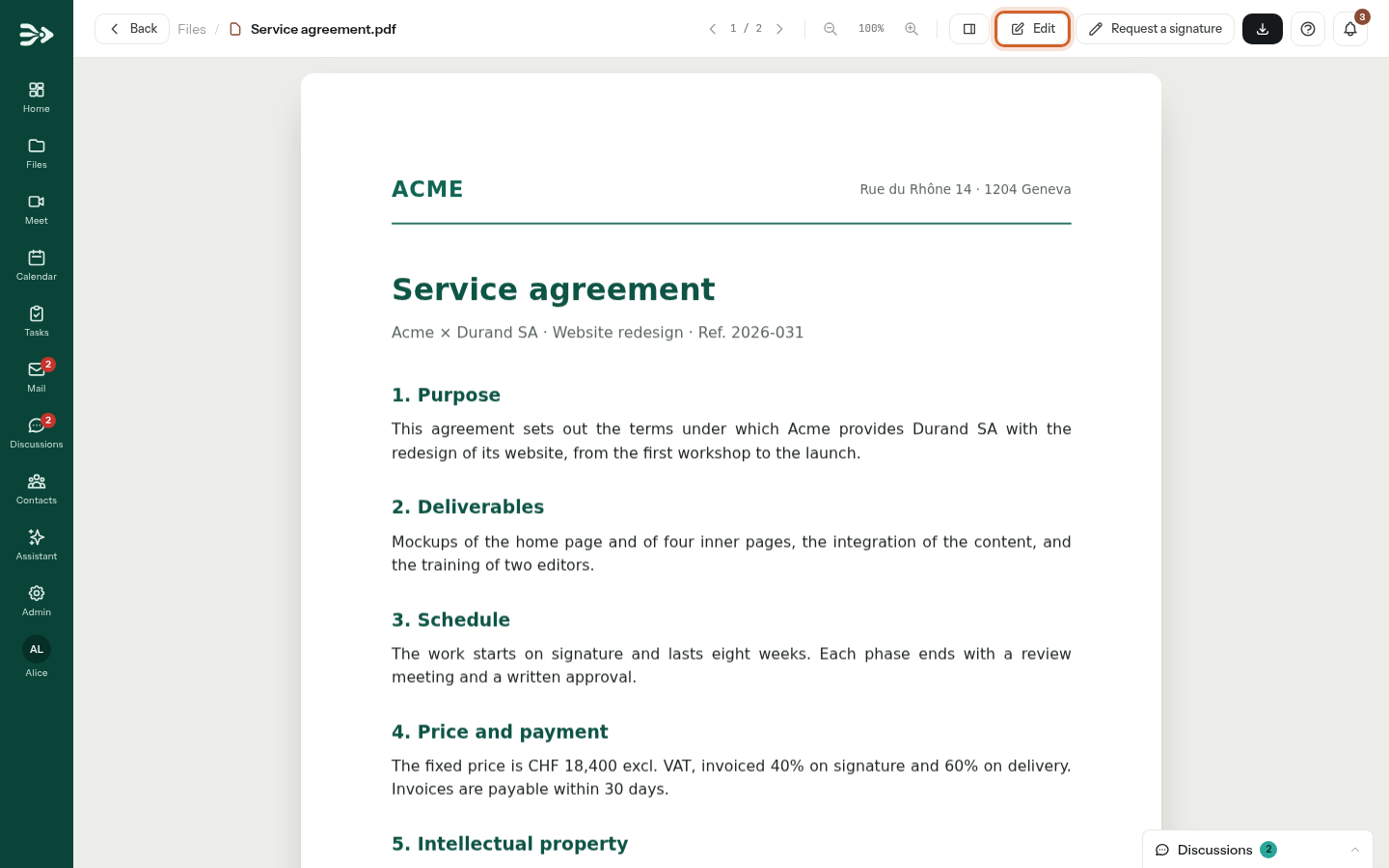
Edit is there when you may change the file. It opens the PDF editor:
- Add to the document: pick Text, Image or Signature, then click on the page where it goes. Drag an item to move it, drag the square in its corner to resize it. A selected text gets its Size and Colour in the left panel; double-click it on the page to type there.
- Signature: draw your signature with the mouse or a finger, or type your name (Draw or Type), click Use this signature, then click where it goes. It becomes an image in the page. For a signature with an address check, a seal and an audit trail, request a signature instead.
- Pages: click a page to work on it — Rotate left, Rotate right, Move up, Move down, Extract (saves the page as a PDF of its own) or Delete. Drag the pages to put them in another order.
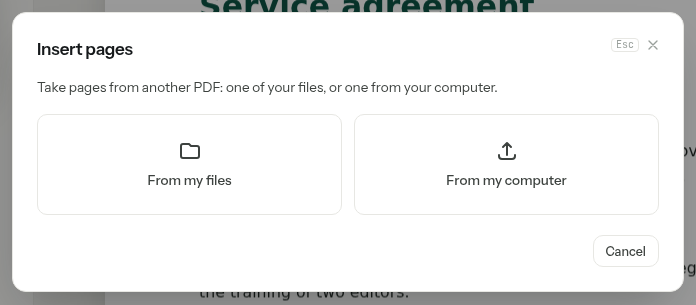
- + Insert pages: take pages from another PDF, From my files or From my computer; click the pages to insert, choose Where they go, and click the Insert button, which counts the pages chosen.
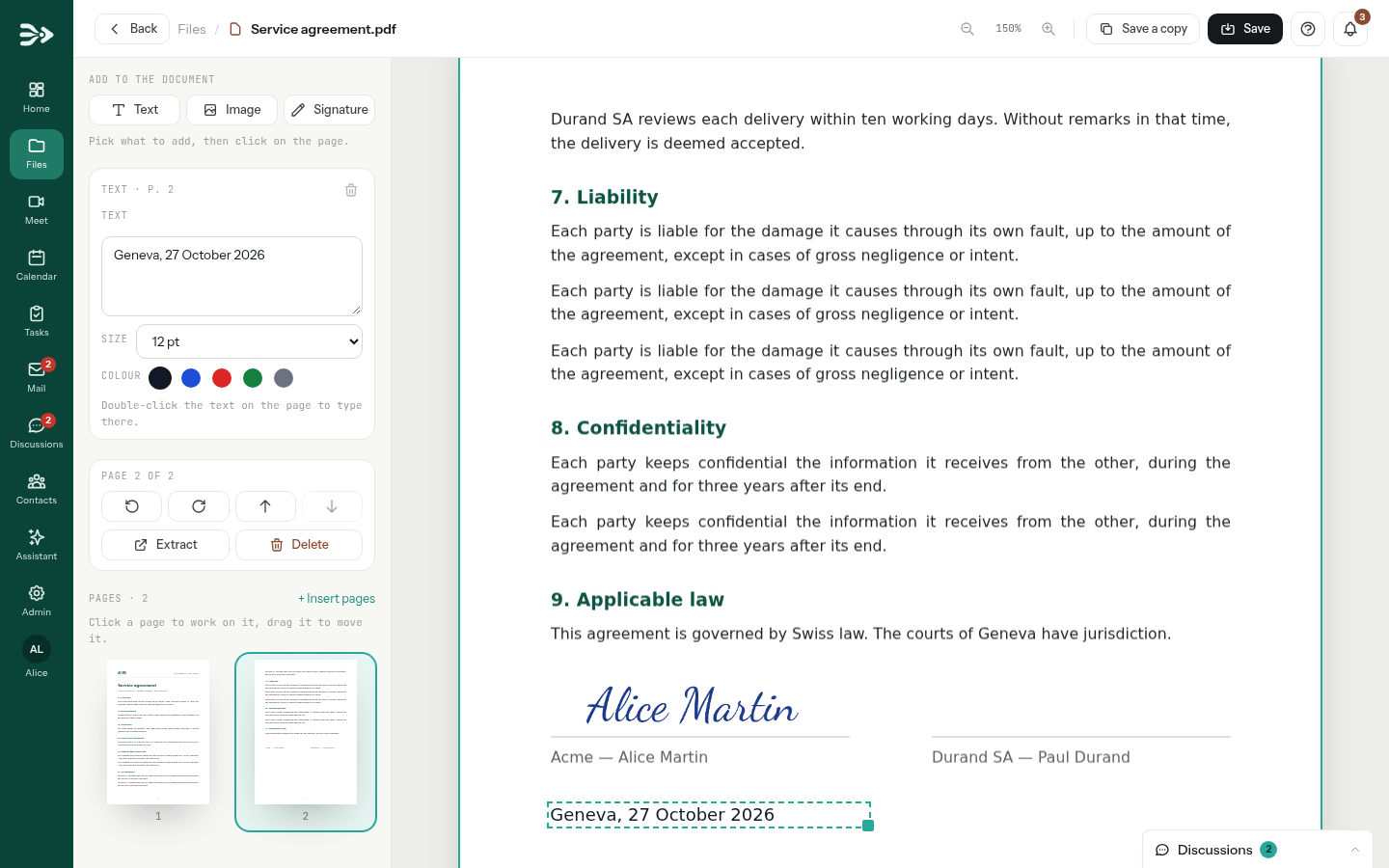
Nothing changes in the file until you save. Save writes your changes into the PDF and keeps the previous version; Save a copy writes them into a new file, in the folder you pick.
Draw a diagram
A .drawio file opens in the diagram editor (draw.io) inside PAFworks: shapes on the left, the drawing in the middle. Changes are saved on their own as you work; Save saves at once and Exit closes the editor.
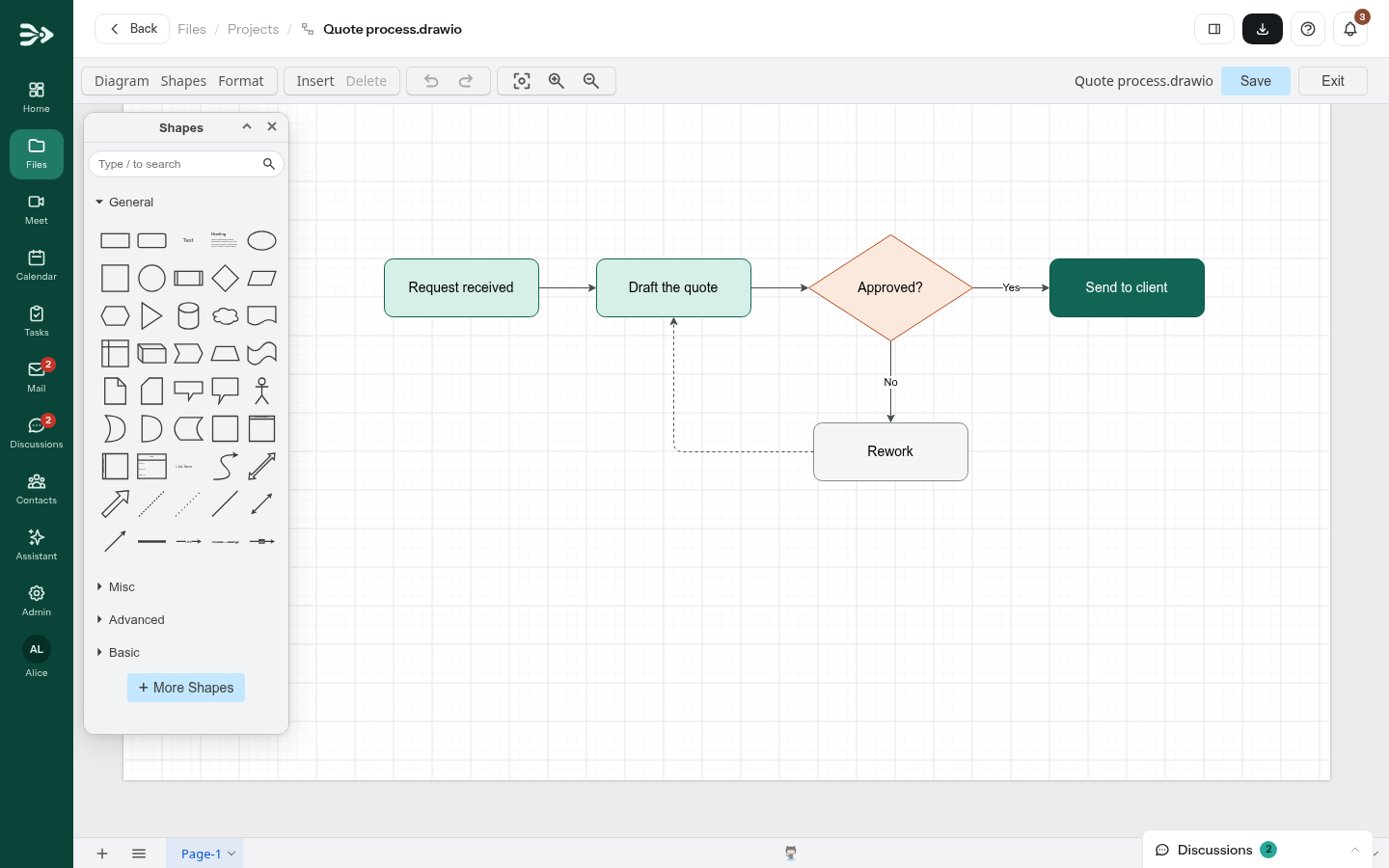
A diagram is edited by one person at a time. If somebody else saves it while you are working on it, PAFworks says so and offers Reload or Overwrite anyway: nothing is merged.
Edit an HTML page
An .html file opens as the page it makes, with the stylesheets and pictures of its folder. Click Edit: the HTML code appears next to the page, and the page follows what you type. Preview shows the page alone again; saving works as in a note.
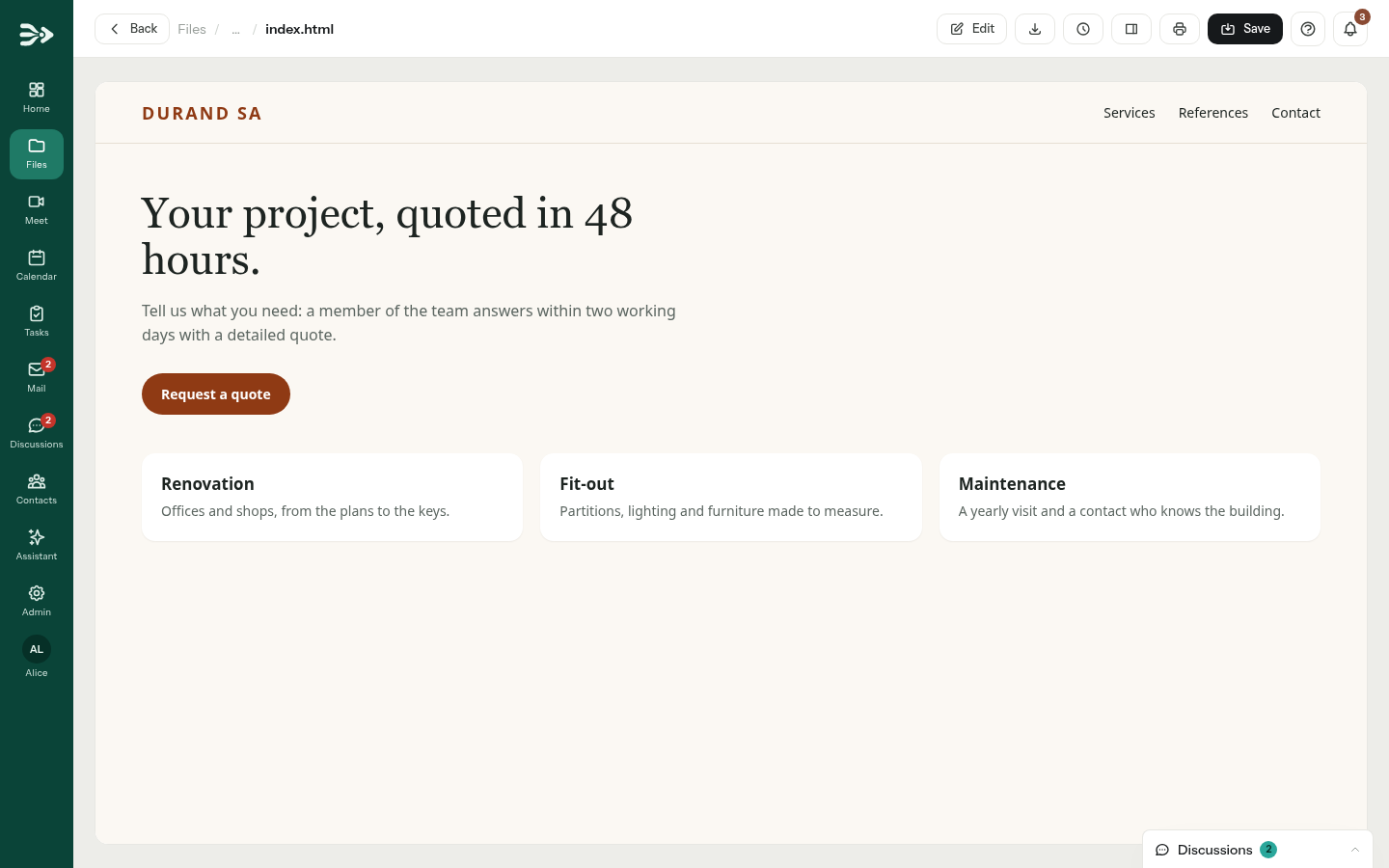
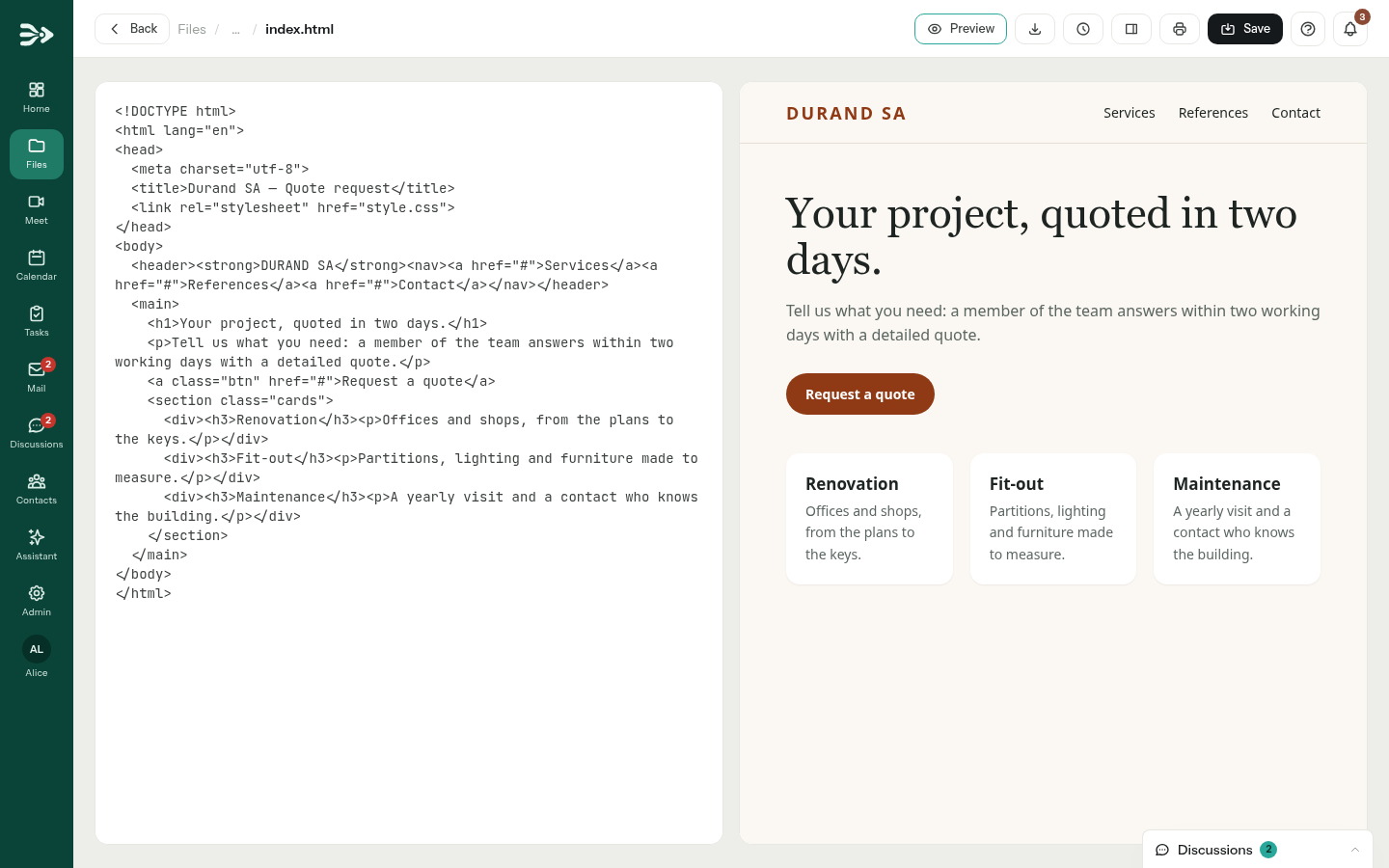
Scripts never run in these pages, and nothing is loaded from other sites: fonts, pictures and stylesheets must be files of your PAFworks. To publish a whole site, see Create your website with Claude.
Share, comment and look back from the editor
In the editors and viewers — all but the PDF editor — Show the details opens the panel of the file:
- Activity: who added, opened or changed the file.
- Comments: write a comment and click Send; type
@and a name to mention a colleague. - Versions: download or restore an earlier version.
- Sharing: create a public link to the file (see Share a file or a folder with a link).
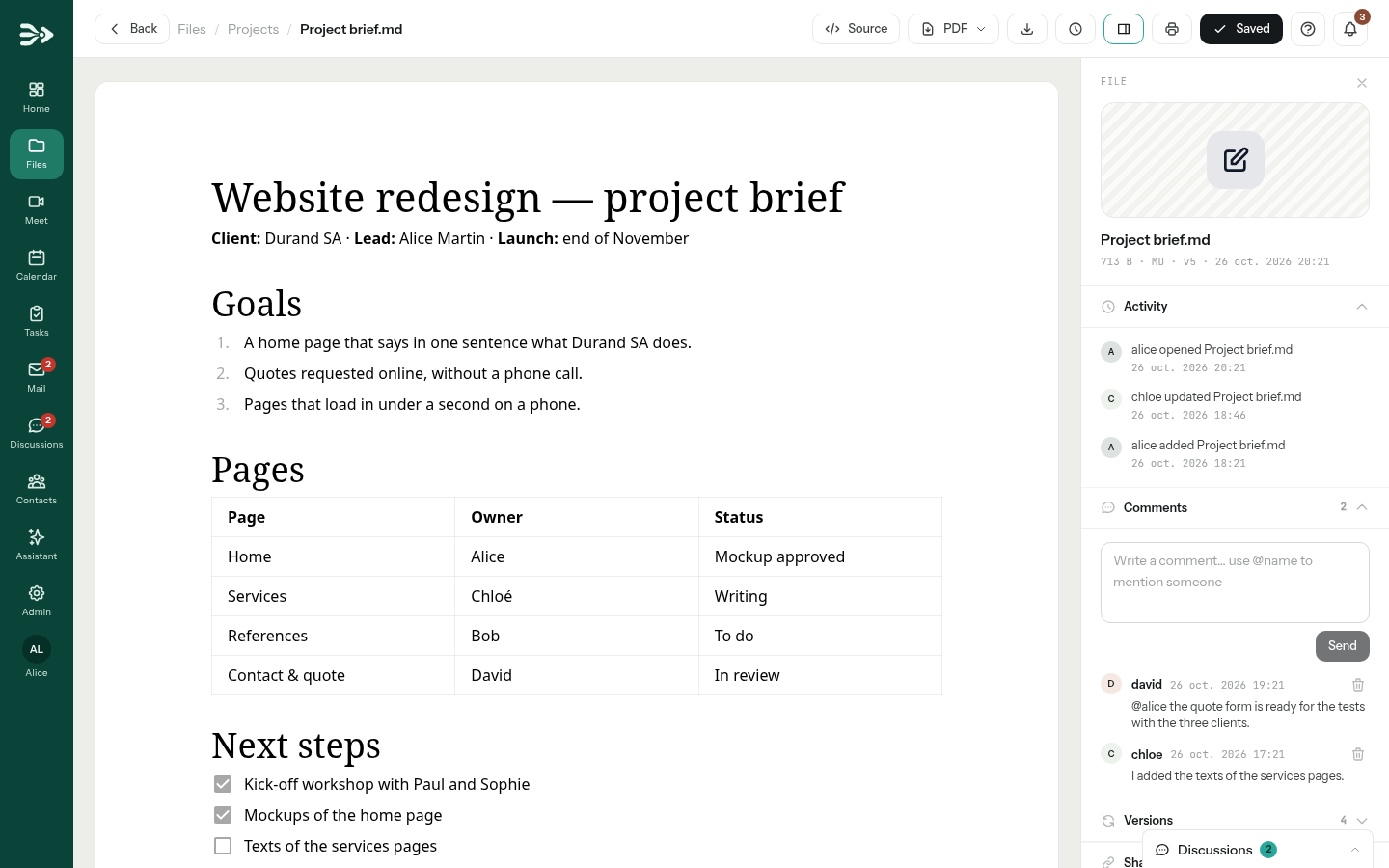
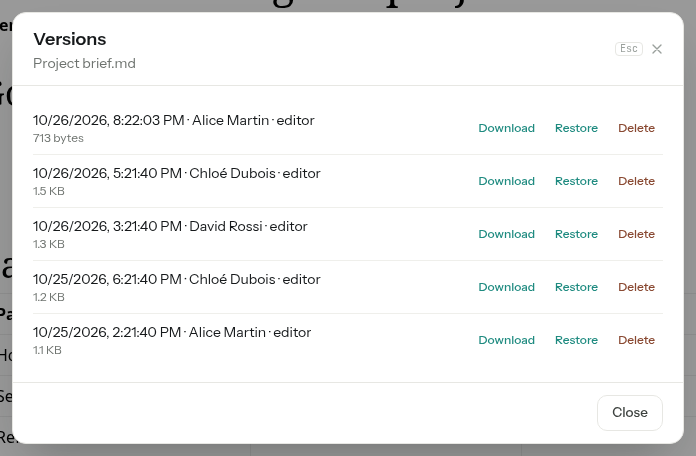
In notes, HTML pages and text files, Document versions (the clock) lists every version with its date, its author and its size. Restore brings a version back and archives the current content first, so nothing is lost.
When a document opens read-only
A document opens without the means to change it when:
- you may only read it — for instance in a team share where you have the Read right;
- it is part of a copy that is still running: it opens normally once the copy has finished;
- it is one of your Unfiled files: files you sent from your computer in a discussion, or attached in the assistant. PAFworks keeps them as they were sent, so the conversations keep pointing at them.
You then see no Save button and cannot type in a note; an HTML page offers Source instead of Edit; an office document opens for reading only; a diagram opens without its editing tools; a PDF has no Edit button. To work on such a file, download it and upload it to one of your folders.
Good to know
- Notes and text files up to 2 MB can be edited in the browser; larger ones open read-only.
- Leaving a page with changes that are not saved yet asks for confirmation first.
- PAFworks keeps up to 20 versions of a file, for 180 days. These are the defaults: your installation may keep more or fewer. Files larger than 200 MB get no versions.
- Pictures pasted into a note are files of their own, in the
.attachmentsfolder next to the note: they count towards the storage of the note's owner. - The PDF editor opens PDFs up to 50 MB; a picture added to a PDF may weigh up to 5 MB. A protected PDF cannot be changed.
- Diagrams up to 5 MB open in the diagram editor. While it saves on its own, a diagram gets at most one version every 15 minutes; Save always keeps one.
- Guests of a workspace can edit office documents if they have the Edit right.