 PAFworks
 Sync your files with PAFworks
Keep your PAFworks files on your computer and on your phone. PAFworks works with the official Nextcloud apps, which are free, and a guide built into PAFworks walks you through the setup in a few minutes.
Before you start
- Your PAFworks address, the one you open in your browser — for example
https://cloud.example.com. - Your username (or e-mail address) and your password. If your organisation signs you in with single sign-on, that works too.
- A computer (Windows, macOS or Linux), or a phone or tablet (Android, iPhone or iPad).
How it works. PAFworks speaks the same protocols as Nextcloud. The Nextcloud desktop client keeps a folder of your computer in sync with your PAFworks files, in both directions. The Nextcloud mobile app shows all your files and downloads them when you open them. There is nothing else to install.
Open the sync guide
The first time you open Files, a banner offers to sync your files. Click Synchronise.

The guide is also available at any time, from any page: click the Help button (the question mark at the top right), then Sync your files.
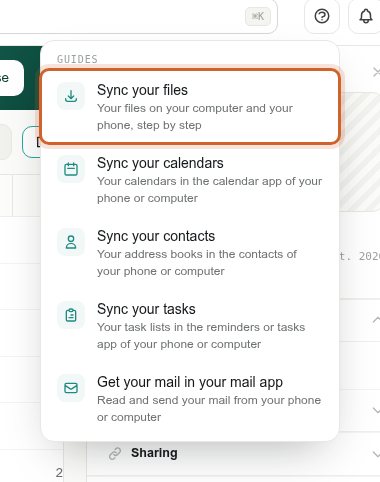
Step 1 — Install the Nextcloud app
-
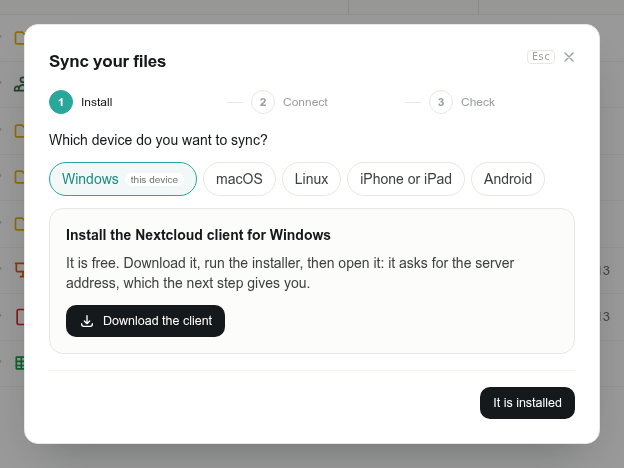
Choose your device
The guide selects the system you are using. To set up another device, pick it in the list: Windows, macOS, Linux, iPhone or iPad or Android.
-
Download and install the app
On a computer, click Download the client: it opens the Nextcloud download page, which offers the installer for your system. On a phone, the guide links to the App Store, Google Play or F-Droid; you can also search for “Nextcloud” in the store.
-
Continue
Once the app is installed, click It is installed.
Step 2 — Connect the app to your account
On a computer
-
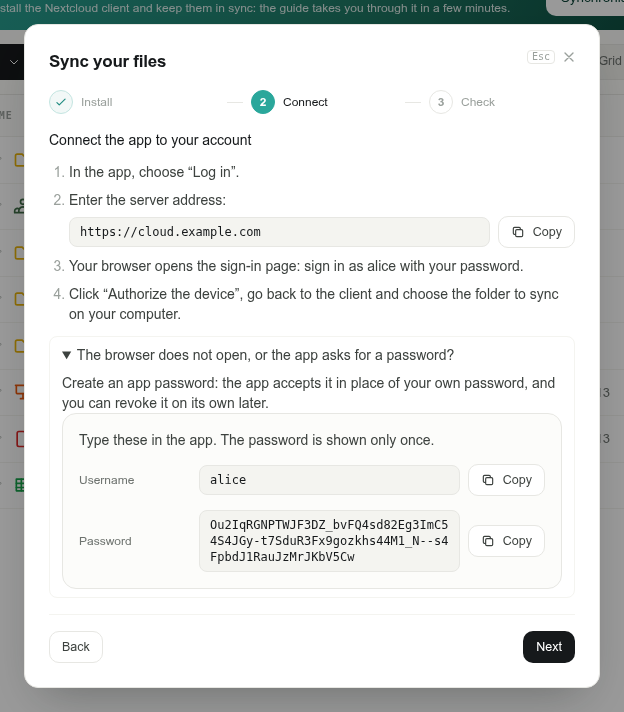
In the Nextcloud client, choose Log in.
-
Enter the server address shown by the guide — your PAFworks address, with nothing after it, such as
https://cloud.example.com. The Copy button puts it on your clipboard.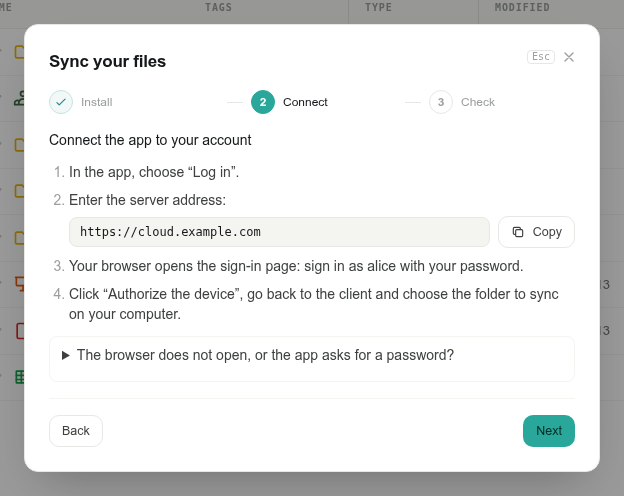
-
Your browser opens the PAFworks page Authorize a device. If you are not signed in yet, enter your username or e-mail and your password, then click Sign in and authorize. If you are already signed in, just click Authorize the device.
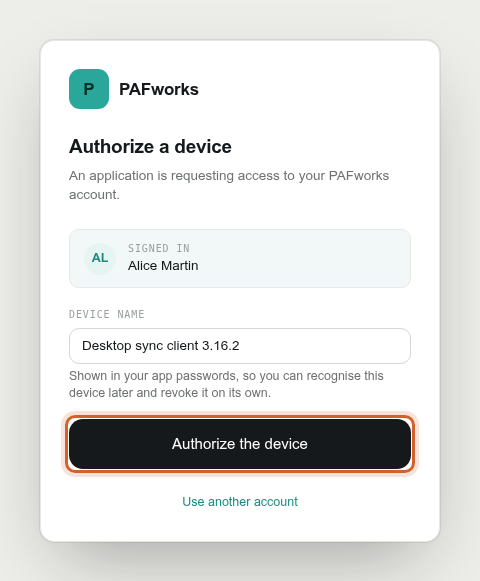
With two-factor authentication, PAFworks then asks for the code of your authenticator app. With single sign-on, click Sign in with … and sign in as usual.
-
The page says Device authorized. Go back to the client and choose the folder to sync on your computer.
For a detailed walkthrough with the screens of the client, see Connect the Nextcloud client on Windows.
On a phone or a tablet
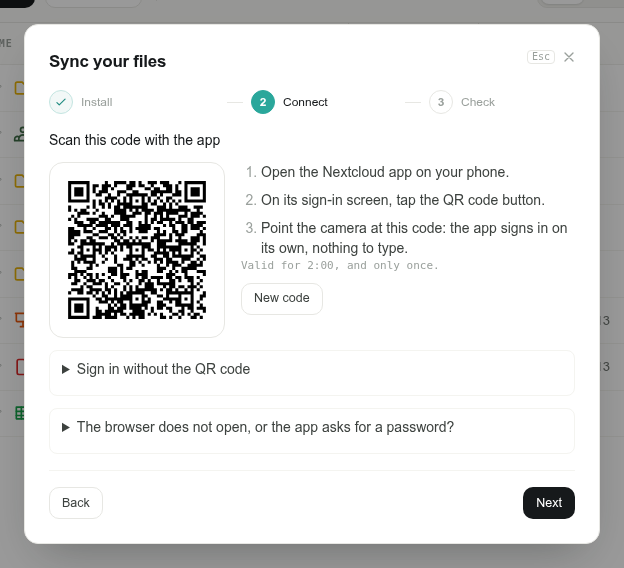
If you set up your phone from your computer, the guide shows a QR code instead of a server address:
Open the Nextcloud app on your phone.
On its sign-in screen, tap the QR code button.
Point the camera at the code shown by the guide. The app signs in on its own: there is nothing to type.
If you open the guide on the phone itself, the app signs in through the browser of the phone, as on a computer.
If the browser does not open, or the app asks for a password
Open The browser does not open, or the app asks for a password? at the bottom of step 2 and click Create an app password. Type the username and the password it shows into the app. An app password stands in for your own password in that app only, and you can revoke it on its own later.
Step 3 — Check the connection
Click Next. The guide waits for your device and updates by itself as soon as the app has signed in.
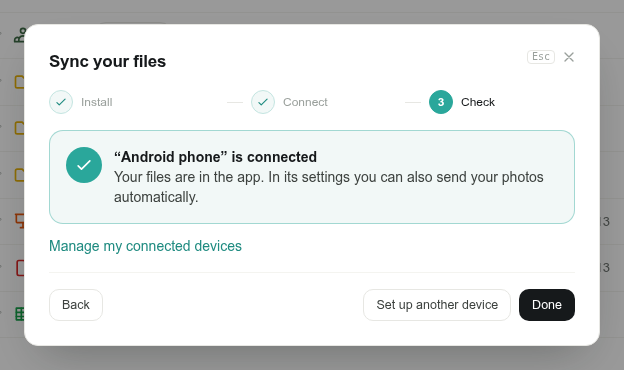
Click Set up another device to connect your phone after your computer, or Done to close the guide.
Choose what to sync
On a computer, the Nextcloud client asks where to keep your files and what to download:
- Virtual files (Windows and macOS): every file is listed in your file explorer but downloaded only when you open it. This saves space on your disk.
- Selective sync: keep only some folders on this computer. You can change the selection later in the client settings, with Choose what to sync.
On a phone, the Nextcloud app can also send your photos to PAFworks automatically: look for the automatic upload option in its settings.
Team shares on your devices
Team shares you belong to appear in a folder named Shared at the top of your files (Partagés when the app is in French). Each team share is a subfolder of it.
- You cannot create files directly in Shared itself, only inside a team share.
- A team share where you only have read access syncs as read-only.
Manage your connected devices
Every connected app has its own app password. To see them, click your avatar at the bottom of the left bar, then Devices and sync. The App passwords list shows when each device was connected and last used.
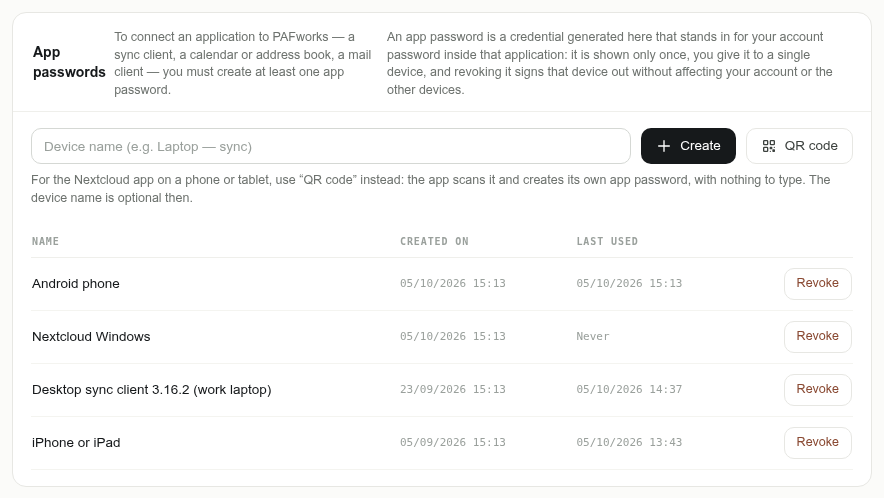
Changing your account password does not disconnect your devices: they keep using their app passwords.
Other apps (WebDAV)
The Nextcloud apps are the recommended way to sync. Other apps that speak WebDAV, such as a file manager or rclone, can also reach your files. The Sync addresses panel of Devices and sync gives the address to use.
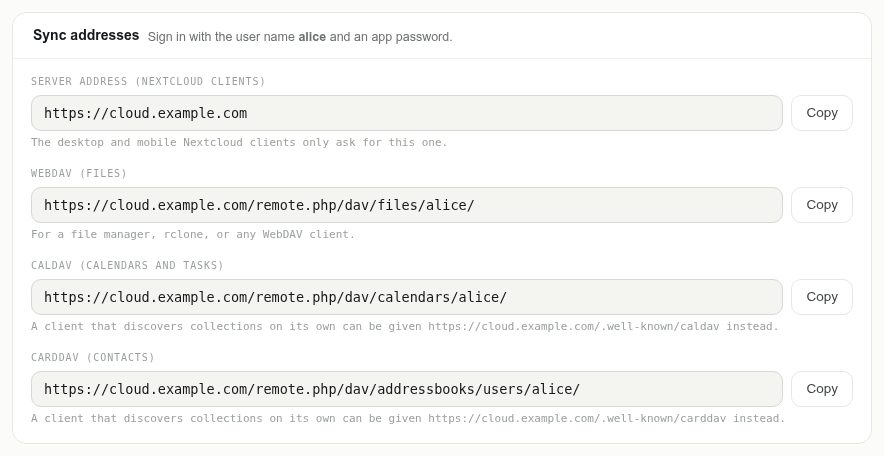
Use an app password. WebDAV apps sign in with your username and an app password created in the App passwords panel, never with your account password.
Good to know
- Deleted a file by mistake? Files deleted from a synced folder go to the PAFworks trash. Restore them from Trash in Files, in your browser.
- Previous versions. When a file is overwritten, PAFworks keeps its earlier versions. Restore them from the details panel of the file, in your browser.
- Large files. The Nextcloud apps send big files in pieces, so they are limited only by your storage space.
- “Too many failed attempts”. After several wrong passwords, PAFworks blocks new attempts for this account for about 15 minutes, in the browser too. If an app keeps an old or revoked password, give it a new app password, then wait a few minutes.
- Sharing from the app. The Nextcloud apps can create share links. To share with colleagues or clients, use team shares or workspaces in the web interface.