 PAFworks
 Mail, calendar and contacts in PAFworks and Thunderbird
PAFworks hosts your mailbox, your calendars and your address books. Use them in your browser, and find the very same messages, events and contacts in Thunderbird on your computer: everything stays in sync.
Before you start
- A PAFworks account with a mail address. The Mail app appears in the left bar once your administrator has given you an address.
- For the second part: Thunderbird, free, installed on Windows, macOS or Linux — download it from thunderbird.net.
- Thunderbird never uses your PAFworks password. The guides of PAFworks create an app password for it, as explained below.
Mail in PAFworks
Click Mail in the left bar. Your folders are on the left (Inbox, Sent, Drafts, Trash, Junk), the messages in the middle, and the open message on the right, with Reply, Forward and Delete. A quick reply box sits at the bottom of the message.
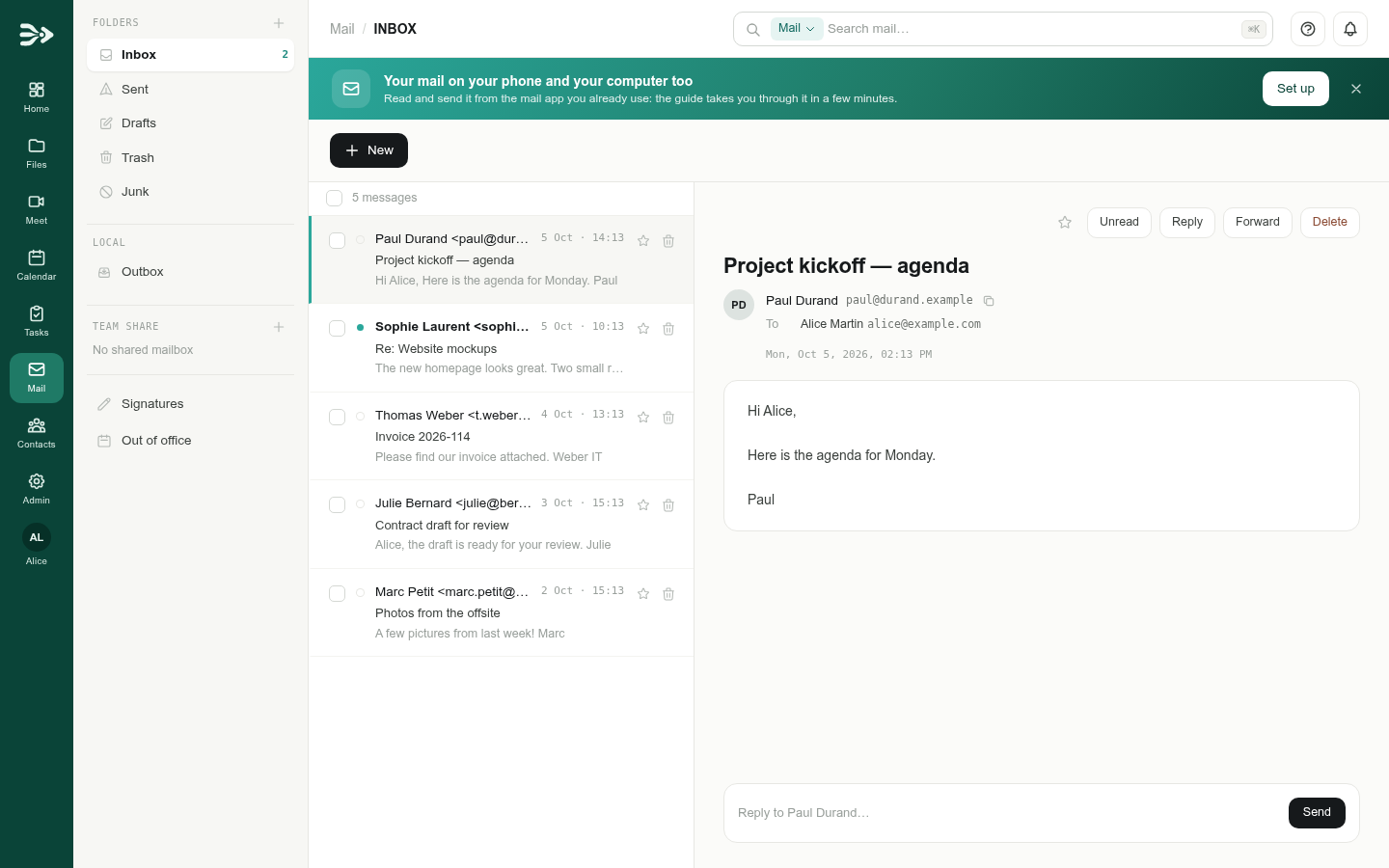
- Write a message: click New. Add the recipients in To (and Cc or Bcc), a subject and your text. Attach files From computer or From PAFworks, or add a video meeting with Add a meeting. Your default signature is added below the text; pick another one in Signature. Click Send, or Save draft to finish later.
- Folders: the + next to Folders creates a folder.
- Search: type in the search bar at the top of the page.
- Shared mailboxes (for example
support@) you are a member of appear in the left column under Team share.
Signatures and out of office
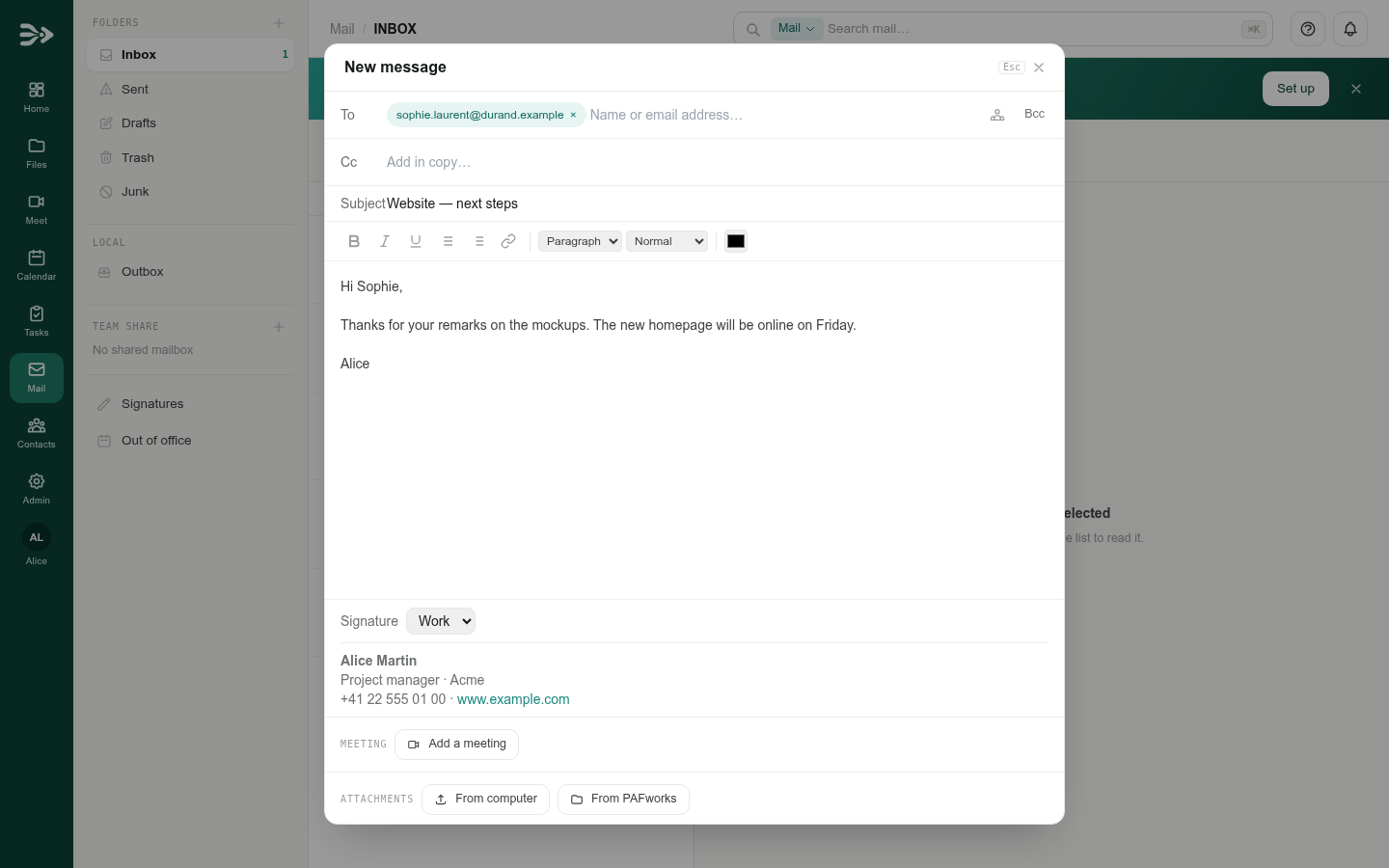
Both are in the left column of the Mail app:
- Signatures › New signature: give it a name and tick Set as default to add it to every new message. Then write it (bold, italic, underline, links) and click Save.
- Out of office: tick Enable automatic replies, write the subject and the message, optionally a start and an end date, then Save.
Calendar in PAFworks
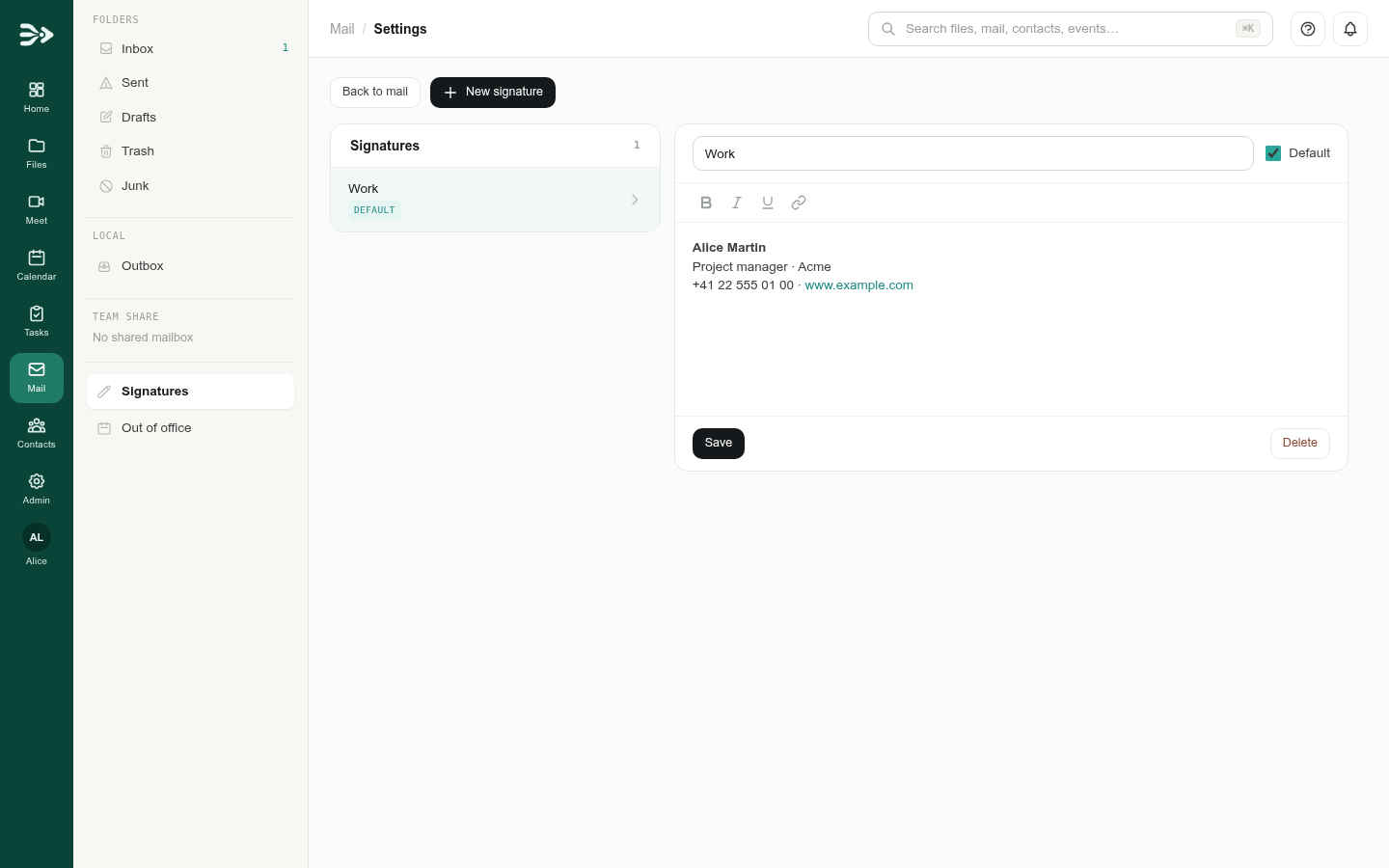
Click Calendar in the left bar. Your own calendar is under My calendars; the calendars shared with you are under Team share. The eye icon next to a calendar shows or hides it. Switch between Month, Week, Day and List at the top right.
-
Create an event
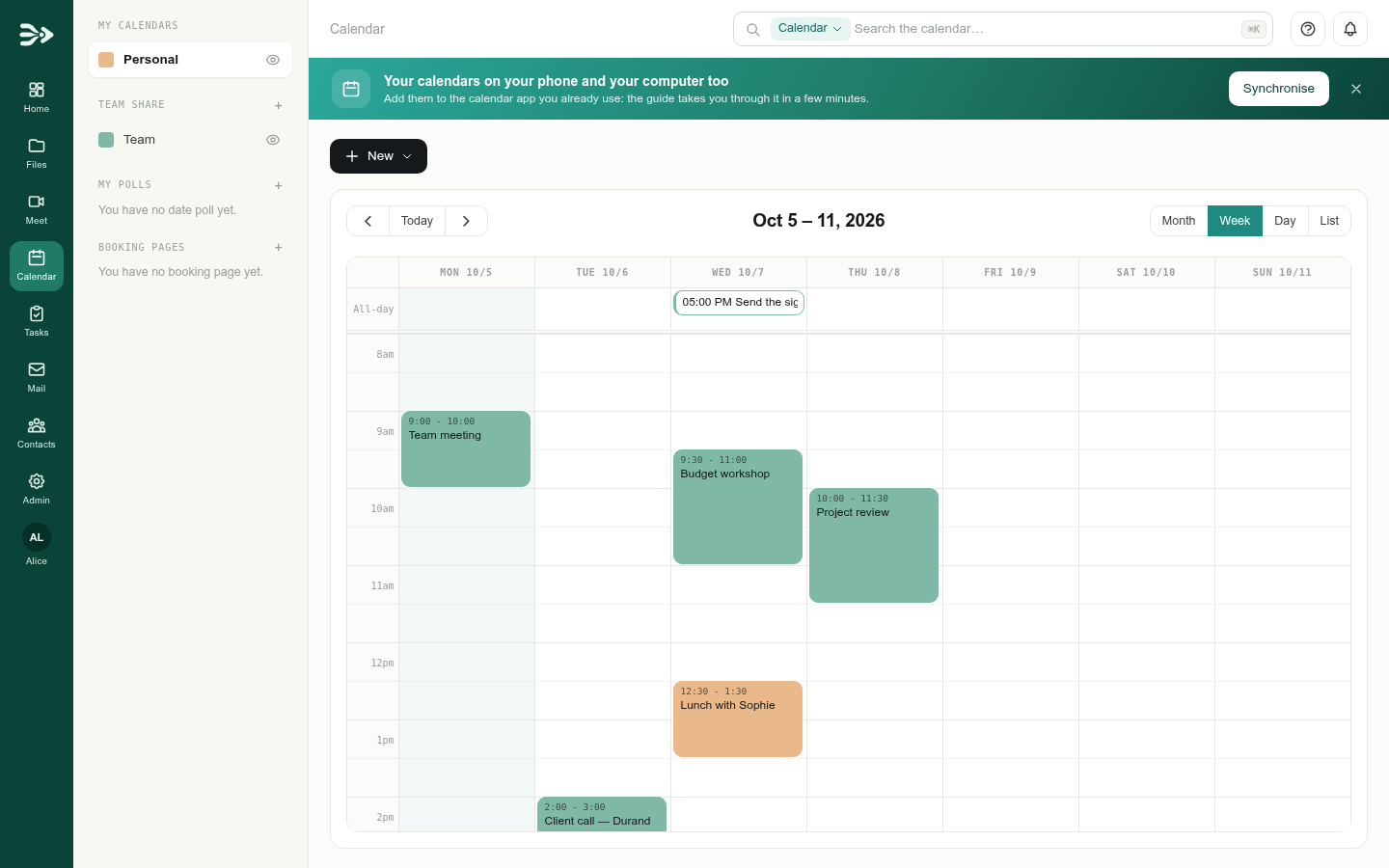
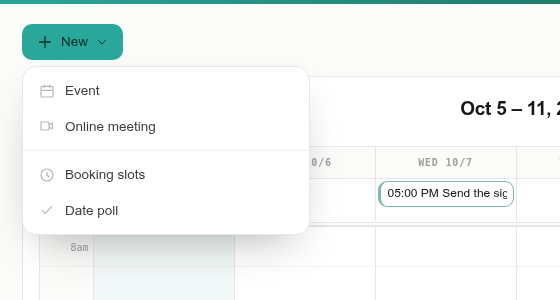
Click New › Event, or drag across a time range in the grid. Depending on your setup, the same menu also creates an online meeting, booking slots or a date poll.
-
Fill it in
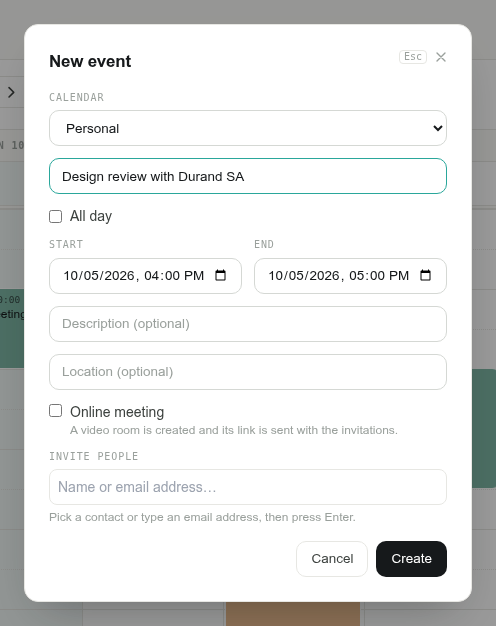
Type a title, choose the Calendar, the Start and the End (or All day), and optionally a description and a location. To invite people, pick a contact or type an e-mail address in Invite people and press Enter: they receive the invitation by e-mail. Click Create.
Team calendars. Shared calendars and address books are created by an administrator, who chooses who can read or write them. They appear by themselves under Team share, in PAFworks and in Thunderbird.
Contacts in PAFworks
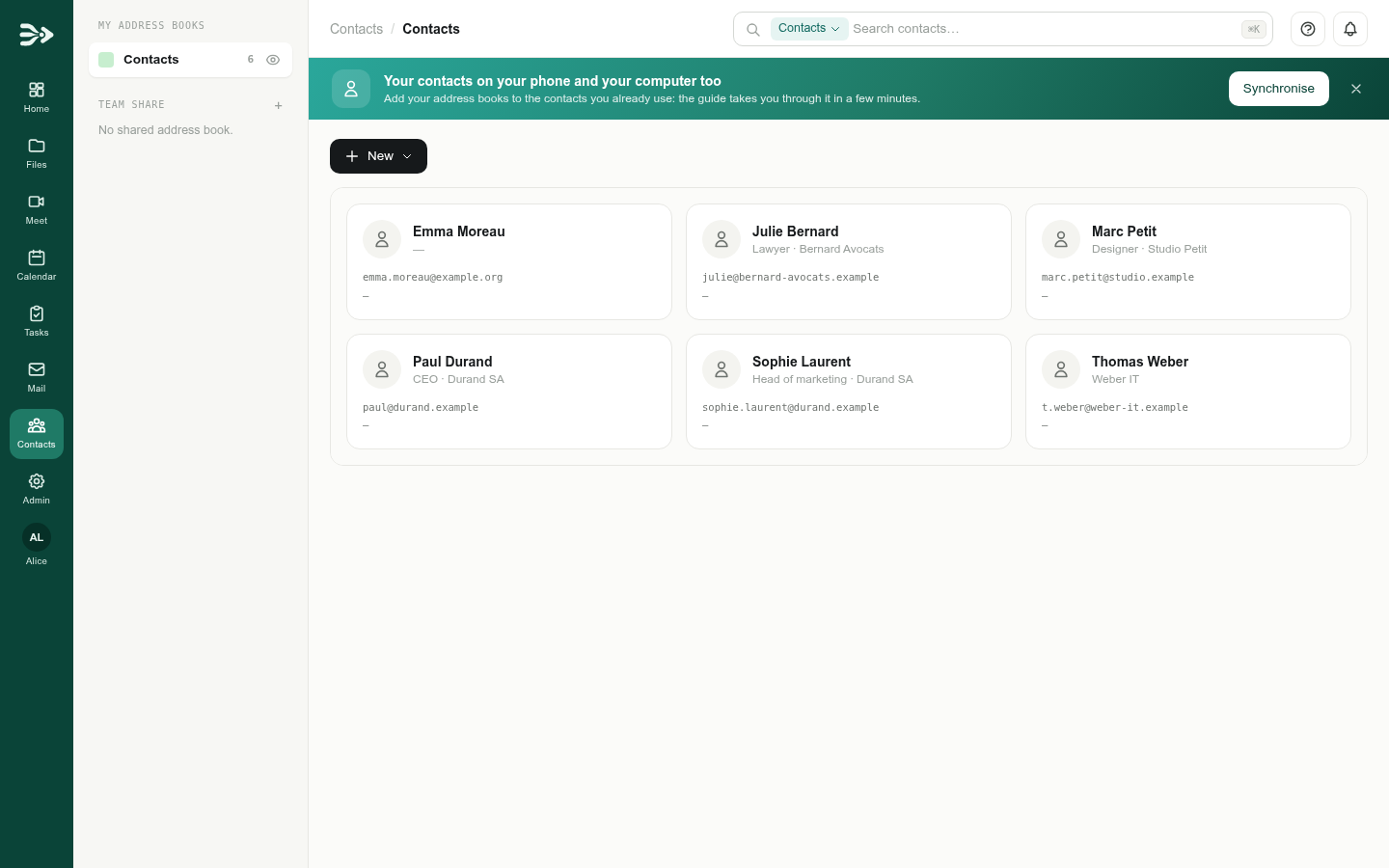
Click Contacts in the left bar. Your address book is Contacts; shared address books are under Team share. Click a card to see the whole contact, or search with the bar at the top.
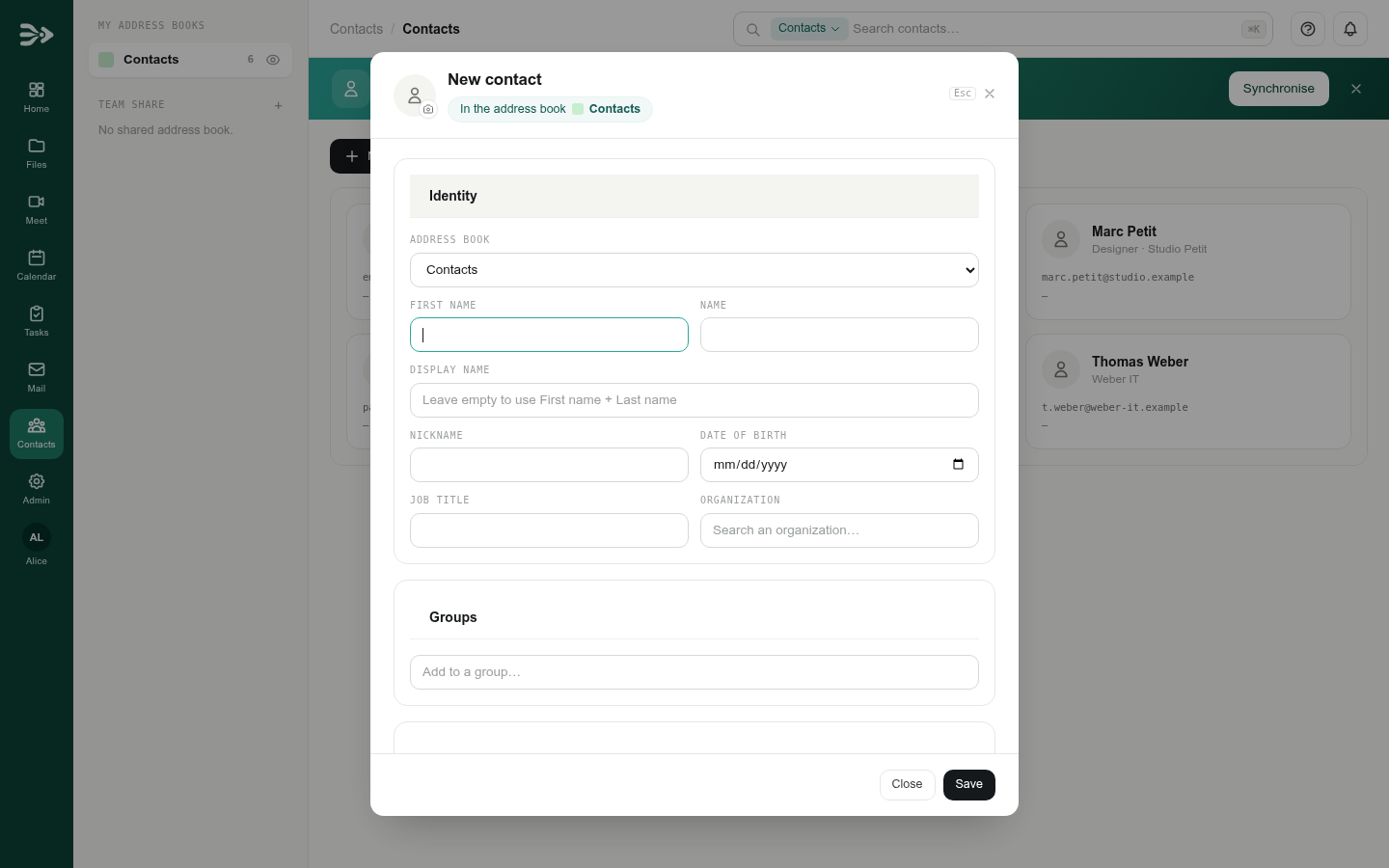
To add someone, click New › New contact (or New organization, New group). Fill in the sections Identity, Contact information, Address and Miscellaneous, then click Save. To put a contact in a group, drag it onto the group.
Set up Thunderbird
Thunderbird reads your mail over IMAP and sends it over SMTP, and it syncs your calendars (CalDAV) and contacts (CardDAV). For each of the three, a guide of PAFworks gives you the exact values and creates the app password Thunderbird needs. Open them from the Help button (the question mark at the top right):
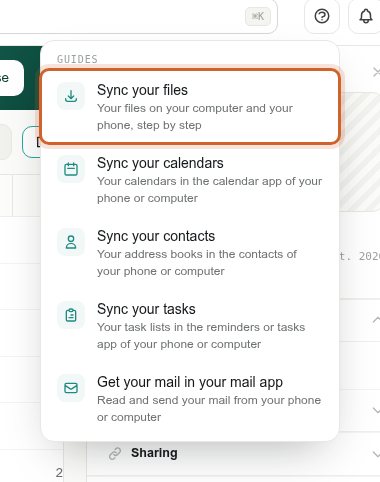
Keep the guide open. An app password is shown only once. Leave the PAFworks window open next to Thunderbird until Thunderbird has saved it.
1. Your mail
-
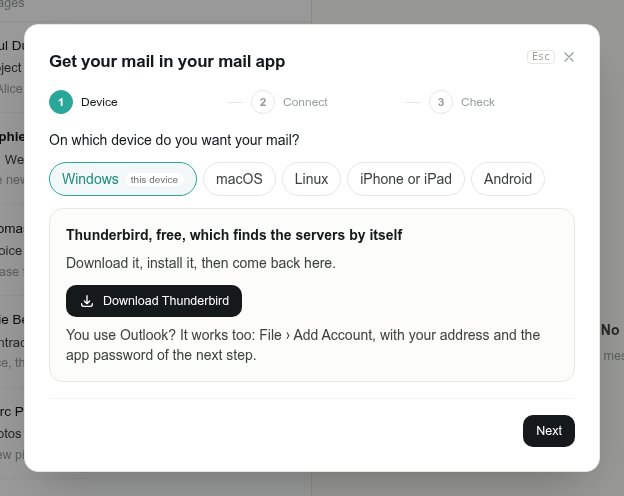
In PAFworks, open Help › Get your mail in your mail app (or click Set up in the banner of the Mail app). Choose your system — Windows or Linux suggest Thunderbird — and click Next.
-
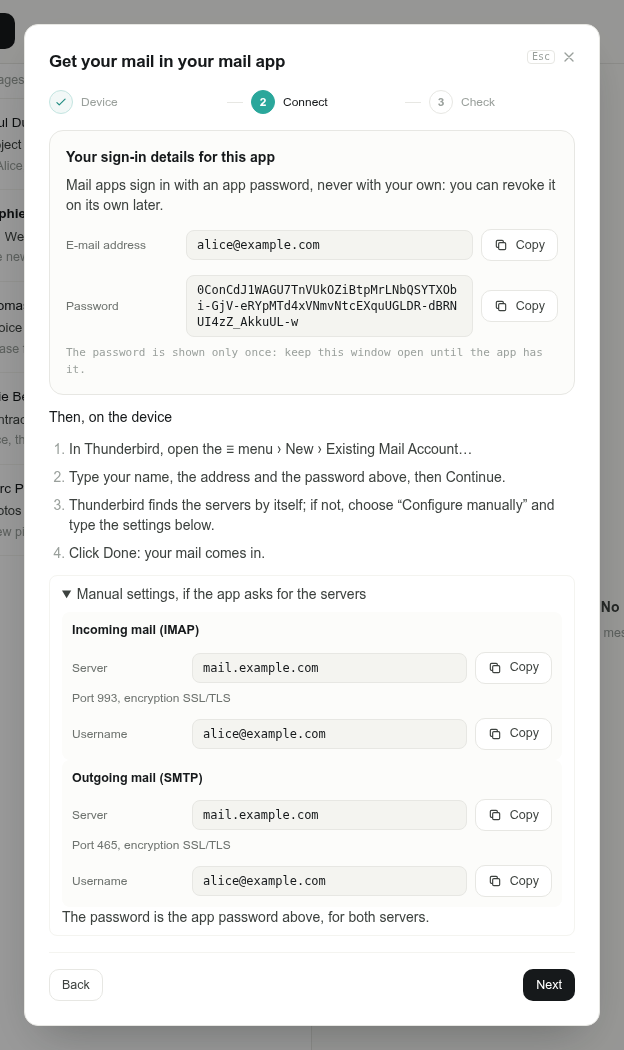
Click Create the app password. The guide shows your e-mail address and the new password, and the settings of the mail servers in case Thunderbird asks for them.
-
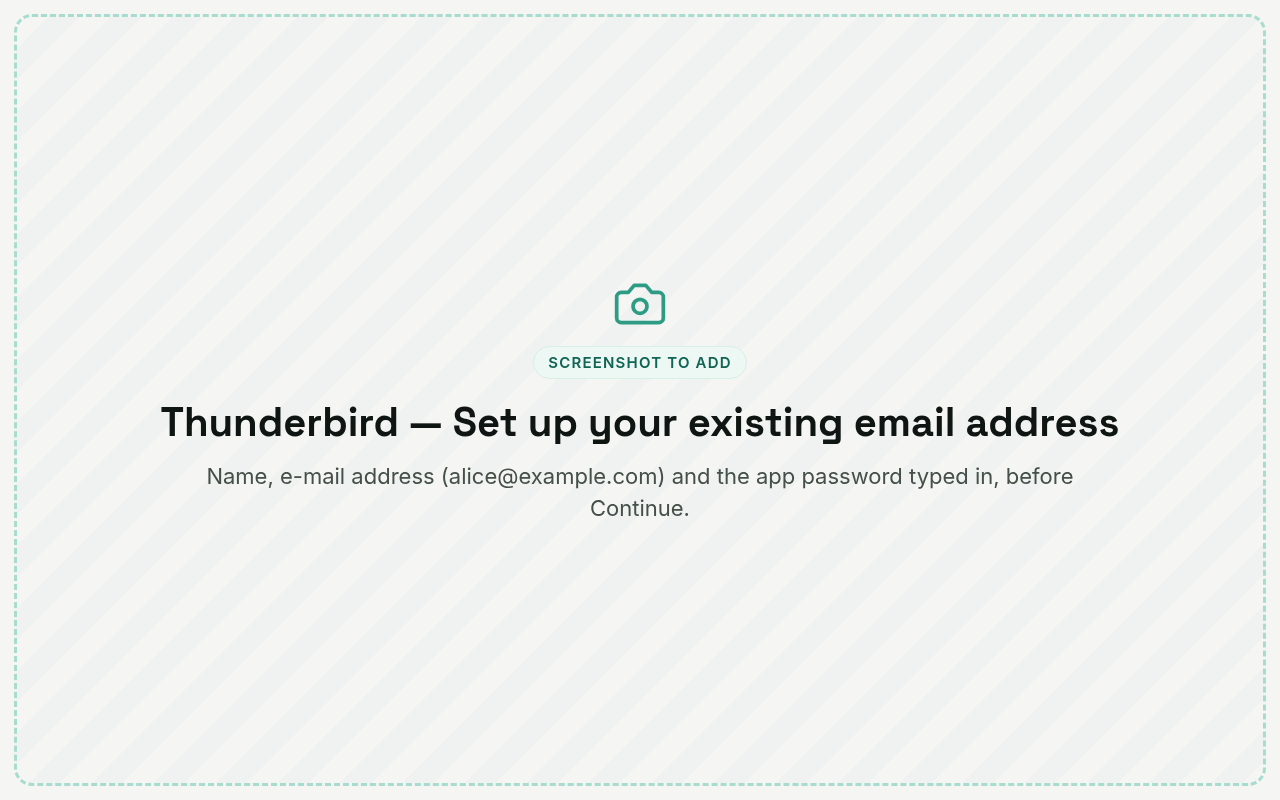
In Thunderbird, open the ≡ menu › New › Existing Mail Account…. Type your name, your e-mail address and the app password, then click Continue.
-
Thunderbird finds the servers by itself: check that it proposes IMAP, then click Done. If it cannot find them, choose Configure manually and type the values of the guide:
Incoming mail (IMAP) Outgoing mail (SMTP) Server as shown in the guide, e.g. mail.example.comas shown in the guide, e.g. mail.example.comPort as shown in the guide, usually 993as shown in the guide, usually 465Connection security as shown in the guide, usually SSL/TLS as shown in the guide, usually SSL/TLS Authentication Normal password Normal password Username your e-mail address your e-mail address Password the app password of the guide 
-
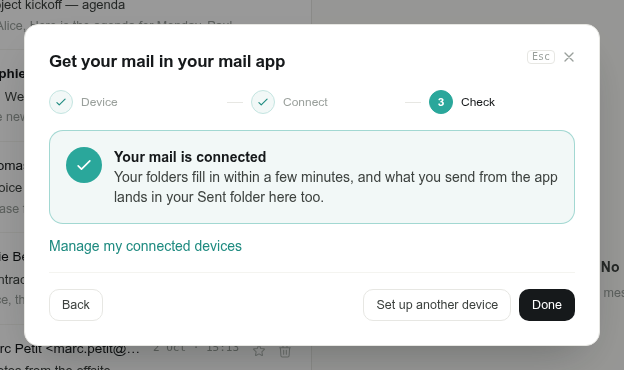
Back in PAFworks, click Next. As soon as Thunderbird has signed in, the guide says Your mail is connected. Your folders fill in within a few minutes.
Thunderbird already had other accounts? Check that your PAFworks account sends through the PAFworks server: in Thunderbird, open Account Settings, select your PAFworks account, and make sure the Outgoing Server (SMTP) is the server shown in the guide.
2. Your calendars
-
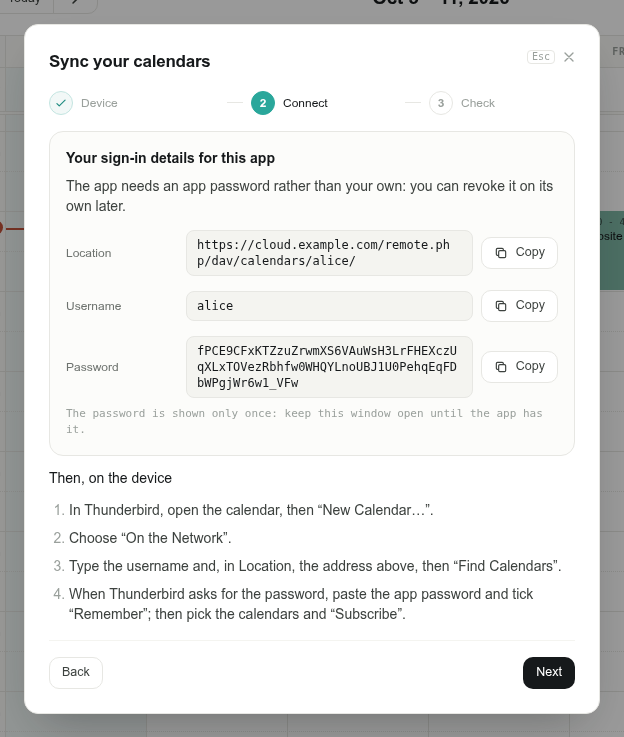
In PAFworks, open Help › Sync your calendars (or Synchronise in the banner of the Calendar). Choose Windows or Linux, click Next, then Create the app password. The guide shows three values: Location, Username and Password.
-
In Thunderbird, open the calendar (the calendar icon on the left), then New Calendar…. Choose On the Network and click Next.
-
Type the Username of the guide and, in Location, the address of the guide — for example
https://cloud.example.com/remote.php/dav/calendars/alice/. Click Find Calendars.
-
When Thunderbird asks for the password, paste the app password and tick the box to remember it.
-
Tick the calendars you want and click Subscribe. Your events appear in Thunderbird, and your tasks in its Tasks tab.
3. Your contacts
-
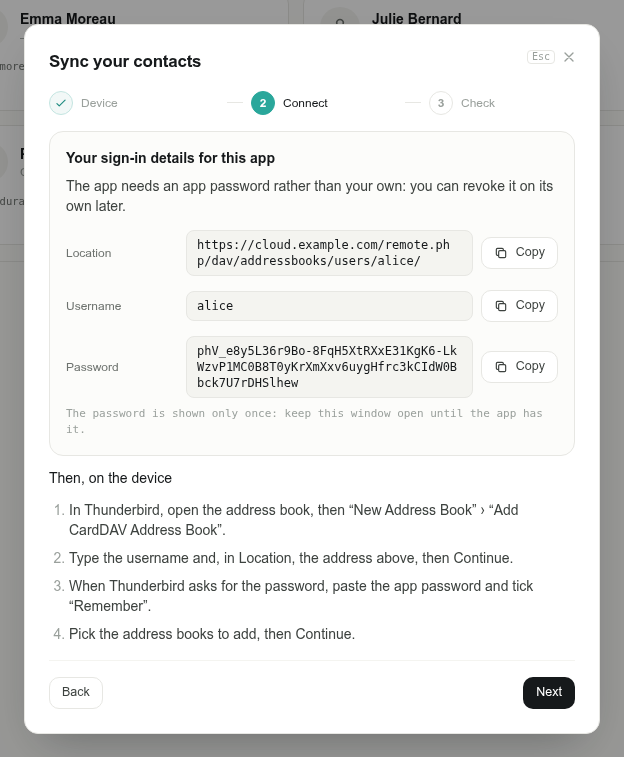
In PAFworks, open Help › Sync your contacts (or Synchronise in the banner of Contacts). Choose Windows or Linux, click Next, then Create the app password.
-
In Thunderbird, open the address book, then New Address Book › Add CardDAV Address Book.
-
Type the Username and, in Location, the address of the guide — for example
https://cloud.example.com/remote.php/dav/addressbooks/users/alice/— then click Continue.
-
Paste the app password when Thunderbird asks for it and tick the box to remember it. Pick the address books to add, then click Continue.
Automatic discovery. When your administrator has published the discovery records of your mail domain, Thunderbird can also offer to add your calendars and address books right after your mail account. If it does not, add them as above.
Manage your app passwords
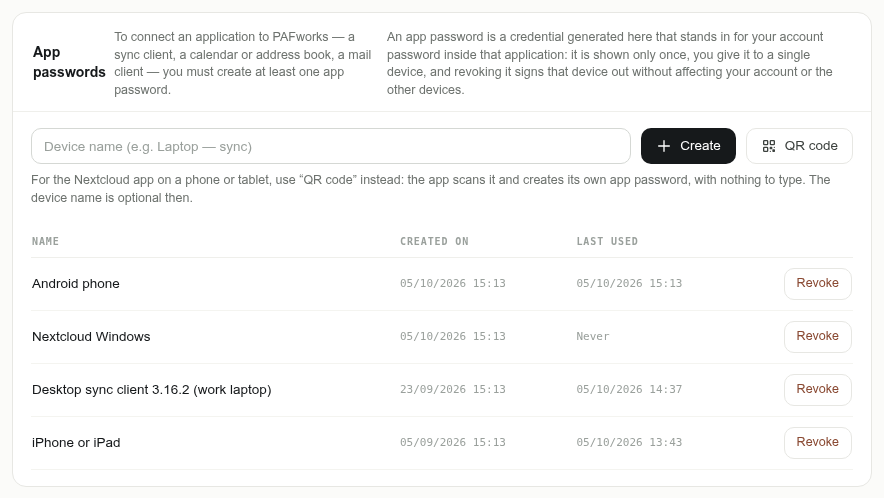
Each guide creates an app password with a clear name, such as “Mail — Windows” or “Calendar — Windows”. To see them, click your avatar at the bottom of the left bar, then Devices and sync. The same page lists the addresses of the servers under Sync addresses and Mail (IMAP and SMTP).
Troubleshooting
- Thunderbird says the password is wrong. Use an app password, never your PAFworks password: the mail, calendar and contacts servers refuse it. Create a new one in the guide if you lost it.
- “Too many failed attempts”. After several wrong passwords, PAFworks blocks new attempts for this account for about 15 minutes, in the browser too. Fix the password in Thunderbird, then wait.
- There is no Mail app in PAFworks. Your account has no mail address yet: ask your administrator.
- Messages sent from Thunderbird are missing from Sent. Thunderbird saves the copy itself: check Copies & Folders in the account settings.
- A team calendar is missing. Shared calendars appear once an administrator has shared them with you. In Thunderbird, run New Calendar… › On the Network again to subscribe to it.